Face ID lets you unlock your iPhone 18 Pro Max, authorize purchases, sign in to supported apps, and autofill saved passwords with a quick glance. Setting it up takes only a few minutes, and you can choose which features use facial recognition.
To set up Face ID on your iPhone 18 Pro Max, open Settings > Face ID & Passcode, enter your passcode, tap Set Up Face ID, and follow the on-screen instructions. Position your face inside the frame, move your head slowly to complete the circle, repeat the scan, and tap Done.
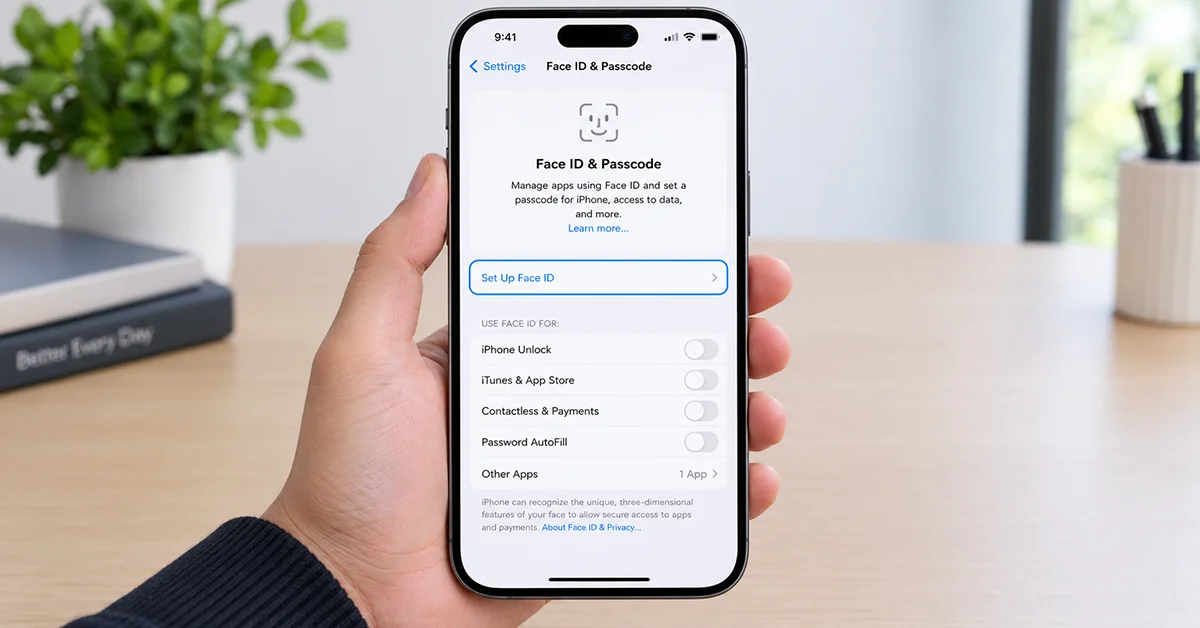
If you skipped Face ID during the initial iPhone setup, you can enable it at any time. Here is how to complete the setup, configure Face ID for everyday use, and troubleshoot common problems.
How to Set Up Face ID on iPhone 18 Pro Max
Follow these steps to register your face and enable facial recognition.
Step 1: Open Face ID Settings
- Unlock your iPhone 18 Pro Max.
- Open the Settings app.
- Tap Face ID & Passcode.
- Enter your iPhone passcode when prompted.
If you haven’t created a passcode, your iPhone will ask you to set one. Face ID requires a passcode as a backup authentication method.
Step 2: Start Face ID Setup
Tap Set Up Face ID. Find a well-lit area and hold your iPhone in portrait orientation, with the screen facing you.
Tap Get Started when the setup screen appears. Remove anything that covers your face or obstructs the front-facing TrueDepth camera.
Step 3: Scan Your Face

Position your face inside the circular frame on the screen. Keep your iPhone at a comfortable distance and follow the on-screen directions.
Slowly move your head to complete the circle. Try to keep your face centered throughout the scan rather than moving the phone around.
If you cannot move your head through the full range of motion, tap Accessibility Options and follow the alternative setup instructions.
Step 4: Complete the Second Scan
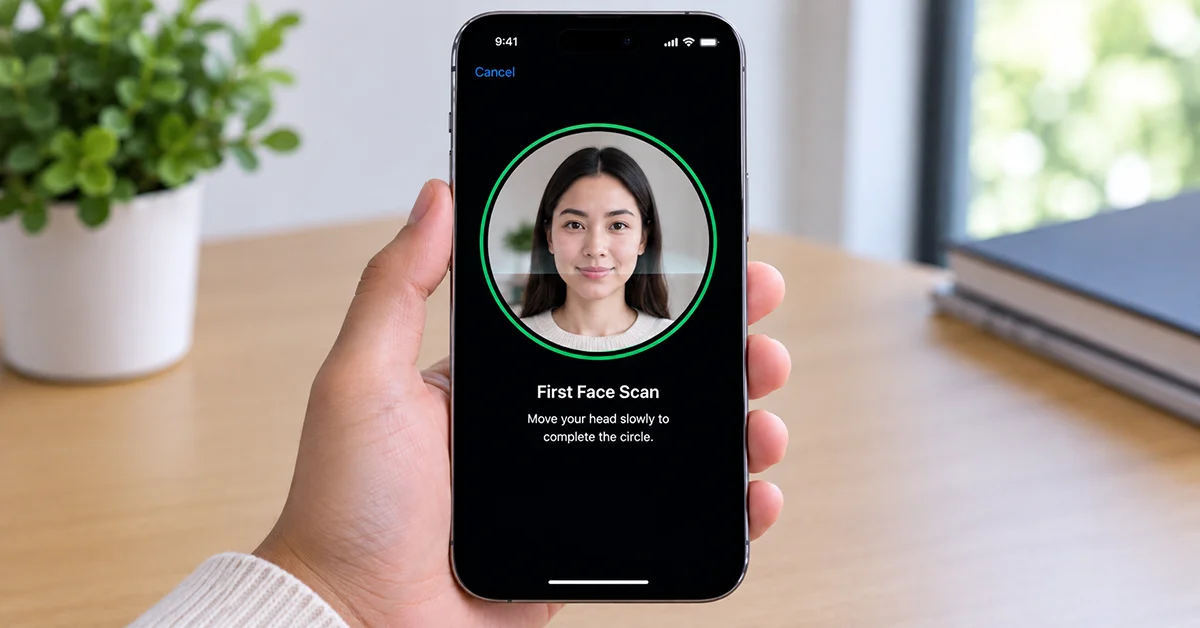
After the first scan finishes, tap Continue. Repeat the head movement to complete the second scan.
Your iPhone needs both scans to create your Face ID profile. Once the process finishes, tap Done.
Step 5: Choose What Face ID Can Do
Return to Settings > Face ID & Passcode. Under the available Face ID options, turn on the features you want to use.
Depending on your configuration, these options may include:
- iPhone Unlock: Unlock your phone with your face.
- iTunes & App Store: Authorize supported purchases and downloads.
- Wallet & Apple Pay: Authenticate supported payments.
- Password AutoFill: Approve filling saved passwords.
- Other Apps: Enable Face ID in compatible third-party apps.
Your exact options may vary by software version, region, and app support. Face ID is now ready to use.
Face ID Setup at a Glance
Use this quick-reference table if you need to find a particular setting.
| Task | Where to go | What to do |
|---|---|---|
| Set up Face ID | Settings > Face ID & Passcode | Tap Set Up Face ID |
| Scan your face | Face ID setup screen | Complete both scans |
| Enable phone unlocking | Face ID & Passcode | Turn on iPhone Unlock |
| Enable payment authentication | Face ID & Passcode | Turn on the available payment option |
| Add an alternate appearance | Face ID & Passcode | Tap Set Up an Alternate Appearance |
| Start over | Face ID & Passcode | Tap Reset Face ID |
| Use Face ID with a mask | Face ID & Passcode | Turn on Face ID with a Mask, if available |
How to Use Face ID on iPhone 18 Pro Max
Once setup is complete, you can use Face ID for more than unlocking your phone.
Unlock Your iPhone
Wake your iPhone by tapping the screen or pressing the Side button. Look toward the screen so Face ID can recognize you, then swipe up from the bottom of the Lock Screen.
If the phone does not unlock, check that iPhone Unlock is enabled and that the TrueDepth camera is unobstructed.
Use Face ID for Apps and Passwords
Many banking, password manager, and other apps support Face ID authentication. Open the app and follow its instructions to enable biometric login.
For saved passwords, make sure Password AutoFill is enabled in Face ID settings and that the relevant password is saved on your device.
Authorize Purchases and Payments
Enable the appropriate purchase or payment option in Face ID settings. When prompted during a supported transaction, authenticate using Face ID and follow the on-screen instructions.
You may still need your passcode or another verification method for certain transactions.
How to Improve Face ID Accuracy
Face ID usually becomes convenient once it has learned your appearance, but a few habits can help it recognize you reliably.
- Keep the camera clear. Wipe the front camera area with a clean, soft cloth.
- Check your screen protector. Make sure it does not cover or interfere with the TrueDepth camera.
- Use good lighting during setup. Choose an area where your face is clearly visible.
- Hold your phone comfortably. Avoid placing your fingers over the camera area.
- Set up an alternate appearance if needed. This may help if your appearance changes significantly or you frequently wear clear prescription glasses.
- Keep iOS updated. Software updates can include bug fixes and security improvements.
If you regularly wear glasses, try setting up an alternate appearance while wearing them. Face ID may have difficulty with some sunglasses or accessories that obscure the area around your eyes.
How to Fix Face ID Not Working on iPhone 18 Pro Max
If Face ID fails during setup or does not recognize you afterward, try these fixes in order.
1. Clean the TrueDepth Camera
Remove smudges, dirt, or obstructions around the front camera. Temporarily remove a case or screen protector if it appears to interfere with the camera.
2. Check Your Face ID Settings
Go to Settings > Face ID & Passcode. Confirm that Face ID has been set up and that iPhone Unlock or the feature you need is enabled.
3. Restart Your iPhone
Restart your iPhone 18 Pro Max and try Face ID again. A restart can resolve temporary software problems.
4. Update iOS
Open Settings > General > Software Update. If an update is available, follow the instructions to install it, then test Face ID again.
5. Reset and Set Up Face ID Again
If other fixes fail, open Settings > Face ID & Passcode > Reset Face ID. Then tap Set Up Face ID and complete both scans again.
Resetting Face ID removes the registered facial profile, so you must configure it again before using facial recognition.
If you see a message saying Face ID is unavailable, or the camera system appears damaged, contact Apple Support or an authorized service provider.
Is Face ID Secure on iPhone 18 Pro Max?
Face ID uses the TrueDepth camera system to recognize facial features. Apple states that Face ID data is encrypted, stored securely on the device, and not uploaded to iCloud as a Face ID profile.
Your passcode remains important because iPhone may require it after restarting, following certain security events, or when Face ID cannot authenticate you. Keep your passcode private and choose one that others cannot easily guess.
For additional security, leave Require Attention for Face ID enabled if the option is available. This setting requires you to look at the device with your eyes open before Face ID authenticates you.
Frequently Asked Questions
Final Thoughts
Setting up Face ID on your iPhone 18 Pro Max is straightforward: open Face ID settings, complete two facial scans, and enable the features you want to use. Keep the front camera clear, protect your passcode, and reset Face ID only if basic troubleshooting does not solve the problem.
With Face ID configured correctly, you can unlock your iPhone and authenticate supported apps, purchases, and payments with less effort.
