Your iPhone 18 Pro Max passcode protects far more than the Lock Screen. It helps secure your photos, messages, saved passwords, Apple Pay information, apps, and personal settings. Knowing how to change your iPhone 18 passcode is one of the most important security skills you can have.
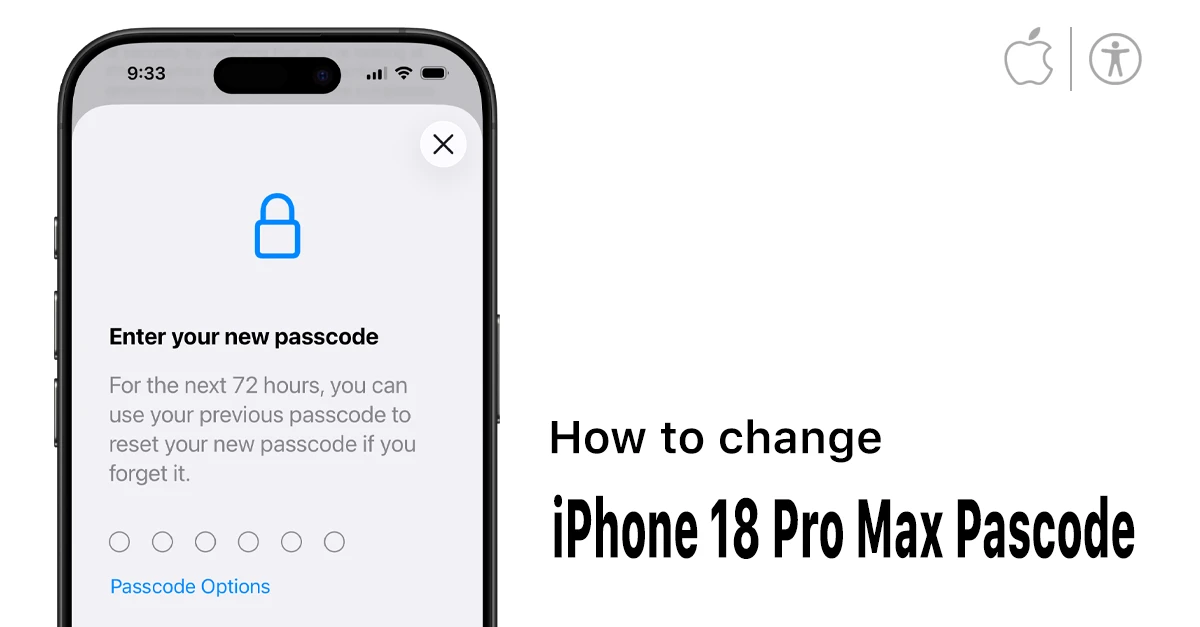
Whatever your reason, the good news: changing your passcode on the iPhone 18 Pro Max takes less than a minute. Here’s exactly how to do it — plus what to do if something goes wrong.
How to Change Passcode on iPhone 18 Pro Max: Quick Steps
If you think someone has seen your existing code, want a stronger code, or simply prefer a new one, you can change it directly from Settings. You will need to know your current iPhone passcode to complete the process.
- Open the Settings app.
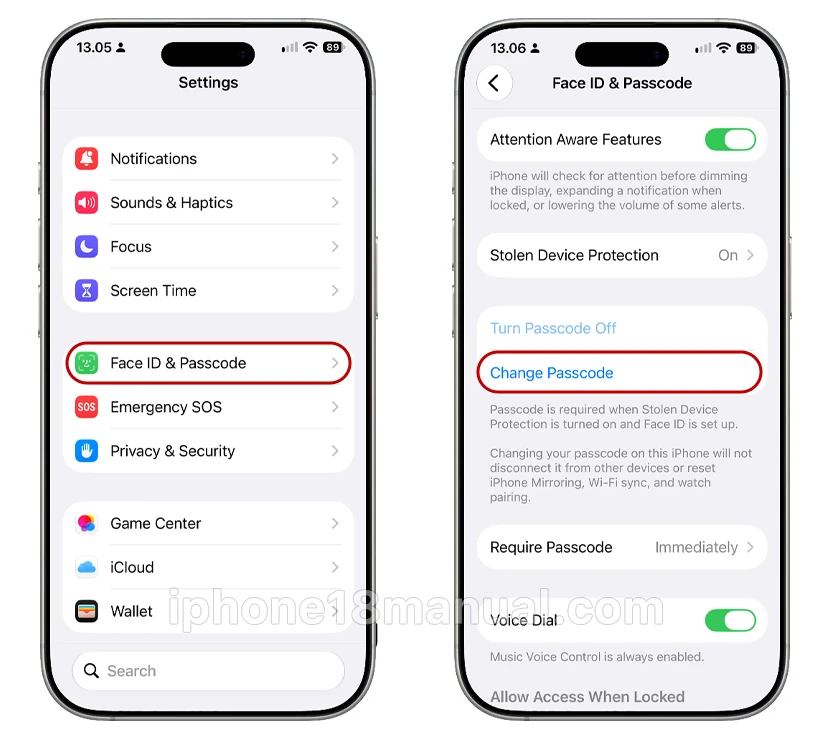
- Scroll down and tap Face ID & Passcode.
- Enter your current passcode when prompted.
- Tap Change Passcode.
- Enter your current passcode once more.
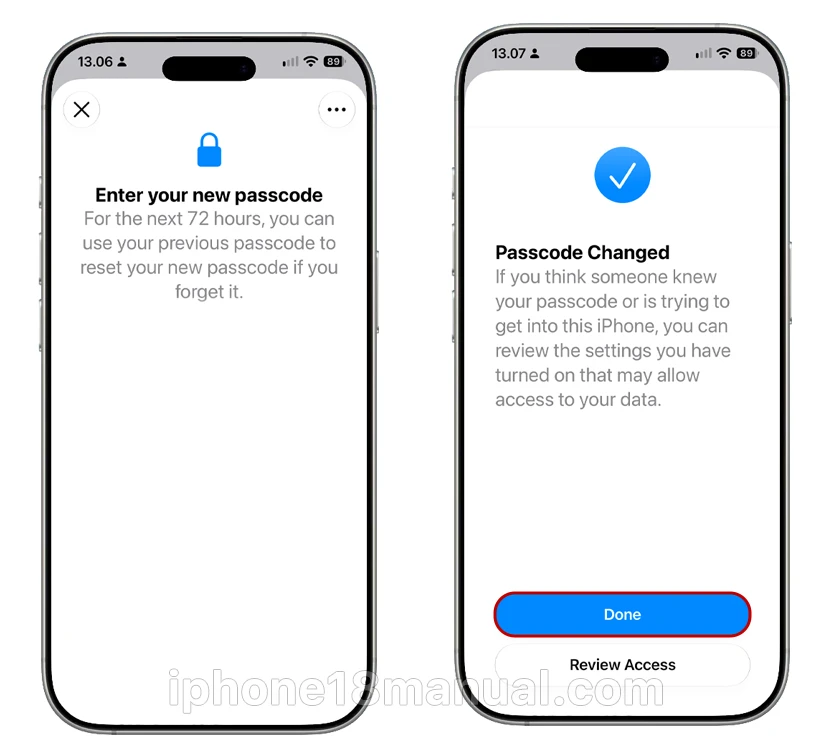
- Type your new passcode, then enter it again to confirm.
That’s it — your iPhone 18 Pro Max now uses your new passcode. The next time you unlock your phone with Face ID disabled or restart the device, you’ll enter this new code.
Pro tip: If you forget your new passcode right after changing it, iOS gives you a safety net. On iOS 17 and later (including iOS 27 on the iPhone 18 Pro Max), you can use your old passcode to unlock your device for up to 72 hours after a change — just tap “Forgot Passcode?” on the lock screen, then “Enter Previous Passcode.”
Step-by-Step Instructions (With Details)
Let’s walk through each step so you know exactly what to expect on your iPhone 18 Pro Max’s screen.
Step 1: Open Settings
Find the Settings app on your Home Screen — it’s the gray icon with gears. Tap it to open.
Step 2: Go to Face ID & Passcode
Scroll down until you see Face ID & Passcode (on iPhones with a Home button, this says “Touch ID & Passcode,” but the iPhone 18 Pro Max uses Face ID). Tap it.
Step 3: Enter Your Current Passcode
For security, iOS asks you to verify your identity with your existing passcode before letting you change it. Type it in.
Can’t find “Face ID & Passcode” in Settings? Jump to the troubleshooting section below — this usually means Screen Time restrictions or a work/school profile is blocking it.
Step 4: Tap “Change Passcode”
You’ll see a blue Change Passcode option partway down the screen. Tap it, then enter your current passcode again when asked.
Step 5: Enter Your New Passcode
Now type your new passcode. By default, the iPhone 18 Pro Max uses a 6-digit numeric code. You’ll be asked to enter it twice to confirm.
Step 6: Verify It Works
Lock your iPhone (press the side button once), then wake it and swipe up. Face ID should unlock it as usual — but press and hold the screen with your palm or tap “Face ID” with your eyes covered to test the new passcode manually.
Tips for a Strong iPhone 18 Pro Max Passcode
Changing your passcode is the perfect time to upgrade your security. Follow these rules:
- Never use personal information — no birthdays, anniversaries, or addresses. Anyone who knows you (or checks your social media) can guess these.
- Avoid patterns — sequences like 2481632 or 111444 seem clever, but cracking tools test common patterns instantly.
- Use at least 6 digits — longer passcodes are exponentially harder to brute-force.
- Consider a passphrase — a custom alphanumeric code like a short sentence is both strong and memorable.
- Don’t reuse passcodes — if your iPhone passcode matches your bank PIN, one leak compromises both.
What If You Forgot Your iPhone Passcode?
This is the scenario everyone fears. Here’s the honest truth:
If you forget your passcode and Face ID isn’t unlocking the device, the only way back in is to erase the iPhone and restore from a backup. Apple designs it this way deliberately — no one, not even Apple, can bypass the passcode.
Your recovery options, in order of preference:
- The 72-hour window — if you just changed your passcode, use your old passcode as described above.
- Recovery Mode via computer — connect your iPhone 18 Pro Max to a Mac or PC, force it into Recovery Mode, and choose “Restore” in Finder or iTunes. Then restore your data from an iCloud or computer backup. Find My (if the phone isn’t with you) — remotely erase it, then restore from backup.
After 10 failed passcode attempts, your iPhone 18 Pro Max can be set to erase itself automatically — you can enable this in Settings > Face ID & Passcode > scroll down > Erase Data.
Troubleshooting: “Change Passcode” Option Missing on iPhone 18 Pro Max
Can’t find Face ID & Passcode, or the “Change Passcode” button is grayed out? This is a common issue with three usual causes:
- Screen Time restrictions are blocking it Go to Settings > Screen Time > Content & Privacy Restrictions. If restrictions are on, check Allow Changes > Passcode Changes and set it to Allow. This is the #1 cause, especially on devices managed through Family Sharing.
- A work or school profile (MDM) is installed If you added a work email or installed a company profile, your IT department may control passcode settings. Check Settings > General > VPN & Device Management — if you see a profile there, contact your IT admin.
- Can’t remember the current passcode at all You can’t change a passcode you don’t know — you’ll need the erase/restore route described above.
Final Thoughts
Changing the passcode on your iPhone 18 Pro Max is a 60-second task that pays off in real security. Set a strong 6-digit or custom code, enable Erase Data and Stolen Device Protection, and remember that 72-hour grace window — it’s your safety net if you ever blank on a fresh passcode.
Your iPhone holds your banking, messages, photos, and identity. Six digits is a small price to pay for protecting all of it.
1 thought on “How to Change Passcode on iPhone 18 Pro Max (iOS 27) – Step-by-Step Guide”