iPhone 18 Emergency Features: How to Set Up Your Medical ID
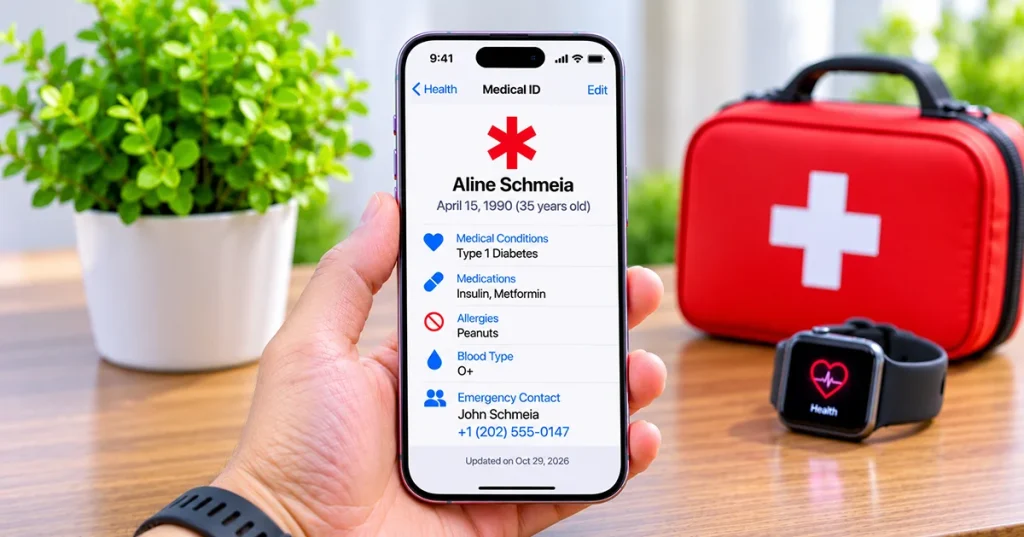
Set up Medical ID on iPhone 18 using the Health app

To set up Medical ID on iPhone 18, open the Health app, tap your profile picture in the top-right corner, select Medical ID, then tap Get Started (or Edit). Fill in your medical details and emergency contacts, turn on Show When Locked and Share During Emergency Call, then tap Done. The feature works identically on iOS 26 and iOS 27, which both … Read more >>
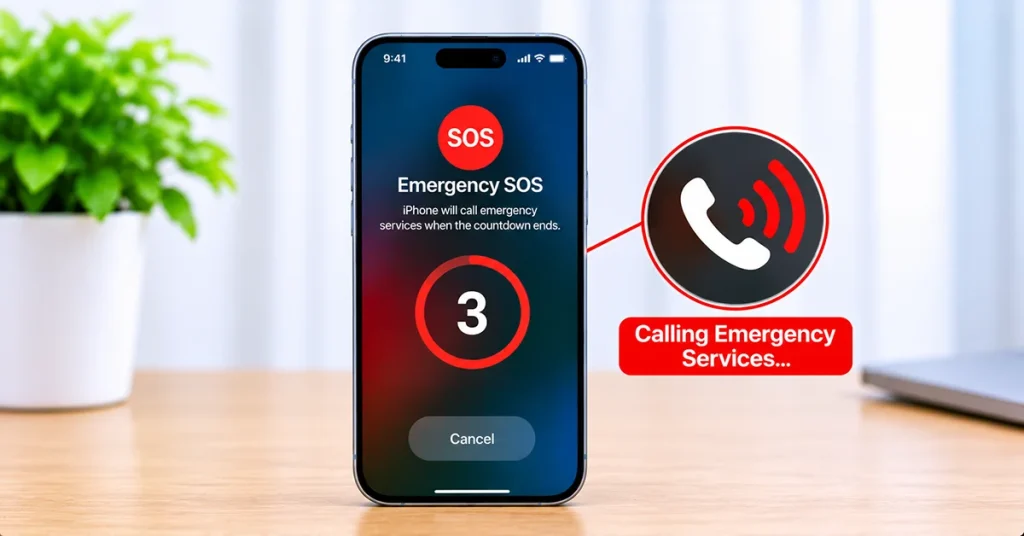
How to Set Up and Use Emergency SOS on Your iPhone 18

how to use emergency SOS on iphone 18

Emergency SOS on iPhone 18 lets you quickly contact emergency services when you need immediate assistance. You can activate it using the physical buttons, configure automatic emergency calling, share your location with trusted contacts, and access additional safety features such as Crash Detection and satellite emergency communication where supported. To get started, open Settings > Emergency SOS to review your activation options. … Read more >>

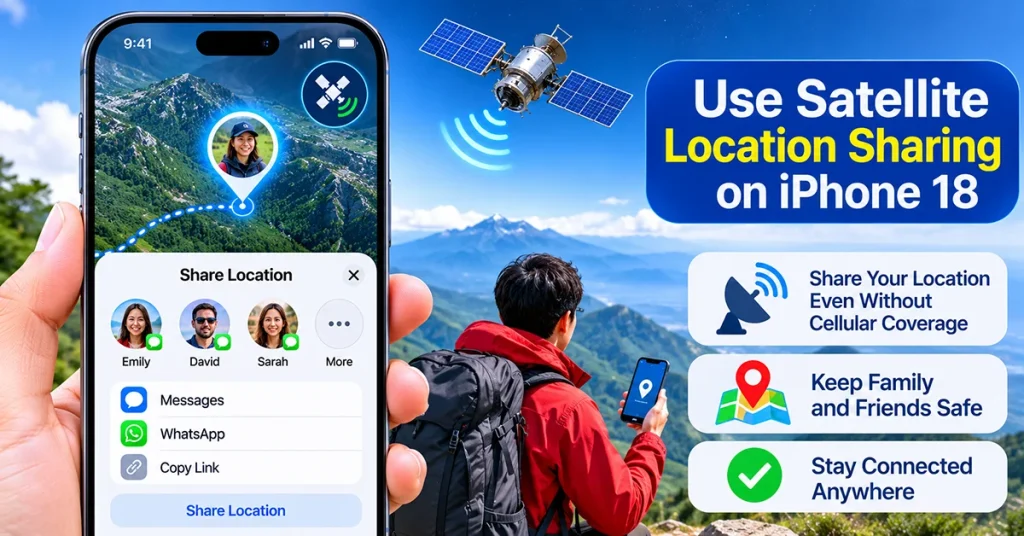
How to Use Satellite Location Sharing on Your iPhone 18

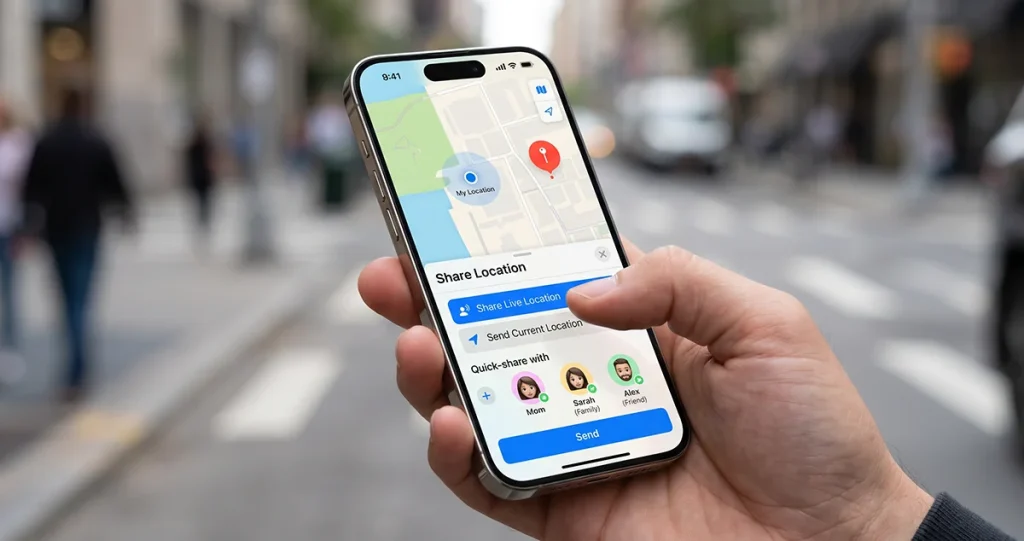
iPhone 18 satellite location sharing using the Find My app

The iPhone 18 can help you share your location even when cellular service and Wi-Fi are unavailable, provided Apple’s satellite services are supported in your region. With Find My via satellite, you can send your current location to friends or family while hiking, traveling through remote areas, or exploring places without network coverage. Unlike regular location sharing, satellite sharing does not require … Read more >>

How to Fix Bluetooth Connectivity Problems on Your iPhone 18 Pro Max

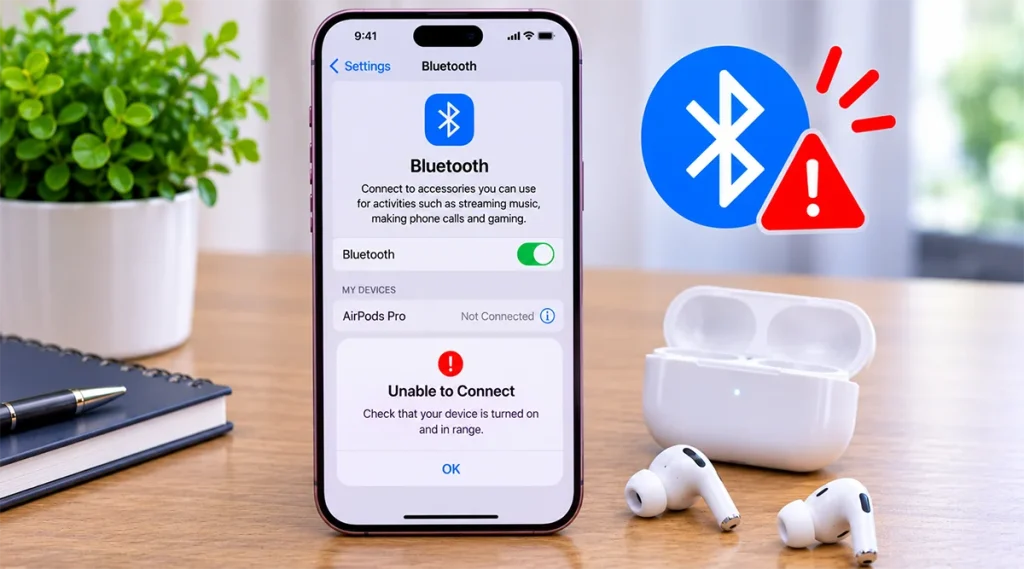
iPhone 18 Pro Max Bluetooth not working with wireless earbuds

Is your iPhone 18 Pro Max bluetooth not working? Whether your iPhone cannot find nearby devices, refuses to connect to AirPods, keeps disconnecting from your car, or fails to turn Bluetooth on, several troubleshooting methods can help restore the connection. In most cases, the problem comes from an outdated pairing, an accessory issue, wireless interference, or a temporary iOS software glitch. You … Read more >>

Simple Ways to Hide Apps on Your iPhone 18 for Better Privacy

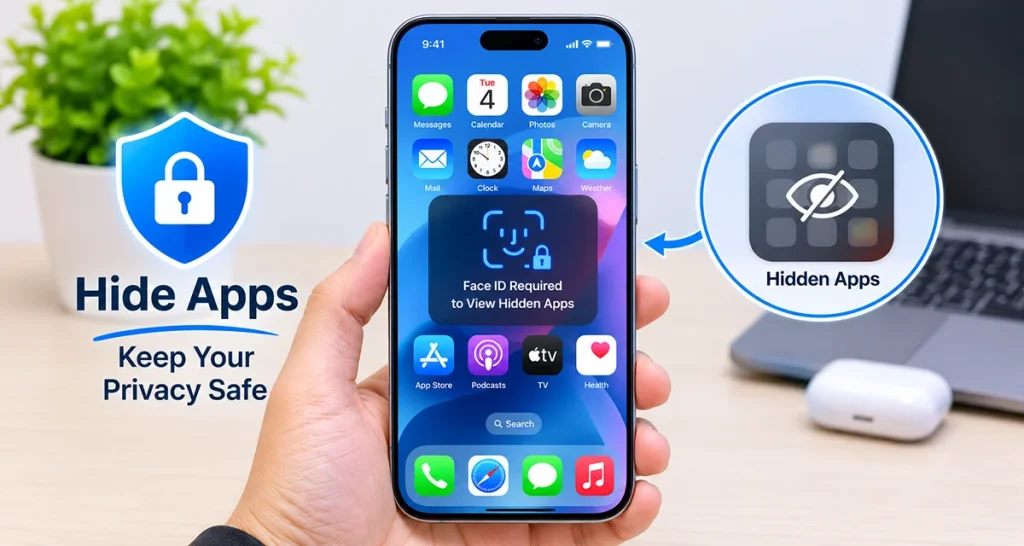
How to hide apps on iPhone 18 using Face ID

Want to keep certain apps private on your iPhone 18? You can hide apps using Apple’s built-in Hide and Require Face ID feature. It removes eligible apps from your Home Screen, regular App Library listings, and search results, then places them inside a protected Hidden folder. To hide an app, touch and hold its icon, select Require Face ID, choose Hide and … Read more >>