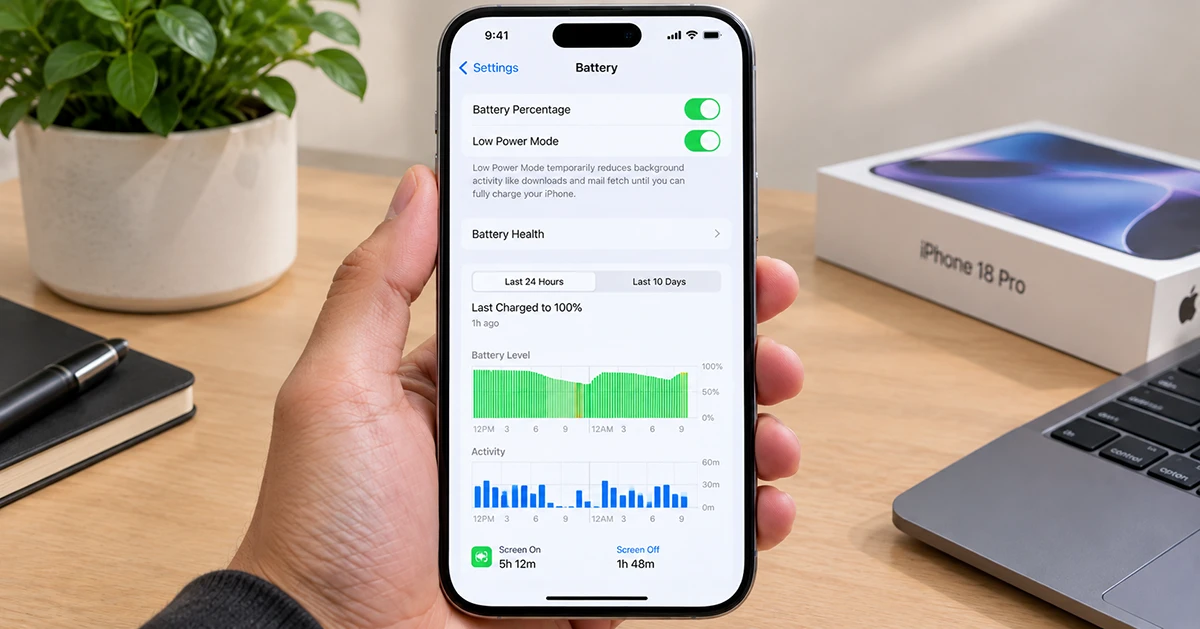
If your iPhone 18 battery runs out before the end of the day, you can extend its battery life by enabling Adaptive Power, using Low Power Mode, reducing screen brightness, and limiting unnecessary background activity. Start by opening Settings > Battery to check battery usage and review Apple’s recommendations. These changes can help your iPhone last longer between charges without disabling essential features such as calls, messages, and mobile data.
1. Enable Adaptive Power and Low Power Mode
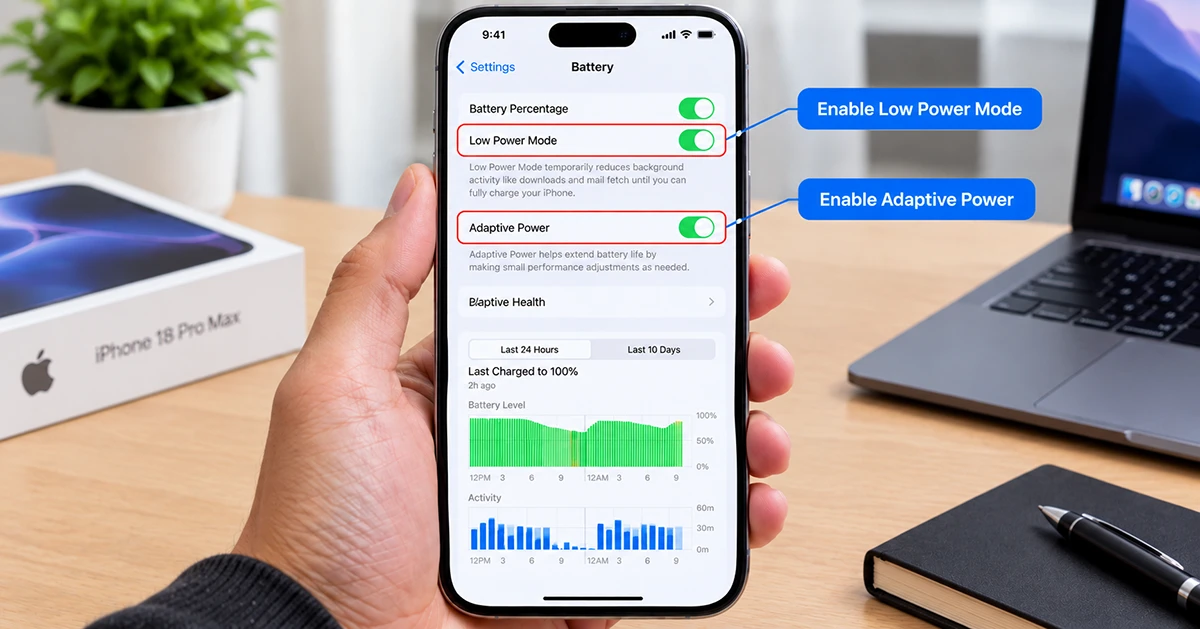
The quickest way to extend iPhone 18 battery life is to use Apple’s built-in power-saving features. Adaptive Power adjusts certain settings automatically when your phone needs extra battery, while Low Power Mode reduces power consumption when you want to conserve your remaining charge.
Turn on Adaptive Power
- Open Settings.
- Tap Battery.
- Select Power Mode.
- Turn on Adaptive Power, if available.
Adaptive Power can make small performance adjustments, reduce background activity, lower screen brightness slightly, and activate Low Power Mode automatically when your battery reaches 20%. It is designed to help on days when your usage is higher than usual.
Turn on Low Power Mode
- Open Settings > Battery > Power Mode.
- Enable Low Power Mode.
Low Power Mode reduces background activity and certain system features to conserve energy. Some tasks may run more slowly, and background updates or automatic downloads may be delayed. It normally turns off automatically once the battery charges above 80%.
For everyday use, Adaptive Power can provide automatic assistance, while Low Power Mode is useful when you need to stretch your remaining battery through a long day.
2. Reduce Screen Brightness and Display Power
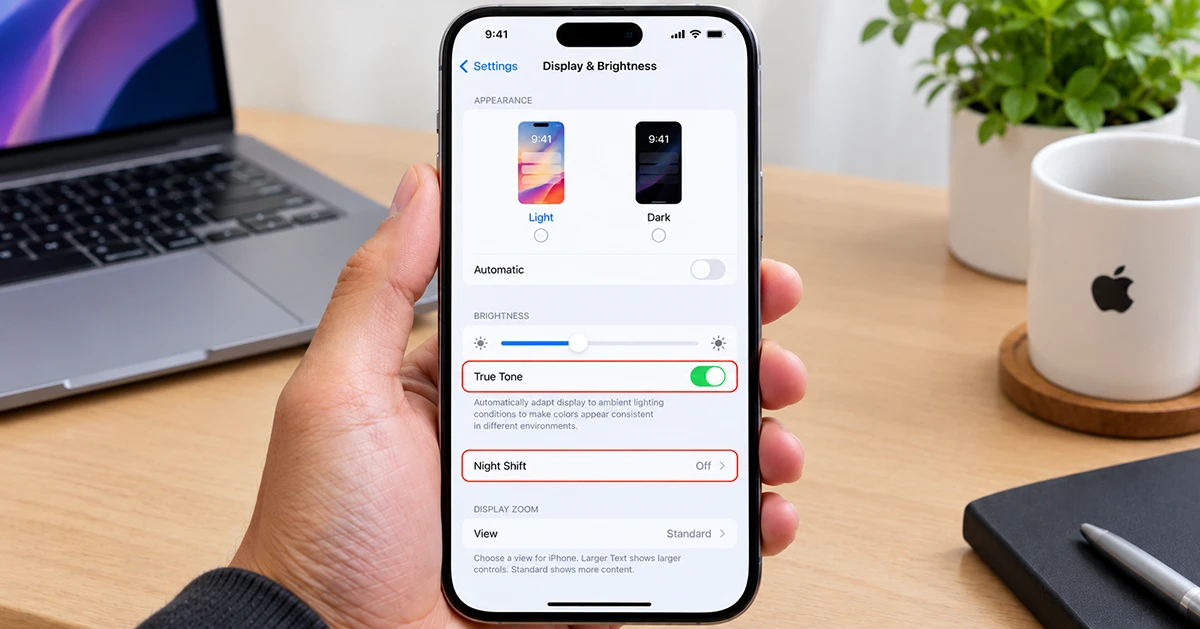
Your display can consume considerable energy, particularly when brightness is high or the screen remains active unnecessarily.
Try these adjustments:
- Lower brightness: Open Control Center and move the brightness slider down to a comfortable level.
- Enable Auto-Brightness: Go to Settings > Accessibility > Display & Text Size > Auto-Brightness.
- Shorten Auto-Lock: Open Settings > Display & Brightness > Auto-Lock and select a shorter interval.
- Use Dark Mode: Go to Settings > Display & Brightness > Dark. Dark Mode may reduce display power consumption on OLED screens, particularly with darker content.
- Review Always-On Display: If your model offers this feature, consider disabling it or reducing the information shown.
You do not need to make the screen uncomfortably dim. The goal is to avoid unnecessary brightness and screen-on time while keeping your iPhone convenient to use.
3. Find Apps That Drain Your Battery
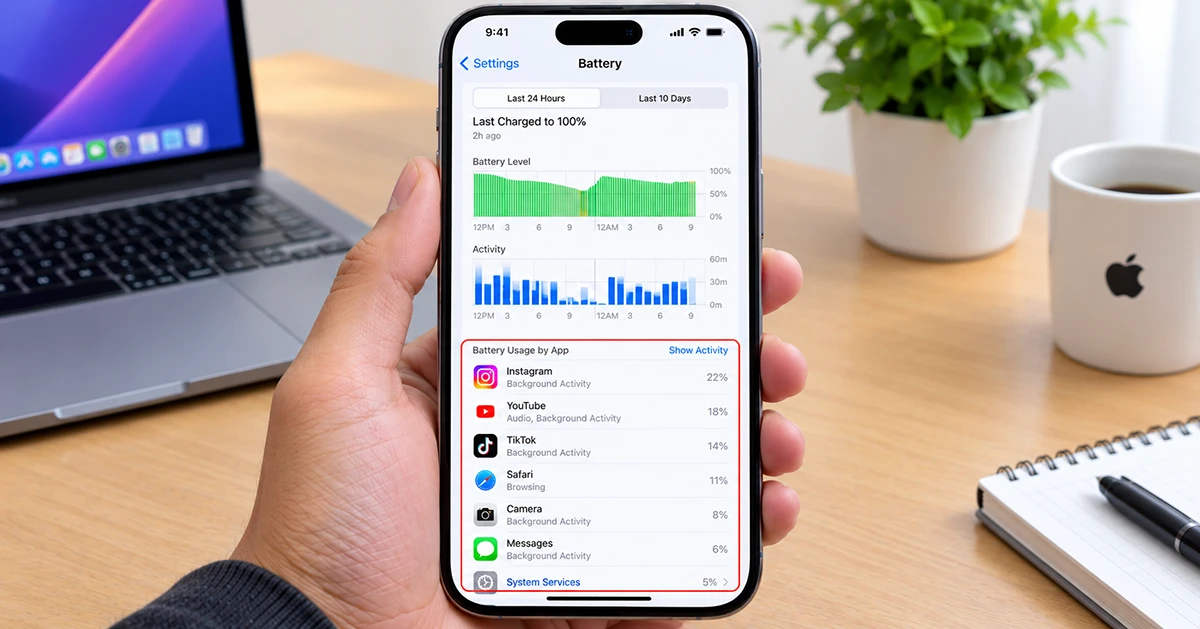
Before disabling features across your phone, identify what is actually consuming power.
- Open Settings > Battery.
- Review the battery usage chart and daily activity.
- Examine the apps and system activities using the most power.
- Tap an app to inspect its activity details, where available.
- Look for unusually high background activity or prolonged screen time.
A social media app, navigation service, video-streaming app, or game may use more battery because of how frequently you use it. That does not necessarily mean the app is faulty.
If an app consumes substantial power while you are not actively using it, review its background permissions and notification settings. Update the app if a newer version is available. Avoid routinely force-closing every app; focus on the apps that show a genuine pattern of excessive usage.
4. Limit Background App Refresh
Background App Refresh lets supported apps update content when you are not actively using them. Restricting unnecessary refreshes may help your iPhone 18 preserve battery.
- Open Settings > General > Background App Refresh.
- Review the available refresh options.
- Disable background refresh for apps that do not need it, or choose Wi-Fi instead of Wi-Fi & Cellular Data if appropriate.
Keep background activity enabled for apps that genuinely need timely updates. Disabling everything can delay content updates and reduce convenience without producing a noticeable improvement for every user.
5. Optimize Wi-Fi, Cellular Data, and Location Services
Wireless conditions affect battery consumption. A weak mobile signal can make your iPhone work harder to maintain a connection.
Use these practical adjustments:
- Prefer reliable Wi-Fi: When available, connect to a trusted Wi-Fi network instead of relying on a weak cellular signal.
- Use 5G Auto: If supported by your carrier, open Settings > Cellular > Cellular Data Options > Voice & Data and select 5G Auto when available. Menu names may vary by carrier or iOS version.
- Use Airplane Mode in dead zones: If you do not need calls or mobile connectivity, Airplane Mode can prevent continuous searching for a signal.
- Review Location Services: Go to Settings > Privacy & Security > Location Services. Set unnecessary apps to Never or While Using the App, as appropriate.
- Reduce unnecessary notifications: Open Settings > Notifications and disable alerts that frequently wake your screen without providing value.
Do not disable location access for essential navigation, safety, or tracking features simply to save a small amount of power. Instead, give each app only the access it needs.
6. Manage Features That Keep the Screen Active
Some features repeatedly update the Lock Screen or wake your display. Reviewing them can reduce avoidable battery use.
Check whether you can limit Live Activities, unnecessary notifications, and widgets that frequently refresh. If your iPhone supports an Always-On Display, consider turning it off when battery life matters more than at-a-glance information.
You can also use a Focus mode to reduce interruptions during work, sleep, or travel. Fewer unnecessary alerts mean fewer screen wake-ups and less time spent checking your phone.
These adjustments work best alongside lower brightness and sensible Auto-Lock settings rather than as isolated fixes.
7. Check Battery Health and Charging Settings
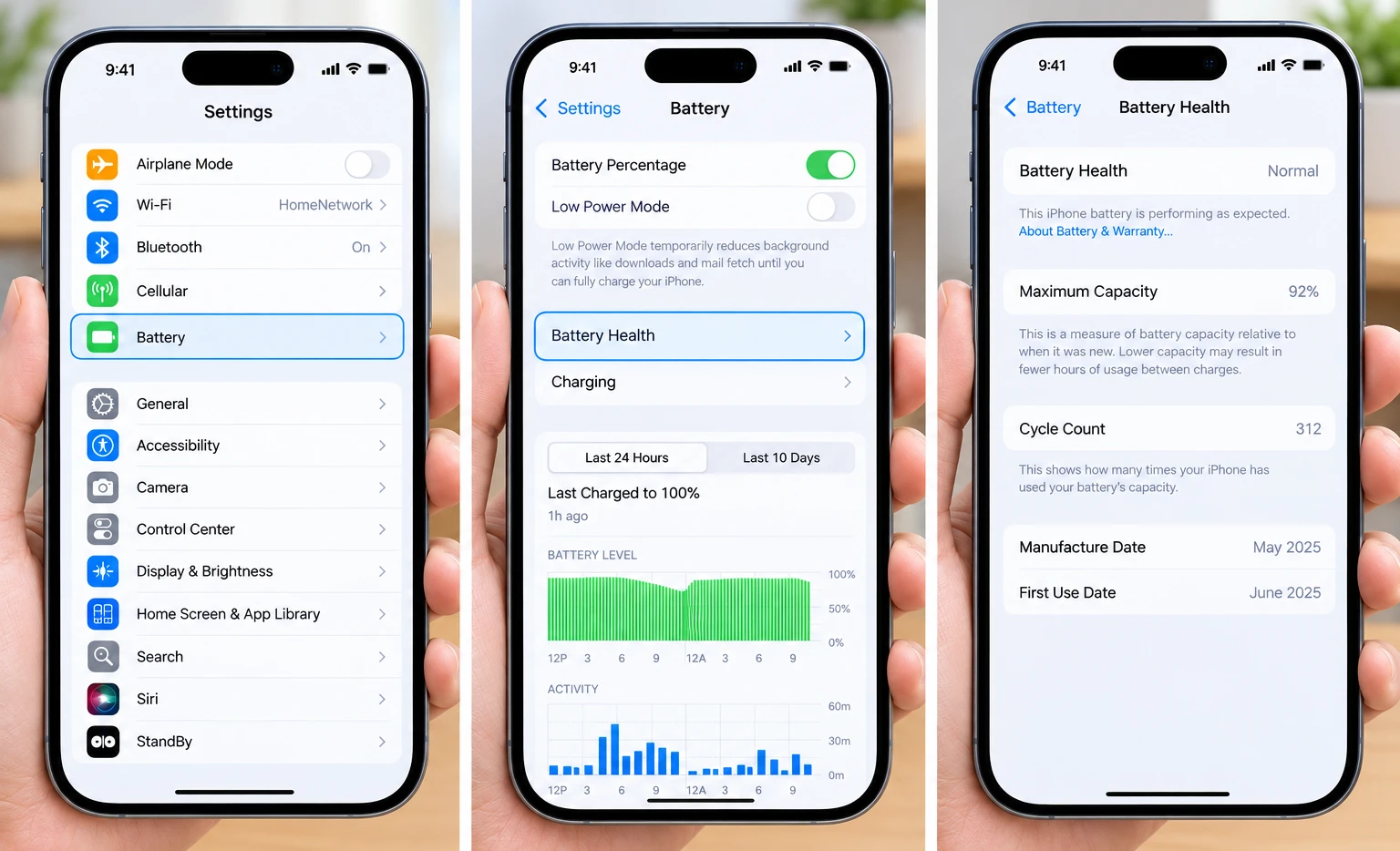
Battery life and battery lifespan are different. Battery life describes how long your iPhone runs between charges; battery lifespan describes how long the battery remains useful before its capacity deteriorates significantly.
To check your battery condition:
- Open Settings > Battery.
- Tap Battery Health, if available.
- Review Maximum Capacity and any service recommendations shown.
Maximum Capacity estimates how much charge your battery can hold compared with when it was new. As the battery ages, its capacity gradually declines.
If your model provides Optimized Battery Charging or a charging limit, review those options under the battery settings. They can help reduce battery aging depending on your charging habits. These features do not instantly increase the hours available from an existing charge.
8. Fix iPhone 18 Battery Drain After an Update
If your iPhone 18 battery starts draining faster immediately after an iOS update, do not assume the battery is damaged.
An update may trigger background indexing, photo processing, app updates, or device setup tasks. These activities can temporarily increase power consumption and heat.
Try the following:
- Open Settings > Battery and review usage details or any displayed Insights.
- Connect to reliable Wi-Fi and power when convenient so background tasks can finish.
- Install subsequent software updates if they address relevant bugs.
- Check whether a particular app is consuming unusually high power.
- Reassess battery usage after several days.
Apple recommends waiting a few days after an update if battery life is temporarily worse than expected. If the problem persists, investigate app activity, signal strength, battery health, and other possible causes.
9. iPhone 18 Battery-Saving Settings: Quick Reference
Use this table to find the most relevant setting for your situation.
| Setting | Recommended action | Main benefit |
|---|---|---|
| Adaptive Power | Enable if available | Automatically adjusts power use |
| Low Power Mode | Enable when conserving charge | Reduces power consumption |
| Screen brightness | Lower to a comfortable level | Reduces display power |
| Auto-Lock | Choose a shorter interval | Limits idle screen time |
| Background App Refresh | Restrict unnecessary apps | Reduces background activity |
| Location Services | Review app permissions | Limits unnecessary location access |
| Wi-Fi | Use a reliable network | Can reduce power use versus weak cellular connections |
| Notifications | Disable unnecessary alerts | Reduces screen wake-ups |
| Battery Health | Check capacity and service alerts | Identifies battery deterioration |
| Software updates | Install relevant updates | Can address software-related issues |
10. Know When to Seek Battery Service
If your iPhone 18 continues losing charge unusually quickly despite reasonable settings, check Battery Health and review the usage chart for persistent abnormalities.
Battery replacement or professional diagnosis may be appropriate if the battery shows a service recommendation, the device shuts down unexpectedly, or battery performance has deteriorated significantly.
Seek assistance promptly if the phone becomes unusually hot, the battery appears swollen, or the device shows signs of physical battery damage. Do not attempt to open or repair a swollen battery yourself.
Frequently Asked Questions
Does Low Power Mode damage an iPhone 18 battery?
No. Low Power Mode is a built-in power-saving feature. It reduces certain activities and performance demands but does not inherently damage the battery.
Should I turn off Background App Refresh?
Only for apps that do not need it. Restricting unnecessary background refresh can help, but disabling every app is not guaranteed to produce a major improvement.
Why is my iPhone 18 battery draining after an update?
Background processing and setup tasks can temporarily increase power consumption. Review Battery Insights and wait a few days before deciding that a persistent fault exists.
Final Thoughts
To extend iPhone 18 battery life, start with Adaptive Power, Low Power Mode, display brightness, and Battery usage statistics. Then adjust background activity, location permissions, and wireless settings according to your needs. If battery life remains poor after several days, check Battery Health and investigate persistent software or hardware problems rather than disabling every feature on your phone.
