If Face ID is not working on your iPhone 18 Pro Max, check for an iOS update, clean the front sensor area, remove any potentially interfering screen protector, and verify your Face ID settings. These steps can resolve many recognition problems without erasing your data. If your iPhone displays “Face ID Is Not Available” or freezes when authentication fails, software troubleshooting may also help.
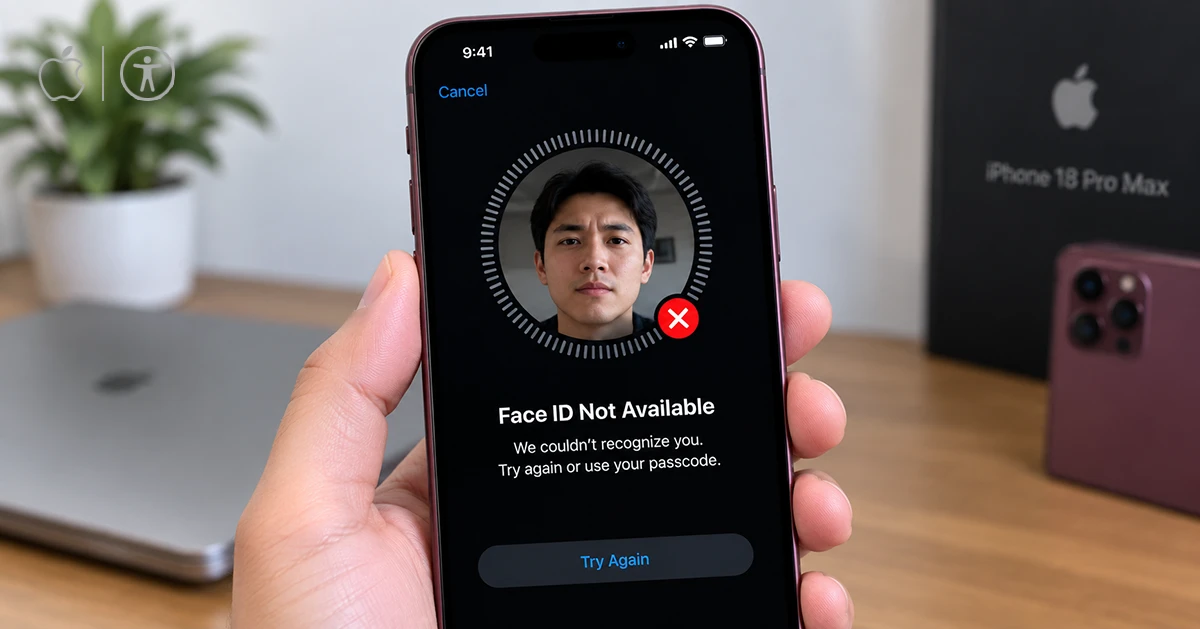
Some iPhone 18 Pro and Pro Max owners reported Face ID problems shortly after launch, including failed authentication in locked apps and unexpected restarts. Reports indicated that iOS 27.0.1 addressed these early issues, so installing the latest available iOS version should be one of your first steps.
Why Is Face ID Not Working on iPhone 18 Pro Max?
Face ID can stop working because something obstructs the front sensor system, your face is not clearly visible, Face ID settings are disabled, or iOS encounters a software problem. A screen protector may also interfere with recognition, particularly if it uses a privacy or matte finish.
Common symptoms include:
- Face ID does not recognize your face.
- Your iPhone displays a “Face ID Is Not Available” message.
- Face ID works to unlock the phone but fails in certain apps.
- Face ID stops working after an iOS update.
- Your iPhone freezes or restarts after a failed authentication attempt.
- Face ID cannot complete its initial setup.
Try the following fixes in order, testing Face ID after each step.
How to Fix iPhone 18 Pro Max Face ID Not Working
Face ID problems on your iPhone 18 Pro Max can be fixed. Follow the troubleshooting steps below in order, starting with the simplest solutions.
1. Check for an iOS Update
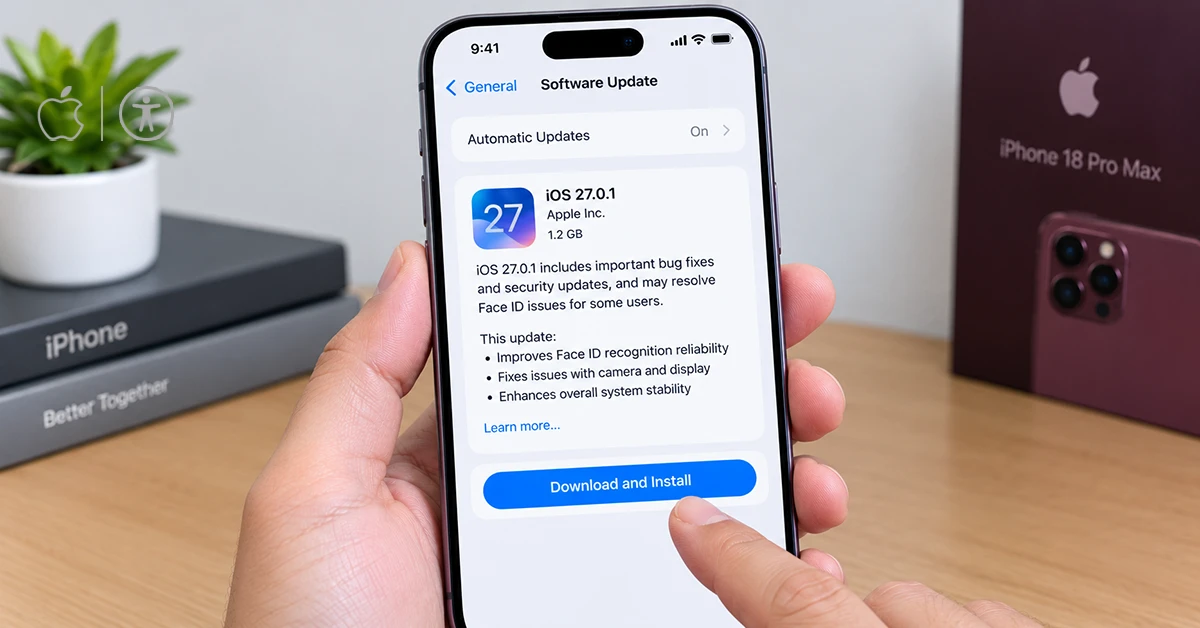
A software bug can interfere with Face ID authentication, even when the hardware works correctly. Apple released iOS 27.0.1 after reports of early Face ID problems on the iPhone 18 Pro lineup.
To check for an update:
- Open Settings.
- Tap General.
- Select Software Update.
- Install an available update if one is offered.
- Restart your iPhone if prompted, then test Face ID again.
Connect to Wi-Fi and make sure your battery has sufficient charge before updating. Back up important data before a major software update.
If your iPhone freezes or restarts repeatedly during Face ID authentication, prioritize updating iOS rather than repeatedly triggering the same failure.
2. Clean the Front Sensor Area
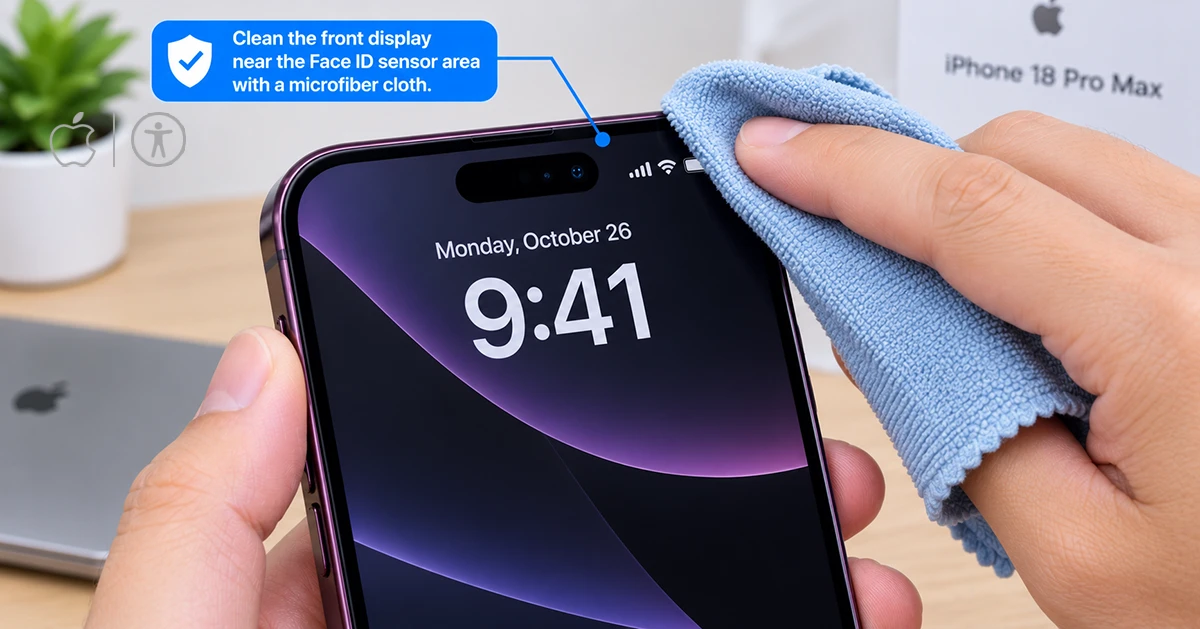
Dirt, fingerprints, moisture, or an obstruction near the front sensor area can affect Face ID recognition.
Follow these steps:
- Remove your iPhone case temporarily.
- Use a clean, soft, lint-free cloth to wipe the front display.
- Check for smudges or debris near the TrueDepth camera area.
- Make sure the case does not cover any part of the sensor area.
- Try unlocking your iPhone again.
Apple identifies the TrueDepth camera area near the upper-left portion of the iPhone 18 Pro display as an area to check when troubleshooting Face ID. Avoid inserting tools into openings or applying liquids directly to the phone.
3. Remove Your Screen Protector
If Face ID stopped working after you installed a screen protector, test the phone without it. Privacy and matte protectors deserve particular attention because they can interfere with the sensor system on the iPhone 18 Pro models.
To test your protector:
- Remove the case and inspect the protector for bubbles, dirt, or misalignment.
- If necessary, carefully remove the protector according to its manufacturer’s instructions.
- Clean the display and test Face ID without the protector.
- If recognition returns, replace the protector with a compatible, clear option.
Apple’s troubleshooting guidance specifically recommends removing privacy screen protectors when investigating Face ID issues on these models.
Do not assume every screen protector causes problems. If Face ID still fails without the protector, continue with the remaining steps.
4. Check Face ID Settings
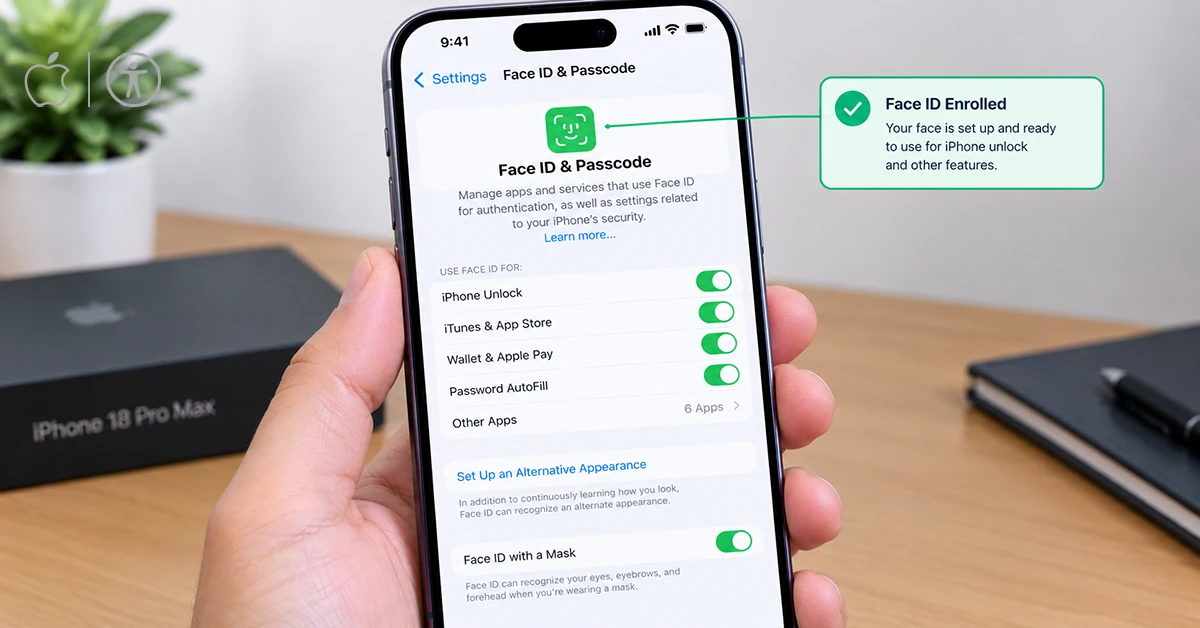
Face ID might be configured correctly for unlocking your iPhone but disabled for purchases or particular features.
Check your settings as follows:
- Open Settings.
- Tap Face ID & Passcode.
- Enter your iPhone passcode.
- Confirm that Face ID is set up.
- Check that iPhone Unlock, iTunes & App Store, or other relevant options are enabled.
The available options depend on your device configuration. If Face ID fails only when you open a locked app, check that app’s authentication or privacy settings as well.
5. Position Your Face Correctly
Face ID needs a clear view of your face. Face masks, certain sunglasses, heavy makeup, and strong backlighting can sometimes affect recognition.
Try these adjustments:
- Hold your iPhone approximately 10–20 inches (25–50 cm) from your face.
- Look toward the front of the device.
- Make sure your eyes, nose, and mouth are visible.
- Move away from intense sunlight shining directly toward the camera.
- Test Face ID without sunglasses that may block infrared light.
If you use a mask, Face ID with a Mask must be supported and configured on your device. Follow the on-screen prompts if recognition remains inconsistent.
6. Reset Face ID and Set It Up Again
If Face ID still fails, its stored facial enrollment may need to be recreated.
Before resetting: Make sure you know your iPhone passcode. Resetting Face ID removes the existing facial enrollment but does not erase your photos, apps, or other personal data.
Follow these steps:
- Open Settings.
- Select Face ID & Passcode.
- Enter your passcode.
- Tap Reset Face ID.
- Select Set Up Face ID.
- Follow the on-screen instructions to scan your face.
- Test Face ID by locking and unlocking your iPhone.
Set up Face ID in a well-lit environment without strong backlighting. If the setup process repeatedly fails or the device reports that Face ID is unavailable, the problem may require further investigation.
7. Check Whether Face ID Fails Only in Apps
If Face ID unlocks your iPhone but fails in an individual app, the problem may be limited to that app’s authentication settings or software.
Try these steps:
- Open Settings > Face ID & Passcode.
- Check the available options for using Face ID with apps or other features.
- Open the affected app and review its security settings.
- Update the app through the App Store.
- Restart your iPhone and test the app again.
Some apps require you to enable biometric authentication within their own settings. Others may ask you to sign in again or enter your password after an update.
If Face ID failures consistently freeze or restart your phone, do not treat the issue as an ordinary app problem. Install the latest iOS update and contact Apple if the behavior continues.
Face ID Troubleshooting Table
| Problem | Recommended fix |
|---|---|
| Face ID does not recognize your face | Clean the display and adjust your position |
| Face ID stopped working after installing a protector | Test without the protector |
| Face ID is unavailable | Update iOS, restart, and try setting it up again |
| Face ID fails after an update | Install the latest available iOS version |
| Face ID fails only in apps | Check app authentication and Face ID settings |
| Face ID setup repeatedly fails | Contact Apple Support |
| iPhone freezes after authentication fails | Update iOS and seek support if the issue persists |
Frequently Asked Questions
Why is Face ID not working on my iPhone 18 Pro Max after an update?
An iOS bug may temporarily affect authentication. Check Settings > General > Software Update and install the latest available version. If the problem began immediately after updating, restart the phone and test Face ID again.
Can a screen protector stop Face ID from working?
Yes. A protector can interfere with Face ID, especially if it has a privacy or matte finish. Test the device without the protector before resetting Face ID.
Why does my iPhone say Face ID is not available?
This message can indicate a software issue or a problem with the TrueDepth camera system. Update iOS, restart your iPhone, and attempt to set up Face ID again. If the error persists, seek professional support.
Will resetting Face ID delete my data?
No. Resetting Face ID removes your saved facial enrollment, not your photos, messages, apps, or other personal data. You can enroll your face again through Settings.
Final Thoughts
When iPhone 18 Pro Max Face ID is not working, start with an iOS update, a clean sensor area, and a check of your screen protector. Then verify your settings, restart your phone, and reset Face ID if necessary. If the phone repeatedly crashes or cannot complete Face ID setup, contact Apple Support instead of attempting a hardware repair yourself.
