If your iPhone 18 Pro Max eSIM is not activating, start by connecting to a reliable Wi-Fi network, toggling Airplane Mode, and restarting your iPhone. Then check whether the eSIM appears under Settings > Cellular (or Mobile Service, depending on your region). If the plan appears, make sure the line is enabled. If it does not, retry the activation method provided by your carrier.
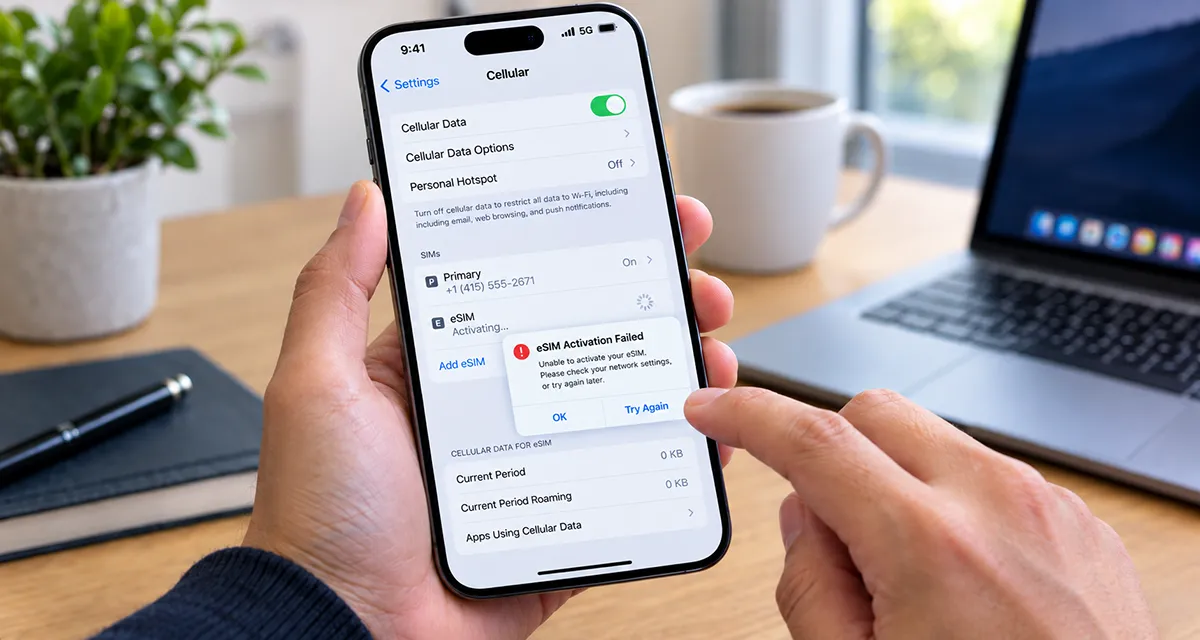
An eSIM activation failure can result from a temporary network problem, an incomplete transfer, an expired or previously used QR code, a carrier lock, or an account that is not ready for activation. Follow these nine fixes in order before considering a network reset or contacting Apple Support.
Quick Fixes for iPhone 18 Pro Max eSIM Activation Problems
| Problem | What to try first |
|---|---|
| eSIM stuck on Activating | Connect to Wi-Fi and restart your iPhone |
| Unable to Activate eSIM error | Check whether the eSIM is already installed |
| QR code not working | Verify the code with your carrier |
| No Service or SOS | Toggle Airplane Mode and check carrier coverage |
| eSIM missing after transfer | Retry the carrier-supported transfer method |
| eSIM works for calls but not data | Select the correct cellular data line |
| eSIM not supported | Check carrier compatibility and device lock status |
| Activation fails repeatedly | Ask your carrier to verify account provisioning |
| Problem continues after basic fixes | Check carrier settings and consider resetting network settings |
1. Connect to Wi-Fi and Restart Your iPhone
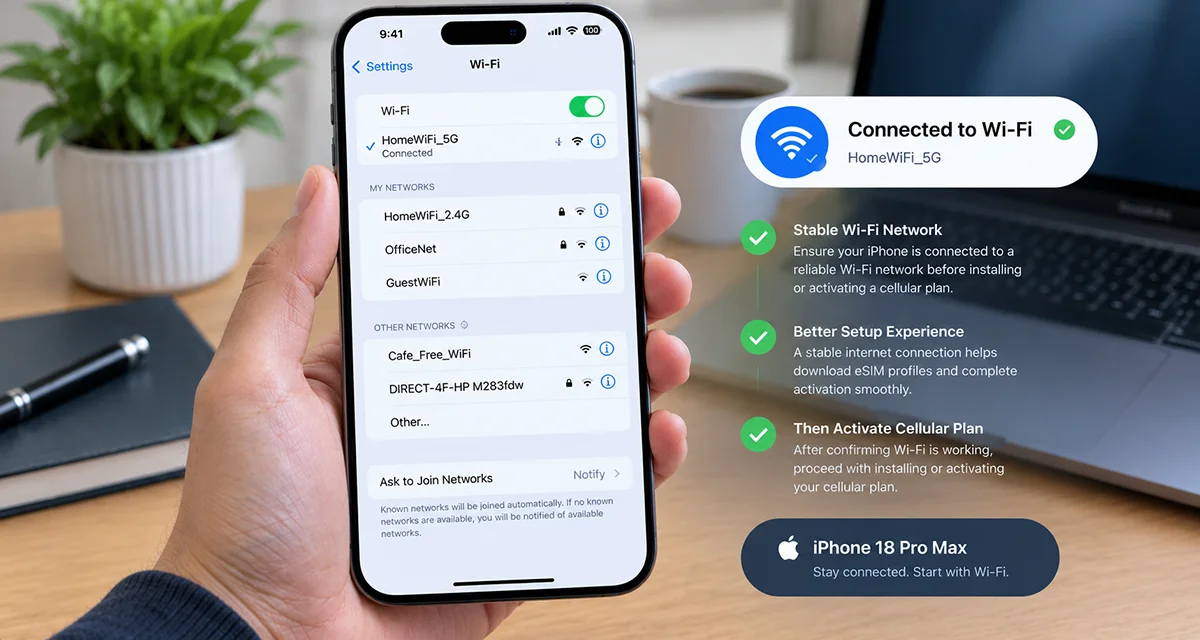
Your iPhone generally needs an internet connection to download and activate an eSIM profile. An unstable connection can interrupt setup or prevent the phone from communicating with your carrier.
- Open Settings > Wi-Fi and connect to a reliable network.
- Confirm that the network can access the internet.
- Restart your iPhone 18 Pro Max.
- Return to Settings > Cellular > Add eSIM if the plan has not been installed.
- Follow the activation instructions provided by your carrier.
If the eSIM already appears in your settings, check its status before attempting another installation. Avoid repeatedly scanning the same QR code because some carriers issue codes that can only be used once.
2. Turn Airplane Mode On and Off
Airplane Mode forces your iPhone to disconnect from cellular networks temporarily. Turning it off allows the device to reconnect and may resolve a temporary registration problem.
- Open Control Center by swiping down from the upper-right corner.
- Tap the Airplane Mode icon to turn it on.
- Wait about 15 seconds.
- Turn Airplane Mode off.
- Wait for your carrier name or signal bars to appear.
If your eSIM remains stuck on Activating or the phone displays SOS, continue to the next step.
3. Check Whether the eSIM Is Already Installed
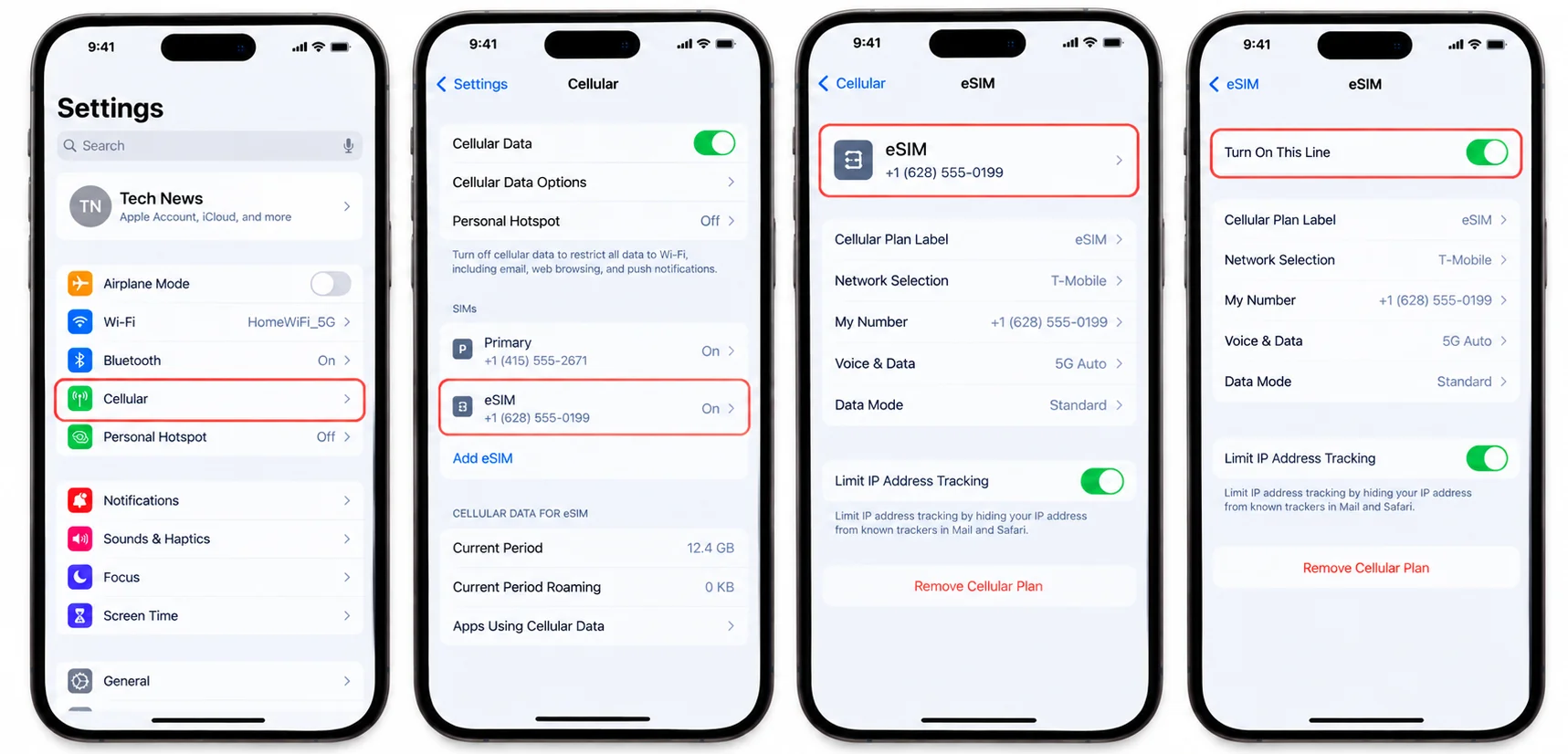
An activation error does not always mean that the eSIM profile failed to download. Sometimes the profile appears in Settings even though the carrier has not finished activating the service.
- Open Settings > Cellular.
- Look under the SIMs section for your new mobile plan.
- Tap the eSIM if it appears.
- Make sure Turn On This Line is enabled.
- If you use a travel eSIM, check whether Data Roaming must be enabled for your plan.
If the eSIM is installed, avoid deleting it simply to restart activation. Contact the provider if the line remains stuck or cannot connect to a supported network.
4. Check Your Carrier Account and eSIM Eligibility
Your carrier must provision the phone number or data plan correctly before the eSIM can work. A pending number transfer, an account restriction, or an activation delay can prevent service even when your iPhone is functioning normally.
Contact your carrier and ask them to verify:
- Your account is active and eligible for eSIM service.
- The correct phone number or data plan is assigned to your iPhone.
- Your eSIM activation request has completed.
- Your device’s IMEI and EID are registered correctly, if required.
- There is no outstanding account restriction or local network outage.
You can find your device identifiers under Settings > General > About. Do not post these identifiers publicly.
If you recently moved your number from an older iPhone or Android phone, tell your carrier that you are transferring an existing line rather than activating a completely new number.
5. Check Your QR Code or Try Another Activation Method
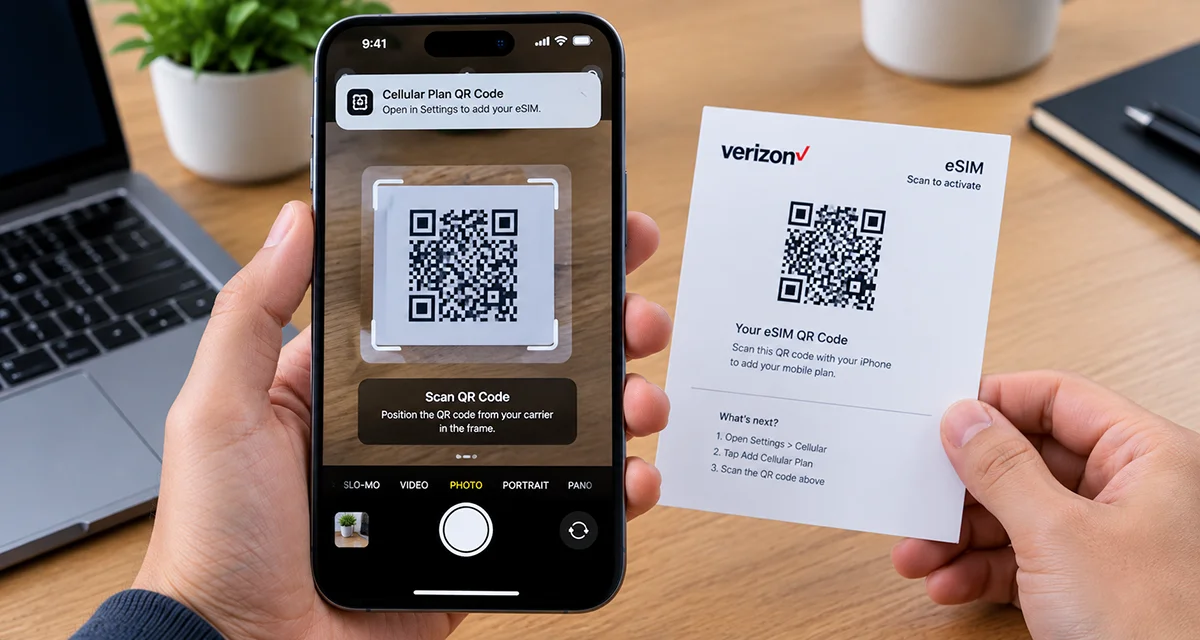
If your iPhone 18 Pro Max cannot activate an eSIM using a QR code, first confirm that the code came from your carrier and belongs to your current plan.
A QR code may fail if it has expired, has already been used, or is associated with another device. Some carriers also require activation in a particular country or region.
Try the following:
- Confirm that your iPhone has internet access.
- Check your carrier’s instructions for QR-code validity and activation requirements.
- If supported, activate the plan through the carrier’s official app or activation link.
- Ask your carrier for a replacement QR code or manual activation details if the original code is no longer valid.
Do not delete an existing eSIM or repeatedly scan an invalid code before confirming the correct recovery method with your provider.
6. Check Carrier Lock and Network Compatibility
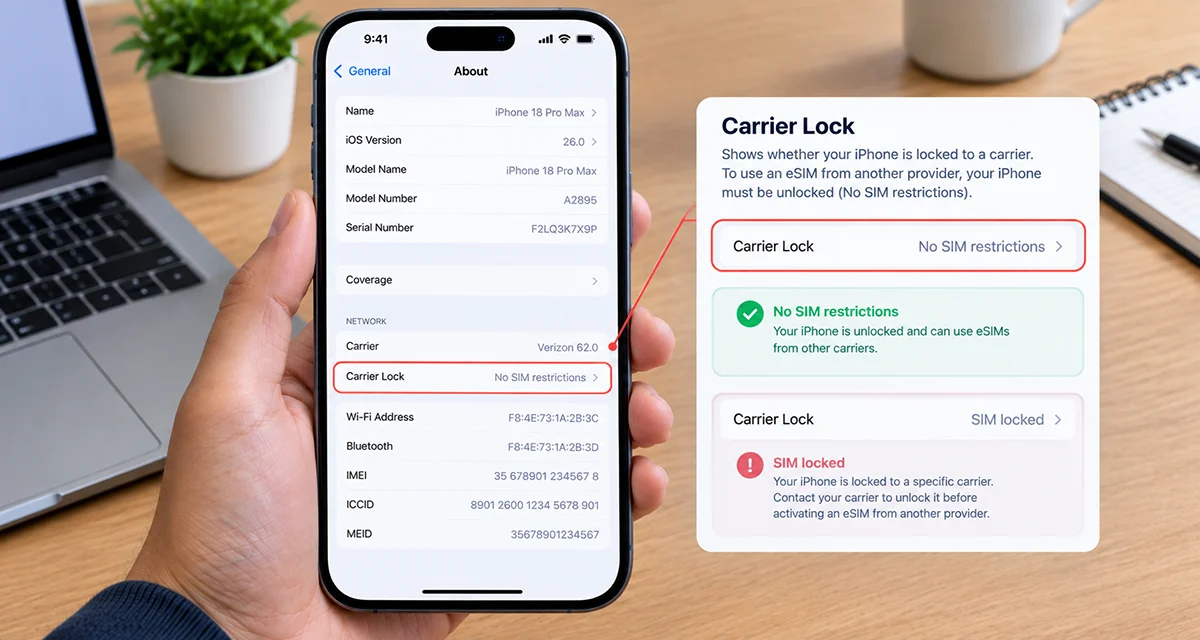
An iPhone locked to a different carrier may reject an eSIM from another provider. Compatibility can also depend on the exact device variant, carrier support, and country or region.
To check your iPhone’s lock status:
- Open Settings > General > About.
- Find Network Provider Lock or Carrier Lock, depending on the interface.
- Look for No SIM restrictions.
If the device is locked, contact the carrier that supplied it and ask about unlocking eligibility. If it is unlocked, confirm that your intended carrier supports eSIM activation for your exact device and plan.
7. Update iOS and Carrier Settings
Outdated software or carrier settings can sometimes interfere with cellular connectivity and eSIM setup.
Update iOS:
- Connect to Wi-Fi.
- Open Settings > General > Software Update.
- Install an available update if your iPhone offers one and you can complete it safely.
Check carrier settings:
- Open Settings > General > About.
- Wait briefly on the About screen.
- Follow any prompt to install a carrier settings update.
After updating, restart your iPhone and check the eSIM again.
8. Reset Network Settings
If the previous fixes fail, resetting network settings may resolve a device-side configuration problem.
Before proceeding, understand that this reset removes saved Wi-Fi networks and passwords and resets certain network preferences.
- Open Settings > General.
- Tap Transfer or Reset iPhone.
- Tap Reset.
- Choose Reset Network Settings.
- Enter your passcode if prompted.
- Reconnect to Wi-Fi and check your eSIM.
This process does not normally erase your photos, apps, or other personal content. However, it cannot correct a carrier-side provisioning error.
Important: Do not choose an option that deletes all eSIMs or erases your iPhone as a routine troubleshooting step.
9. Contact Your Carrier or Apple Support
If your iPhone 18 Pro Max eSIM still will not activate, contact your carrier first. The carrier can check activation status, account eligibility, network outages, and whether your eSIM needs to be reissued.
Contact Apple Support if the carrier confirms that the plan is correctly provisioned but the iPhone still cannot install or use it.
Have the following information ready:
- The exact error message.
- Your iPhone model and iOS version.
- Whether the eSIM appears in Settings.
- Your current country or region.
- Your carrier and activation method.
- Your IMEI or EID, if support requests it.
These details help support staff determine whether the issue comes from the device, the activation process, or the mobile network.
Frequently Asked Questions
Final Thoughts
When your iPhone 18 Pro Max eSIM is not activating, start with a stable internet connection, an Airplane Mode toggle, and a restart. Next, check whether the eSIM is already installed, confirm your carrier account is ready, and verify the QR code or transfer method.
If basic troubleshooting does not work, check carrier lock status, update iOS and carrier settings, and consider resetting network settings. If activation still fails, your carrier may need to correct the account or issue a replacement eSIM. Avoid deleting the existing profile until you know how to restore service.
Official documentation:
- If you can’t set up an eSIM on your iPhone — activation errors and basic troubleshooting.
- Set up eSIM on iPhone — QR codes, eSIM transfers, carrier activation, and alternative setup methods.
- Set up cellular service on iPhone — cellular setup and network configuration.

1 thought on “Fixing eSIM Activation Issues on Your iPhone 18 Pro Max: A Complete Guide”