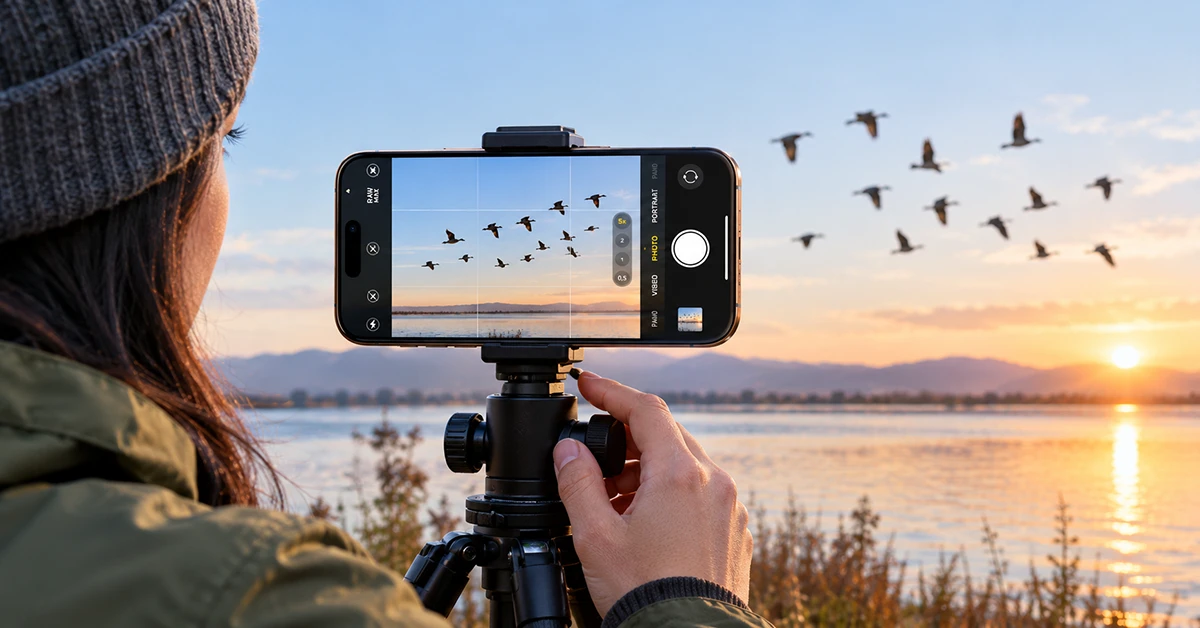
You can take better photos with the iPhone 18 Pro Max by choosing the right camera, using natural light, adjusting focus and exposure, and composing each shot carefully. Its 48MP camera system, variable-aperture main camera, and up to 8x optical-quality zoom offer plenty of creative flexibility. However, great results still depend on how you use these features. Follow these 10 iPhone 18 Pro Max photography tips to capture sharper portraits, detailed landscapes, impressive night photos, and better everyday pictures.
Best iPhone 18 Pro Max Camera Settings at a Glance
Start with these recommended settings and adjust them to suit your subject, lighting, and preferred style.
| Setting or feature | Recommended use | Why it helps |
|---|---|---|
| Grid and Level | Enable in Camera settings | Improves composition and keeps horizons straight |
| Main camera at 1x | Everyday photography | Provides a versatile starting point |
| Tap to focus | Portraits, food, and close-ups | Places focus on your intended subject |
| Exposure control | Bright skies and backlit scenes | Helps prevent highlights from looking washed out |
| Portrait mode | People and pets | Creates a softer background |
| Night mode | Dark environments | Captures more detail in low light |
| Optical-quality zoom | Distant subjects | Helps frame subjects without relying entirely on digital enlargement |
| Photographic Styles | Personal color preferences | Creates a consistent look |
| Timer | Group photos and low-light shots | Reduces camera movement |
| Photos editing tools | Final adjustments | Refines brightness, color, and composition |
Available controls can vary with software version and camera mode.
1. Use the Right Camera for Every Shot
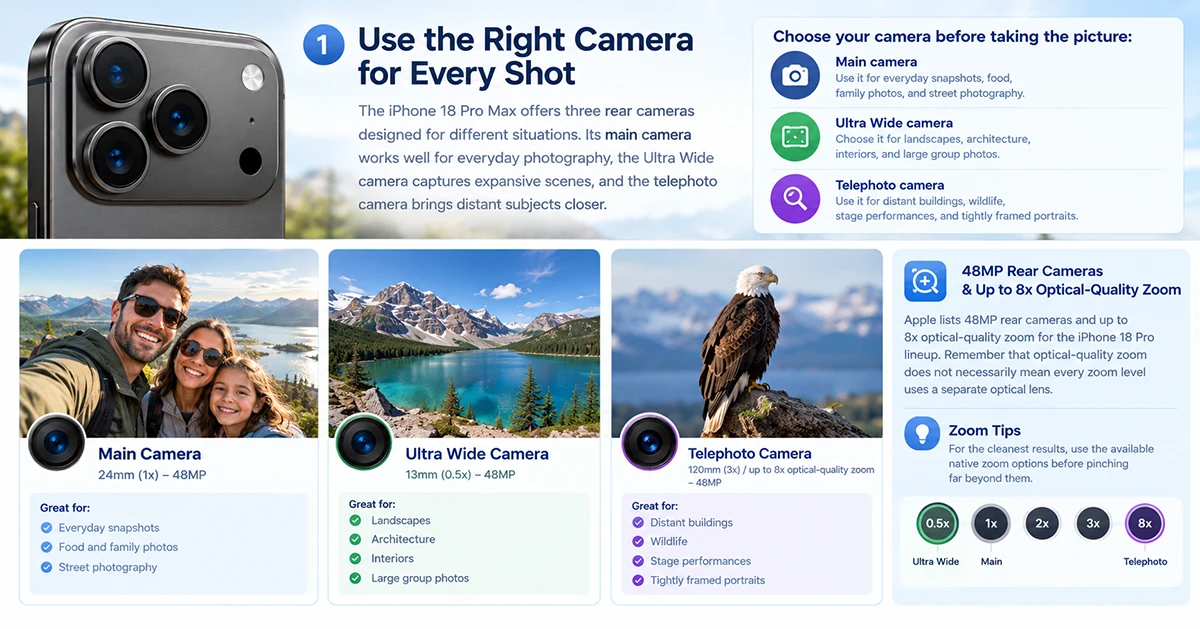
The iPhone 18 Pro Max offers three rear cameras designed for different situations. Its main camera works well for everyday photography, the Ultra Wide camera captures expansive scenes, and the telephoto camera brings distant subjects closer.
Choose your camera before taking the picture:
- Main camera: Use it for everyday snapshots, food, family photos, and street photography.
- Ultra Wide camera: Choose it for landscapes, architecture, interiors, and large group photos.
- Telephoto camera: Use it for distant buildings, wildlife, stage performances, and tightly framed portraits.
Apple lists 48MP rear cameras and up to 8x optical-quality zoom for the iPhone 18 Pro lineup. Remember that optical-quality zoom does not necessarily mean every zoom level uses a separate optical lens. For the cleanest results, use the available native zoom options before pinching far beyond them.
2. Improve Composition With Grid and Level
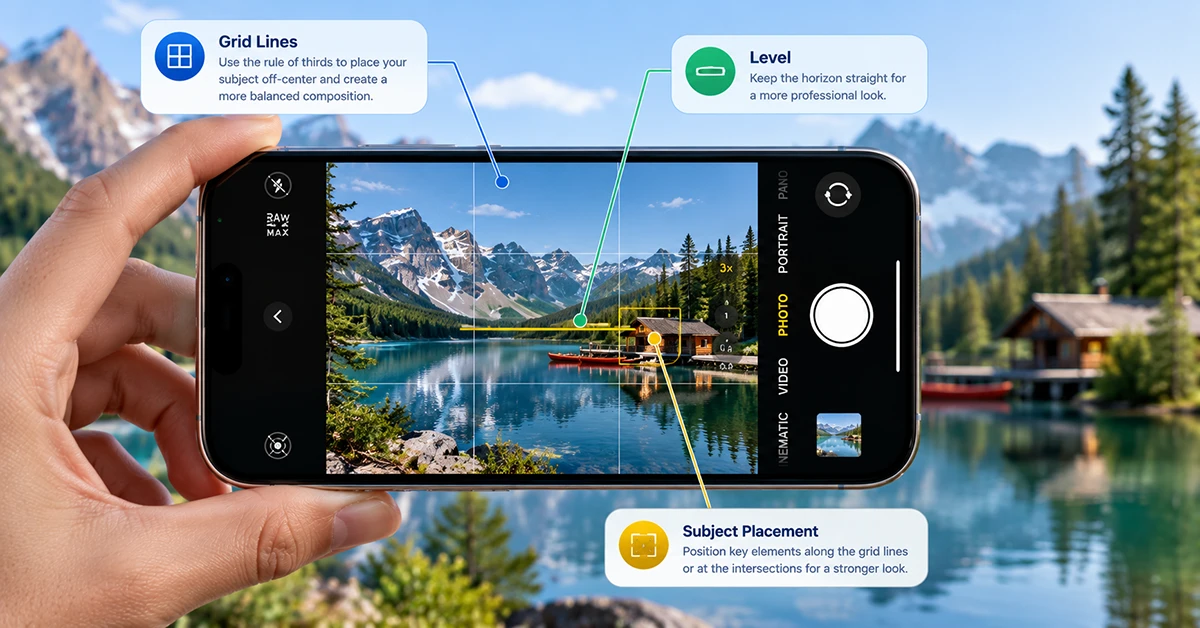
Good composition can make an ordinary scene look more professional. Instead of placing every subject in the center, experiment with positioning it slightly to one side.
To enable the composition guides:
- Open Settings.
- Tap Camera.
- Turn on Grid and Level, if available.
Use the grid to align a person, building, or other subject with one of the intersecting lines. For landscapes, keep the horizon level. For architectural photos, check that vertical lines do not lean unnecessarily.
Also, look around the edges of your frame. Remove distracting objects, move away from clutter, or change your shooting angle before taking the picture.
3. Tap to Focus and Adjust Exposure
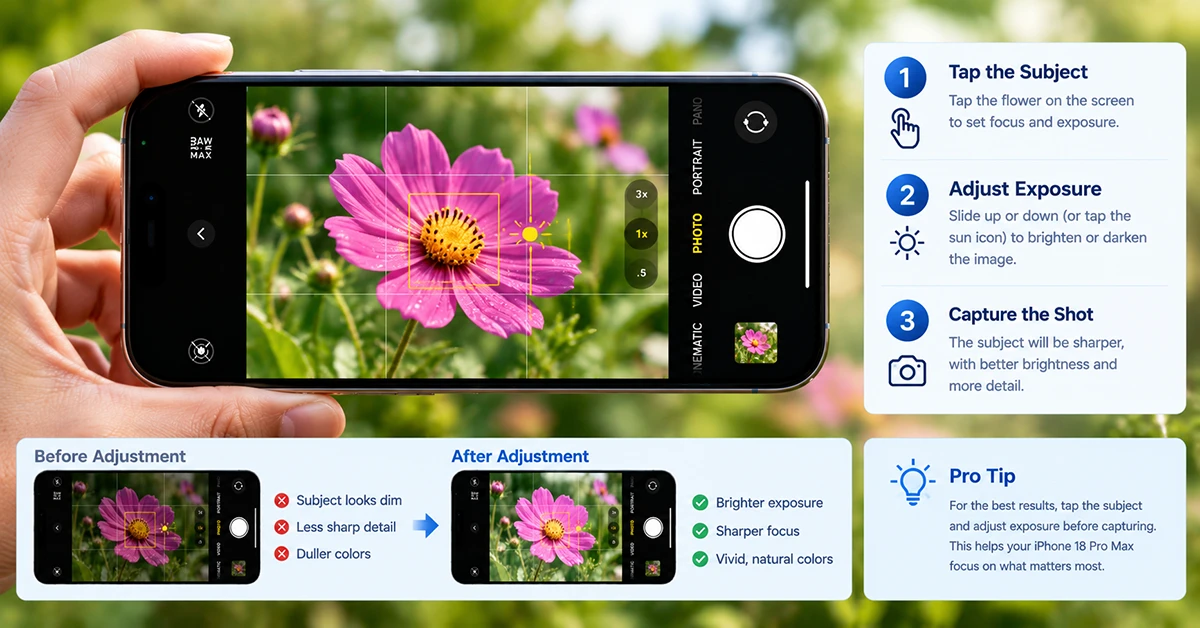
Automatic exposure works well in many situations, but bright backgrounds and uneven lighting can confuse the camera.
Open Camera, frame your subject, and tap the area you want to keep sharp. If the image looks too bright or dark, use the exposure control available in the camera interface to fine-tune the brightness.
For example, reduce exposure slightly when photographing a sunset to preserve the colors in the sky. When photographing a person near a bright window, adjust exposure carefully so the face remains visible without completely losing the window’s highlights.
On supported camera interfaces, touching and holding the subject can lock focus and exposure. This is particularly useful when taking several photos of the same scene.
4. Make Better Use of Natural Light
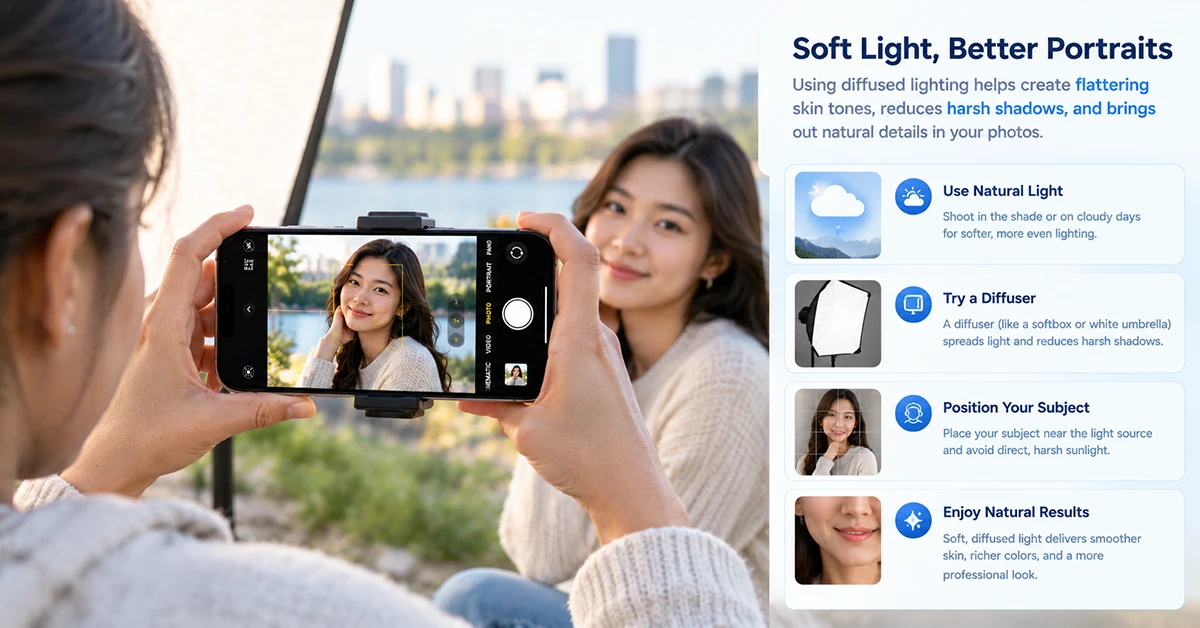
Lighting often matters more than complicated camera settings.
For portraits, try shooting near a window or outdoors in open shade. Early morning and late afternoon often provide softer, more flattering light than direct midday sunshine.
For food photography, position the subject near a window and use the natural light coming from one side. This adds texture without creating harsh shadows.
Avoid pointing the camera directly toward a strong light source unless you want a silhouette or another intentional effect. If you cannot change the lighting, adjust exposure and try a different shooting angle.
5. Use Portrait Mode for People and Pets
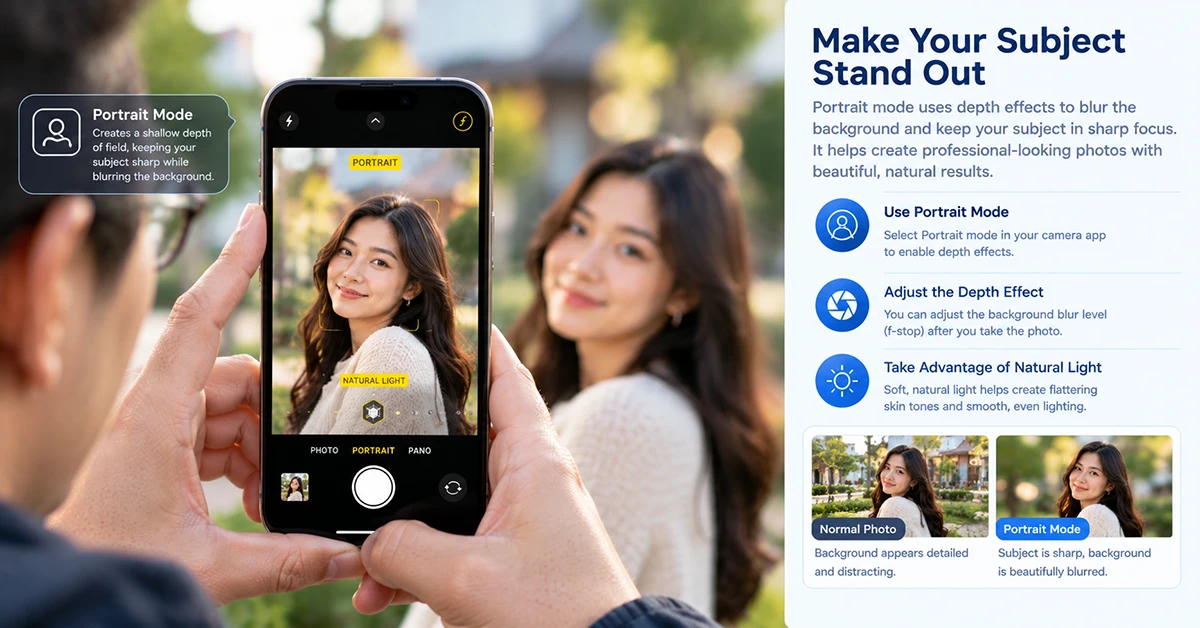
Portrait mode helps separate a subject from the background with a depth-of-field effect. It works well for people, pets, and certain objects when the camera can distinguish the subject clearly.
For better portraits:
- Find a relatively uncluttered background.
- Position your subject away from the background when possible.
- Make sure the face or eyes are in focus.
- Try different camera distances and framing options.
- Check the edges of the subject for unnatural-looking blur.
Avoid applying excessive background blur. A subtle effect often looks more realistic, particularly around hair, glasses, and animal fur.
For pets and children, take several shots. Small changes in expression and movement can make a big difference.
6. Take Clearer Photos at Night
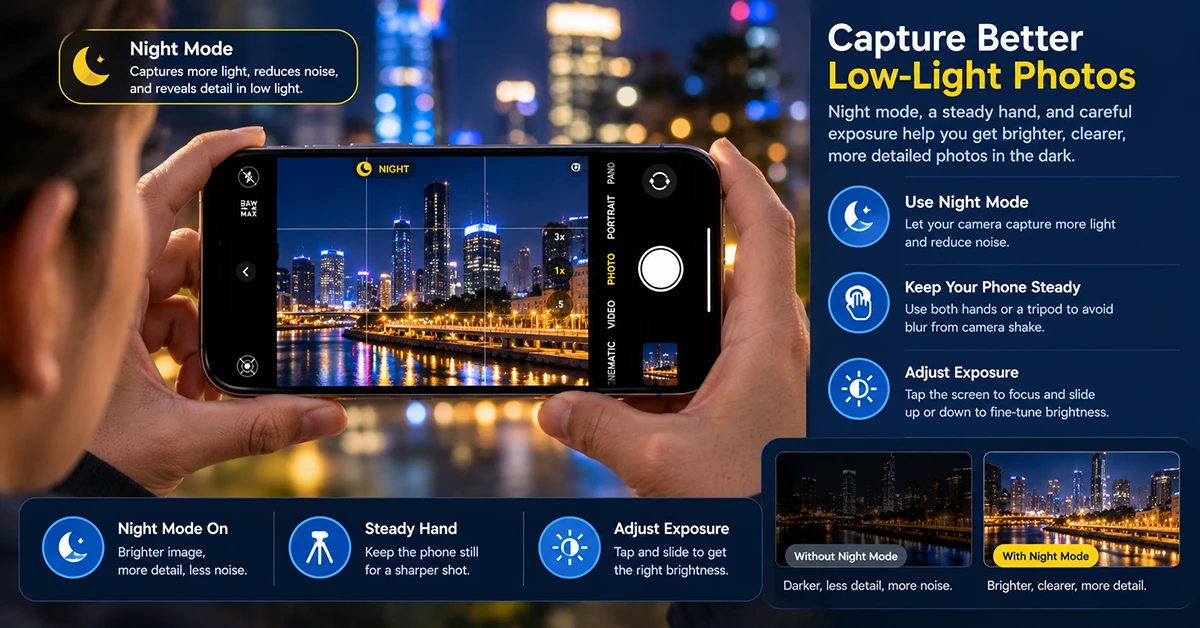
Night mode helps capture brighter, more detailed images in low-light conditions. The camera can automatically activate it when needed, and supported controls may let you adjust the exposure duration.
To improve nighttime photos:
- Hold the phone with both hands and keep it steady.
- Brace your elbows against your body or a stable surface.
- Avoid moving the phone until the exposure finishes.
- Use a tripod for static scenes when possible.
- Keep moving subjects in mind, because a longer exposure can introduce motion blur.
For city lights, night markets, and illuminated buildings, experiment with slightly darker exposure to preserve bright signs and light sources. Night mode is especially useful for stationary subjects, but it cannot completely freeze fast-moving people.
7. Use Zoom Without Losing Too Much Detail
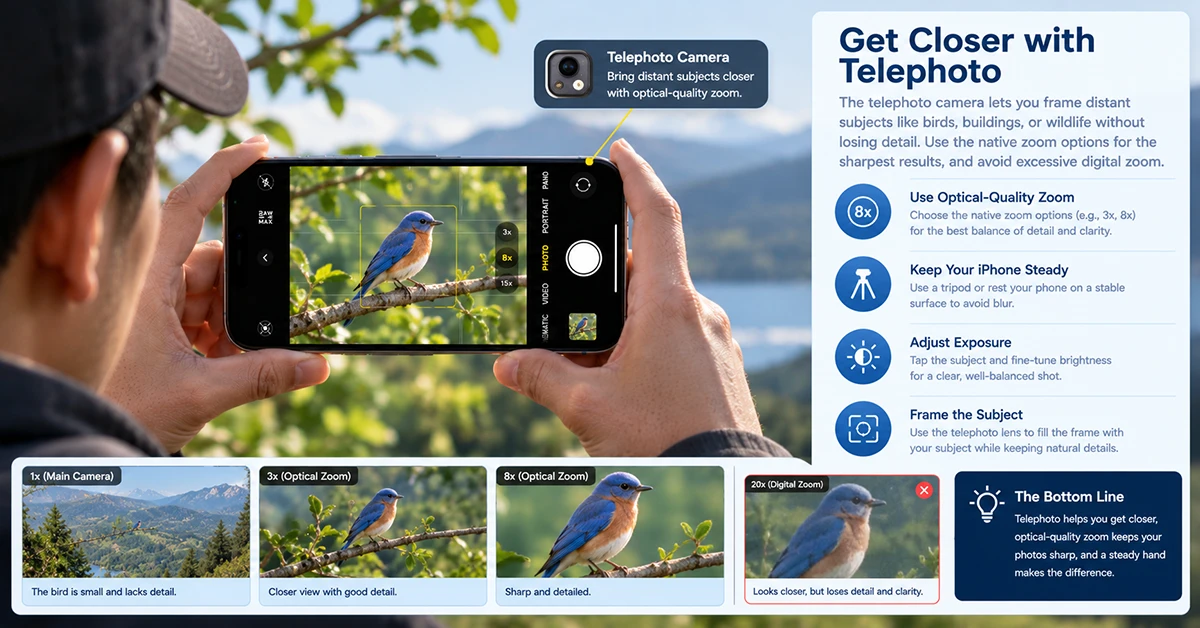
The telephoto camera makes it easier to photograph distant subjects without physically approaching them. It is useful for travel, wildlife, performances, and candid portraits.
Choose a native zoom option that frames the subject well. Whenever practical, move closer rather than relying on extreme digital zoom.
At high magnifications, even small hand movements become noticeable. Hold the phone steadily, use good lighting, and take multiple shots when photographing an important moment.
For landscapes, compare a wide composition with a zoomed-in version. The wider shot can establish context, while the tighter frame can emphasize a mountain, building, or other detail.
8. Use Macro Photography for Small Details
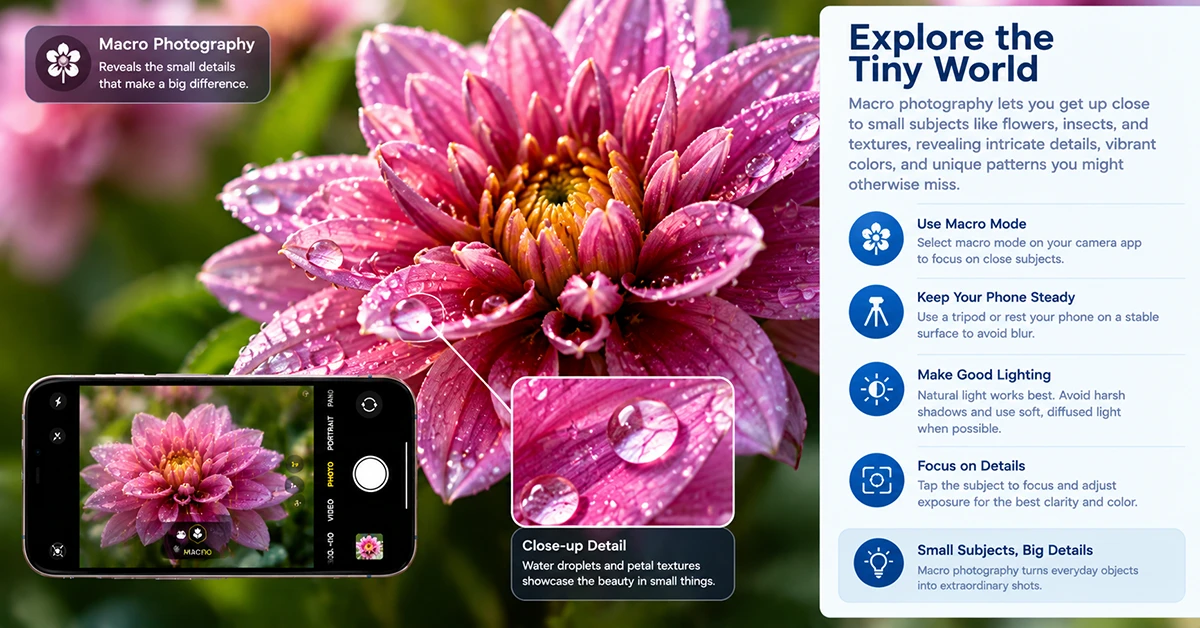
Macro photography is ideal for flowers, jewelry, food textures, insects, and other small subjects. The Ultra Wide camera supports close-up photography on compatible iPhone models.
Move slowly toward your subject and watch the viewfinder for changes in focus. If the image looks soft, back away slightly and try again.
Use plenty of light because close-up photography can make shadows and camera movement more noticeable. For flowers, try photographing from the side rather than directly above to create more depth.
Keep the background simple so the details remain the main attraction.
9. Customize Photographic Styles and Camera Controls
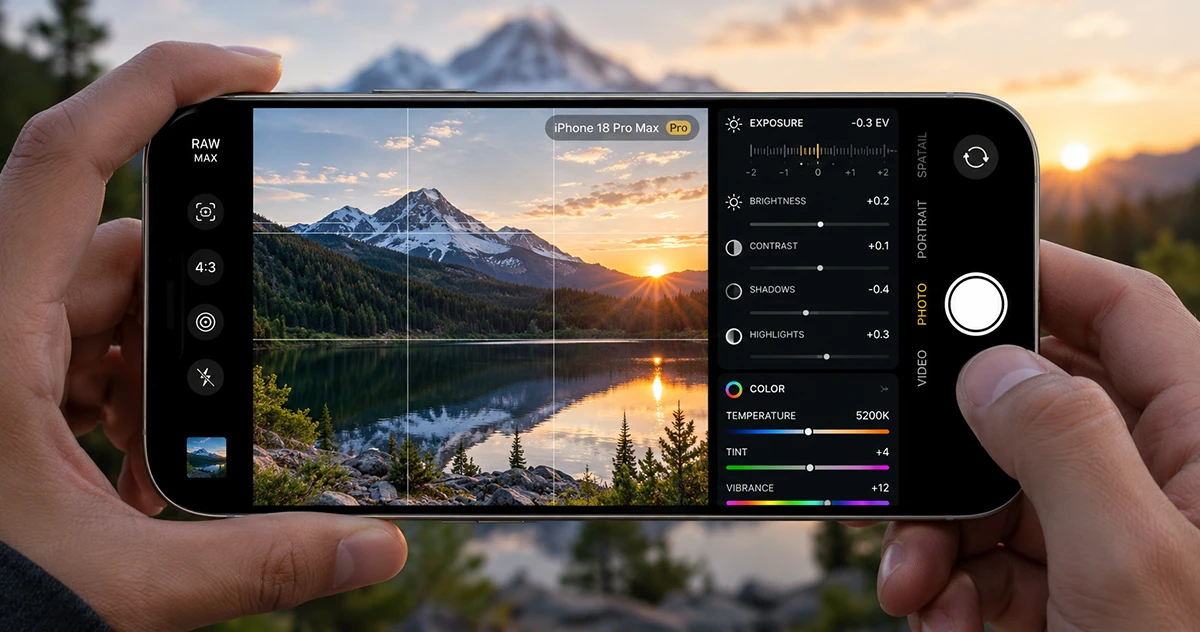
Photographic Styles can help you establish a consistent appearance across your photos. Choose a look that suits your preferences, whether you favor natural colors, warmer tones, or a more dramatic appearance.
The iPhone 18 Pro lineup also offers advanced camera controls, including manual aperture, shutter speed, white balance, and histogram tools.
These controls can help in specific situations:
- Aperture: Adjust depth of field and the amount of light entering the camera, where supported.
- Shutter speed: Use a faster setting to reduce motion blur or a slower one for intentional movement effects.
- White balance: Correct color casts from different light sources.
- Histogram: Assess tonal distribution and help identify potential exposure problems.
If you prefer quick snapshots, leave automatic settings enabled and learn the advanced controls gradually.
10. Edit Your Photos Without Overdoing It
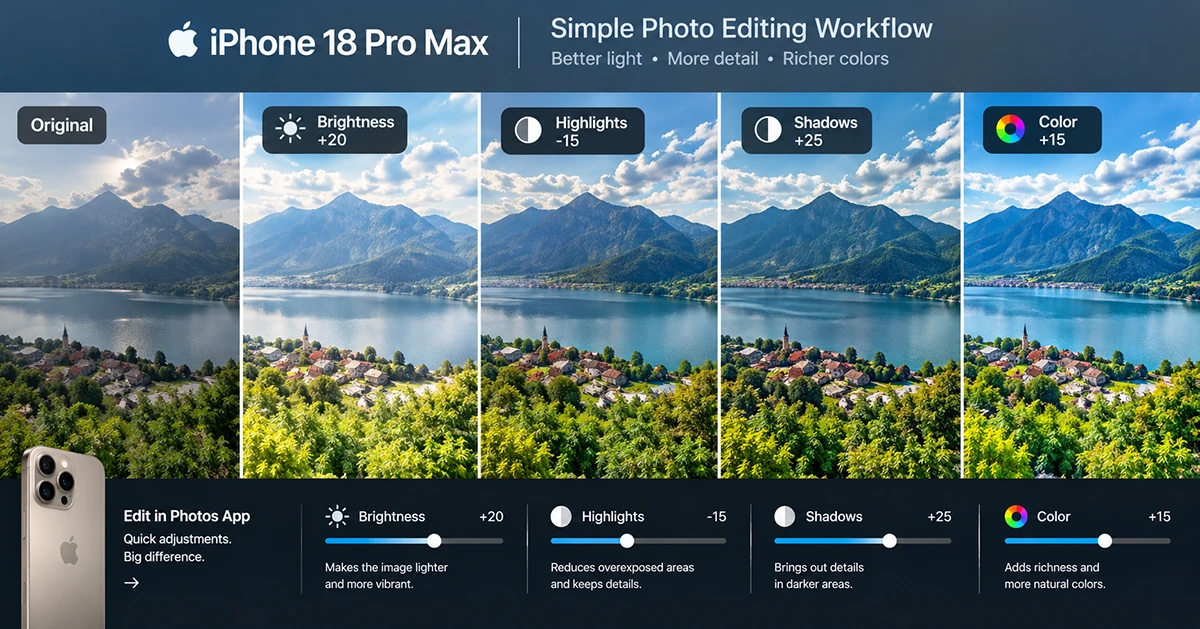
A few small adjustments can improve an otherwise good photo. Open the image in Photos and tap Edit to access the available adjustment and cropping tools.
Follow this simple editing workflow:
- Straighten the horizon and crop distracting edges.
- Adjust exposure or brightness if necessary.
- Recover highlights when bright areas look washed out.
- Lift shadows carefully to reveal darker details.
- Refine contrast, color, and warmth.
- Compare the edited version with the original before saving.
Avoid pushing saturation, sharpening, or contrast too far. Overediting can make skin look unnatural, skies appear artificial, and fine details look harsh.
Final Tips for Better iPhone 18 Pro Max Photography
The easiest way to improve your iPhone 18 Pro Max photos is to master a few fundamentals: choose the right camera, find good light, compose deliberately, tap to focus, and keep the phone steady. Then explore Portrait mode, Night mode, macro photography, and advanced camera controls as your skills develop.
Practice the same scene using different lenses, angles, and exposure settings. Comparing the results will help you understand which techniques work best for your photography style.

1 thought on “How to Take Better Photos With Your iPhone 18 Pro Max”