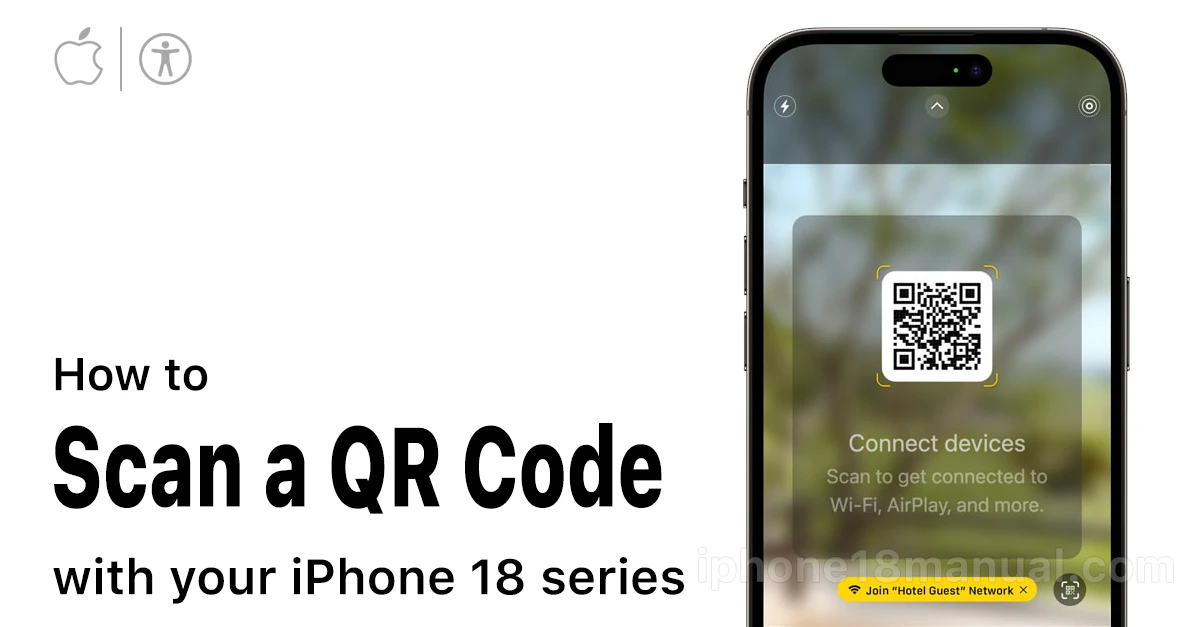
Whether you’re connecting to Wi-Fi at a café, opening a restaurant menu, or checking in for a flight, QR codes are everywhere — and your iPhone 18 can scan them in seconds without downloading any app. Here’s every method to scan QR Code on iPhone 18, plus fixes for when scanning doesn’t work.
Three Ways to Scan QR Codes on iPhone 18
You can scan QR codes on iPhone 18 using:
- Camera app (fastest method.
- Code Scanner in Control Center (dedicated interface).
- Camera Control button (iPhone 18 Pro exclusive).
All methods work instantly when the QR code appears in frame—tap the notification banner to open the linked content.
Method 1: Use the Camera App (The Easiest Way)
The built-in Camera app on iPhone 18 has QR code detection turned on by default:
- Open the Camera app from your Home Screen, Lock Screen, or swipe into Control Center.
- Hold your iPhone 18 so the QR code appears in the camera frame. Make sure all four corners of the code are visible.
- Wait a second — a yellow notification banner appears at the top of the screen showing the link.
- Tap the banner to open the link.
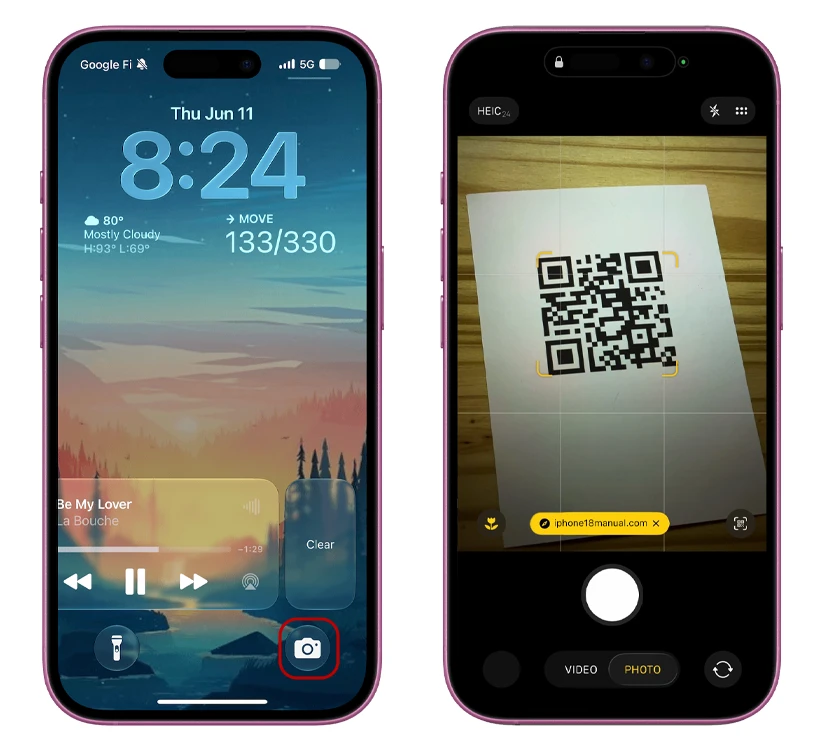
Tip: If the code is in a dark spot, tap the flashlight icon in the Camera app to add more light.
Method 2: Use the Camera Control Button (iPhone 18 Pro & Pro Max Exclusive)
The iPhone 18 Pro and iPhone 18 Pro Max have a dedicated Camera Control button on the side of the phone, making scanning faster than ever:
- Click the Camera Control button once to launch the Camera instantly — even from the Lock Screen.
- Point your iPhone at the QR code.
- Tap the yellow link banner when it appears.
This is the fastest method when a code catches you by surprise, since you don’t even need to unlock your phone first.
You can also set the Camera Control to require two clicks instead of one by going to Settings > Camera > Camera Control.
Method 3: Use the Code Scanner in Control Center
Want a scanner that doesn’t take photos? Add Apple’s dedicated Code Scanner to Control Center:
- Open Control Center (swipe down from the top-right corner).
- Touch and hold the background, then tap Add a Control.
- Find and tap the Scan Code control to add it.
- Now, whenever you need to scan, open Control Center and tap the Scan Code button.
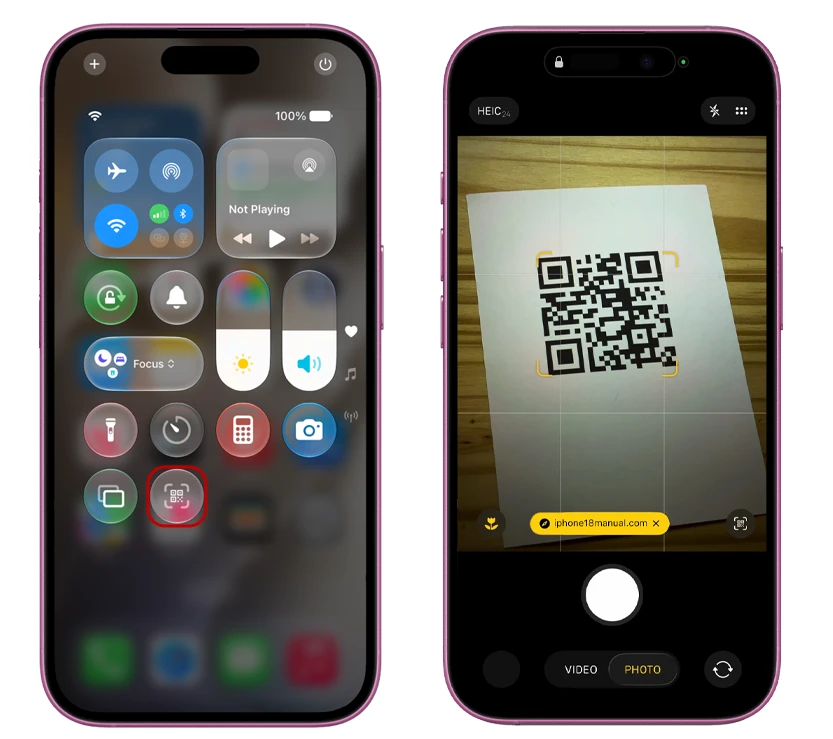
The Code Scanner has a built-in flashlight toggle and framed viewfinder that some users find easier to aim than the full Camera app.
Method 4: Scan a QR Code from a Photo or Screenshot
What if the QR code is on your own iPhone screen — a screenshot, a text message, or a webpage? Live Text has you covered:
- Open the Photos app and find the image with the QR code (or take a screenshot first).
- Tap the Live Text icon in the bottom corner of the photo.
- Tap the QR code in the image.
- Tap the action that appears — open the link, join the Wi-Fi network, or add the contact.
You can also use this trick with Wi-Fi QR codes shared by friends — just point at the code on their phone screen and connect instantly.
How to Connect to Wi-Fi by Scanning a QR Code
Scanning a Wi-Fi QR code on iPhone 18 connects you automatically:
- Scan the code using any method above (Camera app works great).
- Tap the “Join Wi-Fi Network” notification.
- Your iPhone connects — no typing long passwords.
If you’re setting up an eSIM, you can also go to Settings > Cellular > Set Up Cellular > Scan QR Code to activate a new line with a carrier QR code.
QR Code Not Working on Your iPhone 18? Try These Fixes
If your iPhone 18 won’t scan a QR code, work through these fixes:
- Check that Scan QR Codes is enabled: Go to Settings > Camera and make sure “Scan QR Codes” is toggled on.
- Give the camera time: Hold steady for 2–3 seconds. Detection is automatic — you don’t need to press the shutter.
- Improve the lighting: Low contrast is the #1 cause of failed scans. Turn on the flashlight or move to better light.
- Check camera permissions: If scanning inside another app (like a payment or banking app), go to Settings > [App Name] and make sure Camera access is on.
- Restart your iPhone: A quick restart fixes most temporary glitches with code detection.
- Update iOS: Go to Settings > General > Software Update — Apple regularly patches camera and scanning bugs in minor iOS updates.
- Clean the lens: Smudges on the camera lens can blur the code beyond recognition. A quick wipe usually solves it.
Frequently Asked Questions
Does the iPhone 18 need a QR code scanner app?
No. Every iPhone 18 ships with built-in QR scanning through the Camera app, Code Scanner in Control Center, and Live Text. Third-party scanner apps are unnecessary and many include ads or tracking.
Can iPhone 18 scan QR codes from the Lock Screen?
Yes — swipe into Control Center or click the Camera Control button on Pro models to open the camera without unlocking, then scan as normal.
Why does the QR code link look suspicious?
Always preview the link before tapping. Scammers place fake QR codes over legitimate ones in public places. If the URL looks strange or doesn’t match where the code should lead, don’t open it.
Can I scan a QR code on my own iPhone screen?
Yes — use the Live Text method (Method 4). Take a screenshot of the code, open it in Photos, tap the code, and tap the link. You never need a second device.
Scanning a QR code on iPhone 18 takes seconds: open Camera, point, tap the link. If you have an iPhone 18 Pro or Pro Max, the Camera Control button makes it even faster. And with Live Text, you can even scan codes saved on your own screen. No apps, no hassle.
1 thought on “How to Scan QR Code on iPhone 18: Complete Guide (2026)”