If your iPhone 18 Pro Max storage is full, you can usually fix the problem by deleting large videos, removing unnecessary downloads, offloading unused apps, and optimizing photo storage. Start by opening Settings > General > iPhone Storage to see exactly what uses the most space. Then follow the recommendations displayed on your device.
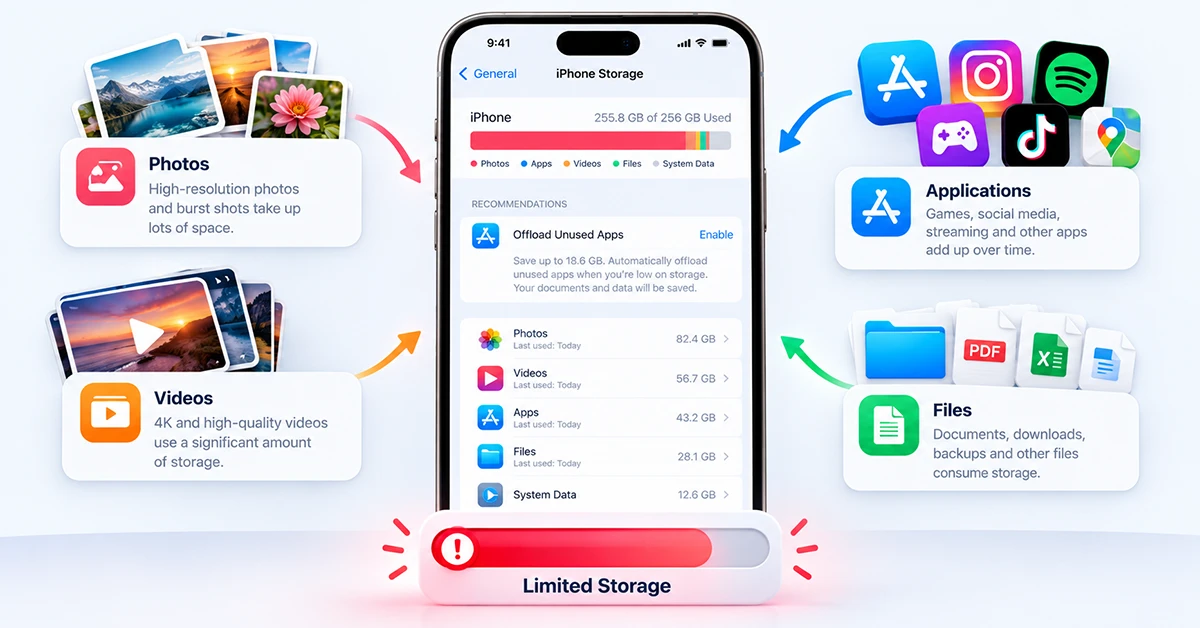
You do not need to delete everything or reset your iPhone to fix a full-storage warning. The key is to identify the largest storage categories and remove content you no longer need.
This guide explains eight ways to fix the iPhone 18 Pro Max storage full problem, including what to do when System Data takes up too much space or storage remains full after deleting files.
How to Check iPhone 18 Pro Max Storage
Before deleting anything, check how much space remains and which apps or files consume the most storage.
- Open Settings on your iPhone.
- Tap General.
- Select iPhone Storage.
- Wait for the storage bar and app list to load.
- Review the recommendations and apps sorted by storage usage.
The screen shows your available capacity and the space used by apps, photos, media, messages, and system files. Use this information to decide which fix will free up the most space.
8 Ways to Fix iPhone 18 Pro Max Storage Full
In this guide, you’ll discover 8 ways to fix the iPhone 18 Pro Max storage full problem, including deleting unnecessary files, clearing app caches, optimizing photos, and managing iCloud storage. Follow these simple tips to reclaim space and keep your iPhone running smoothly.
1. Delete Large Videos and Unwanted Photos
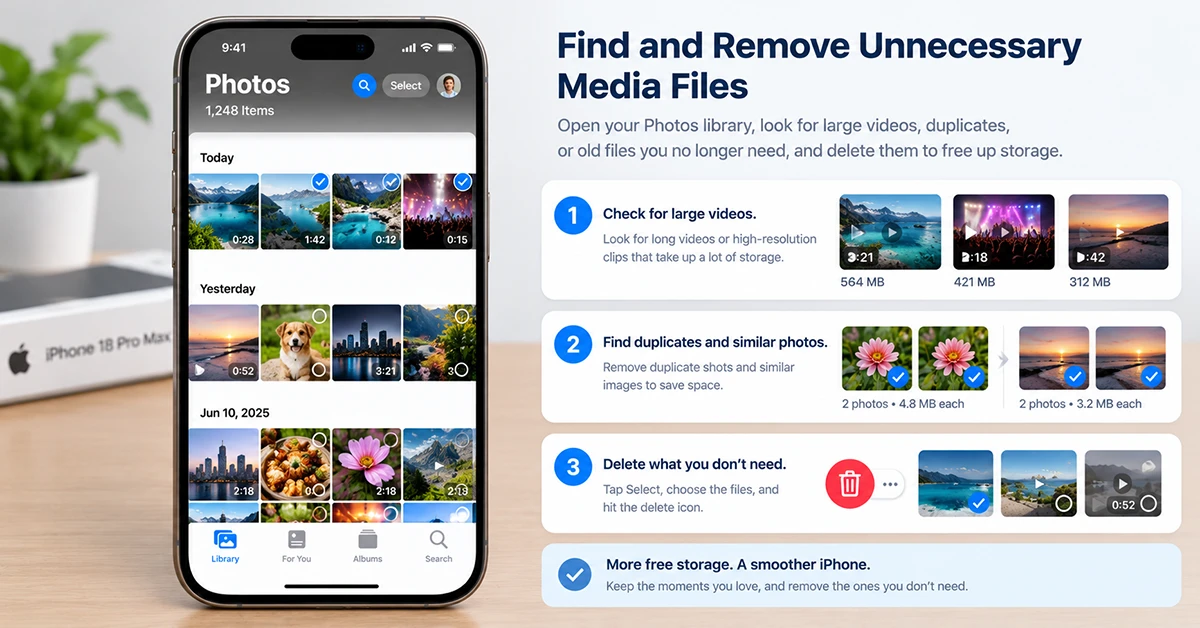
Photos and videos can consume substantial storage, especially when you record high-resolution videos or keep many screen recordings.
To free up space:
- Open the Photos app.
- Review your videos, screen recordings, and screenshots.
- Delete large files you no longer need.
- Open Recently Deleted in Photos.
- Permanently delete unwanted items after confirming that you no longer need them.
You can also check the Duplicates album under Photos’ Utilities section, if available, to review duplicate images.
Important: Back up important photos before deleting them. If you use iCloud Photos, deleting a photo on your iPhone also deletes it from other devices synced with the same library. Deleted items may remain in Recently Deleted until you remove them permanently.
2. Turn On Optimize iPhone Storage
If you want to keep your photo library without storing every full-resolution original locally, iCloud Photos can help.
Follow these steps:
- Open Settings and tap your name.
- Select iCloud > Photos.
- Turn on Sync this iPhone.
- Enable Optimize iPhone Storage.
Depending on your iOS version, the optimization option may appear under the iPhone Storage section within Photos settings.
With optimization enabled, iCloud stores full-resolution originals while your iPhone can keep smaller, space-saving versions locally. You need enough available iCloud storage for the library to sync successfully.
Remember that iCloud storage and iPhone storage are separate. Buying additional iCloud storage does not increase your iPhone’s physical capacity.
3. Offload Unused Apps
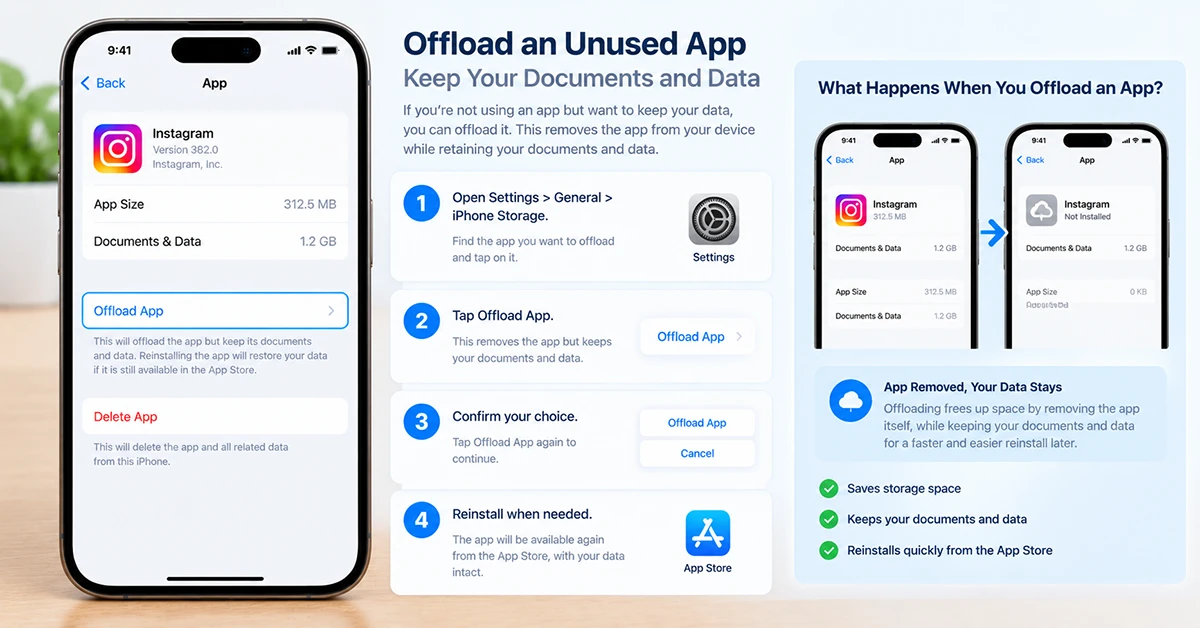
Some apps occupy hundreds of megabytes or several gigabytes, even if you rarely open them. Offloading removes an app while preserving its documents and data.
To offload an app manually:
- Go to Settings > General > iPhone Storage.
- Select an app you rarely use.
- Tap Offload App.
- Confirm your choice.
You can also enable automatic offloading under Settings > Apps > App Store > Offload Unused Apps, if that option appears on your iOS version.
Choose Offload App rather than Delete App when you want to retain the app’s documents and data. However, offloading may not free much space if the app’s stored documents and data account for most of its usage.
4. Remove Large Message Attachments
Photos, videos, and other attachments in Messages can quietly consume gigabytes of storage.
To remove unwanted attachments:
- Open Settings and select General.
- Tap iPhone Storage.
- Select Messages, if listed.
- Review the available attachment categories and recommendations.
- Delete large files or conversations you no longer need.
You can also open a conversation in Messages, tap the contact or group name, and review its shared photos and videos.
Check important conversations before deleting anything. Depending on your settings and sync configuration, deleting messages can affect other devices using the same message account.
5. Delete Offline Downloads and Unnecessary Files
Streaming, navigation, music, and reading apps often store downloaded content for offline use.
Review these locations:
- Netflix and other video apps: Remove downloaded episodes or movies you have finished watching.
- Music apps: Delete downloaded albums and playlists you can stream again.
- Podcasts: Remove completed episodes.
- Files: Open the Files app and check Downloads and On My iPhone.
- Apple Books: Delete books or PDFs you no longer need on the device.
- Safari: Review downloaded files and remove unnecessary items.
Deleting an offline download usually removes the local copy, not the content from your online account. Check the app’s download settings if you cannot find the removal option.
6. Reduce App Documents and Data
If an app occupies far more space than expected, inspect its Documents & Data usage.
Open Settings > General > iPhone Storage, select the app, and review its storage breakdown.
Some messaging, social media, browser, and editing apps store cached media, temporary files, or downloaded content. Look for built-in options to clear downloads or cache.
If the app offers no practical cleanup option, you may need to delete and reinstall it. Back up important app data first. Deleting an app can remove locally stored files, conversations, drafts, or other information that does not sync to an account.
7. Fix iPhone System Data Taking Up Too Much Space
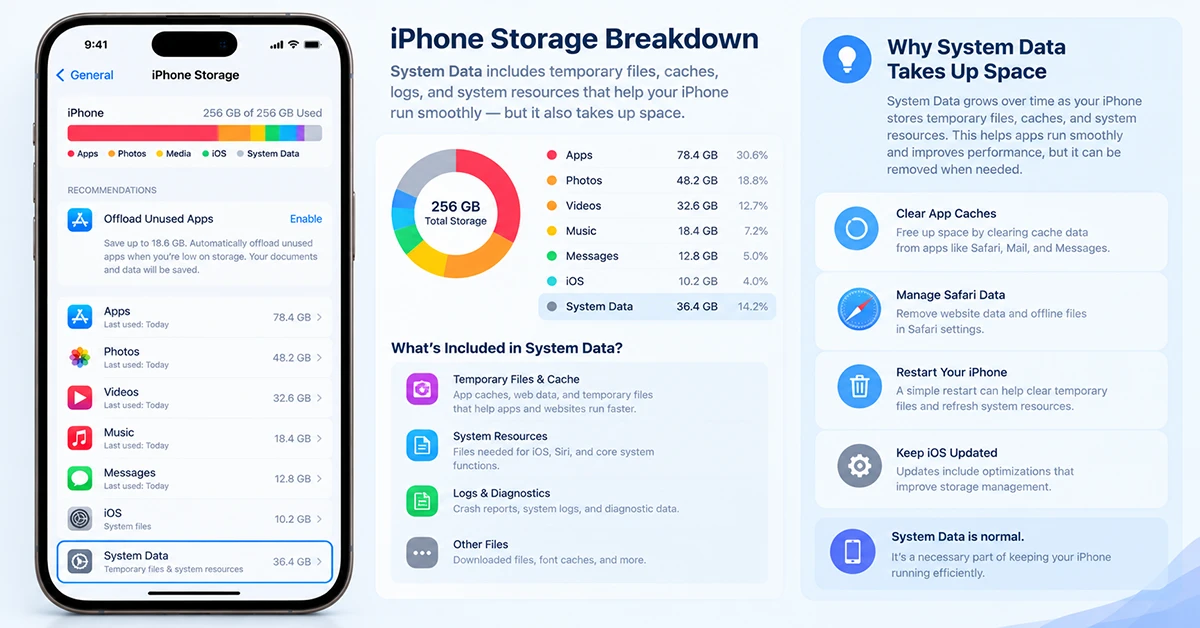
System Data includes temporary files, caches, logs, and other system resources. Its size can change as your iPhone performs everyday tasks or installs updates.
If System Data appears unusually large, try these steps:
- Restart your iPhone.
- Install available iOS updates when you have enough free space.
- Remove unnecessary downloads and cached content through individual apps.
- Leave your iPhone connected to power and Wi-Fi if it needs time to finish syncing or processing.
- Check iPhone Storage again after the device has had time to update its calculations.
iOS manages many temporary files automatically. You cannot directly delete every System Data component, and restarting will not guarantee a large reduction.
Avoid unknown cleaner apps or instructions that require deleting important system files. If System Data remains exceptionally large and prevents normal use, contact Apple Support before considering a restore.
8. Check Whether iCloud or iPhone Storage Is Full
These are two different problems, and each requires a different solution.
| Storage problem | Where to check | What to do |
|---|---|---|
| iPhone storage full | Settings > General > iPhone Storage | Remove local files, downloads, or unused apps |
| iCloud storage full | Settings > Your Name > iCloud | Review backups, photos, and cloud files |
| Photos occupy too much local space | Settings > Your Name > iCloud > Photos | Enable Optimize iPhone Storage if suitable |
| Apps use excessive space | Settings > General > iPhone Storage | Offload apps or clean up their data |
| System Data is unusually large | Settings > General > iPhone Storage | Restart, update, and allow time for recalculation |
If iCloud is full, new backups or photo synchronization may stop until you free cloud space or upgrade your plan. If the iPhone itself is full, you must reclaim local storage even if you have plenty of iCloud capacity.
How to Prevent iPhone 18 Pro Max Storage From Filling Up Again
A few simple habits can reduce future storage problems:
- Review iPhone Storage once a month.
- Delete unwanted screen recordings and long videos regularly.
- Remove offline movies, music, and podcasts after use.
- Enable Optimize iPhone Storage if you use iCloud Photos.
- Offload apps you rarely use.
- Review large message attachments periodically.
- Keep enough free space for software updates and new recordings.
Frequently Asked Questions
Final Thoughts
When your iPhone 18 Pro Max storage is full, start with Settings > General > iPhone Storage. Remove large videos, unwanted downloads, and unnecessary message attachments before tackling less obvious issues.
For a long-term solution, optimize your photo storage, offload unused apps, and monitor System Data. These steps can recover valuable space without requiring a factory reset.
