Backing up your iPhone 18 with iCloud takes less than a minute once iCloud Backup is enabled. Go to Settings > [Your Name] > iCloud > iCloud Backup, then tap Back Up Now while connected to Wi-Fi.
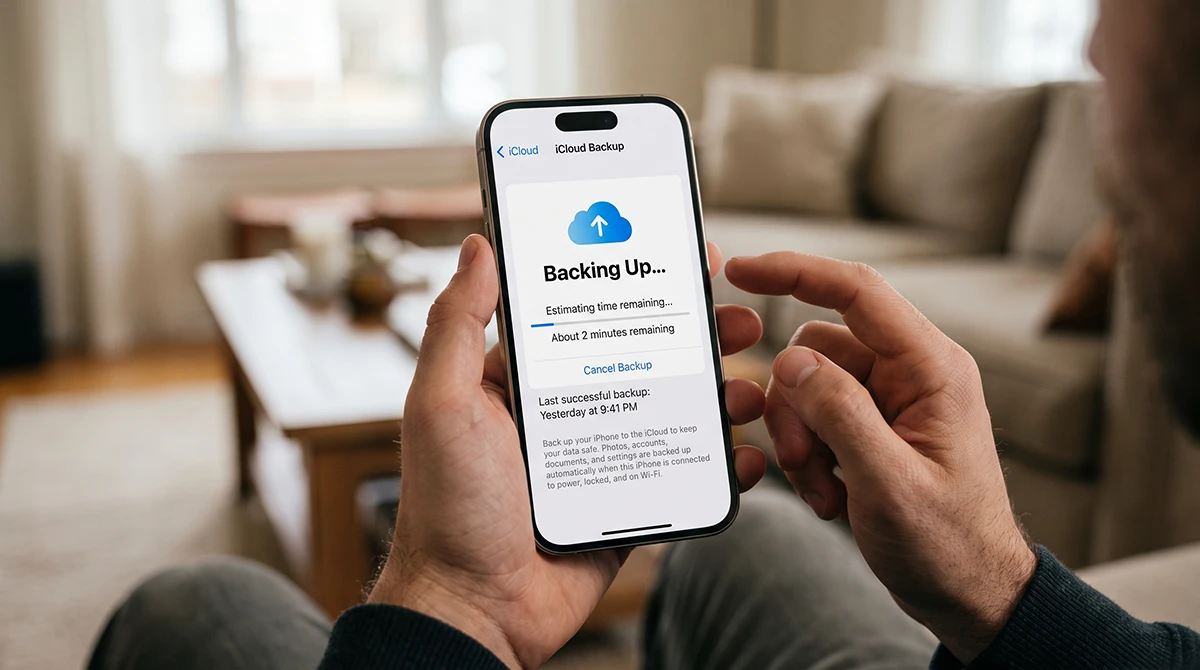
An iCloud backup protects your photos, app data, device settings, messages, and other important information if your iPhone is lost, damaged, replaced, or reset. Apple recommends keeping a backup because iCloud lets you back up wirelessly without connecting your iPhone to a computer.
What You Need Before Backing Up
Before you back up iPhone 18 with iCloud, make sure you have:
- A Wi-Fi connection
- Enough available iCloud storage
- Your Apple Account signed in
- Your iPhone connected to power for automatic backups
- A locked screen if you want the automatic daily backup to run
Apple says iCloud Backup automatically runs daily when your iPhone is connected to power, locked, and on Wi-Fi.
How to Back Up iPhone 18 with iCloud Manually
Use this method when you want to create a backup immediately, such as before installing an iOS update, trading in your phone, or setting up a new iPhone.
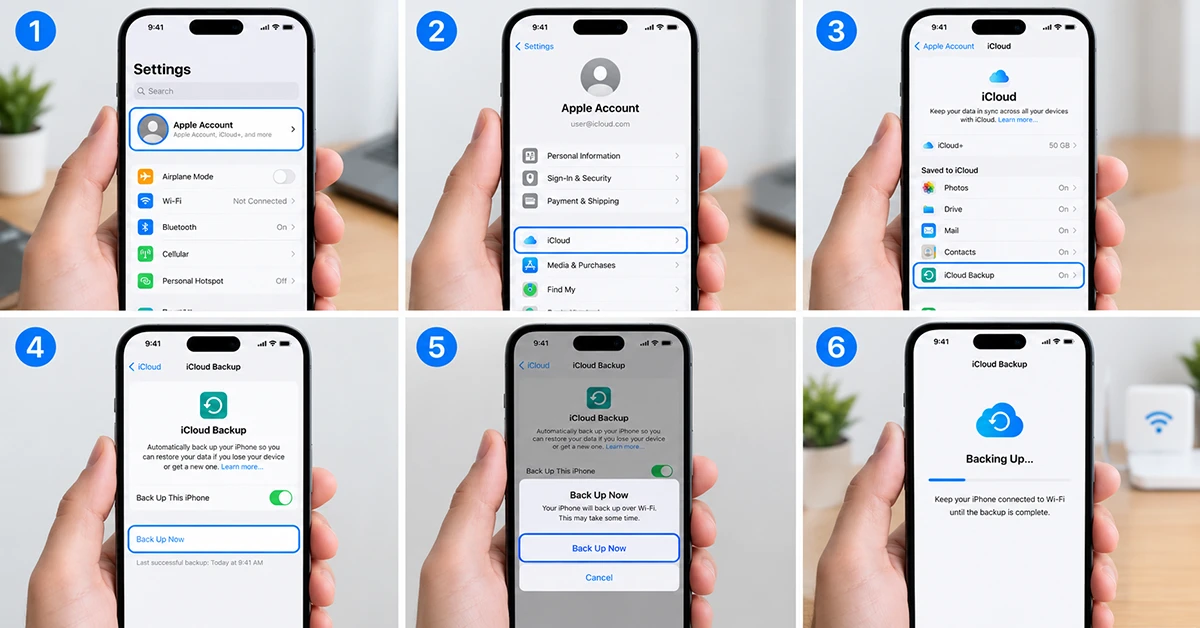
- Open Settings.
- Tap your name at the top of the screen.
- Tap iCloud.
- Tap iCloud Backup.
- Tap Back Up Now.
- Stay connected to Wi-Fi until the backup finishes.
You can check the progress beneath Back Up Now. When complete, the screen will show the date and time of your last successful iCloud backup.
Quick Backup Path: Settings > [Your Name] > iCloud > iCloud Backup > Back Up Now.
This is the fastest way to back up iPhone 18 with iCloud manually.
How to Turn On Automatic iCloud Backup
Automatic backups are the best option for most people because your iPhone 18 can back itself up daily without manual action.
- Open Settings.
- Tap [Your Name].
- Tap iCloud.
- Tap iCloud Backup.
- Turn on Back Up This iPhone.
Once enabled, your iPhone will automatically back up when it is plugged in, locked, and connected to Wi-Fi.
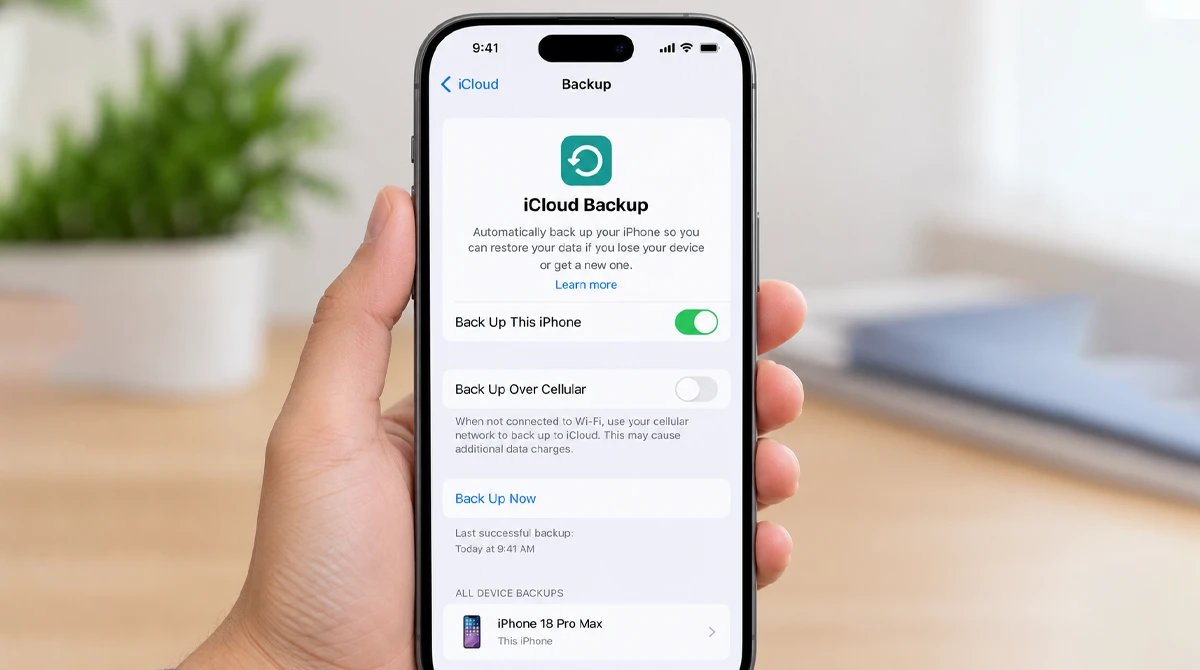
For best results, plug in your iPhone overnight and leave it connected to your home Wi-Fi. This gives iCloud time to complete the backup without interrupting your day.
What iCloud Backup Includes
iCloud Backup can include:
- Device settings.
- App data.
- Home screen and app organization.
- iMessage, text messages, and MMS messages.
- Photos and videos, depending on your iCloud Photos settings.
- Apple Watch backups.
- Purchase history for apps, books, and media.
- Visual Voicemail password, where supported.
Some data may be excluded if it is already synced separately through iCloud, such as iCloud Photos, iCloud Drive, contacts, calendars, or notes. Apple lets you choose which apps and data are included in the backup.
How Much iCloud Storage Do You Need?
The free iCloud plan includes 5GB, which may not be enough for an iPhone with lots of photos, videos, messages, or app data. If your backup exceeds your available space, Apple will alert you that there is not enough iCloud storage.
To check your storage:
- Open Settings.
- Tap [Your Name].
- Tap iCloud.
- Review the storage bar at the top.
- Tap Manage Account Storage or Storage for details.
To see how much space your next iPhone 18 backup needs:
- Go to Settings > [Your Name] > iCloud.
- Tap Manage Account Storage.
- Tap Backups.
- Select your iPhone 18.
- Check Next Backup Size.
If you need more room, you can either remove unnecessary backup data or upgrade to an iCloud+ plan.
How to Fix “Not Enough iCloud Storage”
If your iPhone 18 will not back up because iCloud storage is full, try these fixes:
- Delete old device backups: Go to Settings > [Your Name] > iCloud > Manage Account Storage > Backups, select an old device, and delete its backup if you no longer need it.
- Turn off backups for large apps: In the same backup screen, toggle off apps whose data you do not need to save.
- Reduce photo storage: Enable iCloud Photos or remove large videos and duplicates from your library.
- Upgrade iCloud storage: Choose a larger iCloud+ plan if your backup consistently needs more space.
- Check the next backup size: Apple displays Next Backup Size under your device’s backup settings, which helps you decide whether to clean up data or buy more storage.
iPhone 18 iCloud Backup Not Working? Try This
If Back Up Now fails or the backup gets stuck, work through these steps:
- Confirm Wi-Fi: Go to Settings > Wi-Fi and ensure you have a stable connection.
- Check Apple system status: Temporary iCloud service issues can prevent backups.
- Update iOS: Go to Settings > General > Software Update and install any available update.
- Check your Apple Account: Make sure you are signed in under Settings > [Your Name].
- Try another Wi-Fi network: A restricted public or workplace network may block backup traffic.
- Leave the phone plugged in: Apple suggests keeping the device connected to power and Wi-Fi for up to 24 hours if the backup is taking a long time.
- Restart your iPhone: A simple restart can resolve temporary software glitches.
- Check storage again: Confirm that you have enough iCloud space for the next backup.
How to Restore iPhone 18 from an iCloud Backup
You can restore an iCloud backup when setting up a new or erased iPhone.
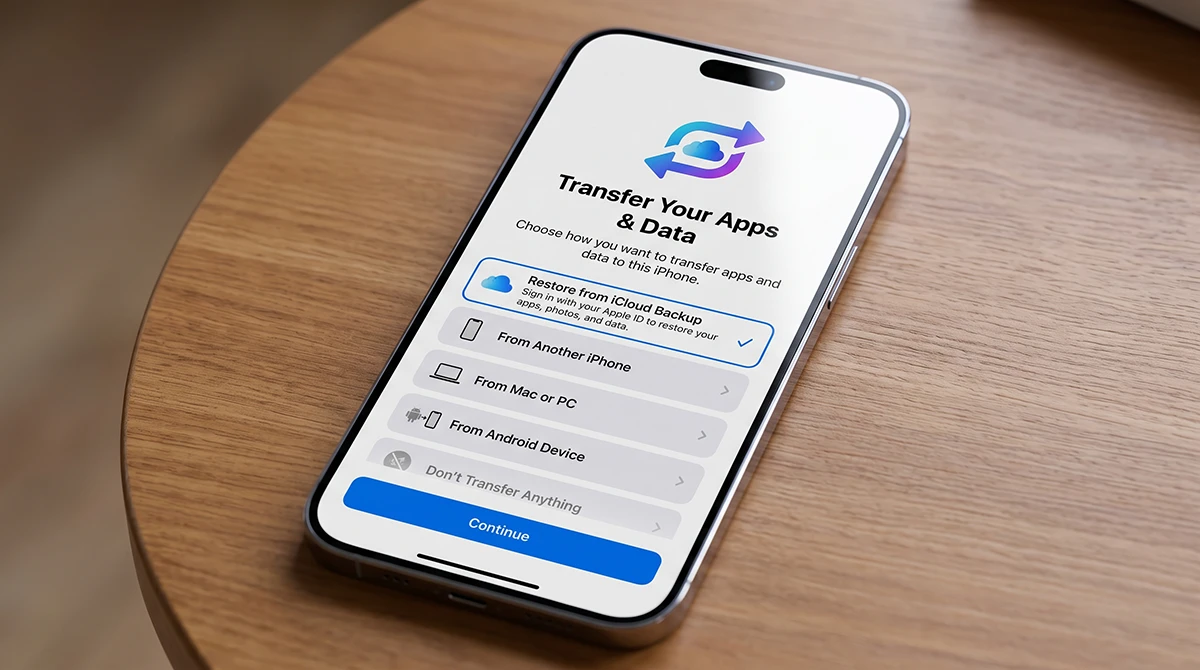
- Turn on your iPhone 18.
- Follow the setup prompts until you reach the Apps & Data screen.
- Tap Restore from iCloud Backup.
- Sign in with your Apple Account.
- Choose the most recent relevant backup.
- Keep the iPhone connected to Wi-Fi until the restore completes.
If you are moving from an older iPhone, Apple may also offer temporary extra iCloud storage to help complete the transfer when your existing storage is insufficient.
iCloud Backup vs. Computer Backup
| Feature | iCloud Backup | Computer Backup |
|---|---|---|
| Connection needed | Wi-Fi | Mac or PC |
| Automatic daily backups | Yes, when charging, locked, and on Wi-Fi | Depends on your settings |
| Storage limit | iCloud storage plan | Computer storage |
| Best for | Convenient, wireless, everyday backups | Large local backups or offline copies |
| Access | Restore during iPhone setup | Restore using Finder or Apple Devices/iTunes |
iCloud is the easiest option for most iPhone 18 owners because it does not require a computer and can back up automatically overnight.
Best Practices for iPhone 18 Backups
- Turn on Back Up This iPhone immediately after setup.
- Run a manual Back Up Now before major iOS updates.
- Keep at least one recent backup before erasing, selling, or trading in your iPhone.
- Review your iCloud storage monthly.
- Delete backups from devices you no longer own.
- Use iCloud Photos if you want photos stored separately and potentially reduce local backup pressure.
- Do not rely on only one backup method if your data is irreplaceable.
FAQs
How do I back up my iPhone 18 to iCloud?
Open Settings, tap your name, tap iCloud, tap iCloud Backup, then tap Back Up Now. Stay on Wi-Fi until the process finishes.Does iPhone 18 back up automatically?
Yes. After you enable Back Up This iPhone, iCloud backs up your device daily when it is connected to power, locked, and connected to Wi-Fi.How long does an iCloud backup take?
It depends on your Wi-Fi speed, backup size, and how much new data has changed since the last backup. A first backup can take longer; later backups are usually faster because iCloud mainly uploads changed data.Can I back up my iPhone 18 without Wi-Fi?
iCloud Backup requires a Wi-Fi connection. Apple’s instructions specify connecting the device to Wi-Fi before starting a backup.What happens if iCloud storage is full?
Your backup will not complete. You can free up space by removing old backups or unneeded app data, or upgrade to a larger iCloud+ plan.Is iCloud Backup enough to protect my iPhone?
iCloud Backup is a strong everyday solution, but keeping an additional computer backup can provide extra protection for especially important photos, videos, and documents.
Backing up your iPhone 18 with iCloud should take only a few taps. Enable automatic iCloud Backup today, run one manual backup before major changes, and check your storage regularly so your data is always recoverable.
1 thought on “How to Back Up iPhone 18 with iCloud: Complete Step-by-Step Guide”