You can transfer data from Android to iPhone 18 wirelessly with Apple’s free Move to iOS app. During your iPhone 18’s initial setup, it creates a private Wi-Fi connection to your Android phone and securely moves supported contacts, photos, videos, messages, apps, and more.
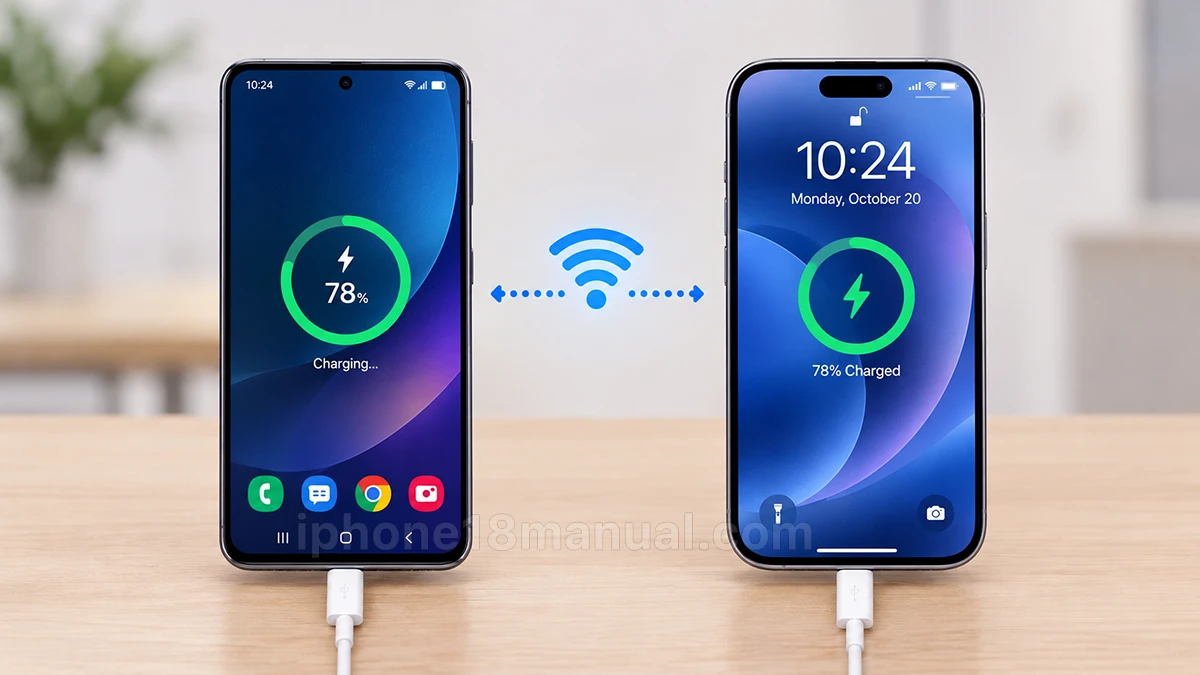
This method is best if your iPhone 18 is new or has not completed setup. If you already finished setting it up, you must erase the iPhone and start setup again to use Move to iOS.
What you need before transferring
Prepare both phones before you begin. Apple recommends keeping both devices nearby, connected to power, and using Wi‑Fi throughout the transfer.
- An Android phone running Android 4.0 or later.
- A new or factory-reset iPhone 18 that is still on the setup screen.
- The Move to iOS app installed from Google Play on your Android phone.
- Wi‑Fi turned on for both devices.
- Both phones plugged into power.
- Enough free storage on the iPhone 18 for the content you want to move.
- Your Android phone’s Wi‑Fi, mobile data, and Bluetooth permissions enabled if prompted.
Steps to Transfer Android data to iPhone 18 wirelessly
Follow these steps while setting up your iPhone 18 for the first time. The iPhone creates a temporary private Wi‑Fi network, and your Android phone connects to it after you enter a security code.
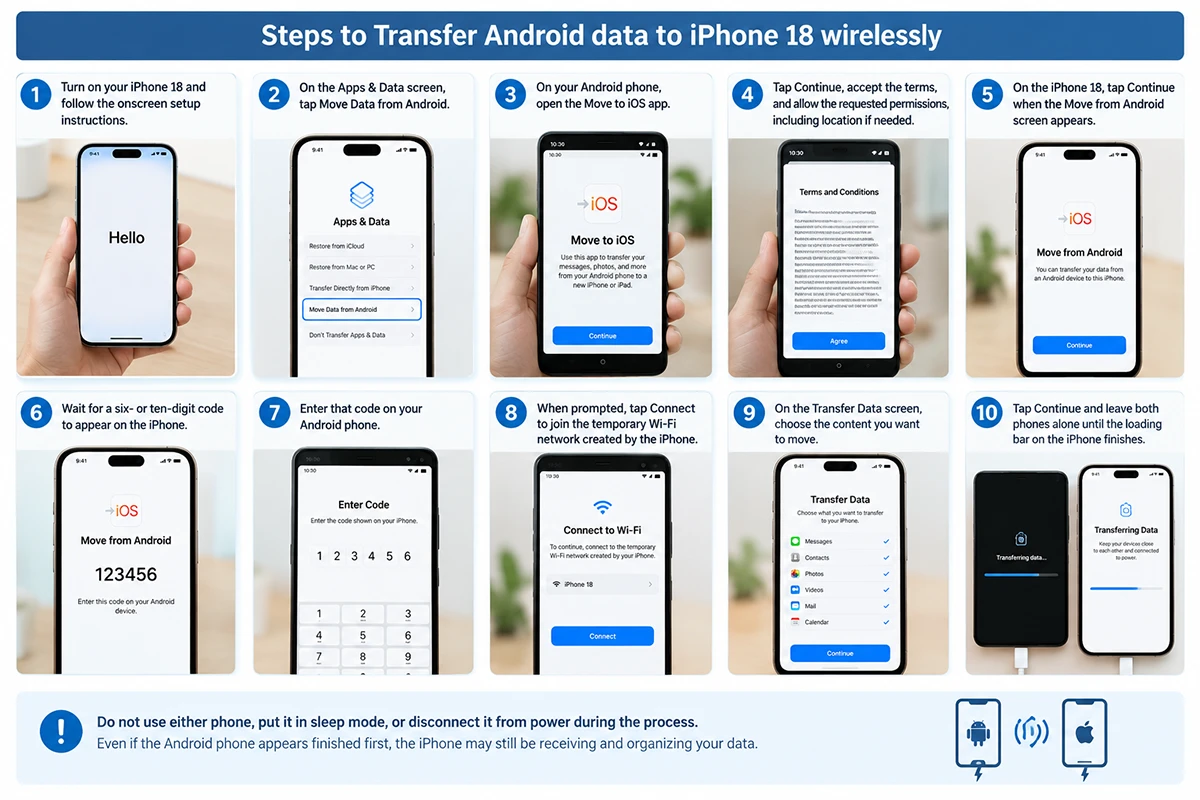
- Turn on your iPhone 18 and follow the onscreen setup instructions.
- On the Apps & Data screen, tap Move Data from Android.
- On your Android phone, open the Move to iOS app.
- Tap Continue, accept the terms, and allow the requested permissions, including location if needed.
- On the iPhone 18, tap Continue when the Move from Android screen appears.
- Wait for a six- or ten-digit code to appear on the iPhone.
- Enter that code on your Android phone.
- When prompted, tap Connect to join the temporary Wi‑Fi network created by the iPhone.
- On the Transfer Data screen, choose the content you want to move.
- Tap Continue and leave both phones alone until the loading bar on the iPhone finishes.
- Keep both devices close together and connected to power until the transfer is complete.
Do not use either phone, put it in sleep mode, or disconnect it from power during the process. Even if the Android phone appears finished first, the iPhone may still be receiving and organizing your data.
What Move to iOS transfers
Move to iOS can transfer many common types of content automatically and place them in the correct iPhone apps. Apple says it supports contacts, messages, photos, videos, email accounts, calendars, browser bookmarks, apps, and more.
| Data type | Wireless transfer support |
|---|---|
| Contacts | Yes |
| Photos and videos | Yes |
| SMS messages | Yes |
| Call history | Yes |
| Calendar events | Yes |
| Email accounts | Yes |
| Free apps | Yes, where available on the App Store |
| WhatsApp chats and media | Yes, through the Move to iOS WhatsApp option |
| Music, books, and PDFs | May require manual transfer |
| Passwords saved only in Android browser or password manager | May require manual migration |
| Apps with no iPhone version | Cannot transfer |
Apple’s switch page specifically highlights contacts, messages, WhatsApp content, photos, videos, email accounts, favorite apps, and call history as content Move to iOS can transfer.
Transfer WhatsApp from Android to iPhone 18
WhatsApp can move chats, media, and account history during the Move to iOS process, but it has stricter requirements than a standard transfer. WhatsApp says the iPhone must be new or factory reset, both phones must be connected to power, and both must be on the same Wi‑Fi network—or the Android phone must connect to the iPhone’s hotspot.
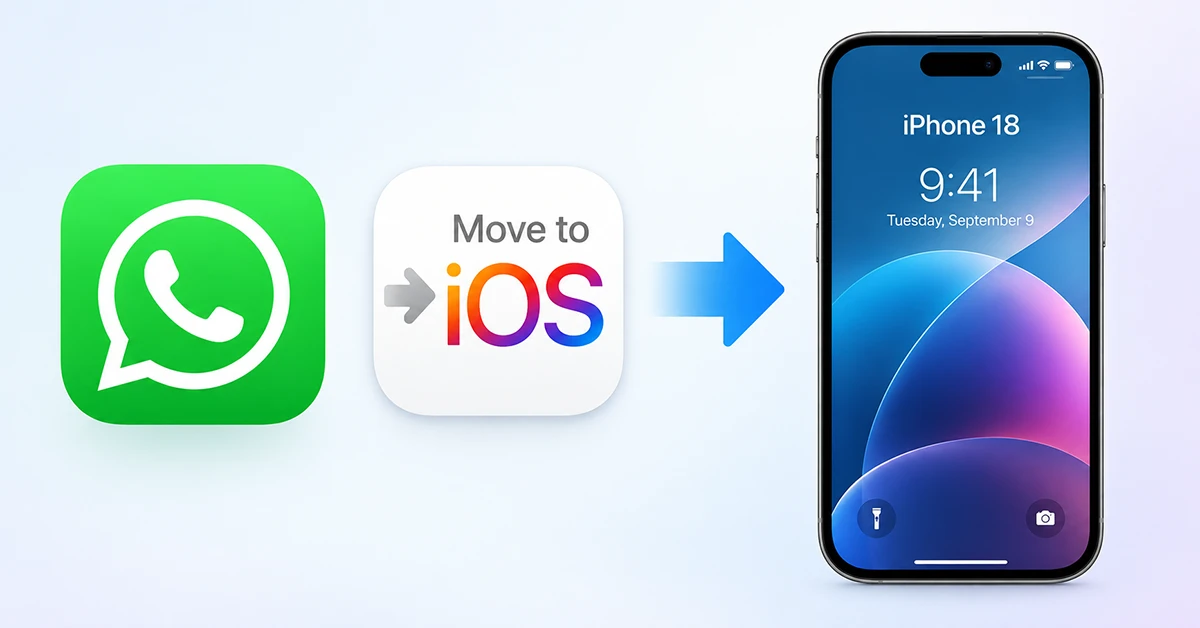
To move WhatsApp:
- Install the latest version of WhatsApp on your Android phone.
- Open Move to iOS and select WhatsApp when choosing data to transfer.
- Complete the normal Move to iOS pairing and transfer process.
- After the iPhone finishes setup, install WhatsApp from the App Store.
- Sign in with the same phone number and follow the prompts to restore your transferred chats.
- WhatsApp requires Android 5 or later and iOS 15.5 or later for this migration, and it does not support third-party transfer apps.
Transfer photos and videos wirelessly
Photos and videos are usually included when you select them in Move to iOS. For large libraries, the transfer may take a long time, so keep both phones charging and nearby until the iPhone’s progress bar finishes.
If some photos do not appear
- Check that they were stored locally on the Android phone rather than only in a cloud service.
- Confirm the iPhone has enough free storage.
- Use Google Photos, Google Drive, Dropbox, or another cloud service for files that were not included.
- Transfer remaining files manually through a computer, external drive, or cloud storage.
If Move to iOS is not working
Most wireless transfer problems come from setup timing, weak connectivity, low battery, or insufficient iPhone storage. Apple advises keeping both devices close together and plugged in until the process completes.
Try these fixes:
- Restart both phones, then begin the iPhone setup again.
- Turn on Wi‑Fi on the Android phone before opening Move to iOS.support.apple
- Update Move to iOS and WhatsApp from Google Play.
- Disable mobile data or VPN temporarily if the connection fails.
- Allow location permission when Move to iOS requests it; the app uses it to establish the Wi‑Fi connection between devices.
- Free up iPhone storage if the transfer stops near the end.
- Keep both phones awake and charging for the entire transfer.
- Erase the iPhone and restart setup if you already passed the Apps & Data screen. Move to iOS only works during initial setup.
Can you transfer after setting up iPhone 18?
No—Move to iOS is designed for the first-time setup process. If your iPhone 18 has already been set up, you need to erase it and begin again, or move the remaining data manually.
To erase the iPhone, go to Settings > General > Transfer or Reset iPhone > Erase All Content and Settings. After it restarts, choose Move Data from Android during setup.
How long does the transfer take?
There is no fixed transfer time because it depends on the amount of data, Wi‑Fi stability, and phone performance. A small transfer may finish in minutes, while thousands of photos, videos, apps, and WhatsApp chats can take an hour or longer.
Keep both devices plugged in and do not interrupt the process. Apple specifically says to leave the phones alone until the loading bar on the iPhone finishes, even if Android appears to have completed its part earlier.
Frequently asked questions
Is Move to iOS free?
Yes. Move to iOS is a free app from Apple on Google Play and is the official wireless method for moving Android content to an iPhone.Does it need the same Wi‑Fi network?
Not necessarily. The iPhone creates its own temporary private Wi‑Fi network during Move to iOS, and the Android phone connects to that network after you enter the code. WhatsApp may additionally require both devices to be on the same Wi‑Fi network or use the iPhone hotspot.Will my Android apps transfer?
Move to iOS can transfer compatible free apps and suggest equivalent apps where available. Paid apps, apps without an iOS version, and app-specific sign-ins may need to be reinstalled or set up manually.Will my SIM card transfer automatically?
Your physical SIM can usually be moved to the iPhone if it fits. For an eSIM, contact your carrier or follow its transfer process after setup.Is wireless transfer safe?
Yes. Move to iOS creates a private Wi‑Fi connection between the two nearby devices and requires a security code before transferring content.
Conclusion and tips after switching
Transferring data from Android to iPhone 18 wirelessly is straightforward with Apple’s Move to iOS app. Once the iPhone’s loading bar finishes, complete the remaining setup steps and verify that your contacts, photos, messages, calendar, and apps arrived correctly.
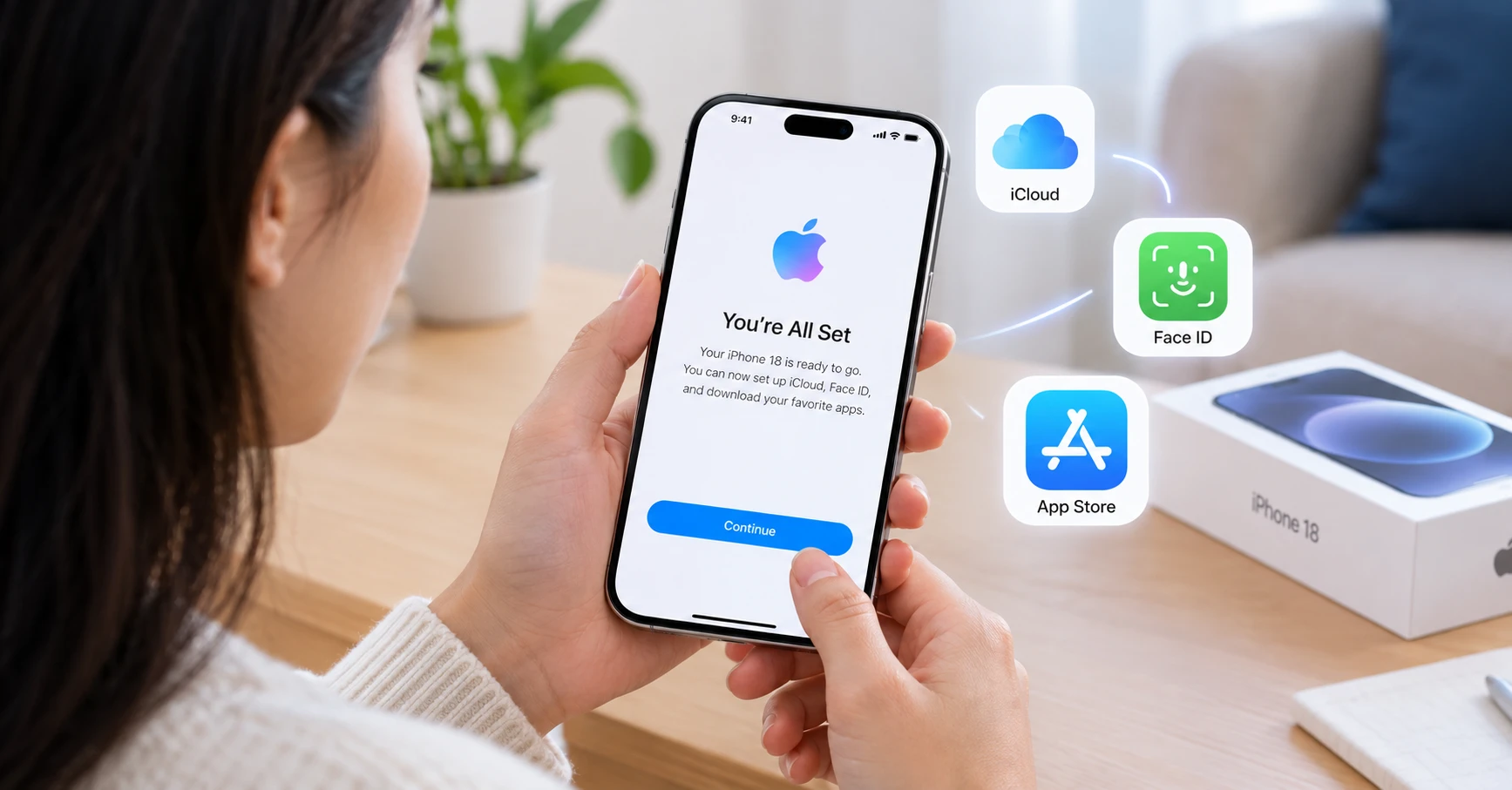
After switching, take a few minutes to secure and personalize your new iPhone. Sign in with your Apple Account, enable iCloud backup, set up Face ID, and review app notifications and permissions so your iPhone works the way you want from day one.
Tips after switching to iPhone 18
- Check your transferred data first. Open Photos, Contacts, Messages, Calendar, and WhatsApp to confirm everything transferred before deleting anything from your Android phone. Apple recommends verifying that all content moved successfully after the transfer.
- Sign in to your Apple Account. This activates iCloud, the App Store, Apple Pay, Find My, and other Apple services.
- Turn on iCloud Backup. Go to Settings > [Your Name] > iCloud > iCloud Backup and enable it so your photos, settings, and app data are backed up automatically.
- Set up Face ID and a strong passcode. This protects your iPhone, Apple Pay, passwords, and personal data.
- Review app permissions. Check which apps can access your camera, microphone, location, contacts, and photos under Settings > Privacy & Security.
- Reinstall missing apps. Move to iOS may transfer compatible apps, but apps without an iPhone version—or paid apps tied to your Google account—must be downloaded again from the App Store.
- Move remaining files manually. Music, books, PDFs, and some cloud-only files may not transfer automatically; use iCloud Drive, Google Drive, a computer, or an external drive.
- Update your two-factor authentication contacts. Make sure your phone number and recovery email are current for Google, banking, social media, and other important accounts.
- Keep your Android phone for a few days. Do not factory-reset it until you have confirmed that every important file, chat, login, and photo is available on your iPhone 18.
- Explore iPhone essentials. Try Control Center, Focus modes, Widgets, AirDrop, and the App Library to get comfortable with iOS.
Once your data is confirmed and your iPhone 18 is backed up, you can safely erase your Android phone and enjoy your new iPhone with everything you need already in place.
