If you want to connect your iPhone 18 Pro Max to your car, you can usually use Apple CarPlay, Bluetooth, or a USB cable, depending on your vehicle’s features. CarPlay lets you use supported apps, navigation, calls, messages, and music on your car’s display. Bluetooth is a simpler option for hands-free calls and audio, while USB may support CarPlay, audio playback, and charging.
For the easiest setup, check whether your car supports wired or wireless Apple CarPlay. If it does, follow the corresponding steps below. If your vehicle does not support CarPlay, Bluetooth may still let you connect your iPhone for calls and music.
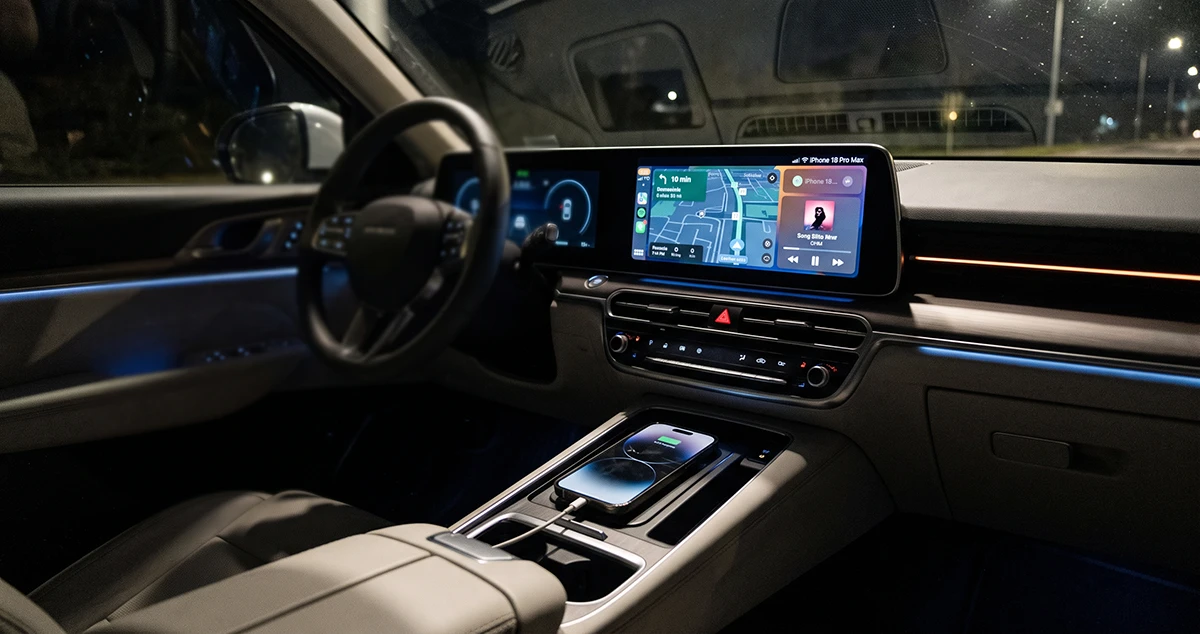
Quick Answer: How to Connect iPhone 18 Pro Max to a Car
- Park your car safely and turn on the infotainment system.
- Check whether your car supports Apple CarPlay, Bluetooth, or USB audio.
- For wired CarPlay, connect your iPhone to the car’s compatible USB data port using a suitable USB-C cable.
- For wireless CarPlay, enable Bluetooth and Wi-Fi on your iPhone, put the car into pairing mode, and follow the on-screen instructions.
- For Bluetooth audio, open Settings > Bluetooth on your iPhone and select your car when it appears.
- Accept any pairing or CarPlay prompts on both screens.
Once connected, select the CarPlay interface or your car’s Bluetooth audio source to start using navigation, calls, or music.
1. Check Whether Your Car Supports Apple CarPlay
Before connecting your iPhone 18 Pro Max, determine which features your car supports. Not every vehicle with Bluetooth or a USB port supports Apple CarPlay.
Check your car’s infotainment display, owner’s manual, or manufacturer’s website for CarPlay compatibility.
Here is a quick comparison of the available connection methods:
| Connection method | What it can do | Cable required? |
|---|---|---|
| Wired Apple CarPlay | Supported apps, navigation, calls, messages, and music | Yes |
| Wireless Apple CarPlay | Supported apps, navigation, calls, messages, and music | No |
| Bluetooth | Hands-free calls and audio streaming | No |
| USB audio | Audio playback and potentially charging, depending on the vehicle | Yes |
| AUX connection | Audio playback through a compatible auxiliary input and adapter | Usually |
Important: A USB port that charges your phone does not necessarily support data or CarPlay. Likewise, Bluetooth connectivity alone does not mean your car supports Apple CarPlay.
2. How to Connect iPhone 18 Pro Max to CarPlay Using USB
A wired connection is a good starting point if your car supports USB CarPlay. It provides a direct connection and can charge your iPhone while you drive.
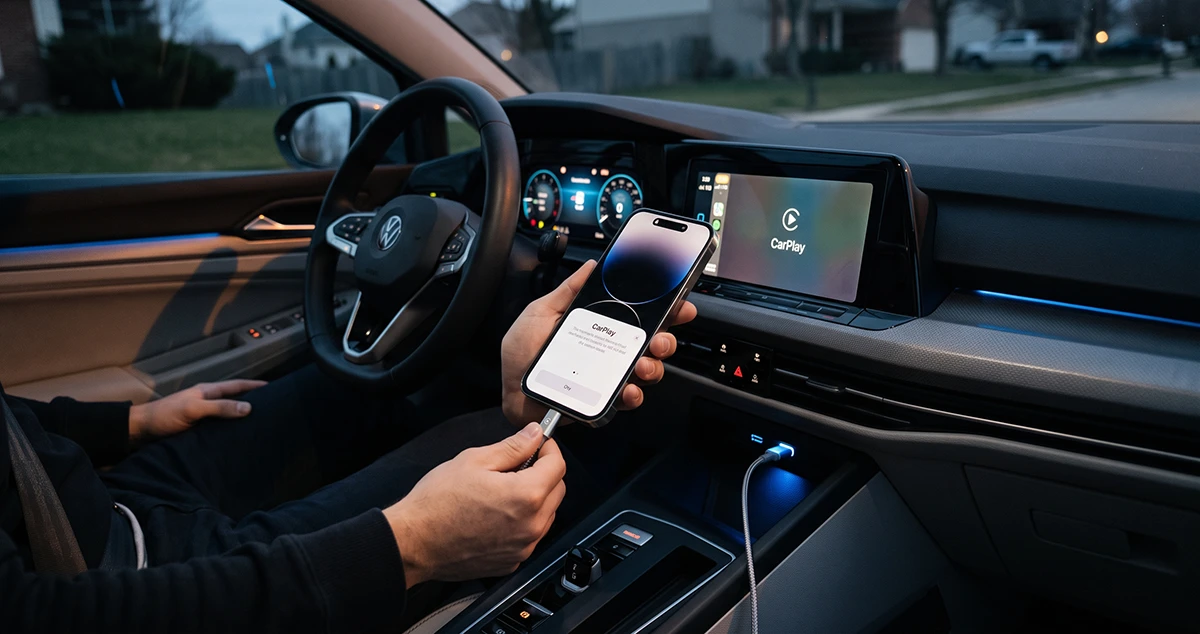
Follow these steps:
- Start your car and turn on its infotainment system.
- Make sure Siri is enabled on your iPhone.
- Locate the vehicle’s USB port designated for CarPlay or smartphone data.
- Connect your iPhone 18 Pro Max using a compatible USB-C data cable.
- Unlock your iPhone if prompted.
- Follow the setup instructions on your iPhone and car display.
- Accept the CarPlay permissions or connection prompts if they appear.
- If CarPlay does not open automatically, select the CarPlay icon on the car’s screen.
After setup, you should be able to access supported apps such as Maps, Music, and other compatible audio or communication apps.
What if the iPhone charges but CarPlay does not open?
Try a different USB cable that supports data transfer, and check another compatible USB port if your vehicle has one. Some ports provide power only, while others are intended for smartphone integration.
If you use a USB adapter or extension, try a direct cable connection instead.
3. How to Connect iPhone 18 Pro Max to Wireless CarPlay
Wireless CarPlay lets you use compatible iPhone features on your car’s display without plugging in a cable each time.
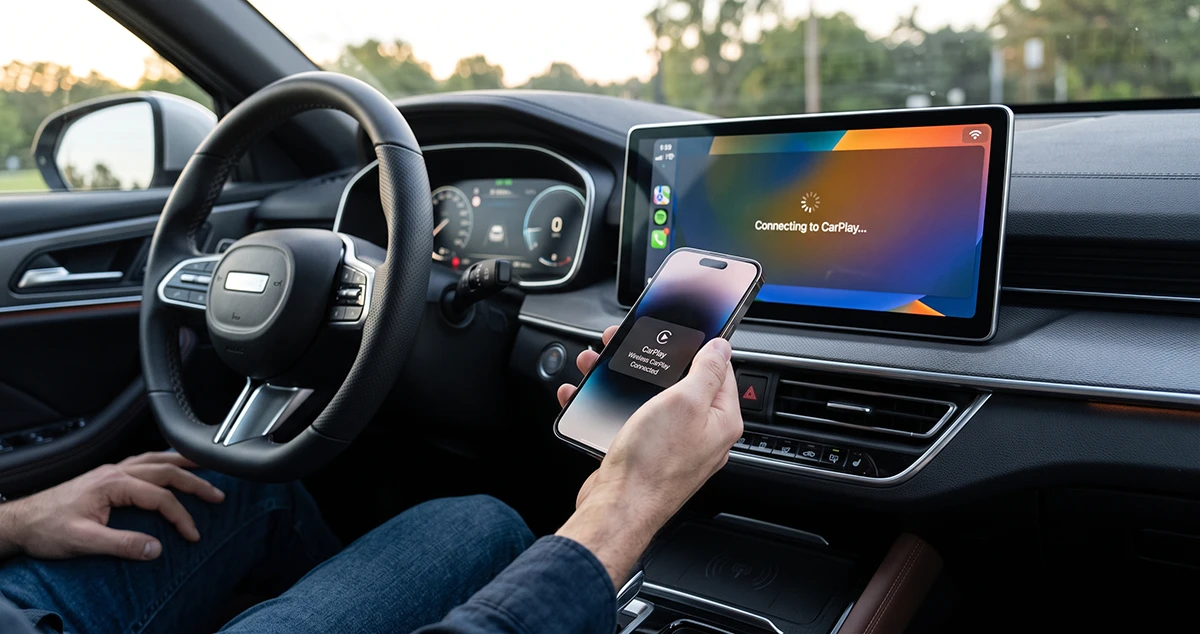
Your vehicle must specifically support wireless CarPlay. Having Bluetooth alone is not enough.
- Steps to set up wireless CarPlay.
- Start the car and keep it parked during setup.
- Enable Bluetooth and Wi-Fi on your iPhone.
- Put your car’s infotainment system into wireless CarPlay or Bluetooth pairing mode.
- If your steering wheel has a voice-command button, press and hold it when instructed by your vehicle’s setup process.
- On your iPhone, open Settings > General > CarPlay.
- Select your car from the available vehicles.
- Follow any pairing prompts on the iPhone and infotainment display.
If prompted, approve the connection and enable automatic connection for future drives.
Some vehicles support both wired and wireless CarPlay. In those vehicles, connecting by USB for the initial setup may trigger an offer to connect wirelessly on subsequent trips.
Why does wireless CarPlay need Bluetooth and Wi-Fi?
Bluetooth is used during the connection process, while Wi-Fi supports the wireless CarPlay connection. Keep both enabled when using wireless CarPlay, and check that automatic joining is enabled for the relevant CarPlay network if your setup requires it.
If your vehicle’s instructions differ, follow the manufacturer’s guidance.
4. How to Connect iPhone 18 Pro Max to Car Bluetooth
If your car does not support Apple CarPlay, Bluetooth may still let you make hands-free calls and stream music.
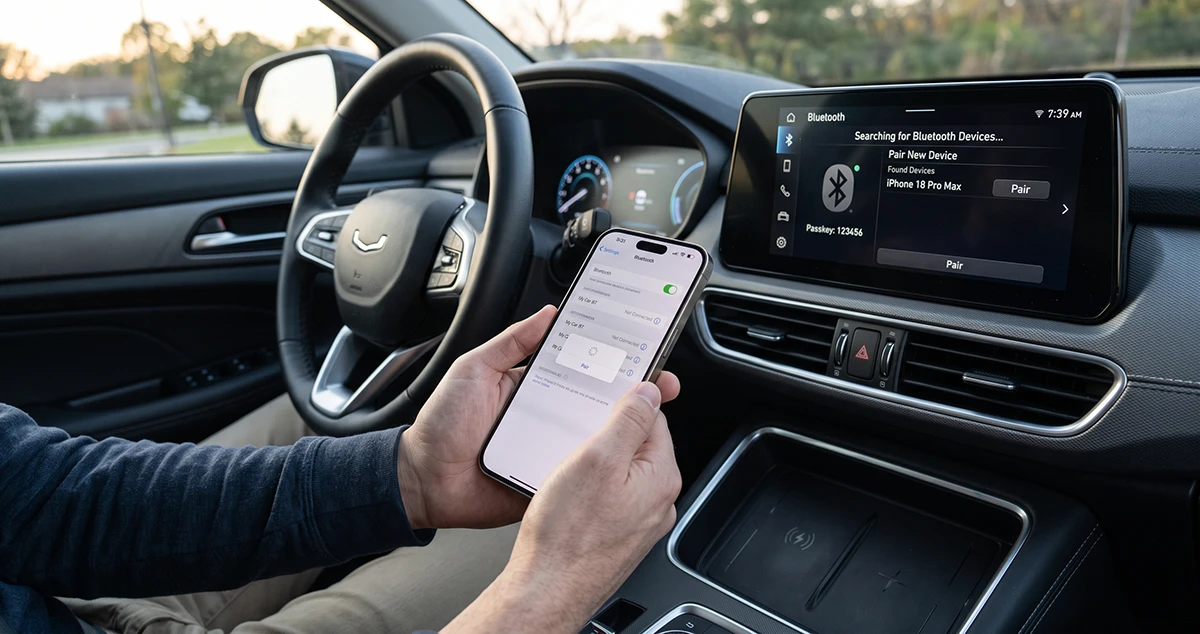
Pair your iPhone with your car
- Start your car and open the infotainment system’s phone or Bluetooth settings.
- Select Add Device, Pair New Device, or a similar option.
- On your iPhone, open Settings > Bluetooth.
- Make sure Bluetooth is turned on.
- Wait for your car’s name to appear under available devices.
- Tap the vehicle’s name.
- Confirm the pairing code on both screens if prompted.
- Allow contacts, call history, or other permissions if you want those features and the system requests access.
Once pairing is complete, select Bluetooth as the car’s audio source if necessary.
You can now use supported hands-free calling and stream audio from compatible apps.
Bluetooth connects, but music does not play
If calls work but music does not, check the selected audio source on your car’s infotainment system. Make sure the audio is not routed to another Bluetooth accessory, and turn up the volume on both devices.
You can also disconnect and reconnect Bluetooth, then try playing audio from another app.
5. How to Connect iPhone 18 Pro Max to an Older Car Without CarPlay
You can still connect your iPhone to many older vehicles even if they lack Apple CarPlay.
Choose the option that matches your car’s available connections.
Option A: Use Bluetooth
If your stereo supports Bluetooth audio, pair your iPhone using the steps in the previous section. This is usually the simplest wireless option for calls and music.
Option B: Use USB audio
If your vehicle supports USB audio playback, connect your iPhone with a compatible data cable and select the appropriate USB source on the stereo.
The available functions depend on your car’s audio system. A USB connection does not automatically add CarPlay to a vehicle that lacks it.
Option C: Use an AUX input
If your car has a 3.5 mm AUX input, you may be able to play audio through it using a compatible USB-C-to-3.5 mm audio adapter.
Check that the adapter supports audio output and that your car is set to the AUX source. AUX connections generally provide audio playback rather than the full CarPlay interface.
Option D: Consider a compatible aftermarket system
Some aftermarket head units support wired or wireless Apple CarPlay. Check compatibility with your vehicle before purchasing or installing one.
6. How to Fix iPhone 18 Pro Max Not Connecting to Car
If your iPhone will not connect to your car, use these troubleshooting steps in order. Test the connection after each change.
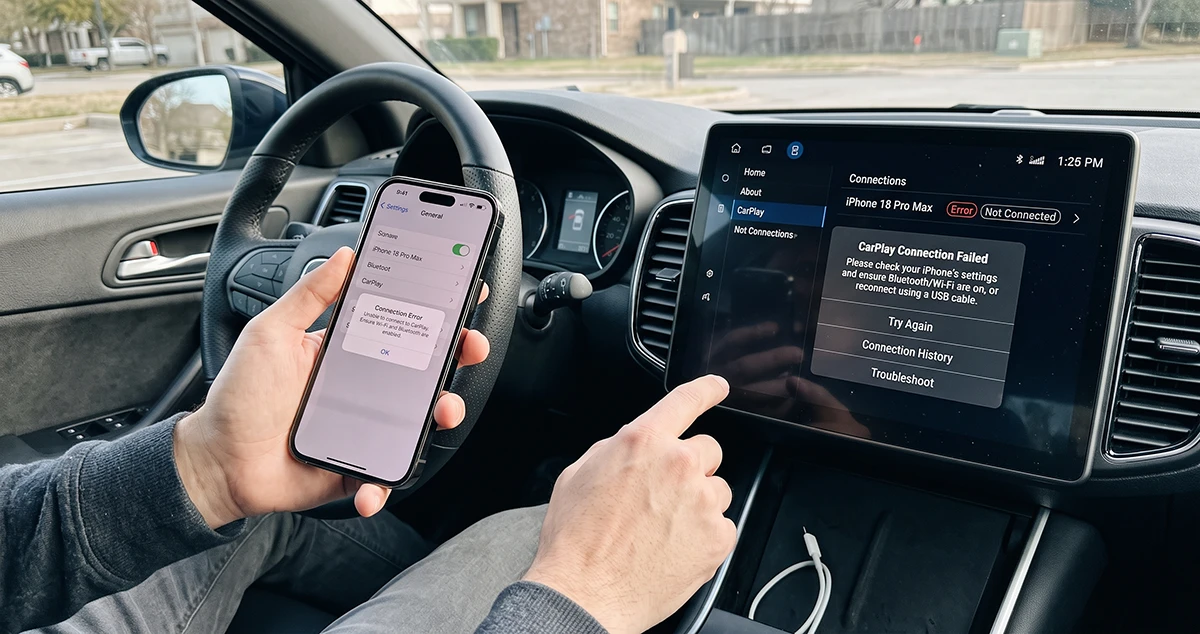
Fix 1: Restart your iPhone and car system
Restart your iPhone and safely restart the car’s infotainment system according to the vehicle manufacturer’s instructions. Temporary software issues can sometimes prevent a successful connection.
Fix 2: Check the USB cable and port
For wired CarPlay, make sure the cable supports data transfer and is connected securely. Try another compatible cable or the vehicle’s designated CarPlay USB port.
Inspect the iPhone’s USB-C port for visible debris, but do not insert metal objects or force anything into the connector.
Fix 3: Turn Bluetooth and Wi-Fi back on
For wireless CarPlay, confirm that both Bluetooth and Wi-Fi are enabled. Move your iPhone close to the infotainment system during setup and follow any pairing instructions displayed by the vehicle.
Fix 4: Make sure Siri is enabled
Apple CarPlay requires Siri to be enabled. Review your iPhone’s Siri settings and complete any setup prompts before attempting to connect again.
Fix 5: Check CarPlay restrictions
If CarPlay is unavailable or does not appear, check whether it is restricted on your iPhone.
Review Settings > Screen Time > Content & Privacy Restrictions and look for the allowed apps or features settings. Make sure CarPlay is permitted if restrictions are enabled. Menu labels can vary by iOS version.
Fix 6: Forget the car and set up CarPlay again
If your iPhone previously connected but no longer works:
- Open Settings > General > CarPlay.
- Select your vehicle.
- Tap Forget This Car.
- Restart the iPhone and infotainment system.
- Repeat the wired or wireless setup process.
For Bluetooth-only connections, open Settings > Bluetooth, tap the information button next to your car, and choose Forget This Device if that option is available. Then pair the devices again.
Fix 7: Update iOS and vehicle software
Check for an available iOS update and consult your car manufacturer’s instructions for infotainment software updates. Compatibility issues may occur when either system needs an update.
If the problem continues, consult Apple Support or your vehicle manufacturer for model-specific guidance.
7. Common iPhone-to-Car Connection Problems
| Problem |
What to try |
|---|---|
| CarPlay does not appear | Select the CarPlay icon, check compatibility, and verify Siri is enabled |
| iPhone charges but CarPlay does not work | Use a data-capable cable and the correct USB port |
| Car does not appear in Bluetooth | Enable pairing mode and turn Bluetooth off and back on |
| Wireless CarPlay disconnects | Check Bluetooth, Wi-Fi, and vehicle software |
| Connected but no sound | Select the correct audio source and check both volume controls |
| CarPlay worked before but stopped | Forget the car and set up the connection again |
| Another phone connects instead | Check the vehicle’s saved devices and preferred phone settings |
Frequently Asked Questions
Can I connect iPhone 18 Pro Max to a car without Apple CarPlay?
Yes. If your car supports Bluetooth, you can generally pair your iPhone for hands-free calls and audio streaming. A compatible USB or AUX connection may also work, depending on the vehicle’s equipment.
Does iPhone 18 Pro Max support wireless CarPlay?
Wireless CarPlay depends on the iPhone’s software and hardware compatibility as well as the vehicle’s capabilities. Confirm support using Apple’s current documentation and your vehicle manufacturer’s compatibility information.
Why does my iPhone connect to Bluetooth but not CarPlay?
Bluetooth pairing and CarPlay are separate functions. Your car may support Bluetooth but not CarPlay, or CarPlay may require additional setup. Check vehicle compatibility, enable Siri, and verify the appropriate wired or wireless connection settings.
Can I use CarPlay and Bluetooth at the same time?
Wireless CarPlay uses Bluetooth and Wi-Fi as part of its connection process. When CarPlay is active, the car may handle calls and audio through the CarPlay interface. Exact behavior depends on the vehicle and its infotainment system.
Do I need Wi-Fi for wired CarPlay?
You generally do not need a Wi-Fi connection to establish wired CarPlay. Wireless CarPlay, however, uses Wi-Fi as well as Bluetooth. Individual apps may still need internet access for features such as live traffic or streaming.
Why does my iPhone connect to the car but have no sound?
Check that your car is set to the correct audio source, the volume is turned up, and the iPhone is routing sound to the vehicle. If the problem persists, reconnect the devices and test another audio app.
Final Thoughts
Connecting your iPhone 18 Pro Max to your car is straightforward once you know which connection method your vehicle supports. Use wired or wireless Apple CarPlay for supported apps and navigation, Bluetooth for hands-free calls and music, or USB and AUX audio where available.
If the connection fails, start with compatibility, cables, Bluetooth and Wi-Fi settings, and Siri. If necessary, forget the saved connection and set it up again.
For the most reliable instructions, consult Apple’s official CarPlay setup guide and your vehicle’s owner’s manual.

1 thought on “How to Connect iPhone 18 Pro Max to Car (CarPlay, USB, and Bluetooth)”