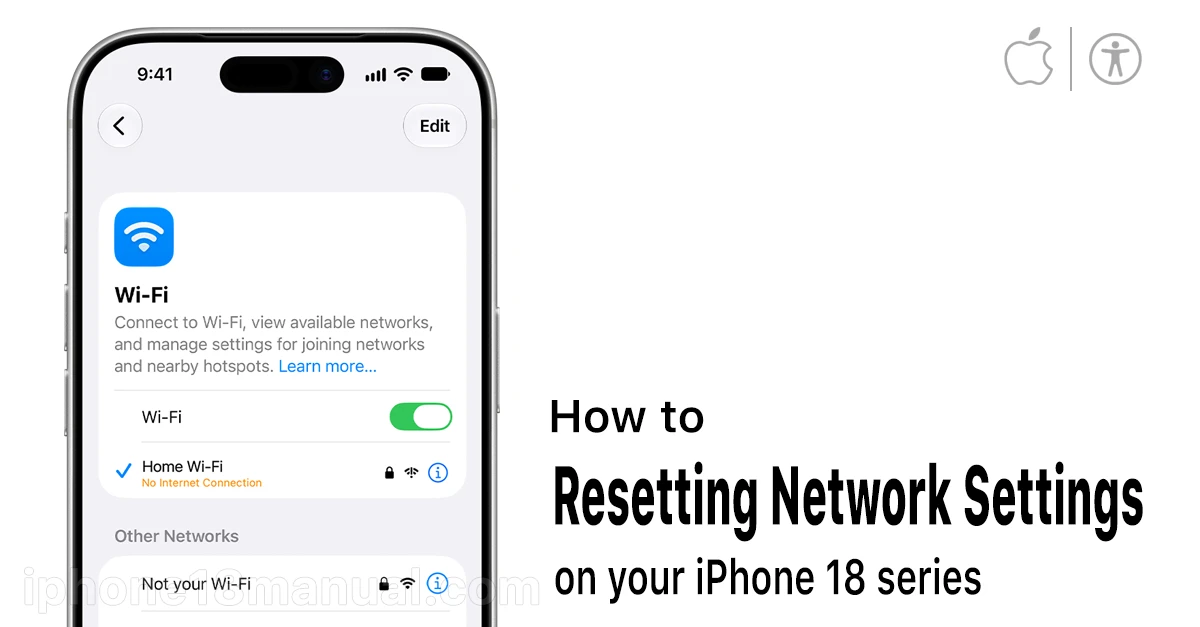
Is your iPhone 18 dropping Wi-Fi at the worst possible moments? Is Bluetooth refusing to pair with your car or AirPods, or is cellular data crawling even with full bars? There’s a one-tap fix that resolves most connectivity issues: resetting your network settings. This article will guide you to reset network settings on your iPhone 18 series.
It takes less than a minute, it won’t delete your photos, and it fixes everything from stuck “SOS Only” mode to Wi-Fi networks that won’t connect after the iOS 27 update. Here’s exactly how to do it on the iPhone 18 — and what to expect afterward.
What Does “Reset Network Settings” Actually Do?
Resetting network settings returns every connectivity-related setting on your iPhone 18 to its factory defaults. According to Apple, “all network settings are removed” — including saved Wi-Fi networks, passwords, cellular settings, and VPN/APN configurations.
Think of it as a “refresh” for your iPhone’s radios. It clears out corrupted preferences, stale network profiles, and conflicting configurations that accumulate over months of updates, travel, and new connections.
What Gets Deleted vs. What Stays
This is the question everyone asks — and the answer is reassuring:
Deleted during the reset:
- Saved Wi-Fi networks and their passwords.
- Cellular and APN settings.
- VPN configurations (not installed by a work/school profile).
- Previously paired Bluetooth devices.
- Device hotspot settings.
Completely safe:
- Photos, videos, apps, and messages.
- Contacts, calendars, and notes.
- Apple ID and iCloud data.
- Apple Pay cards.
In short: resetting network settings does not delete your personal data. Only connectivity settings are touched. Carriers like EE explicitly warn that saved Wi-Fi and Bluetooth connections are deleted — but nothing else on your phone is affected.
Before You Reset: Do These 3 Things First
A network reset is powerful, but it’s not always the first move. Try these 30-second fixes first — and do a quick prep check if you do reset:
- Toggle Airplane Mode — Swipe into Control Center, tap the airplane icon, wait 10 seconds, tap again.
- Restart your iPhone 18 — A simple reboot clears temporary radio glitches.
- Forget and rejoin the problem Wi-Fi network — Settings → Wi-Fi → tap the ⓘ next to the network → Forget This Network, then reconnect.
If you proceed with the reset, make sure you know your Wi-Fi passwords — you’ll need to re-enter them for every network you join.
How to Reset Network Settings on iPhone 18 (Step by Step)

The menu path is identical on iPhone 18 running iOS 27:
- Step 1: Open the Settings app.
- Step 2: Scroll down and tap General.
- Step 3: Scroll to the bottom and tap Transfer or Reset iPhone.
- Step 4: Tap Reset.
- Step 5: Tap Reset Network Settings from the popup menu.
- Step 6: Enter your passcode if prompted.
- Step 7: Tap Reset Network Settings again to confirm.
Your iPhone 18 will restart automatically. The whole process takes about 30–60 seconds — you won’t lose any progress in apps, and no data is erased.
What to Do After Resetting Network Settings
Once your iPhone 18 boots back up, reconnect everything in this order:
- Rejoin your Wi-Fi network — Settings → Wi-Fi → select your network → enter the password.
- Re-pair Bluetooth devices — Put your AirPods, speaker, or car system in pairing mode, then connect via Settings → Bluetooth.
- Reconfigure VPN — Reinstall your VPN app or re-enter manual VPN settings (Settings → General → VPN & Device Management).
- Check cellular data — Settings → Cellular → make sure Cellular Data is toggled on.
- Test everything — Load a webpage, stream a video, and make a test call to confirm the issues are resolved.
When Should You Reset Network Settings on iPhone 18?
Reset the network settings when your iPhone 18 shows any of these symptoms:
- Wi-Fi won’t connect, keeps disconnecting, or shows “No Internet Connection“.
- Cellular data not working despite good signal, or stuck in “SOS Only” / “No Service” mode..
- Bluetooth devices won’t pair, or audio keeps stuttering.
- Problems appeared right after updating to iOS 27.
- Airplane Mode stuck on or off.
- VPN connects but no traffic passes through.
Carrier support guides recommend this exact reset for problems connecting to Wi-Fi networks, mobile data, or pairing Bluetooth devices.
Troubleshooting: What If the Problem Persists?
If connectivity issues continue after the reset, work through this checklist:
- Update iOS — Settings → General → Software Update. Apple frequently patches connectivity bugs in point releases.
- Check for carrier settings updates — Settings → General → About (wait 10 seconds; a popup appears if an update is available).
- Reseat your SIM/eSIM — Power off, remove the SIM tray (iPhone 18 models with physical SIM), check for damage, reinsert.
- Reset all settings — Settings → General → Transfer or Reset iPhone → Reset → Reset All Settings (keeps data, resets system prefs).
- Contact Apple Support — If none of the above works, there may be a hardware issue with the antenna or modem.
Frequently Asked Questions
Does resetting network settings delete photos or contacts?
No. Resetting network settings only removes Wi-Fi passwords, Bluetooth pairings, VPN, and cellular configurations. Your photos, contacts, messages, and apps are completely safe.
How long does it take to reset network settings on iPhone 18?
About 30–60 seconds, including the automatic restart.
Will I lose my iCloud or Apple ID login?
No. Your Apple ID, iCloud data, and Apple Pay cards remain untouched.
Do I need to back up my iPhone 18 before resetting network settings?
It’s not strictly necessary since no personal data is deleted — but Apple recommends backing up before any reset so you can restore settings if needed.
What’s the difference between “Reset Network Settings” and “Reset All Settings”?
“Reset Network Settings” only affects connectivity. “Reset All Settings” also resets system preferences like display, keyboard, and privacy settings — but still keeps your data.
Can I reset network settings if my iPhone 18 is stuck on “SOS Only”?
Yes — this is one of the most common fixes for the SOS Only problem after an iOS update. If it persists after the reset, contact your carrier to check for account or tower issues.
The Bottom Line
Resetting network settings on the iPhone 18 is the fastest, safest fix for stubborn Wi-Fi, Bluetooth, and cellular problems — especially after an iOS 27 update. It takes under a minute, deletes no personal data, and gives your phone’s radios a clean slate. Just make sure you have your Wi-Fi passwords handy before you tap confirm.
If this guide fixed your connectivity issues, share it with someone still fighting the spinning Wi-Fi wheel.
12 thoughts on “How to Reset Network Settings on iPhone 18: A Step-by-Step Guide”