If your iPhone 18 Pro randomly turns off, starts restarting without warning, or shows a black screen even when the battery has charge left, the problem may be related to iOS software, battery performance, overheating, or a faulty app. Start by force restarting your iPhone, charging it with a reliable cable and adapter, and checking for software updates. If the problem continues, inspect Battery Health, free up storage, and determine whether a specific app or temperature condition triggers the shutdown. These troubleshooting steps can also help if your iPhone 18 Pro Max keeps turning off unexpectedly.
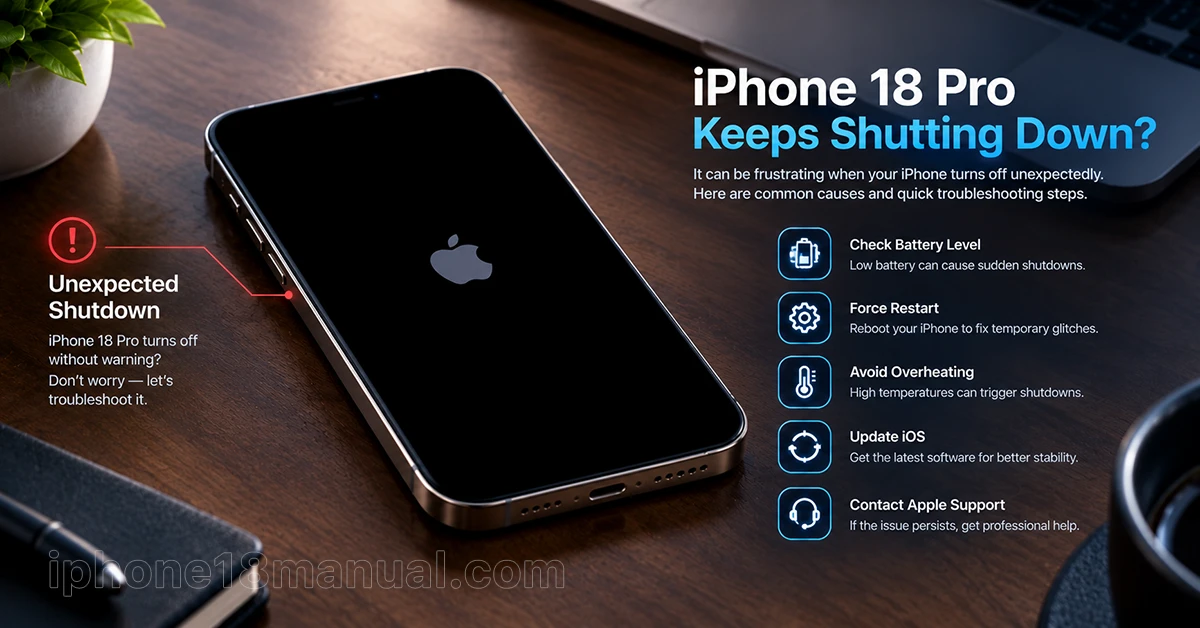
Why Does My iPhone 18 Pro Randomly Turn Off?
An iPhone may shut down unexpectedly for several reasons. Identifying when the problem happens can help you choose the right solution without resetting your device unnecessarily.
Common causes include:
- Software glitches: An iOS bug, incomplete update, or app conflict may cause unexpected restarts.
- Battery problems: Low charge, reduced battery performance, or an issue with the power supply can trigger a shutdown.
- Overheating or cold temperatures: Extreme temperatures can affect battery performance and cause the device to turn off.
- Low storage: Very limited free space can contribute to performance problems.
- Hardware damage: A damaged battery, internal component, or power circuit may require professional repair.
Apple confirms that battery condition, charge level, and temperature can contribute to unexpected shutdowns. However, a shutdown does not automatically mean your iPhone has a defective battery.
How to Fix an iPhone 18 Pro That Randomly Turns Off
Try the following solutions in order, starting with the simplest fixes.
1. Force Restart Your iPhone 18 Pro
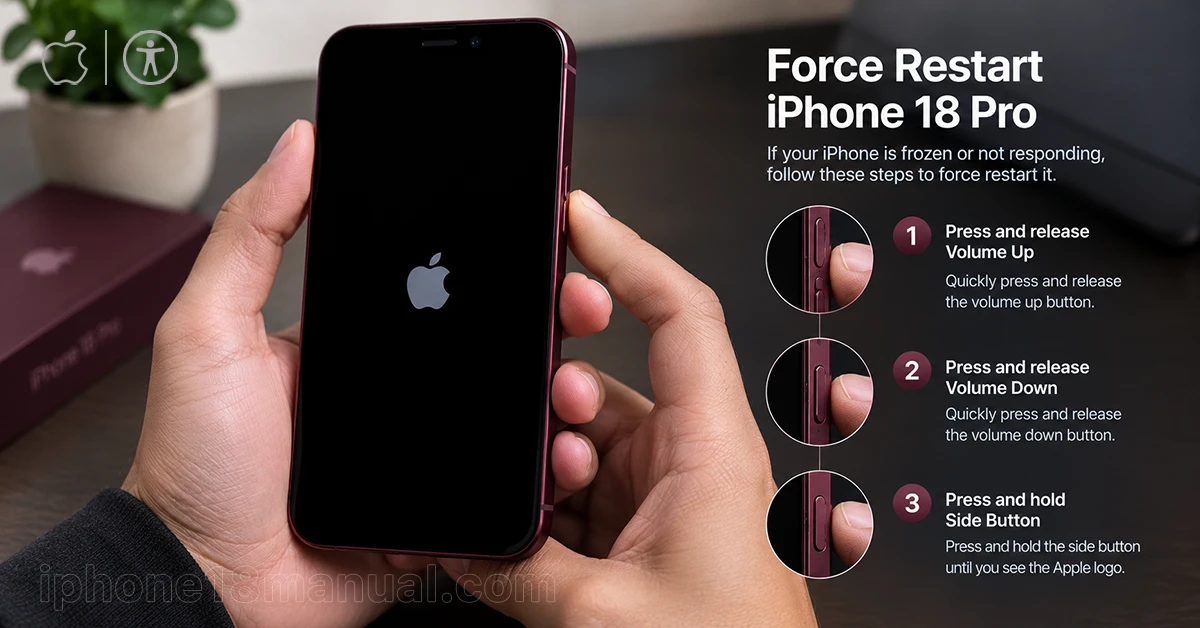
A force restart can resolve temporary software freezes and situations where your iPhone becomes unresponsive or displays a black screen. It does not erase your personal data.
Follow these steps:
- Press and quickly release the Volume Up button.
- Press and quickly release the Volume Down button.
- Press and hold the Side button.
- Release the Side button when the Apple logo appears.
The Apple logo may take several seconds to appear. Keep holding the Side button while the device attempts to restart.
After your iPhone turns on, use it normally and check whether the random shutdown happens again.
2. Charge Your iPhone and Check the Cable
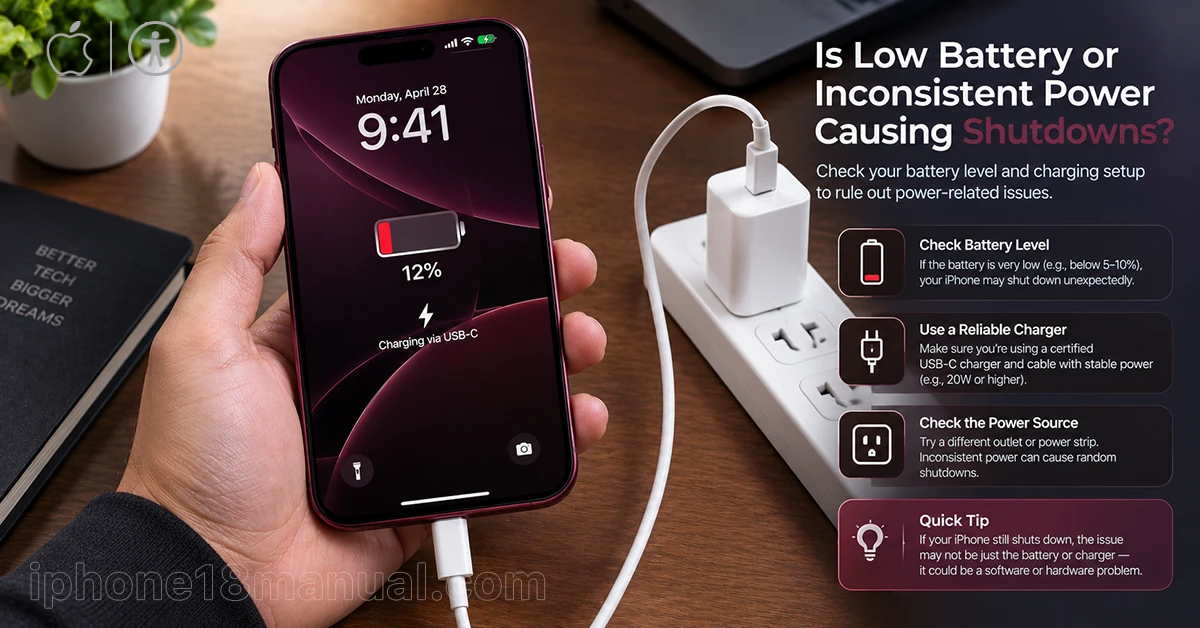
If your iPhone 18 Pro turns off while the battery indicator still shows charge remaining, the battery may not be delivering sufficient power, or the displayed charge may not accurately reflect the available power.
To check for a charging problem:
- Connect your iPhone to a reliable USB-C power adapter and cable.
- Leave it charging for at least 30 minutes.
- Check whether the charging indicator appears.
- Try another compatible cable, adapter, or power outlet if charging seems inconsistent.
- Restart the iPhone after charging.
If the phone repeatedly shuts down at a similar battery percentage, note the percentage and circumstances. Recurring shutdowns at 30%, 50%, or another charge level may justify a battery or hardware diagnostic.
3. Check Battery Health
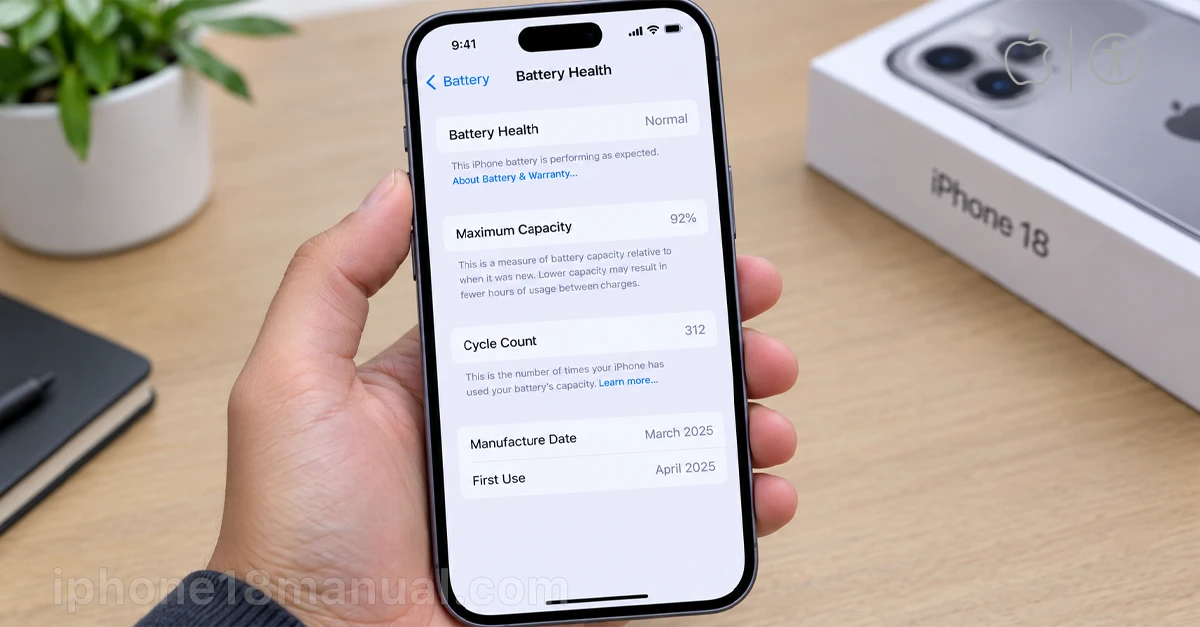
Battery performance is worth investigating if your iPhone turns off during demanding tasks, shuts down with charge remaining, or experiences unusually rapid battery drain.
Open Settings > Battery and look for the Battery Health option. Depending on your iOS version, the menu may be labeled slightly differently.
Review the available battery information and any service recommendations. If iOS reports that the battery needs service or cannot be verified, arrange a diagnostic.
A battery’s maximum capacity is not the only factor that matters. Its ability to supply power during demanding tasks can also affect reliability. Do not assume that a battery showing a high capacity percentage is necessarily free of problems.
4. Let Your iPhone Cool Down
If your iPhone 18 Pro turns off while gaming, recording video, charging, or using navigation in direct sunlight, overheating may be involved.
Try this:
- Disconnect the charger if the device feels unusually hot.
- Stop demanding activities and move the phone away from direct sunlight.
- Place it in a cooler, shaded environment.
- Let it return to a normal temperature before charging or using it heavily again.
Avoid refrigerators, ice packs, or other extreme cooling methods because sudden temperature changes can damage the device.
Apple advises using iPhones in ambient temperatures between 0°C and 35°C (32°F and 95°F). Extremely cold conditions can also temporarily reduce battery performance or cause shutdowns.
5. Update iOS to the Latest Available Version
If your iPhone started randomly turning off after a software update, a software bug or compatibility issue may be involved. Installing a newer update can help if it includes a relevant fix.
Before updating, back up your important data.
- Connect your iPhone to Wi-Fi.
- Open Settings.
- Tap General.
- Select Software Update.
- Install an available update and follow the onscreen instructions.
Keep your iPhone connected to power during the update.
If the problem began immediately after updating, give the device some time to complete background tasks, particularly if battery drain and warmth are also present. If unexpected shutdowns continue, proceed to the next steps rather than assuming the update is the only cause.
6. Free Up iPhone Storage
Very limited storage can contribute to sluggish performance and software problems. Check your available space before attempting more disruptive troubleshooting.
- Open Settings > General > iPhone Storage.
- Review the available storage and the apps using the most space.
- Remove downloaded videos, duplicate files, or other content you no longer need.
- Offload unused apps or delete unnecessary downloads.
Try to maintain at least 1 GB of available storage, and allow more room when installing a major iOS update.
Freeing up space may improve performance, although it will not fix a damaged battery or failing hardware.
7. Check Whether an App Is Causing the Problem
If your iPhone 18 Pro shuts down or restarts mainly when opening a particular app, the app or its interaction with iOS may be contributing to the issue.
Try these steps:
- Update the affected app through the App Store.
- Close and reopen the app.
- Restart your iPhone.
- If the problem continues, delete and reinstall the app after confirming that its important data is backed up or synchronized.
Open Settings > Battery to review recent battery usage and identify apps consuming unusually large amounts of power.
If the phone restarts regardless of which app you use, the cause may be at the system or hardware level rather than within one application.
8. Back Up Your iPhone and Consider a Reset
If your iPhone keeps restarting after you have tried the previous solutions, back up your data before considering more advanced troubleshooting.
You can create an iCloud backup by opening Settings > [your name] > iCloud > iCloud Backup > Back Up Now. Menu names may vary slightly by iOS version.
You can also try Settings > General > Transfer or Reset iPhone > Reset > Reset All Settings.
This option resets system settings without intentionally deleting your photos, messages, or apps. However, it removes or resets settings such as network configurations and preferences, so you may need to configure them again.
If the issue persists, a full factory reset may be considered as a later step. It erases the device, so verify your backup first. Persistent shutdowns after a clean software installation are a reason to seek professional diagnostics.
9. Contact Apple Support if the Problem Continues
Arrange a professional inspection if your iPhone 18 Pro continues turning off after troubleshooting, repeatedly fails to start, or shows signs of physical damage.
Seek service promptly if:
- The iPhone shuts down repeatedly even with sufficient charge.
- The device restarts in a continuous loop.
- Charging is unreliable with known-good accessories.
- The phone was recently dropped or exposed to liquid.
- The device becomes unusually hot or shows battery-related warnings.
If the battery appears swollen, the screen is lifting, or the device produces an unusual smell, stop using and charging it. Do not attempt to open the phone or press a swollen battery back into place.
Quick Troubleshooting Table
| Problem | Possible cause | What to try |
|---|---|---|
| iPhone turns off with battery remaining | Battery or power-delivery issue | Check Battery Health and charge with a reliable adapter |
| iPhone restarts repeatedly | iOS glitch or app conflict | Force restart and update iOS |
| iPhone turns off when hot | Excessive temperature | Stop demanding activities and let it cool |
| iPhone shuts down when opening one app | App compatibility issue | Update or reinstall the app |
| iPhone becomes unstable with little storage | Storage pressure or software issues | Review iPhone Storage and free up space |
| iPhone will not turn back on | Deeply discharged battery or hardware fault | Charge for up to an hour, then try a force restart |
| Shutdowns continue after troubleshooting | Possible hardware problem | Arrange an Apple or authorized service diagnostic |
Frequently Asked Questions
Why does my iPhone 18 Pro turn off with 50% battery left?
Possible causes include inaccurate battery reporting, a battery that cannot deliver enough power, a software problem, or temperature-related battery limitations. Check Battery Health, charge the phone fully, and observe whether the shutdown happens repeatedly at a similar percentage.
Why does my iPhone 18 Pro keep restarting after an iOS update?
A software issue or background processing after an update may contribute to instability. Check for another available iOS update, allow background tasks to finish, and review storage. If the restarting continues, back up your data and seek further diagnostics.
Will a force restart erase my data?
No. A force restart does not erase your photos, apps, or personal files. A factory reset is different and deletes data stored on the device, so create and verify a backup first.
Why does my iPhone 18 Pro Max randomly turn off while charging?
Possible causes include excessive heat, a faulty cable or adapter, a charging-port problem, or an internal battery or power issue. Try known-good charging accessories and remove the phone from direct sunlight. If it continues to shut down while charging, arrange a diagnostic.
Final Thoughts
If your iPhone 18 Pro randomly turns off, start with a force restart, reliable charging accessories, and a check of Battery Health. Then investigate overheating, iOS updates, available storage, and potentially problematic apps. Back up your data before resetting settings or performing a factory reset.
If the phone continues shutting down unexpectedly despite these steps, professional diagnostics are the safest next step. Repeated shutdowns should not be ignored, especially when accompanied by charging problems, physical damage, or unusual heat.
