Is your iPhone 18 battery draining too fast even when you’re not using it much? Excessive battery drain can result from background activity, high screen brightness, weak cellular signals, location services, or software updates. Fortunately, you can often improve battery life by adjusting a few settings without replacing your battery.
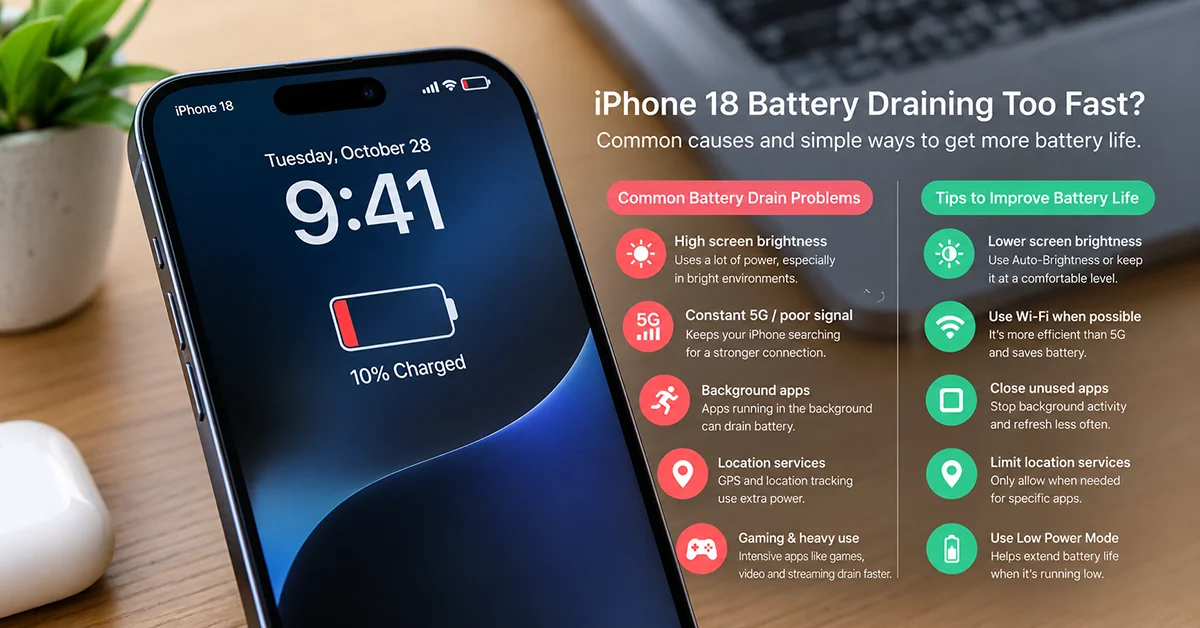
Start by checking which apps consume the most power, enabling Adaptive Power or Low Power Mode, and reducing unnecessary background activity. If the problem started after updating iOS, give your iPhone a few days to finish background tasks before deciding that something is wrong.
Here are 8 practical ways to fix iPhone 18 battery drain and help your phone last longer throughout the day.
1. Check Which Apps Are Draining Your Battery
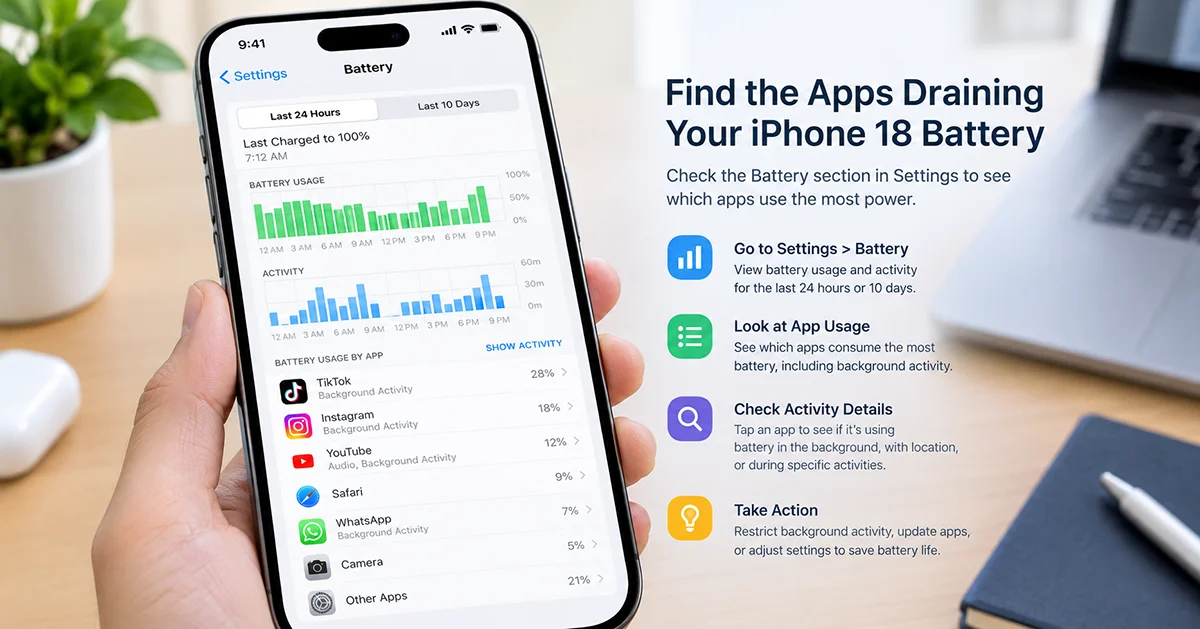
Before changing multiple settings, identify what’s consuming your iPhone’s power. Apple’s Battery settings show app usage and background activity, helping you pinpoint the cause.
Follow these steps:
- Open Settings on your iPhone 18.
- Tap Battery.
- Review the Daily Usage chart and App and System Activity Usage.
- Check which apps use the most battery.
- Tap an app to review its screen time and background activity.
If a social media, navigation, video streaming, or gaming app consumes an unusually large amount of power, reduce your usage or adjust its settings. High background activity may indicate that an app continues refreshing content, tracking your location, or syncing data when you’re not using it.
2. Turn On Adaptive Power
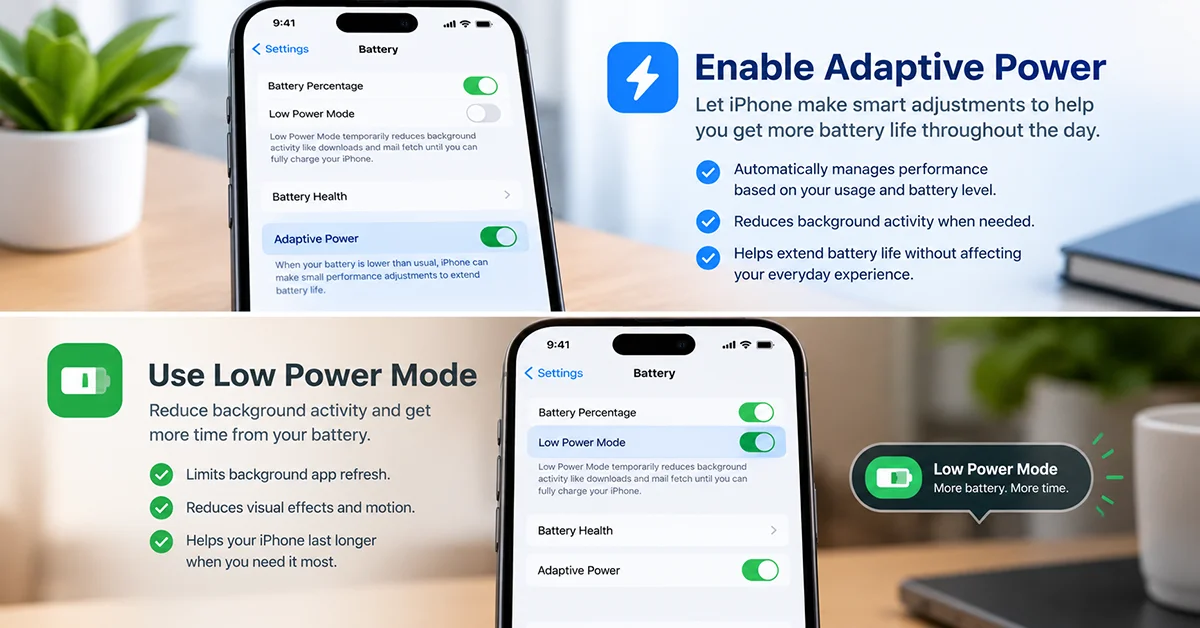
Adaptive Power is designed to extend battery life when your iPhone uses more energy than usual. Supported iPhone 18 models running compatible software can adjust performance, slightly reduce screen brightness, and limit background activity when needed.
To enable it:
- Open Settings.
- Tap Battery.
- Select Power Mode.
- Turn on Adaptive Power, if available.
On supported models, this feature may already be enabled by default. It works automatically, so you don’t need to activate it every time your battery drains quickly.
3. Enable Low Power Mode
Low Power Mode is one of the quickest ways to reduce battery consumption. It limits certain background activities, reduces some visual effects, and changes how selected features operate to conserve energy.
To turn it on:
- Open Settings.
- Tap Battery.
- Select Power Mode.
- Enable Low Power Mode.
You can also add its control to Control Center for faster access.
Low Power Mode is especially useful when traveling, working away from a charger, or trying to get through the day with limited battery remaining. Some tasks may run more slowly, and certain features may update less frequently.
4. Reduce Screen Brightness and Screen-On Time
Your display can consume considerable power, particularly when brightness remains high for extended periods.
Try these adjustments:
- Open Control Center and lower the brightness.
- Go to Settings > Display & Brightness and enable Automatic or Auto-Brightness through the relevant display or accessibility settings.
- Set Auto-Lock to a shorter interval.
- Reduce unnecessary screen use when the battery is low.
If your iPhone supports an always-on display, consider disabling it if you don’t need persistent on-screen information.
These changes are particularly helpful if your Battery settings show substantial screen-on time.
5. Limit Background App Refresh
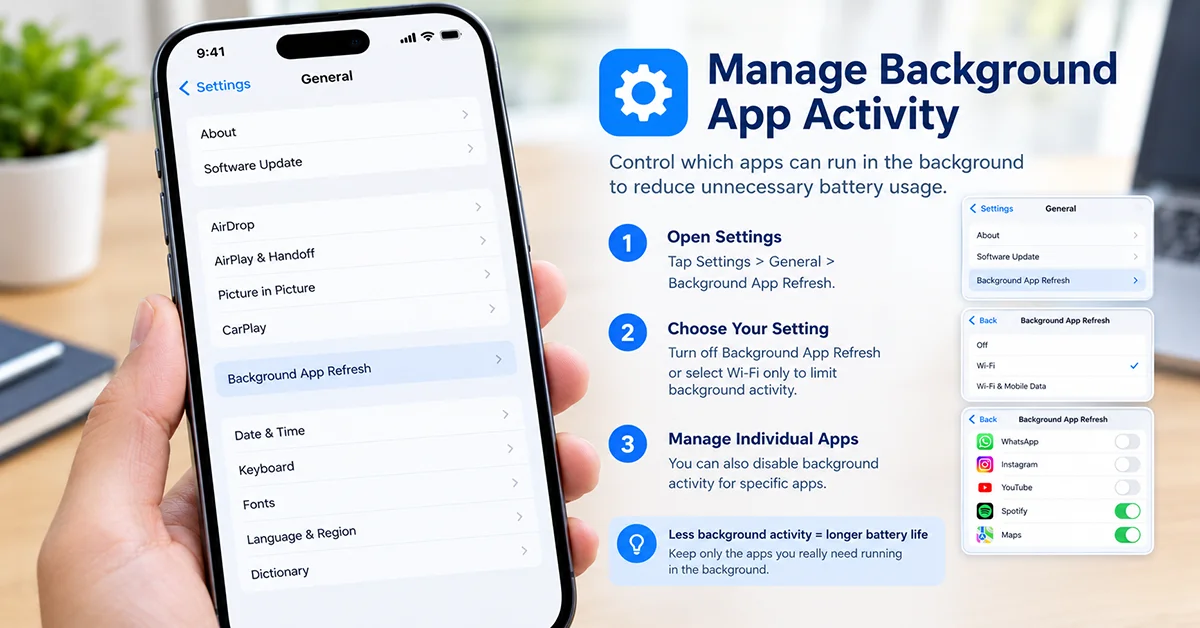
Background App Refresh lets supported apps update their content when you’re not actively using them. Although convenient, unnecessary background activity can contribute to battery drain.
To manage it:
- Open Settings.
- Tap General.
- Select Background App Refresh.
- Choose Wi-Fi or Wi-Fi & Mobile Data, or disable the feature for apps that don’t need it.
- Turn it off entirely if you prefer to minimize background updates.
You don’t necessarily need to disable Background App Refresh for every app. Focus on apps that use significant power without providing essential background functionality.
6. Improve Cellular Signal and Network Settings
Your iPhone may consume more energy when searching for a reliable cellular connection. This can happen in buildings with poor reception, rural areas, underground spaces, or places with inconsistent 5G coverage.
Try the following:
- Connect to reliable Wi-Fi when available.
- Enable 5G Auto if your carrier and iPhone settings support it.
- Avoid repeatedly switching between network settings without a clear reason.
- Use Airplane Mode when you don’t need cellular, Wi-Fi, or Bluetooth connectivity.
Apple notes that low cellular coverage can contribute to higher battery usage. If the Battery screen identifies poor signal conditions, improving connectivity may help more than changing individual app settings.
7. Check Location Services and Notifications
Apps that frequently access your location can increase power consumption. Repeated notifications may also wake your screen and contribute to battery drain.
To review location access:
- Open Settings > Privacy & Security.
- Tap Location Services.
- Review apps that access your location.
- Change unnecessary permissions to While Using the App, where appropriate.
Also, open Settings > Notifications and disable alerts from apps that don’t need to notify you throughout the day.
Keep location access enabled for services that genuinely need it, such as navigation, emergency features, and device-finding tools.
8. Update iOS and Your Apps
Software bugs can sometimes contribute to abnormal battery consumption. Installing available updates may resolve known problems and improve stability.
To check for an iOS update:
- Open Settings.
- Tap General.
- Select Software Update.
- Install an available update after backing up your important data and ensuring sufficient battery power.
You should also update apps through the App Store.
Important: If your iPhone 18 battery started draining quickly immediately after an iOS update, don’t assume the update permanently damaged battery life. Your iPhone may still be completing setup, indexing files, or syncing photos. Apple recommends waiting a few days and checking battery usage again.
Quick Comparison: iPhone 18 Battery Drain Fixes
| Problem | Recommended fix | Expected benefit |
|---|---|---|
| Battery drops during normal use | Check Battery usage | Identifies power-hungry apps |
| Excessive background activity | Limit Background App Refresh | Reduces unnecessary app activity |
| High screen-on power use | Lower brightness and shorten Auto-Lock | Reduces display energy use |
| Battery drains in poor reception | Use reliable Wi-Fi or 5G Auto | May reduce network-related drain |
| Battery drops after an update | Wait a few days and monitor usage | Allows background tasks to finish |
| Need longer battery life immediately | Enable Low Power Mode | Reduces power consumption |
| Persistent unexplained drain | Check Battery Health and seek support | Helps identify potential hardware issues |
When to Contact Apple Support
Most iPhone 18 battery drain resolves with the steps above. Escalate to Apple Support or book a Genius Bar appointment if any of the following apply:
- Battery Health shows “Service” instead of “Normal”.
- The phone becomes uncomfortably hot even on standby.
- The battery drops more than 15% per hour with the screen off, after trying every fix above.
- Maximum capacity has fallen below 80% while still under warranty or AppleCare+.

4 thoughts on “How to Fix iPhone 18 Battery Draining Too Fast (12 Proven Ways)”