To turn off an iPhone 18, press and hold the Side button plus either Volume button until the power screen appears, then drag Slide to Power Off to the right. You can also shut it down from Control Center or Settings.
If your iPhone 18 is not responding, the battery is draining fast, or you simply want to power it down—but holding the Side button alone does nothing. The good news: turning it off takes less than five seconds once you know the right button combination.
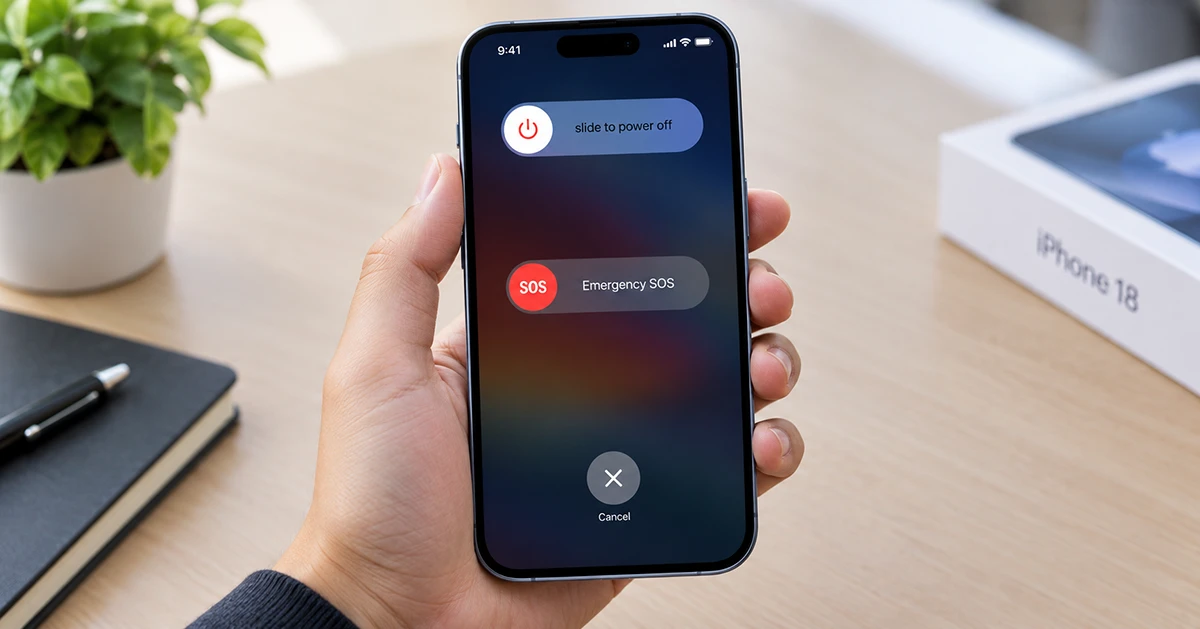
In this user guide for iPhone 18, you’ll learn three reliable ways to turn off iPhone 18: using the Side and Volume buttons, Control Center, and Settings. You’ll also find the correct force-restart steps for a frozen screen and quick fixes if your iPhone refuses to shut down.
How to Turn Off iPhone 18 with Buttons
- Press and hold the Side button and either the Volume Up or Volume Down button at the same time.
- Keep holding until the power screen appears.
- Drag the Slide to Power Off slider from left to right.
- Wait about 30 seconds for the iPhone to shut down completely.
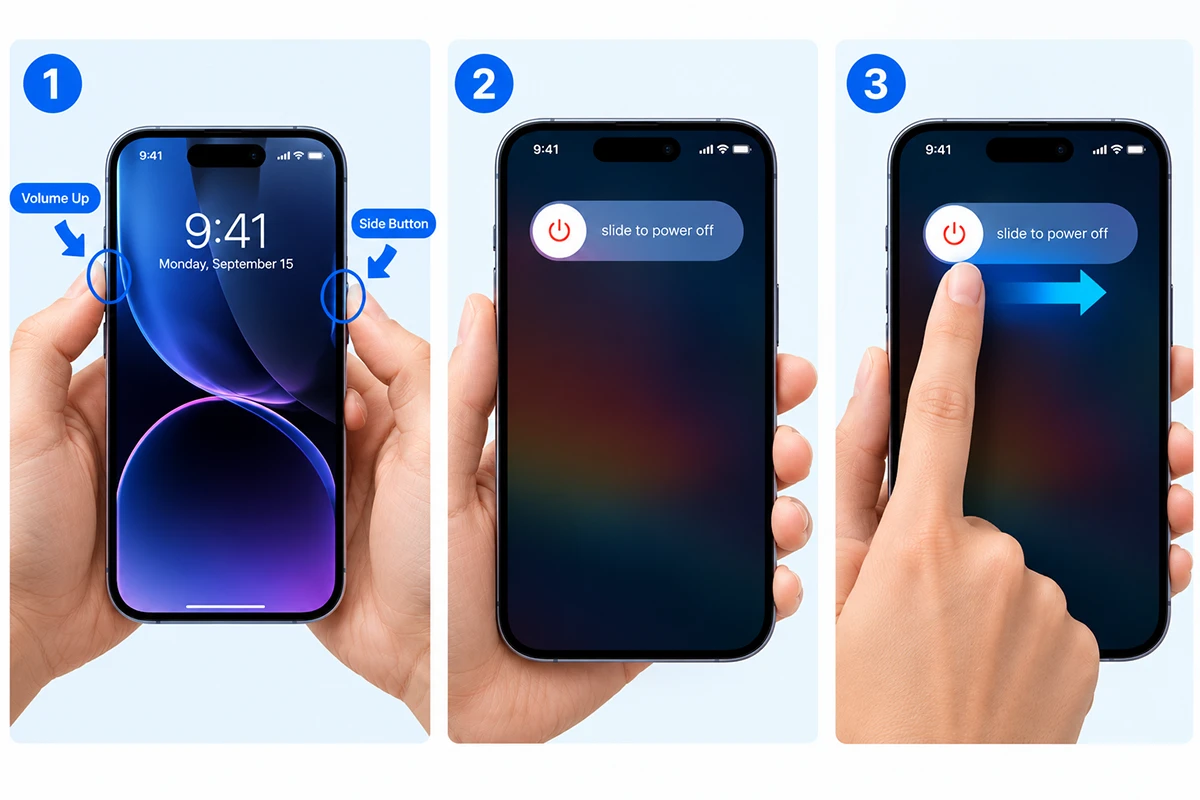
If you have a passcode, iPhone 18 may ask you to enter it before allowing the shutdown.
How to Turn Off iPhone 18 from Control Center
This is often the quickest method if you do not want to use the physical button combination.
- Swipe down from the top-right corner of the screen to open Control Center.
- Touch and hold the Power icon in the upper-right corner.
- Drag the Slide to Power Off slider to the right.
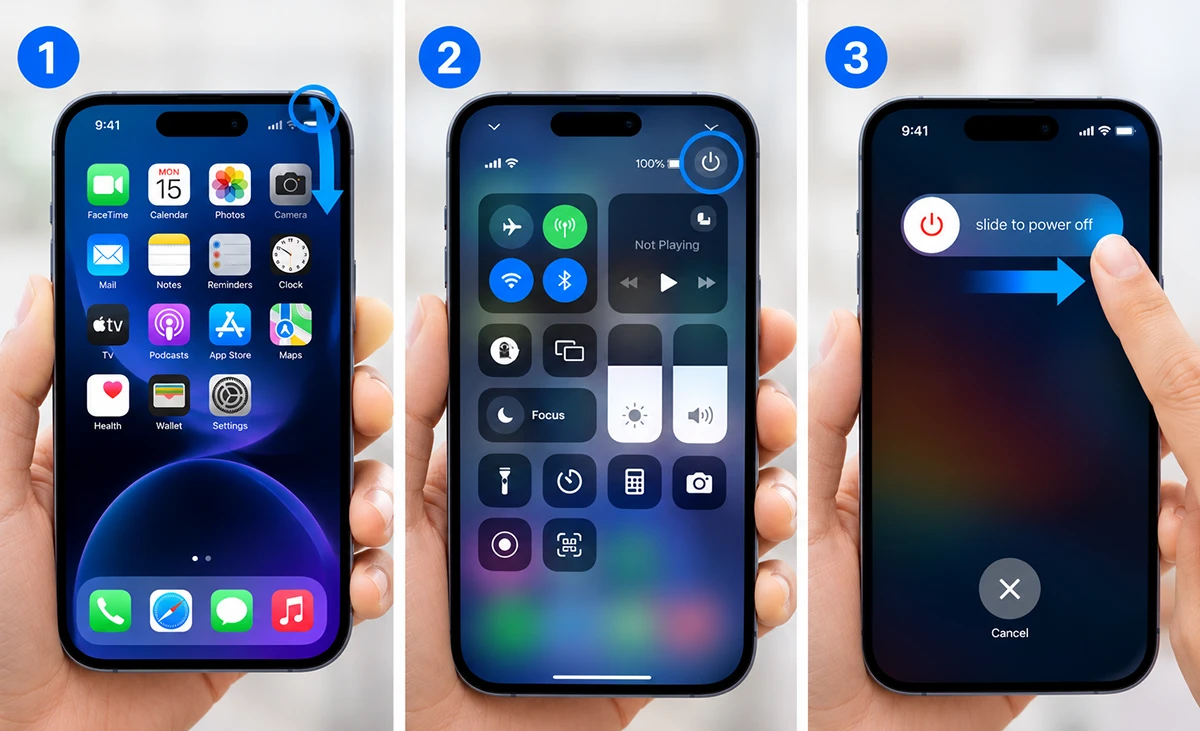
Apple added this dedicated power control to Control Center in iOS 18, and it remains the simplest software-based shutdown route on current iPhones.
How to Shut Down iPhone 18 in Settings
Use this method if the Side or Volume buttons are not working.
- Open Settings.
- Tap General.
- Scroll down and tap Shut Down.
- Drag the power slider to the right.
This produces the same shutdown screen as the button method and is useful when a physical control is unresponsive.
How to Turn Your iPhone 18 Back On
Press and hold the Side button until the Apple logo appears, then release it. The iPhone will restart normally after a few moments.
Turn Off vs. Restart vs. Force Restart
| Action | When to use it | How |
|---|---|---|
| Turn off | Saving battery, travel, troubleshooting, privacy | Side button + Volume button, Control Center, or Settings. |
| Restart | Minor app or performance issue | Turn the iPhone off, wait 30 seconds, then hold the Side button until the Apple logo appears. |
| Force restart | iPhone is frozen or unresponsive | Use the iPhone’s force-restart button sequence; do not use this for a normal shutdown. |
If Your iPhone 18 Will Not Turn Off
- Screen is frozen: Try a force restart, then check for an iOS update once the phone responds.
- Buttons do not work: Use Settings > General > Shut Down.
- Slider does not appear: Release and retry the Side button plus Volume button combination; avoid holding too briefly.
- Battery drains unexpectedly after restart: Check Settings > Battery for apps using unusually high power.
How to Force Restart an iPhone 18
If your iPhone 18 is frozen and will not respond to the normal shutdown methods, use a force restart. This does not erase your data; it simply restarts the device.
- Press and quickly release the Volume Up button.
- Press and quickly release the Volume Down button.
- Press and hold the Side button.
- Keep holding until the Apple logo appears—this may take longer than 10 seconds—then release the button.
If the iPhone still will not start, connect it to power for about an hour and try the force-restart sequence again.
Important: Avoid Emergency SOS
The same Side button plus Volume button combination used to power off iPhone 18 can also trigger Emergency SOS. When the sliders appear, drag only the Slide to Power Off slider—do not continue holding the buttons after the SOS countdown begins.
To review these controls, go to Settings > Emergency SOS. There you can adjust options such as Call with Hold and Release.
When Should You Turn Off iPhone 18?
Turning off your iPhone is useful when you want to:
- Save battery during travel or a long period without charging.
- Reduce distractions by temporarily disconnecting calls, messages, and notifications.
- Troubleshoot slow performance, app glitches, or connectivity problems.
- Secure the device during a flight, medical procedure, or situation where electronics must be powered down.
- Protect privacy by ensuring the phone is completely off rather than merely locked.
A normal restart is usually enough for minor software issues, while a force restart is reserved for a frozen or unresponsive iPhone.
Does Turning Off iPhone 18 Save Battery?
Yes, but only while it remains off. An iPhone 18 consumes essentially no battery when powered down, so shutting it off can help preserve charge during long periods of non-use.
However, restarting uses some power, and features such as alarms will not work while the phone is off. If you need overnight alarms, keep the iPhone powered on or use another alarm device.
Common Mistakes to Avoid
- Holding the Side button alone: This will not bring up the shutdown slider on iPhone 18; use it with either Volume button.
- Holding the buttons too long: Continuing to hold Side button plus Volume can activate Emergency SOS instead of shutting down.
- Confusing restart with force restart: Use a normal restart for everyday issues; use force restart only when the screen is unresponsive.
- Ignoring a low battery: If the iPhone will not turn on, charge it before assuming there is a hardware fault.
Quick Reference: iPhone 18 Power Controls
| Task | Button or menu path |
|---|---|
| Turn off | Hold Side + Volume Up/Down, then drag Slide to Power Off. |
| Turn off from Control Center | Swipe down from top-right, touch and hold Power, then drag the slider. |
| Turn off from Settings | Settings > General > Shut Down. |
| Turn on | Hold the Side button until the Apple logo appears. |
| Force restart | Volume Up, Volume Down, then hold Side until Apple logo |
Final Thoughts
The fastest way to turn off an iPhone 18 is to press and hold the Side button with either Volume button, then drag Slide to Power Off. For a button-free option, use the Power control in Control Center; if the buttons fail, go to Settings > General > Shut Down.
If the screen freezes, use the force-restart sequence rather than repeatedly pressing the power controls. Keeping these three shutdown methods in mind makes it easy to power down, restart, or recover an iPhone 18 in almost any situation.

9 thoughts on “How to Turn Off iPhone 18 (3 Easy Ways) – 2026 Guide”