You can use your iPhone 18 as a webcam for video calls, online classes, meetings, and livestreams instead of relying on your computer’s built-in camera. If you have a compatible Mac, Apple’s Continuity Camera feature lets you connect your iPhone wirelessly or with a USB cable. On a Windows PC, you can use compatible third-party webcam software to send your iPhone’s camera feed to your computer.
The best method depends on your computer, software compatibility, and whether you prefer a wired or wireless connection. Follow the steps below to set up your iPhone 18 as a webcam and troubleshoot common connection problems.
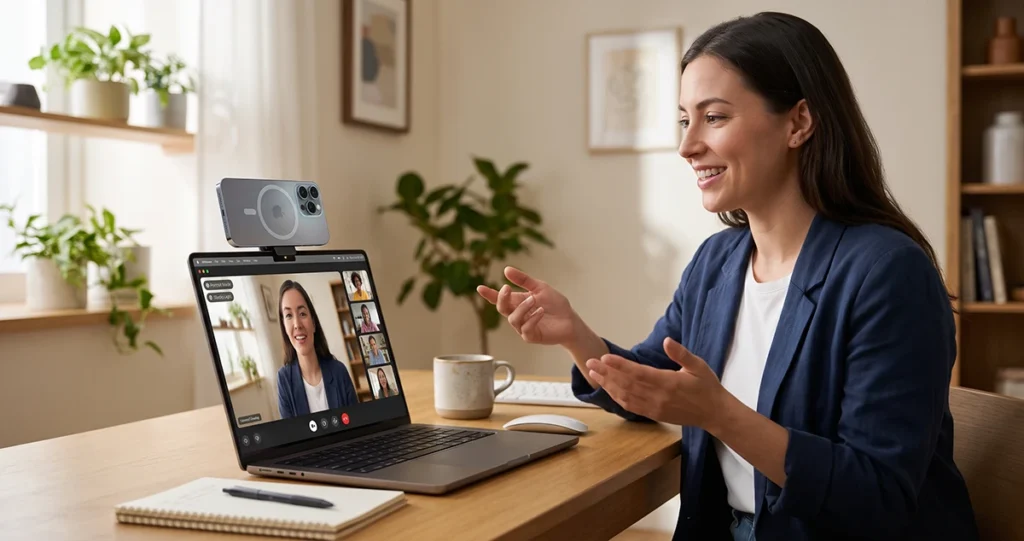
What You Need Before Using iPhone 18 as a Webcam
Before getting started, prepare the following:
- An iPhone 18 with a compatible version of iOS.
- A Mac that supports Continuity Camera, or a Windows PC with compatible webcam software.
- A stable phone stand, tripod, or compatible mount.
- A USB cable if you prefer a wired connection.
- A reliable Wi-Fi connection for supported wireless setups.
- Access to the camera settings in your preferred video-call or streaming app.
For Apple’s Continuity Camera, the established requirements include an iPhone XR or later running iOS 16 or later and a Mac running macOS Ventura 13 or later. Both devices must meet Apple’s compatibility requirements, have Wi-Fi and Bluetooth enabled, and be signed in to the same Apple Account.
Check Apple’s official Continuity Camera guide for current compatibility details.
How to Use iPhone 18 as a Webcam on Mac
The simplest option for a compatible Mac is Apple’s built-in Continuity Camera. You do not need a separate webcam app to use this native feature.
1. Enable Continuity Camera on Your iPhone
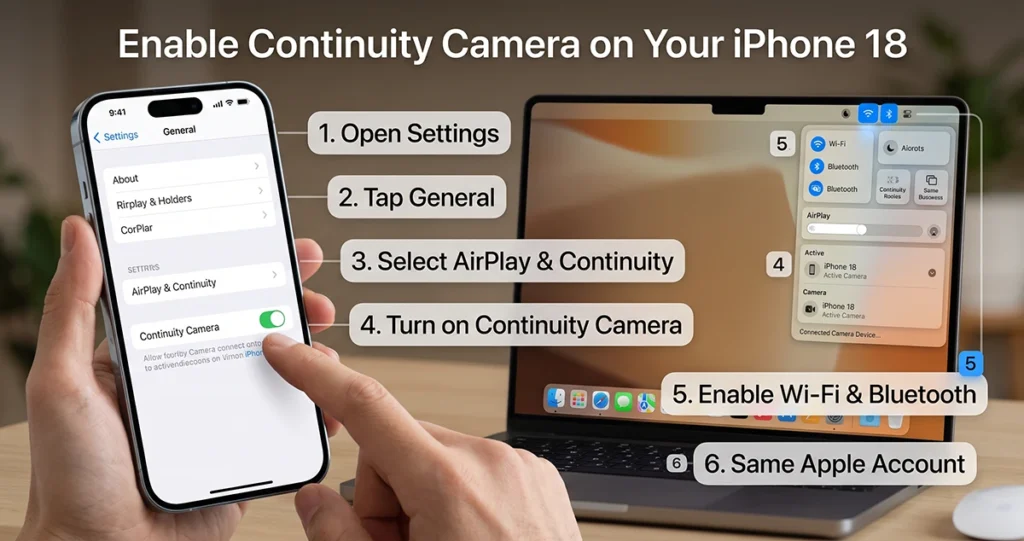
First, make sure your iPhone and Mac meet the requirements.
- Open Settings on your iPhone.
- Tap General.
- Select AirPlay & Continuity.
- Turn on Continuity Camera.
- Enable Wi-Fi and Bluetooth on both devices.
- Sign in to the same Apple Account on your iPhone and Mac.
Keep the devices within approximately 10 meters (30 feet) of each other for wireless use.
2. Position Your iPhone
Place your iPhone on a stable stand or tripod near your Mac. Position it in landscape orientation, with the rear camera facing you.
The rear camera is generally the best choice for image quality. Adjust the angle so the camera sits close to eye level, and make sure your face is well lit.
Avoid placing the phone where it can easily fall or where movement could interrupt your video call.
3. Select Your iPhone as the Webcam
After enabling Continuity Camera:
- Open FaceTime, Photo Booth, or another compatible video application on your Mac.
- Open the app’s video or camera settings.
- Find the available camera devices.
- Select your iPhone as the camera source.
- Check the preview to confirm that the video works.
The exact menu location varies by application. Once selected, your Mac can use the iPhone’s camera as its video input.
4. Connect Your iPhone Using USB
A wired connection is useful for longer meetings or situations where you want to keep your iPhone charged.
- Connect your iPhone to your Mac using a compatible USB cable.
- Unlock your iPhone if prompted.
- Tap Trust This Computer if the trust alert appears.
- Approve any accessory connection prompt on your Mac.
- Open your video application and select your iPhone as the camera.
A USB connection can improve reliability when wireless connectivity is unstable. Make sure the cable supports data transfer, not just charging.
How to Use iPhone 18 as a Webcam on Windows
Apple’s Continuity Camera is designed for compatible Apple devices, so Windows users generally need third-party webcam software.
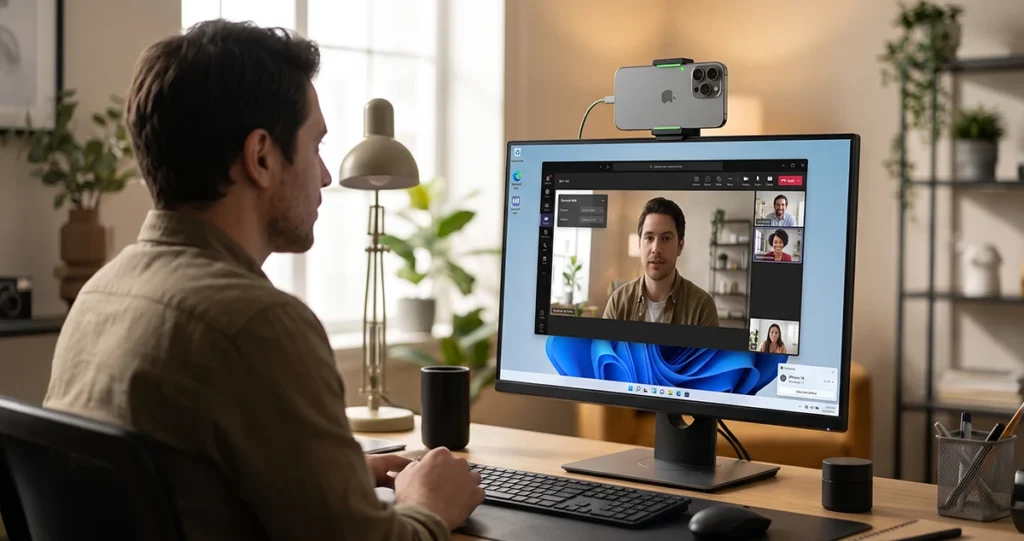
Apps such as Camo and iVCam offer iPhone-to-computer webcam workflows, although supported features, connection methods, and pricing vary. Check the developer’s current compatibility information before installing an app.
1. Install a Compatible Webcam App
Choose a webcam application that supports both iOS and your version of Windows.
- Install the iPhone companion app from the App Store.
- Download the corresponding desktop application from the developer’s official website.
- Install the desktop software on your Windows PC.
- Follow the application’s setup instructions.
Avoid downloading webcam drivers or companion apps from unknown websites.
2. Connect Your iPhone to Your PC
Depending on the software, you may be able to connect using USB or Wi-Fi.
For USB:
- Connect your iPhone to your PC with a compatible data cable.
- Unlock your iPhone and approve any required trust prompt.
- Open the webcam application on both devices.
- Follow the software’s manual and instructions to establish the connection.
For Wi-Fi:
- Connect your iPhone and computer to the network required by the webcam app.
- Open the companion apps on both devices.
- Follow the pairing instructions.
- Wait for the computer to recognize the iPhone’s camera feed.
USB is a good starting point if you experience lag or intermittent disconnections. Wireless connections offer more flexibility when positioning your phone.
3. Select the iPhone Camera in Windows
Once connected, open your webcam software and confirm that the live preview appears.
Next, open Zoom, Microsoft Teams, Google Meet, OBS Studio, or another compatible application. Go to its video settings and select the virtual camera provided by your webcam software.
If the iPhone does not appear, confirm that the desktop software is running and that the connection has been established before reopening the video-call application.
How to Use iPhone 18 as a Webcam for Zoom, Teams, and Google Meet
After connecting your iPhone to your computer, you can use it in many applications that support external or virtual cameras.
Zoom
- Connect your iPhone using Continuity Camera or compatible Windows software.
- Open Zoom on your computer.
- Go to Settings and select Video.
- Choose your iPhone camera or the virtual camera created by your webcam software.
- Check the preview before joining your meeting.
Microsoft Teams
- Connect your iPhone to your computer.
- Open Microsoft Teams.
- Go to Settings and find Devices.
- Open the camera selection menu.
- Select your connected iPhone camera or compatible virtual camera.
Google Meet
- Connect your iPhone and confirm that the camera feed works.
- Open Google Meet in a supported browser.
- Open the meeting settings.
- Select Video.
- Choose your iPhone camera or the webcam software’s virtual camera.
Menu names may differ slightly between application versions. If the camera is missing, test it in the webcam software first.
Tips for Better iPhone Webcam Quality
Your iPhone can produce a clear video image, but positioning and lighting make a significant difference.
- Use the rear camera: It is generally preferable when you want the best available image quality.
- Improve lighting: Face a window or place a soft light in front of you instead of sitting with a bright window behind you.
- Keep the phone stable: A tripod or secure mount prevents distracting movement.
- Position the camera at eye level: This creates a more natural viewing angle during meetings.
- Use USB for long sessions: A wired connection can reduce wireless interruptions and help keep the phone charged.
- Check your microphone: Your computer, iPhone, or an external microphone may be selected for audio. Confirm the correct input in your meeting app.
- Watch battery temperature: Video streaming can generate heat. Keep the phone out of direct sunlight and avoid covering it with thick materials while charging.
- Close unnecessary apps: This can help reduce distractions and free up resources during demanding streaming sessions.
How to Fix iPhone 18 Not Showing as a Webcam
If your iPhone does not appear in the camera list, try these troubleshooting steps.
- 1. Check Compatibility
Verify that your iPhone, computer, operating system, and webcam software meet the relevant requirements. Continuity Camera is not a native iPhone-to-Windows webcam feature.
- 2. Turn On Wi-Fi and Bluetooth
For Continuity Camera, enable Wi-Fi and Bluetooth on both your iPhone and Mac. Keep the devices nearby and confirm that they use the same Apple Account.
- 3. Check the USB Cable
If you are using a cable, try another data-capable cable or USB port. Unlock your iPhone and approve any trust or accessory prompts.
- 4. Restart the Applications
Close the video-call app and the webcam software, then reopen them. If necessary, restart both devices and try connecting again.
- 5. Check Camera Permissions
Open your computer’s privacy settings and verify that the relevant application has permission to access the camera. On Windows, also confirm that camera access is enabled for the software you are using.
- 6. Update the Software
Install available updates for iOS, macOS, Windows, the video-call application, and your third-party webcam software. Restart the connection after updating.
- 7. Check for Network Restrictions
If wireless Continuity Camera fails, check whether a VPN or network configuration is preventing local device communication. Try a USB connection to determine whether the problem is related to wireless connectivity.
Final Thoughts
Using your iPhone 18 as a webcam can be a practical way to improve video calls without buying a separate camera. On a compatible Mac, start with Apple’s Continuity Camera. On Windows, choose a trusted webcam application that supports your iPhone and computer.
For the best results, position the phone securely, use good lighting, check your microphone settings, and test the connection before an important meeting.
Frequently Asked Questions
Yes, if you have a compatible Mac, Apple’s Continuity Camera provides a built-in option without requiring a separate webcam app. Windows users generally need compatible third-party software.
Yes. You can use compatible webcam software that connects an iPhone to a Windows 11 computer. Install the iPhone and desktop components, connect the devices, and select the resulting camera in your video application.
USB is often preferable for stability, reduced wireless interference, and charging during longer sessions. Wi-Fi is more convenient when you need to move the phone freely. The best option depends on the app and network conditions.
Yes. When your connection method supports the rear camera, you can select the iPhone as your camera source and position the rear camera toward you.
Apple’s Continuity Camera supports using a compatible iPhone as a webcam or microphone on a Mac. Third-party Windows applications have different audio capabilities, so check the software’s documentation and select the appropriate microphone in your meeting app.

1 thought on “How to Use iPhone 18 as a Webcam — Mac & Windows Setup Guide”