Some iPhone 18 Pro Max owners on AT&T have encountered a cellular bug that can remove normal phone service, leaving the device stuck in SOS mode. Apple says affected phones cannot be repaired through software and must be replaced; users whose phones still work should install iOS 27.0.1 and the latest AT&T carrier settings immediately.
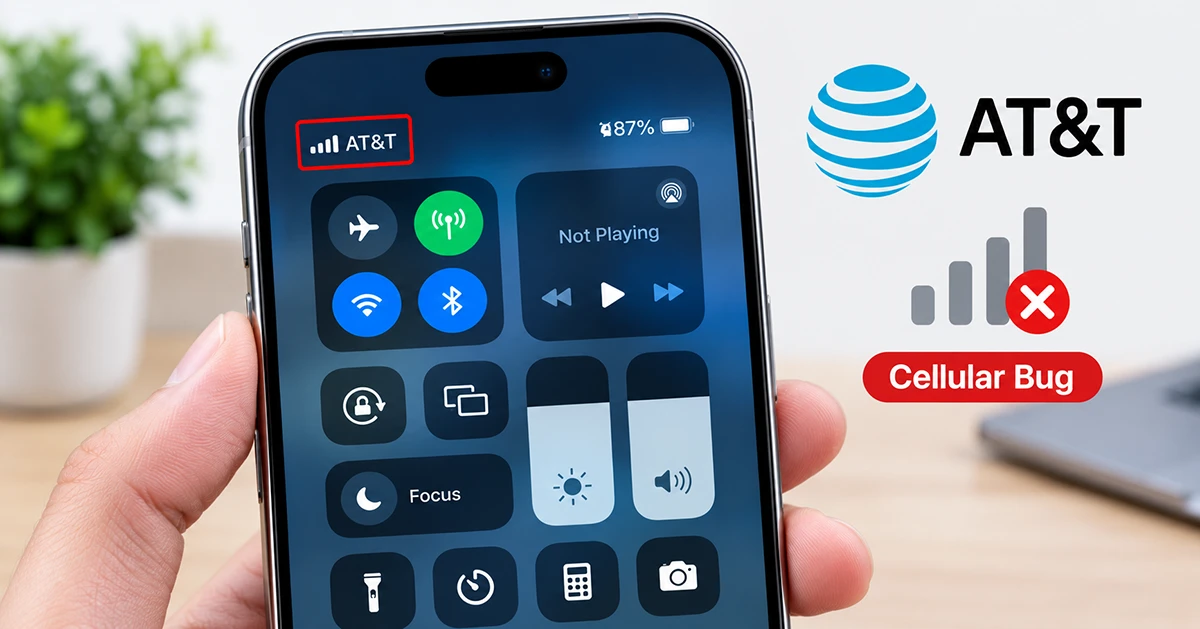
What is the iPhone 18 Pro Max cellular bug?
The iPhone 18 Pro Max cellular bug affects a small number of devices on AT&T’s network. It can prevent calls, text messages, and mobile data from working, and affected iPhones may display an “SOS” indicator instead of a normal cellular signal.
Apple confirmed the issue and said that, once a phone is affected, it cannot restore service with a software update. The company advises affected customers to contact Apple Support or AT&T, or visit an Apple Store or AT&T location for a replacement.
AT&T also acknowledged the problem and urged iPhone 18 Pro Max customers to update their devices to the latest available software.
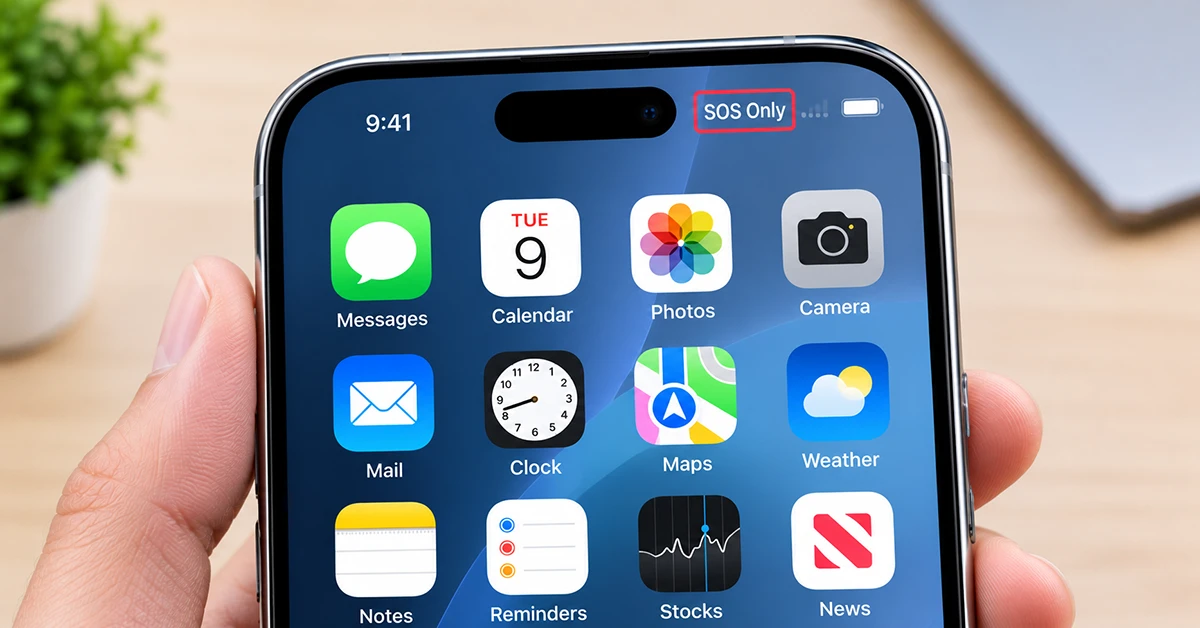
Is your iPhone affected?
Check for these signs:
- Your iPhone 18 Pro Max shows SOS or SOS Only in the status bar.
- You cannot make or receive regular cellular calls.
- Text messages fail to send or receive over the cellular network.
- Cellular data does not work even when Wi-Fi is off.
- Restarting the phone, toggling Airplane Mode, or reinserting the SIM does not restore service.
- The issue occurs on an AT&T line or eSIM.
Reports describe the failure as persistent or intermittent, with some devices unable to reconnect even after a reboot.
Important: SOS mode can still allow emergency calls where compatible cellular coverage is available, but you should not rely on it as a substitute for normal service.
First: update iOS and carrier settings
If your iPhone 18 Pro Max is still connecting normally, update it now. Apple released iOS 27.0.1 and an AT&T carrier-settings update to help prevent the cellular issue from occurring.
- Install iOS 27.0.1
- Open Settings.
- Tap General.
- Tap Software Update.
- If iOS 27.0.1 or newer appears, tap Download and Install.
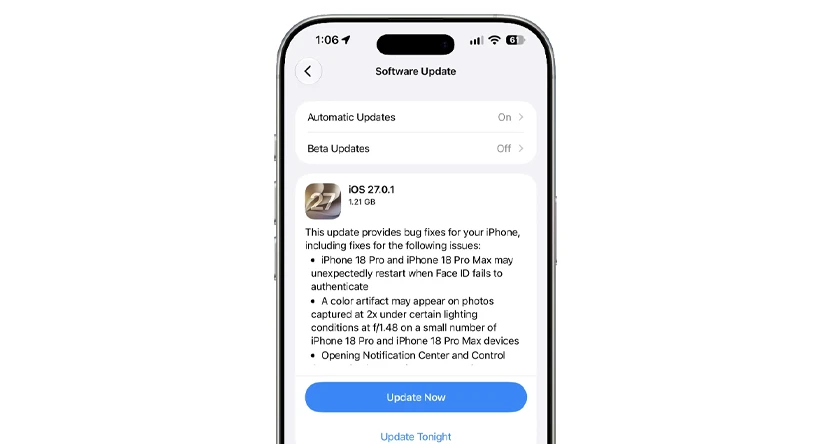
Keep the iPhone connected to Wi-Fi and power until the update finishes. AT&T specifically instructed affected customers to update to iOS 27.0.1 through Settings > General > Software Update.
- Check the AT&T carrier settings update.
- Open Settings.
- Tap General.
- Tap About.
- If a carrier-settings update is available, a prompt should appear.
- Tap Update.
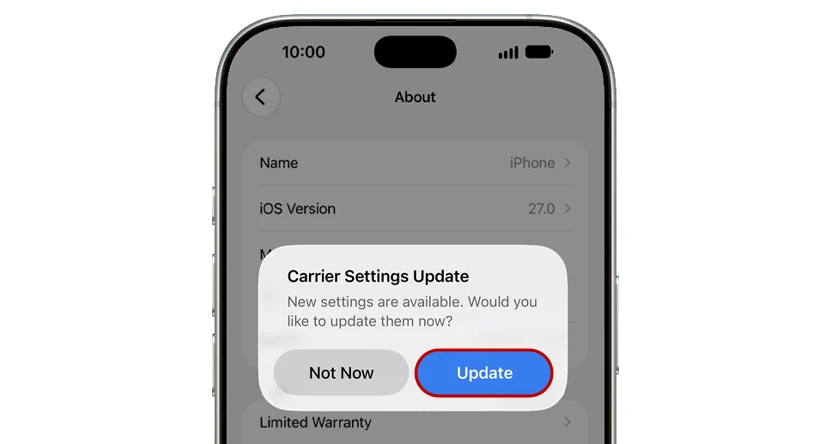
Apple’s AT&T carrier-settings update moved from version 72.0.2 to 72.1. The update may install automatically over the following days, but checking Settings > General > About can trigger it manually.
What to do if your iPhone has no service
If your iPhone is already stuck without cellular service, do not spend hours repeating basic network resets. Apple has said software cannot reactivate service on already-affected units.
1. Try the standard checks once
These steps will not repair an already-affected phone, but they can rule out a temporary network or settings issue:
- Turn Airplane Mode on, wait 15 seconds, then turn it off.
- Restart your iPhone.
- Go to Settings > Cellular and toggle Cellular Data off and back on.att
- Check for a carrier-settings update under Settings > General > About.
- Confirm that your AT&T line is active and not suspended.
2. Back up your iPhone
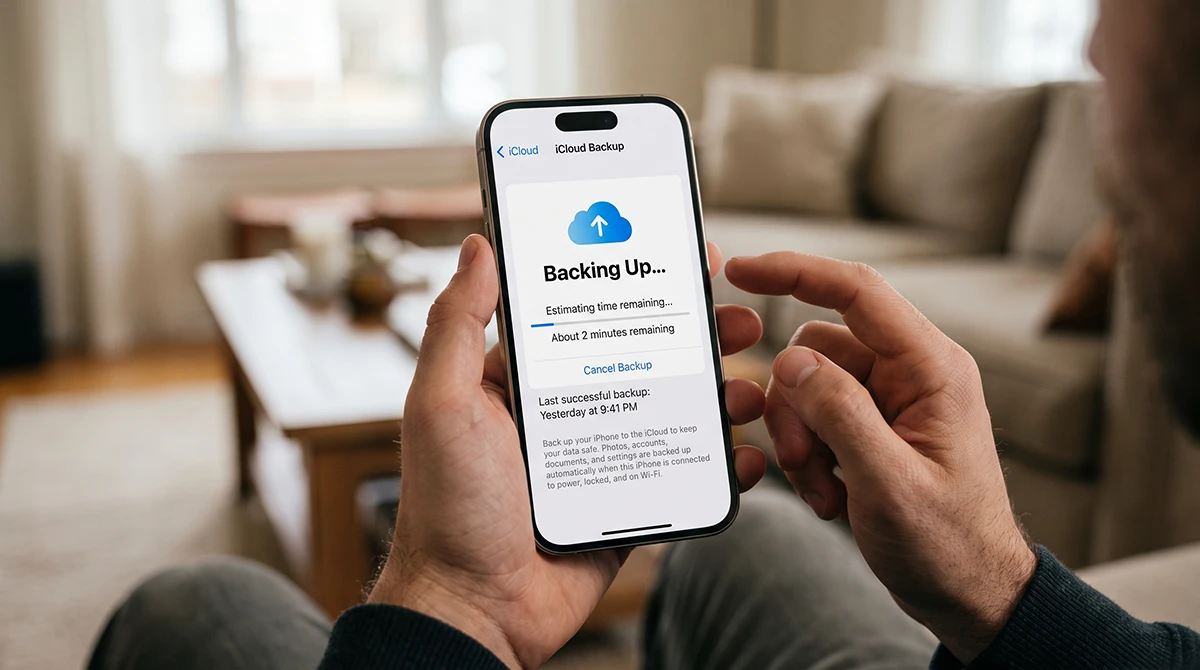
Before arranging a replacement, back up your data:
- Connect to Wi-Fi.
- Go to Settings > [Your Name] > iCloud > iCloud Backup.
- Tap Back Up Now.
- Alternatively, back up to a Mac or PC using Finder or Apple Devices.
Because the cellular issue can affect calls and texts, use Wi-Fi for the backup and for contacting support.
3. Prepare your eSIM for transfer
Many iPhone 18 Pro Max users use an eSIM. Before visiting Apple or AT&T:
- Note your AT&T account number and account PIN or transfer PIN if required.
- Confirm you can sign in to your AT&T account.
- Do not delete your eSIM unless AT&T or Apple Support specifically instructs you to.
- Ask the support representative to confirm how your line and eSIM will move to the replacement device.
4. Request a replacement
Contact Apple Support, AT&T, or visit an Apple Store or AT&T location. Apple says affected devices must be replaced rather than repaired through software.
When contacting support, say:
“My iPhone 18 Pro Max on AT&T has lost cellular service and is showing SOS mode. I have installed iOS 27.0.1 and checked for carrier settings. I believe this may be the confirmed iPhone 18 Pro Max cellular bug and would like to arrange a replacement.”
Why the bug matters
A phone without cellular service is more than an inconvenience. It interrupts everyday calls and messages, prevents mobile data use away from Wi-Fi, and can complicate emergency communication. Reports specifically noted that affected users could not make calls, send texts, or use cellular data.
The issue appears limited to a small number of iPhone 18 Pro Max devices on AT&T, rather than every iPhone 18 Pro Max owner. Apple and AT&T have not publicly explained the exact root cause, but both have issued software-related preventive measures.
iPhone 18 Pro Max cellular bug: quick checklist
Use this checklist before contacting support:
- Confirm you use AT&T.
- Check whether the status bar shows SOS or No Service.
- Install iOS 27.0.1 or newer.
- Check Settings > General > About for a carrier-settings update.
- Restart the iPhone once.
- Toggle Airplane Mode and Cellular Data once.
- Back up photos, messages, and app data.
- Contact Apple Support or AT&T for a replacement if service remains unavailable.
Frequently asked questions
Is the iPhone 18 Pro Max cellular bug limited to AT&T?
Public reports and Apple’s statement focus on a small number of iPhone 18 Pro Max devices on AT&T’s network. The confirmed issue is therefore primarily an AT&T-related cellular connectivity problem.
Does iOS 27.0.1 fix the bug?
It helps prevent the issue on phones that have not yet been affected. Apple says it cannot reactivate service on phones already experiencing the failure; those devices need replacement.
Why does my iPhone show SOS mode?
SOS mode means the iPhone cannot connect to your regular cellular network for normal service. In the confirmed iPhone 18 Pro Max issue, affected users lost calls, texts, and cellular data.
Can I fix it by resetting network settings?
A network-settings reset may be worth trying once, but it is not a confirmed solution for the Apple-confirmed cellular failure. If the phone remains in SOS mode after updating iOS and carrier settings, contact Apple or AT&T for replacement.
Will Apple replace the phone for free?
Apple directs affected customers to contact Apple Support or AT&T, or visit an Apple Store or AT&T location for a replacement. Coverage and replacement terms can depend on your warranty, carrier agreement, and support assessment, so confirm the details with Apple or AT&T before visiting.
The iPhone 18 Pro Max cellular bug is frustrating, but the response is straightforward: if your phone still has service, install iOS 27.0.1 and check for the latest AT&T carrier-settings update right away; if it is already stuck in SOS mode or has no service, back up your data and contact Apple Support or AT&T for a replacement.
Apple says software updates are intended to prevent the issue, not restore service on devices that have already lost connectivity, and affected users can seek assistance through Apple Support, AT&T, an Apple Store, or an AT&T location.
Keep this page bookmarked and check back for updates if Apple or AT&T provides new guidance on the cause, eligibility, or replacement process.
