The iPhone 18 Pro Max does not have a native split screen mode for running two apps side by side. Split View and Slide Over remain iPad-exclusive features. However, you can get close to a split screen experience using Picture in Picture, the dual-pane landscape layout in stock apps, fast app switching, and third-party split browser apps. This guide shows you how to split screen on iPhone 18 Pro Max.

Why the iPhone 18 Pro Max Has No Split Screen Mode
Apple has never offered system-wide split screen on any iPhone, and the iPhone 18 Pro Max continues that tradition. Split View, Slide Over, and Stage Manager — multitasking features Android users have enjoyed for nearly a decade — remain locked to the iPad lineup.
Apple’s reasoning has traditionally come down to screen size and software philosophy. But with the iPhone 18 Pro Max’s massive display, that argument is wearing thin — even major tech publications have called split screen one of the top features Apple needs to steal from Android.
So if you’ve searched Settings high and low for a “split screen” toggle, stop looking. Use the five workarounds below instead.
Best Multitasking Alternatives for iPhone 18 Pro Max
Just because you can’t split the screen doesn’t mean you can’t multitask effectively. Here are the methods that actually work on the iPhone 18 Pro Max.
Method 1: Picture in Picture (The Closest Thing to Split Screen)
Picture in Picture (PiP) is Apple’s official answer to iPhone multitasking. It shrinks a video or FaceTime call into a small floating window that stays on top of any other app — effectively letting you watch and work at the same time.
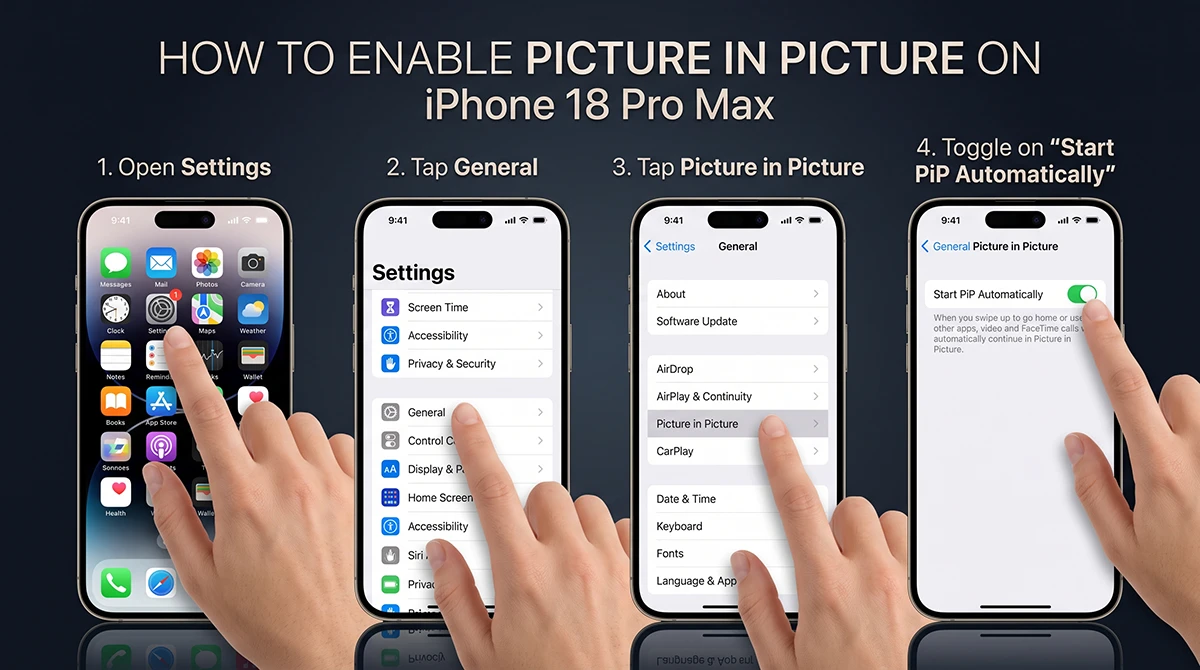
How to enable Picture in Picture on iPhone 18 Pro Max
- Open Settings on your iPhone 18 Pro Max.
- Tap General.
- Tap Picture in Picture.
- Toggle on Start PiP Automatically.
How to use it
- Open a compatible app (FaceTime, Apple TV, Safari, and most streaming apps) and start playing a video.
- Tap the Picture in Picture icon in the video window — or simply swipe up to go home while the video plays.
- The video shrinks to a floating corner window while you open and use any other app.

Managing the PiP window
- Resize it: Pinch open to enlarge, pinch closed to shrink — three sizes available.
- Move it: Drag the window to any corner of the screen.
- Hide it: Drag it off the left or right edge — audio keeps playing.
- Close it: Tap the window, then tap the X.
- Return to full screen: Tap the full-screen icon in the window’s corner.
Pro tip: PiP works with almost any video playing in Safari, even when an app doesn’t support it natively. Watching YouTube in Safari? Swipe up and keep browsing.
Method 2: The Hidden Two-Pane Layout in Landscape Mode
Here’s a trick most iPhone owners never discover: several Apple apps display a built-in split view when you rotate your iPhone 18 Pro Max horizontally. It’s one app showing two panels rather than true multitasking — but it’s perfect for referencing information side by side.
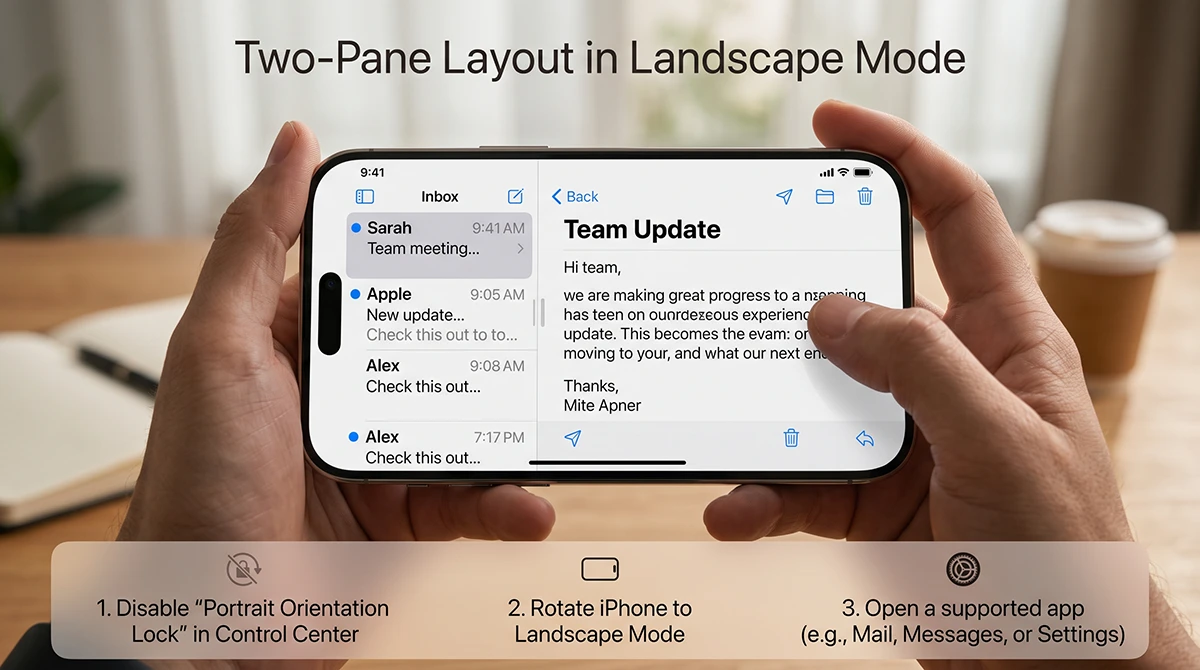
To use the Two-Pane Layout in landscape mode on your iPhone 18 Pro Max, follow these steps to allow apps to expand into a split dual-pane view when held horizontally:
How to Enable and Use Two-Pane Layout:
- Disable Portrait Orientation Lock: Swipe down from the top-right corner of your screen to open the Control Center. Tap the Portrait Orientation Lock icon (the padlock with a circular arrow) to ensure it is turned off.
- Rotate Your iPhone: Turn your iPhone 18 Pro Max horizontally into Landscape mode.
- Open a Supported App: Launch any Apple or third-party app that supports multi-pane layouts, such as Mail, Messages, Notes, Files, or Settings.
The app will automatically adjust to utilize the large landscape screen, showing a navigation list or sidebar on the left and selected content or details on the right. Let’s see the interface example in action below:
Method 3: Master the App Switcher (The Fastest “Almost Split Screen”)
Since you can’t see two apps at once, the next best thing is switching between them almost instantly.
Use the App Switcher
- Swipe up from the bottom and hold for a split second.
- Swipe left or right through your open apps.
- Tap the app you want — it opens exactly where you left it.
Use the gesture shortcut
Swipe horizontally on the home bar to jump instantly to your previously used app. Swiping back and forth along the home bar cycles through apps with one thumb — arguably faster than resizing split panes would be.
Method 4: Split Browser Apps for True Side-by-Side Web Pages
If your goal is comparing two websites or watching a video while browsing, third-party split browser apps deliver a genuine split screen experience inside a single app.
Popular App Store options:
- Split Screen View — two independent browser panes, each with its own address bar
- Split Web Browser — side-by-side browsing with an adjustable divider
- WebDuo — dual web views designed for multitasking
How to use a split browser app
- Open the App Store and search “split screen browser.”
- Download a highly rated option like Split Screen View.
- Tap the address bar in each pane to load a different website in each half.
- Drag the center divider to resize the panels.
Note: These apps split the web browser only — no App Store app can run two native apps (Messages + Maps, for example) side by side, because iOS doesn’t allow it.
Method 5: Built-In Multitasking Features Worth Using
- FaceTime with PiP — keep your video call floating while you check notes or send an email mid-conversation.
- SharePlay — watch movies or listen to music in sync with friends on a FaceTime call.
- Quick Note — swipe in from the bottom-right corner to jot a note over any app.
- Drag and drop — long-press a photo, link, or text in one app, switch apps, and drop it into the destination.
Frequently Asked Questions
Does the iPhone 18 Pro Max have split screen mode? No. As of 2026, no iPhone — including the iPhone 18 Pro Max — supports native split screen multitasking. Apple limits Split View, Slide Over, and Stage Manager to the iPad.
Can you do split screen on iPhone 18 Pro Max with iOS 26? No version of iOS adds system-wide split screen to iPhones. The closest built-in options are Picture in Picture, the landscape dual-pane layout in apps like Mail and Messages, and the App Switcher.
Is there a split screen app for iPhone? Yes — but only for web browsing. Apps like Split Screen View and Split Web Browser display two websites side by side. No app can split two native iOS apps, because the OS doesn’t permit it.
Why doesn’t Apple add split screen to iPhone? Apple has argued that iPhone screens are too small for comfortable side-by-side usage. But with Pro Max displays now reaching 6.9 inches — larger than many Android phones offering split screen since 2016 — critics see this as iPad product differentiation rather than a technical limit.
What’s the closest thing to split screen on iPhone 18 Pro Max? Picture in Picture — a floating, resizable video window over any app. For two full apps, combine the App Switcher with the home bar swipe gesture for instant app-to-app jumping.
Final Verdict
The iPhone 18 Pro Max still can’t split its screen the way an iPad — or any mid-range Android phone — can. But between Picture in Picture, the landscape dual-pane layout, fast app switching, and split browser apps, you can cover 90% of real-world multitasking scenarios. And with user pressure mounting, true split screen may finally be on Apple’s roadmap. Until then, these workarounds keep your display working twice as hard.