Want to replace the default iPhone ringtone with your favorite song, a sound effect, or a custom recording? You can create and set custom ringtones on iPhone 18, iPhone 18 Pro, and iPhone 18 Pro Max using GarageBand—no computer required.
This guide shows you how to make a ringtone from a song, audio file, or voice recording, then apply it as your default ringtone or assign it to a specific contact.
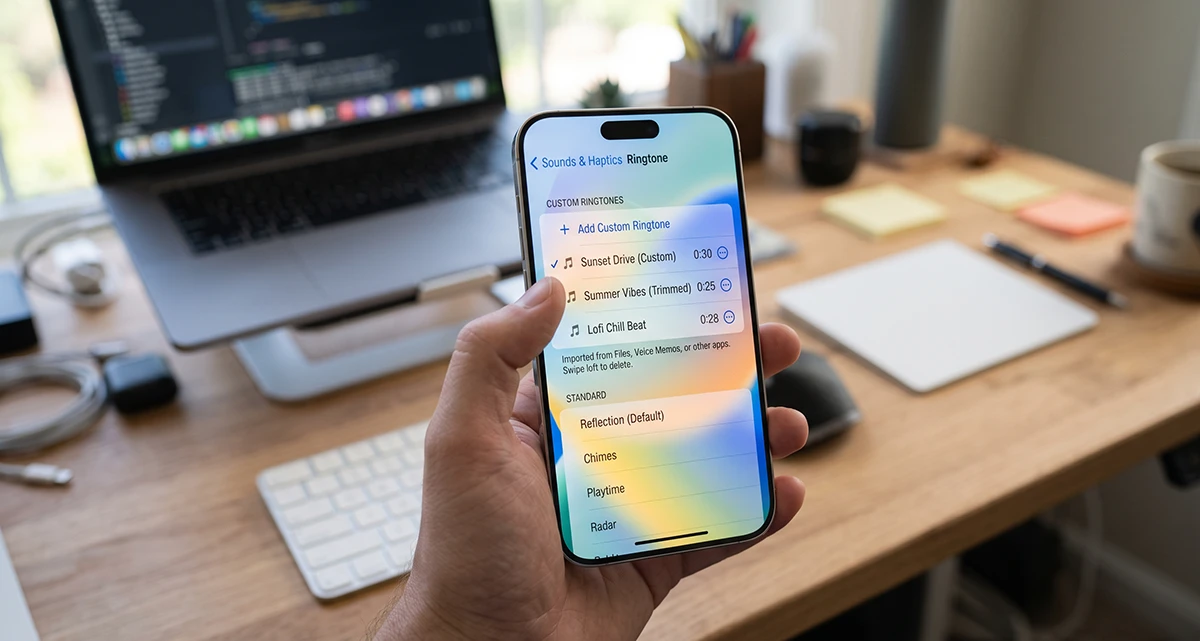
What You Need Before Creating an iPhone 18 Custom Ringtones
Before creating an iPhone 18 custom ringtone, make sure you have:
- An iPhone 18, iPhone 18 Pro, or iPhone 18 Pro Max.
- The free GarageBand app from the App Store.
- An audio file saved in the Files app, iCloud Drive, or your Music library.
- A song that is downloaded to your iPhone, not streamed-only.
- About five minutes.
Apple allows ringtones up to 30 seconds long. If your selected audio is longer, GarageBand can automatically shorten it during export.
Creating a custom ringtone on iPhone 18 takes only a few minutes. Using GarageBand, you can select your favorite part of a song, trim it to the allowed 30-second ringtone length, export it, and apply it through Settings or assign it to a contact.
Method 1: Create a Custom Ringtone With GarageBand
GarageBand is the most reliable way to create a custom ringtone directly on your iPhone. Apple’s own support guide recommends this method for turning songs and audio files into ringtones.
Step 1: Install and Open GarageBand
If you do not already have GarageBand, download it from the App Store. Then touch and hold the GarageBand app icon and choose Create New Audio Recording.
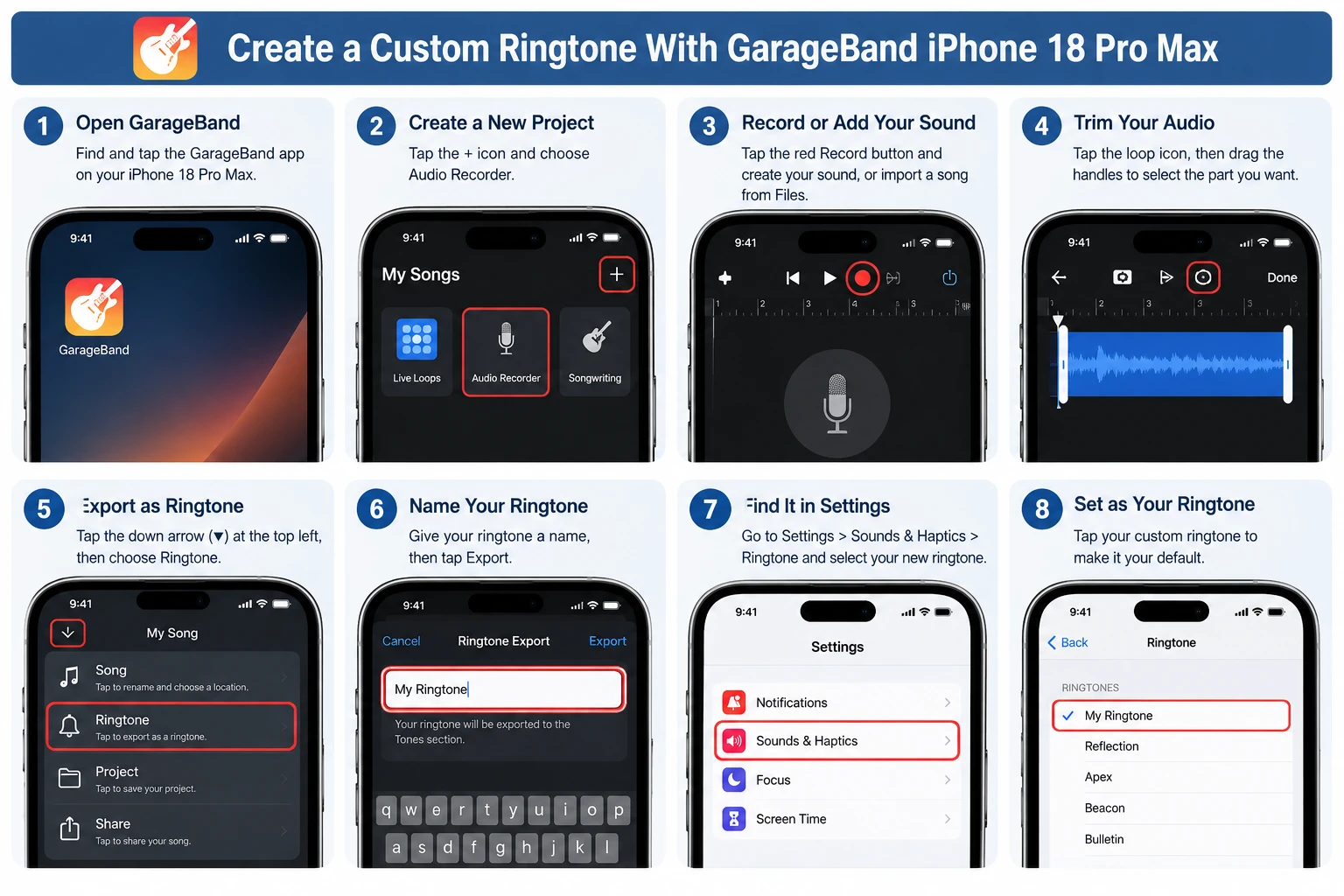
Step 2: Open the Tracks View
When GarageBand opens, tap the Tracks button at the top of the screen. This gives you the editing view where you can import and trim your audio.
Step 3: Import Your Song or Audio File
Tap the instrument icon on the left, then tap the Loops Browser button. From there:
- Tap Files to browse audio stored on your iPhone or iCloud.
- Tap Music to select a downloaded song from your Apple Music library.
If a song appears dimmed, it is either protected or not downloaded to your iPhone. Protected files cannot be used as ringtones.
Step 4: Trim the Audio to 30 Seconds
Touch and hold the imported file, then drag it fully to the left in the Tracks view. Tap the audio file and drag either edge inward to choose the section you want.
For a better ringtone, choose the chorus, hook, or most recognizable part of the song. Make sure there is no blank space before the audio clip.
Step 5: Export the Ringtone
Tap the Navigation button, then tap My Songs. In the browser:
- Tap the More button.
- Tap Select.
- Choose the project you created.
- Tap the Share button.
- Tap Ringtone.
- Name the ringtone.
- Tap Export.
If the ringtone is longer than 30 seconds, GarageBand will ask whether to shorten it automatically.
Step 6: Set It as Your Ringtone
After exporting, tap Use sound as. You can choose:
- Standard Ringtone to make it your default call ringtone.
- Standard Text Tone to use it for messages.
- Assign to contact to use it for one specific person.
You can also apply it later through Settings → Sounds & Haptics → Ringtone.
Method 2: Set a Custom Ringtone From Settings
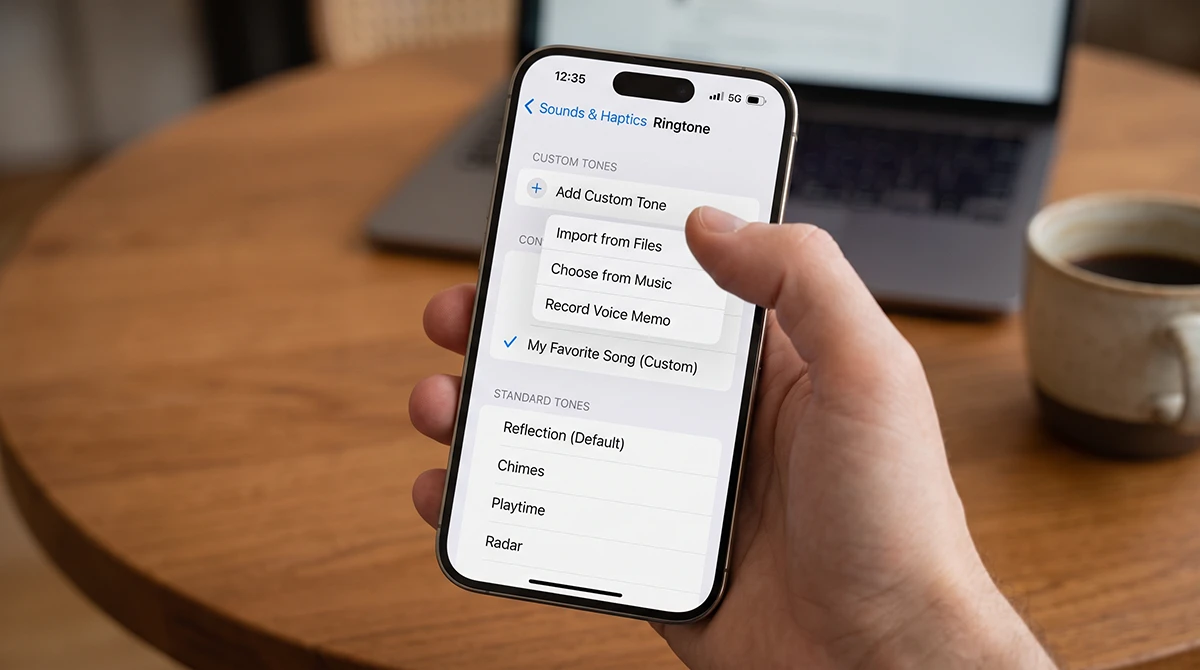
If you have already created or downloaded a ringtone, setting it is quick.
- Open Settings.
- Tap Sounds & Haptics.
- Tap Ringtone.
- Scroll to your custom ringtone.
- Tap it to select it.
Apple’s support documentation lists this as the standard way to change your iPhone ringtone.support.apple
Method 3: Assign a Custom Ringtone to a Contact
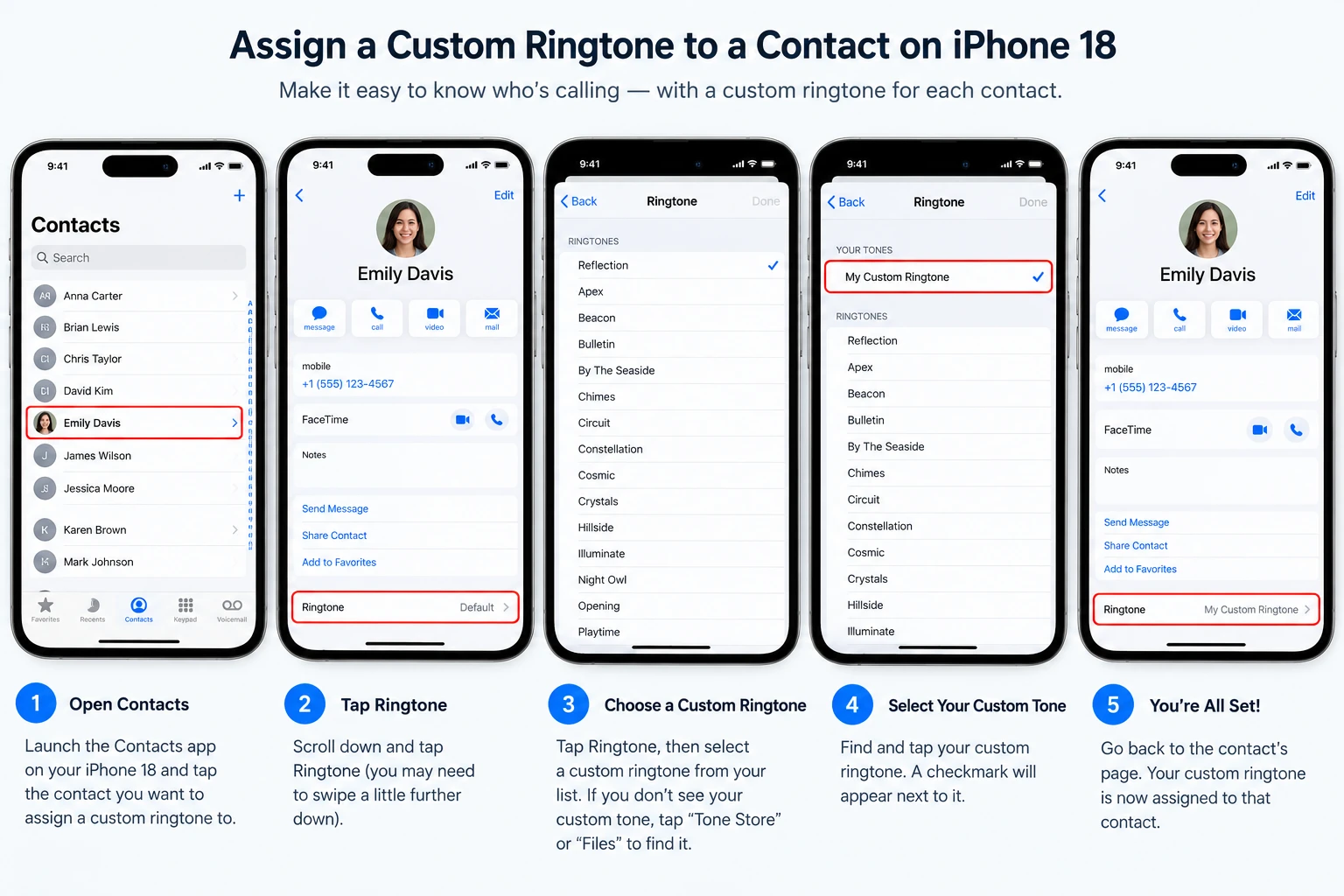
A contact-specific ringtone helps you know who is calling without looking at your iPhone.
- Open the Contacts app.
- Select the contact.
- Tap Edit.
- Tap Ringtone.
- Choose your custom ringtone.
- Tap Done.
This is useful for family members, work contacts, or anyone whose calls you want to recognize instantly. Apple supports assigning different ringtones to individual contacts.support.
Method 4: Use a Ringtone Maker App
Several App Store apps can help you prepare a ringtone, but most still rely on GarageBand to export and install the final tone. For example, Ringtone Maker Garage lets users create a tone in the app, share it to GarageBand, export it as a ringtone, then set it through the “Use sound as” option.
Use caution with third-party ringtone apps. Prefer apps with clear privacy policies, avoid apps that request unnecessary permissions, and never pay for a “ringtone installation” feature that GarageBand already provides free.
Best Ringtone Length and Audio Tips
For the best results, keep these practical tips in mind:
- Keep ringtones between 15 and 30 seconds.
- Start with the chorus or a distinctive musical hook.
- Avoid long silent intros.
- Use a high-quality MP3, M4A, WAV, or AAC file when possible.
- Make sure the song is downloaded before importing it.
- Test the volume after setting the ringtone.
If GarageBand says your file is protected, it usually means the track is DRM-protected or has not been downloaded for offline use. Apple specifically notes that protected songs cannot be used for ringtones.
Common iPhone 18 Ringtone Problems
- My custom ringtone does not appear: Restart the Settings app, then go to Settings → Sounds & Haptics → Ringtone. Your exported ringtone should appear under the custom ringtones section.
- The song is dimmed in GarageBand: The file may be protected or not downloaded. Download the song fully, or use an unprotected audio file saved in Files.
- The ringtone is too long: Trim it to 30 seconds or less. GarageBand can shorten longer ringtones automatically when you export, but manually selecting the best section gives you more control.
- The ringtone is too quiet: Increase the volume in GarageBand before exporting, and check your iPhone’s ringtone volume in Settings → Sounds & Haptics.
Frequently Asked Questions
Can I use any song as an iPhone 18 ringtone? You can use downloaded, unprotected songs and audio files. Apple Music tracks must be downloaded to your device, and protected files cannot be converted into ringtones.support.apple
Do I need a computer to make a custom ringtone? No. GarageBand lets you create, trim, export, and set a custom ringtone entirely on your iPhone.support.apple
How long can an iPhone ringtone be? iPhone ringtones can be up to 30 seconds.support.apple
Can I set different ringtones for different contacts? Yes. Open the contact, tap Edit, tap Ringtone, and choose the tone you want.support.apple
Is GarageBand free? Yes, GarageBand is free to download from the App Store and is the safest built-in method for creating iPhone ringtones.support.apple
Final Thoughts
Creating custom ringtones on iPhone 18 is simple once you know the GarageBand workflow. Import your audio, trim the best 30 seconds, export it as a ringtone, and apply it through Settings or assign it to a contact.
For most people, GarageBand is the best option because it is free, official, and does not require connecting your iPhone to a computer.
1 thought on “How to Set Custom Ringtones on iPhone 18: Easy Methods for Any Song”