If your iPhone 18 Pro Max says “Unable to Check for Update,” it usually cannot reach Apple’s software-update server, lacks a stable internet connection, or has a corrupted/partially downloaded iOS update. Apple identifies this exact alert as a connection or update-verification issue and recommends retrying on the same network, switching networks, or updating through a Mac or iTunes.

Why Does My iPhone 18 Pro Max Say “Unable to Check for Update”?
Before we fix it, it helps to know what’s going wrong. Apple’s own support documentation lists the main causes of failed wireless updates:
- Unstable or blocked internet connection – Your iPhone must reach Apple’s update servers. VPNs and proxy connections are known to block this.
- Apple’s servers are overloaded – Right after a big iOS 27 release, millions of devices hammer Apple’s servers at once. The error can be entirely on Apple’s side.
- A corrupted or stuck update file – A partially downloaded update can block new checks.
- Low storage space – Not enough free space to process the update.
- Network settings glitches – DNS misconfigurations or Wi-Fi issues.
- Beta profiles or restrictions – Screen Time restrictions or leftover beta profiles can interfere.
Now let’s fix it — try these in order.
Fix 1: Check Your Wi-Fi Connection
It sounds obvious, but a Wi-Fi connection doesn’t guarantee an internet connection. Open Safari and load a few websites to confirm your iPhone is actually online.
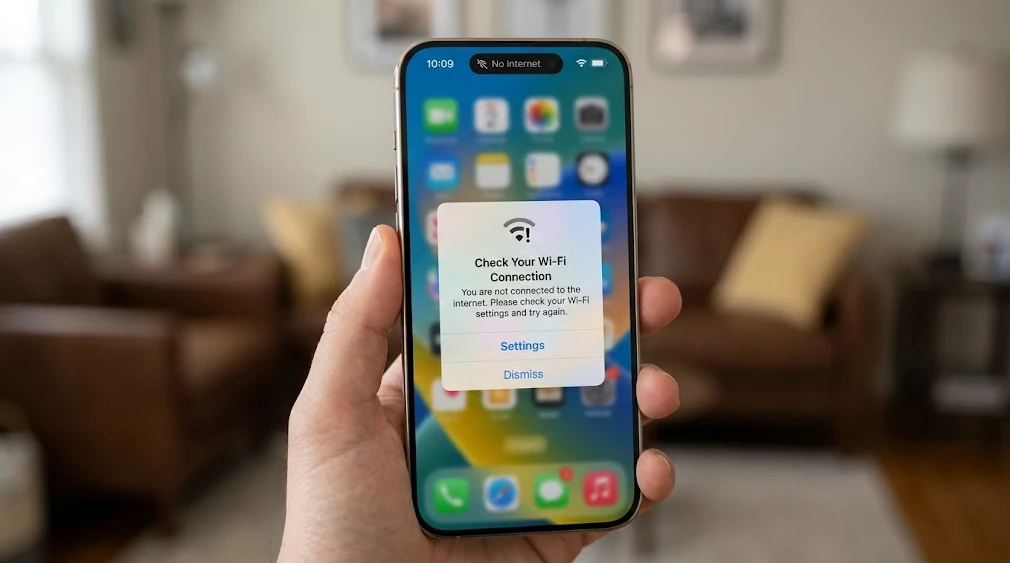
- Make sure Airplane Mode is off (Settings > Airplane Mode).
- Toggle Wi-Fi off and back on.
- If possible, switch to a different Wi-Fi network — this is Apple’s official recommendation when an update alert repeats.
Fix 2: Turn Off Your VPN
If you’re using a VPN, disconnect it before checking for updates. VPN and proxy connections are a well-documented cause — they can prevent your iPhone from contacting Apple’s update servers.
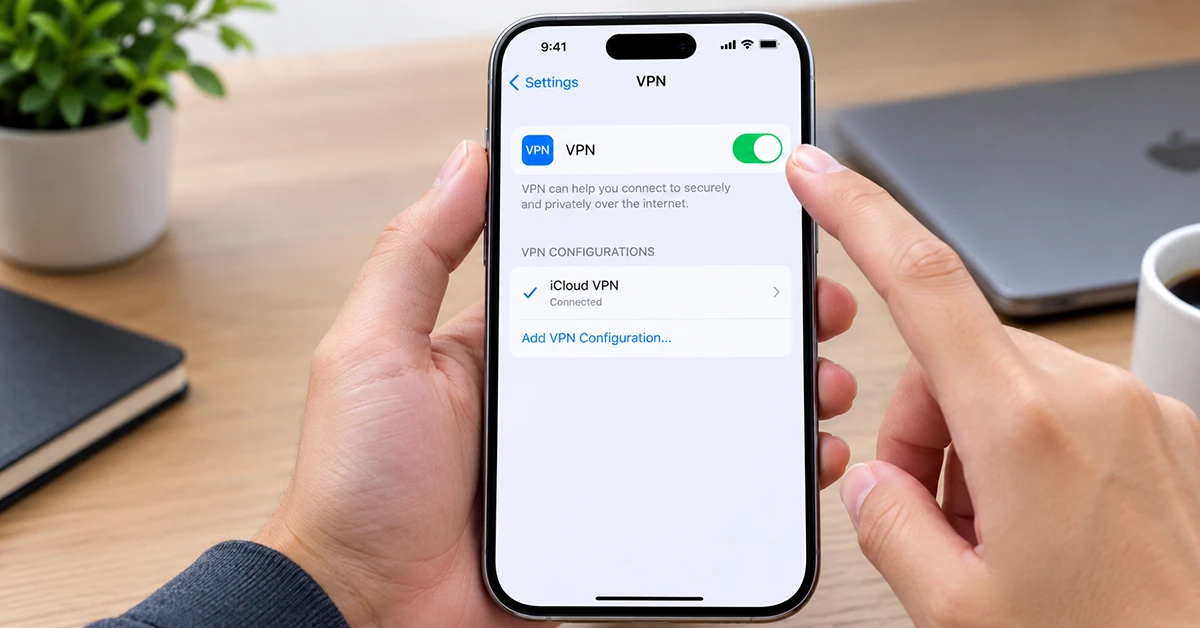
- Go to Settings > VPN & Device Management and toggle the VPN off, then try again.
Fix 3: Force Restart Your iPhone 18 Pro Max
A force restart clears temporary software glitches without deleting any data:
- Quickly press and release the Volume Up button.
- Quickly press and release the Volume Down button.
- Press and hold the Side button until the Apple logo appears, then let go.
After your iPhone boots up, head back to Software Update.
Fix 4: Check Apple’s System Status Page
Sometimes the problem isn’t you — it’s Apple. When a major iOS 27 update drops, Apple’s servers can struggle under the load. Visit Apple’s System Status page (search “Apple System Status“) and look for the Software Update indicator. If it’s red or yellow, wait a few hours and try again.
Fix 5: Free Up Storage Space
Your iPhone needs free space to check for, download, and install updates. Go to Settings > General > iPhone Storage. If you’re nearly full:
- Enable Offload Unused Apps from that same screen.
- Delete old videos, large apps, or message attachments you no longer need.
Fix 6: Delete the Downloaded Update and Try Again
A stuck or corrupted update file is a classic culprit. Delete it and re-download:
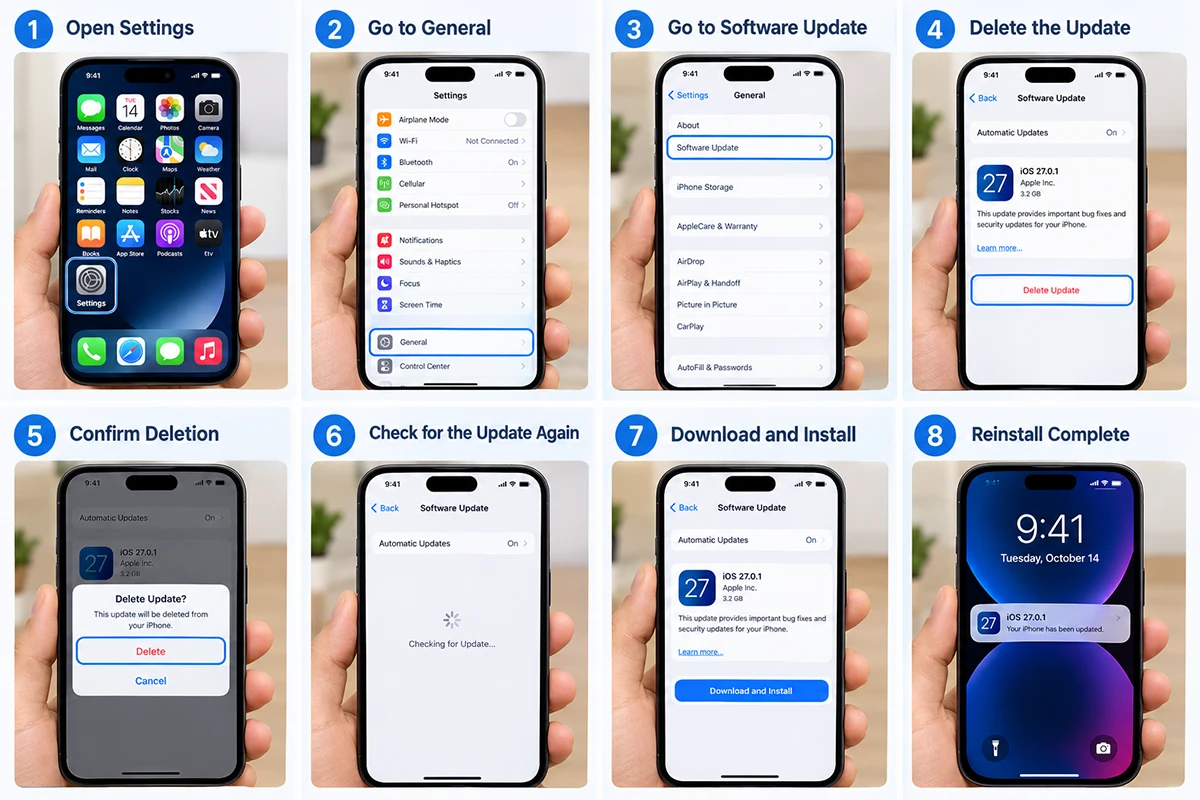
- Go to Settings > General > iPhone Storage.
- Scroll down and find the iOS update in the app list.
- Tap it, then tap Delete Update.
- Return to Settings > General > Software Update and download it fresh.
Important: This process removes the downloaded update file, not the iOS version already installed on your iPhone.
Fix 7: Reset Network Settings
This wipes saved Wi-Fi passwords, VPN configs, and DNS settings — resolving deeper connectivity glitches. Your photos, apps, and data stay untouched.
- Go to Settings > General > Transfer or Reset iPhone.
- Tap Reset > Reset Network Settings.
- Enter your passcode, confirm, and reconnect to Wi-Fi.
- Try the update again.
Fix 8: Turn Off Screen Time Content Restrictions
If you’ve enabled restrictions, they may block software updates:
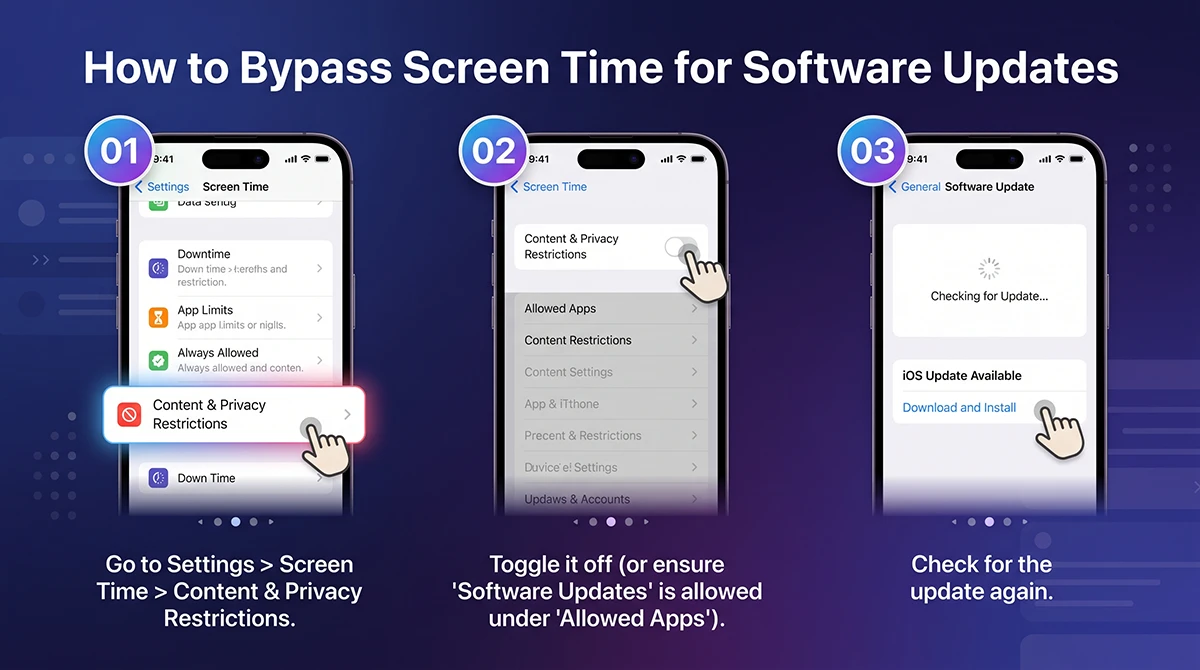
- Go to Settings > Screen Time > Content & Privacy Restrictions.
- Toggle it off (or ensure “Software Updates” is allowed under Allowed Apps).
- Check for the update again.
Fix 9: Update Your iPhone Using a Computer
If over-the-air updates keep failing, update via cable. This method bypasses Wi-Fi and server communication issues entirely and works even when the on-device check fails. Reddit users report this as a reliable fix:
On a Mac (macOS Catalina or later):
- Connect your iPhone 18 Pro Max via USB-C/Lightning cable.
- Open Finder, select your iPhone in the sidebar.
- Click General > Check for Update > Download and Update.
On a Windows PC: Use the Apple Devices app or iTunes — click the device icon, then Check for Update > Download and Update.
Fix 10: Update in Recovery Mode (Last Resort)
If nothing above works, put your iPhone in recovery mode and update from your computer. This reinstalls iOS without erasing your data (choose Update, not Restore):
- Connect your iPhone to a Mac or PC.
- Quickly press Volume Up, then Volume Down, then hold the Side button.
- Keep holding even past the Apple logo until you see the computer-and-cable recovery mode screen.
- On your computer, choose Update when prompted.
If even recovery mode fails, the issue may be hardware — time to contact Apple.
Special Note: The iPhone 18 Pro Max / AT&T Cellular Bug (October 2026)
If your “unable to check” issue coincides with no cellular signal or an “SOS” indicator in your status bar, you may be affected by a separate, confirmed hardware-level bug. Apple has acknowledged that “a small number” of iPhone 18 Pro Max units on AT&T — which uses a different Qualcomm modem than the regular iPhone 18 Pro — can permanently lose cellular service.
If your phone still works on Wi-Fi: Update to iOS 27.0.1 immediately and install the carrier settings update via Settings > General > About to prevent it.
If you’re already affected (SOS in status bar): No software fix exists — contact Apple Support or AT&T for a free replacement, and back up your iPhone first.
Frequently Asked Questions
Why does my iPhone 18 Pro Max say “Unable to Check for Update” when I’m connected to Wi-Fi? The connection to Apple’s update servers is likely being blocked or the servers are overloaded. Disable any VPN, reset network settings, or check Apple’s System Status page.
Can I update my iPhone 18 Pro Max without Wi-Fi? Large iOS updates require Wi-Fi. However, you can update via a computer (Finder or Apple Devices/iTunes) using a cable — no Wi-Fi on the iPhone itself needed.
Will I lose my data if I reset network settings or use recovery mode? No. Resetting network settings only clears Wi-Fi passwords and network configs. Updating via recovery mode reinstalls iOS while keeping your data — as long as you select Update, not Restore.
How do I know if my iPhone 18 Pro Max is affected by the AT&T bug? Check your status bar: an “SOS” indicator and no ability to make calls or use cellular data while on AT&T signals the hardware bug. Update immediately if you see a normal signal to prevent it.
When to Contact Apple Support
If you’ve tried all 10 fixes — or your iPhone shows the SOS/cellular issue described above — reach out to Apple:
- Apple Support app or support.apple.com
- Apple Store or Authorized Service Provider (book a Genius Bar appointment)
- AT&T if the cellular bug applies to you (free replacement)
The Bottom Line
“Unable to Check for Update” on the iPhone 18 Pro Max is almost always a network or server issue, not a broken phone. Start with the quick fixes — toggle Wi-Fi, disable VPN, restart — and work your way up to a computer update. And if you’re on AT&T, don’t delay that iOS 27.0.1 update.
Found a fix that worked for you? Drop it in the comments — it might help another reader. And if this guide saved your evening, share it with a fellow iPhone 18 Pro Max owner. 📱