Whether it’s a boarding pass, a contract, or a photo worth framing, your iPhone 18 Pro Max can send it straight to a printer — no computer needed. Here’s every method to Print from iPhone 18 Pro Max that works, from the built-in AirPrint feature to Wi-Fi Direct and manufacturer apps.
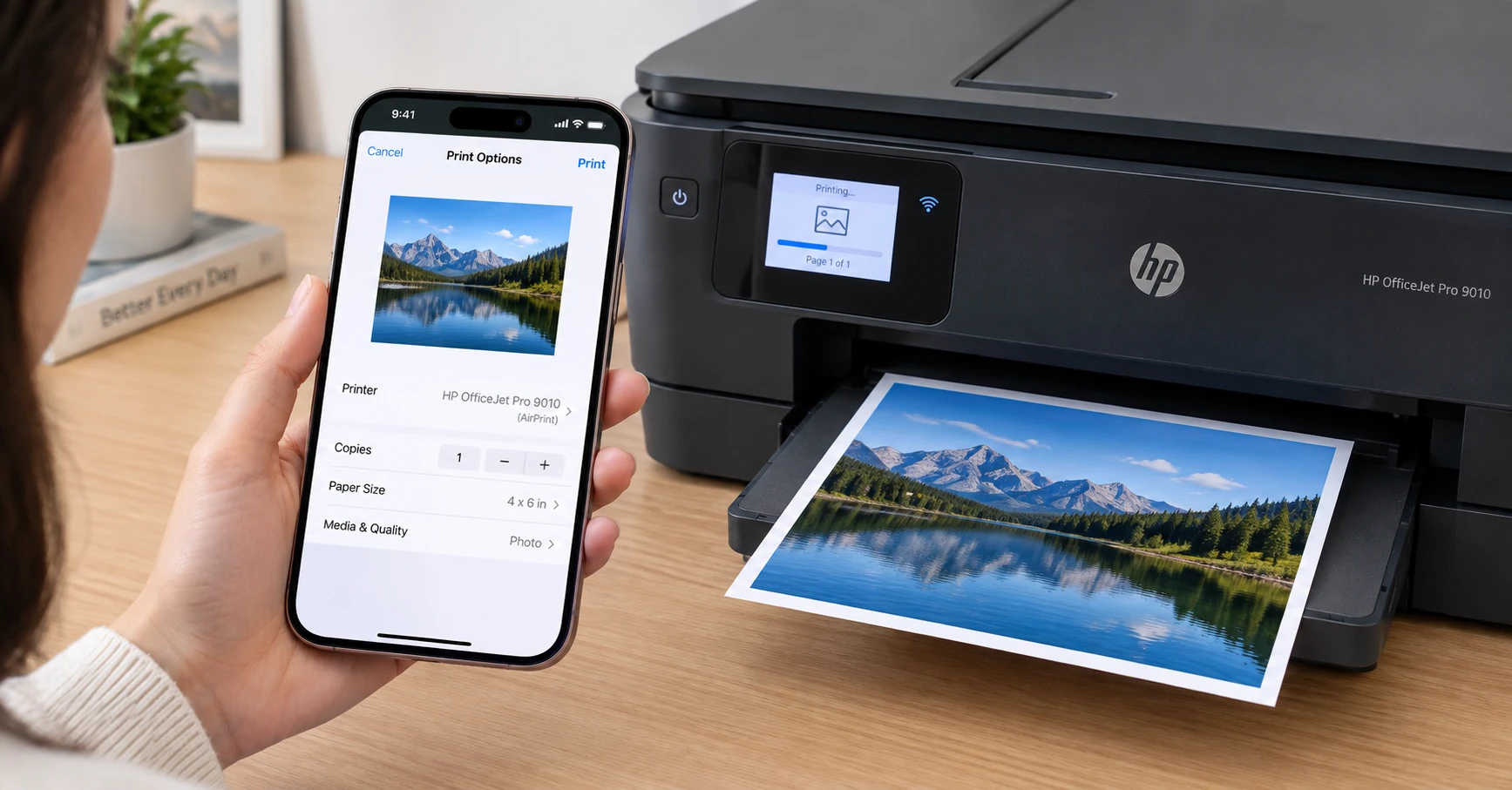
Quick answer: To print from your iPhone 18 Pro Max, make sure your printer and iPhone are on the same Wi-Fi network, open the item you want to print, tap the Share button (square with an arrow), scroll down and tap Print, select your printer, adjust your settings, and tap Print in the top-right corner.
What You Need Before Printing from iPhone 18 Pro Max
Before you start, check these three things — they solve 90% of “printer not found” issues before they happen:
- An AirPrint-compatible printer. Most printers sold in the last several years from HP, Canon, Epson, and Brother support AirPrint. Check your printer’s manual or the manufacturer’s website if you’re unsure.
- Both devices on the same Wi-Fi network. Your iPhone 18 Pro Max and the printer must be connected to the same network. If your iPhone is on 5GHz and the printer is on a separate 2.4GHz band with a different name, they won’t see each other.
- iOS 27 is up to date. Go to Settings → General → Software Update and install any pending updates — Apple regularly patches AirPrint connectivity bugs.
How to Print from iPhone 18 Pro Max Using AirPrint
AirPrint is Apple’s built-in wireless printing technology. There’s nothing to download and no drivers to install — if your printer supports it, it just works.
Step 1: Connect to the same Wi-Fi network
Open Settings → Wi-Fi on your iPhone 18 Pro Max and confirm you’re on the same network as your printer.
Step 2: Open the item you want to print
This works in most apps, including Photos, Safari, Mail, Notes, and Files. Open the document, photo, email, or web page.
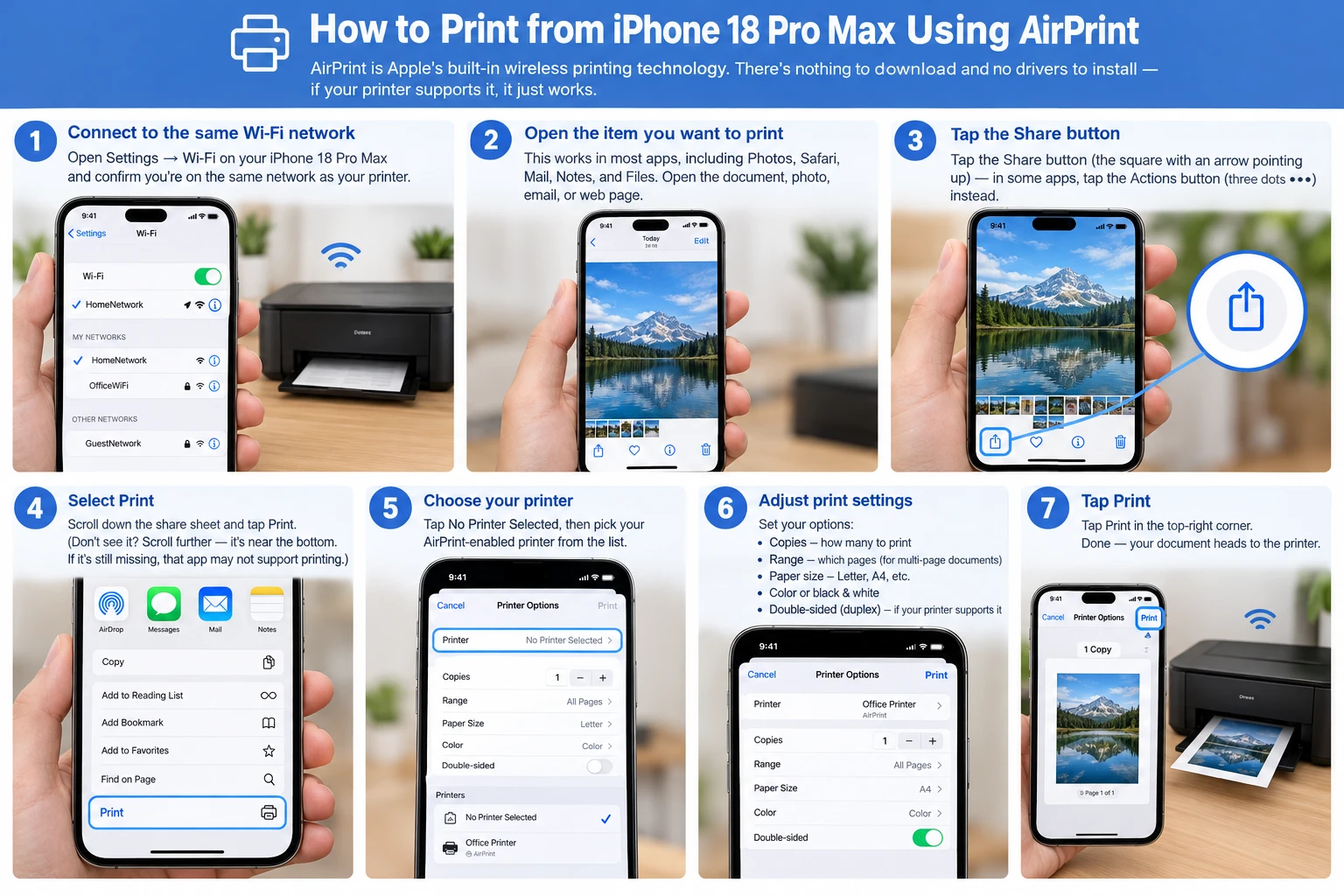
Step 3: Tap the Share button
Tap the Share button (the square with an arrow pointing up) — in some apps, tap the Actions button (three dots •••) instead.
Step 4: Select Print
Scroll down the share sheet and tap Print. (Don’t see it? Scroll further — it’s near the bottom. If it’s still missing, that app may not support printing.)
Step 5: Choose your printer
Tap No Printer Selected, then pick your AirPrint-enabled printer from the list.
Step 6: Adjust print settings
Set your options:
- Copies – how many to print
- Range – which pages (for multi-page documents)
- Paper size – Letter, A4, etc.
- Color or black & white
- Double-sided (duplex) – if your printer supports it
Step 7: Tap Print
Tap Print in the top-right corner. Done — your document heads to the printer.
How to Print Photos from iPhone 18 Pro Max
Printing photos is nearly identical, with one useful extra: you can print multiple photos in one job.
To print a single photo:
- Open the Photos app and select a photo.
- Tap the Share button, scroll down, and tap Print.
- Choose your printer and paper size, then tap Print.
To print multiple photos at once:
- In the Photos app, tap Library (or open an album), then tap Select.
- Tap each photo you want to print.
- Tap the Share button → Print.
- Pick your printer and tap Print.
Pro tip: For the best photo prints, use photo paper (glossy or matte) in your printer and select the matching paper type in the print options. Your iPhone 18 Pro Max’s high-resolution camera captures more detail than standard printer paper can show — photo paper makes the difference.
How to Print from iPhone 18 Pro Max Without Wi-Fi (Wi-Fi Direct)
No Wi-Fi network available? Many modern printers support Wi-Fi Direct, which creates a direct wireless connection between your iPhone and the printer.
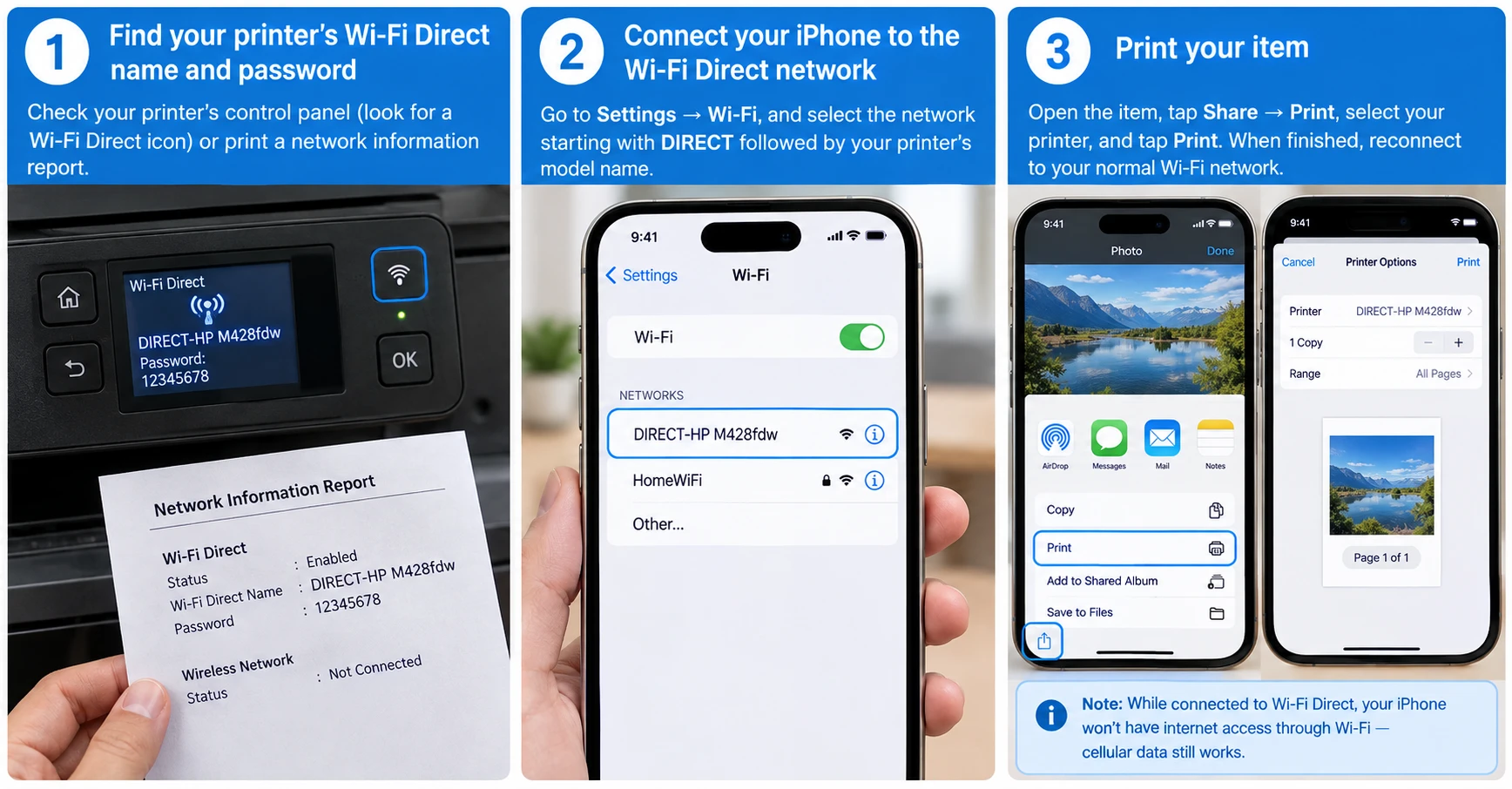
- Find your printer’s Wi-Fi Direct name and password — usually on the printer’s control panel (look for a Wi-Fi Direct icon) or by printing a network information report.
- On your iPhone 18 Pro Max, go to Settings → Wi-Fi, and select the network starting with DIRECT followed by your printer’s model name.
- Enter the Wi-Fi Direct password if prompted.
- Open the item, tap Share → Print, select your printer, and tap Print.
- When finished, reconnect your iPhone to your normal Wi-Fi network.
Note: While connected to Wi-Fi Direct, your iPhone won’t have internet access through Wi-Fi — cellular data still works.