To take a screenshot on iPhone 18, quickly press and release the Side button and Volume Up button at the same time. Your screenshot will appear in the capture preview, where you can edit, crop, share, or save it. You can also take screenshots without physical buttons using Siri, AssistiveTouch, or Back Tap. If you want to capture an entire webpage, the Full Page option may let you save the content as an image or PDF, depending on the available options.
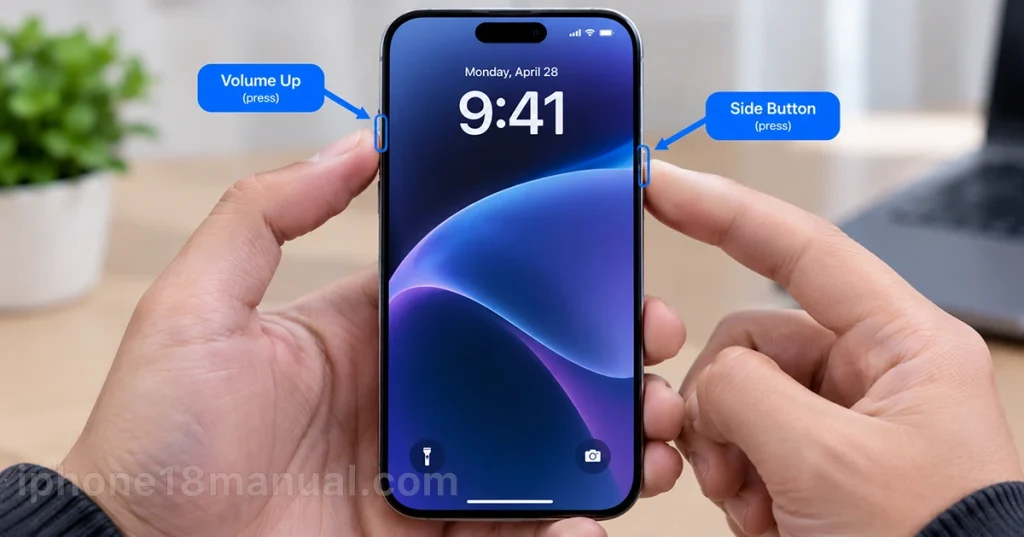
This guide explains every method, where screenshots are saved, and how to fix common screenshot problems on iPhone 18, iPhone 18 Pro, and iPhone 18 Pro Max.
How to Take a Screenshot on iPhone 18 Using Buttons
The fastest way to capture your iPhone screen is with its physical buttons. This method works on Face ID models, including iPhone 18 Pro and iPhone 18 Pro Max.
Follow these steps:
- Open the app, webpage, conversation, or screen you want to capture.
- Locate the Side button on the right edge of your iPhone and the Volume Up button on the left edge.
- Press both buttons simultaneously.
- Quickly release both buttons. Avoid holding them down, because holding the Side button can activate other functions.
- Open the screenshot preview to edit or share your capture.
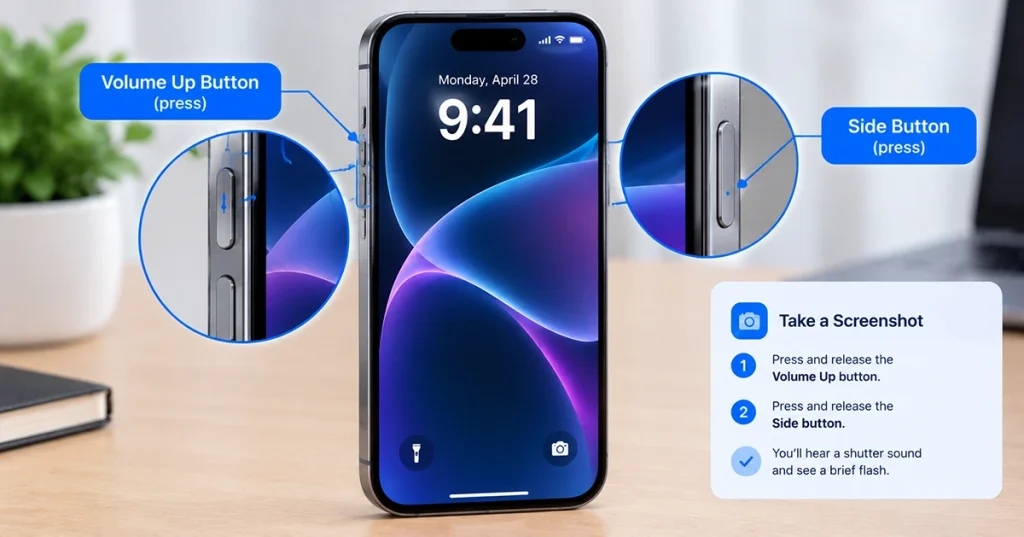
Your iPhone captures the visible screen at that moment. Depending on your screenshot settings and iOS version, the capture may open in a full-screen preview or appear as a temporary thumbnail.
Tip: Practice pressing and releasing both buttons together. If you press them one after the other, the screenshot may not work as expected.
How to Take a Screenshot on iPhone 18 Without Buttons
If your buttons are difficult to press, damaged, or inconvenient to reach, you can use an accessibility feature or voice command instead.
Method 1: Use Back Tap
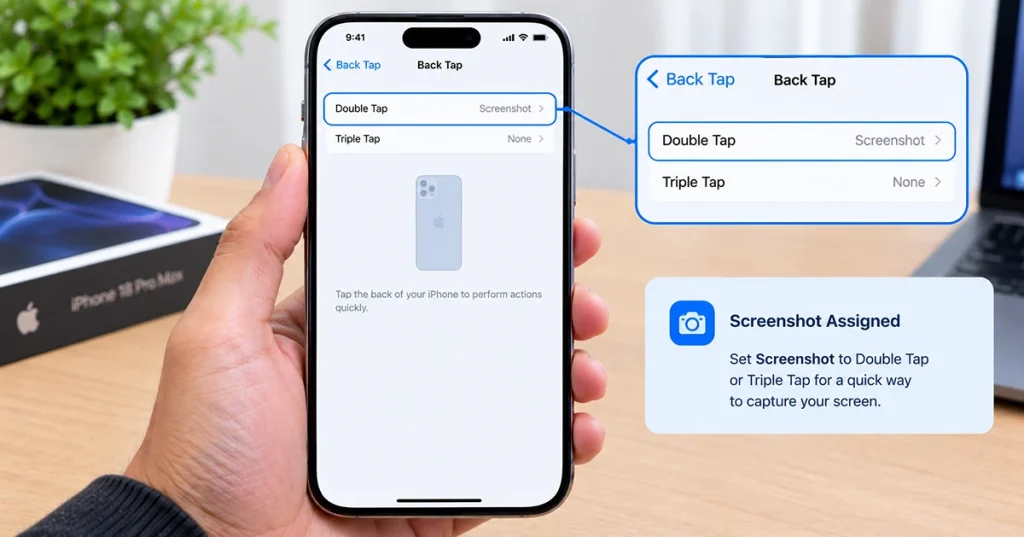
Back Tap lets you trigger an action by double-tapping or triple-tapping the back of your iPhone.
- Open Settings.
- Tap Accessibility.
- Select Touch.
- Scroll down and tap Back Tap.
- Choose Double Tap or Triple Tap.
- Select Screenshot from the available actions.
Now tap the back of your iPhone two or three times, depending on the option you selected. Your iPhone should capture the current screen.
If Back Tap does not respond consistently, remove a thick case temporarily and try again.
Method 2: Use AssistiveTouch
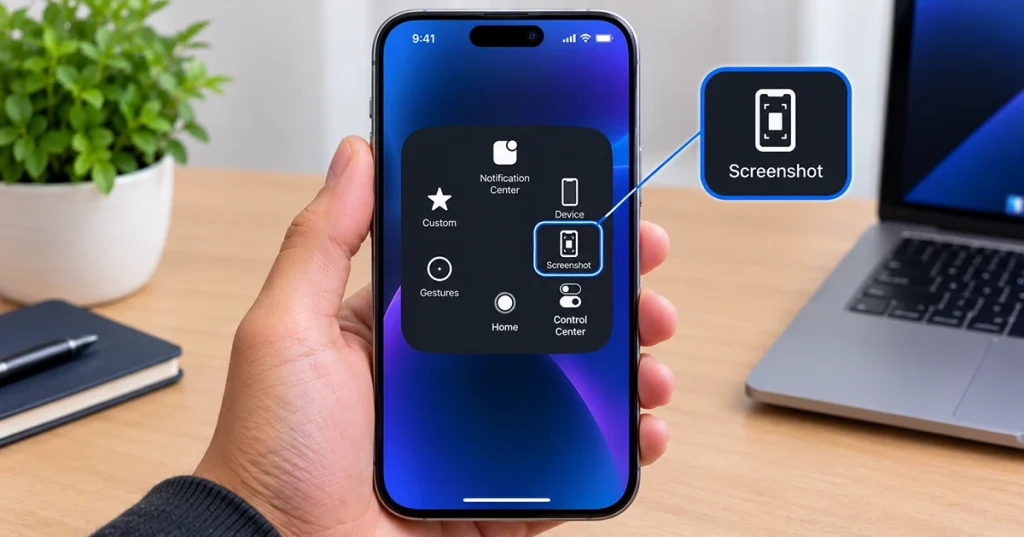
AssistiveTouch adds a floating button to your screen that provides access to useful functions.
- Go to Settings > Accessibility > Touch.
- Tap AssistiveTouch.
- Turn on AssistiveTouch.
- Open the floating AssistiveTouch menu.
- Choose a Screenshot action if it appears in the menu.
If Screenshot is not available, customize the AssistiveTouch menu or assign Screenshot to a supported custom action.
This method is useful if you prefer tapping the screen rather than pressing two physical buttons.
Method 3: Ask Siri
You can also ask Siri to take a screenshot. Activate Siri using your configured method and say, “Take a screenshot.”
Siri can be convenient when you are holding your iPhone with both hands or cannot easily reach the buttons. Voice-command behavior can depend on your Siri settings and software version.
How to Take a Full-Page Screenshot on iPhone 18
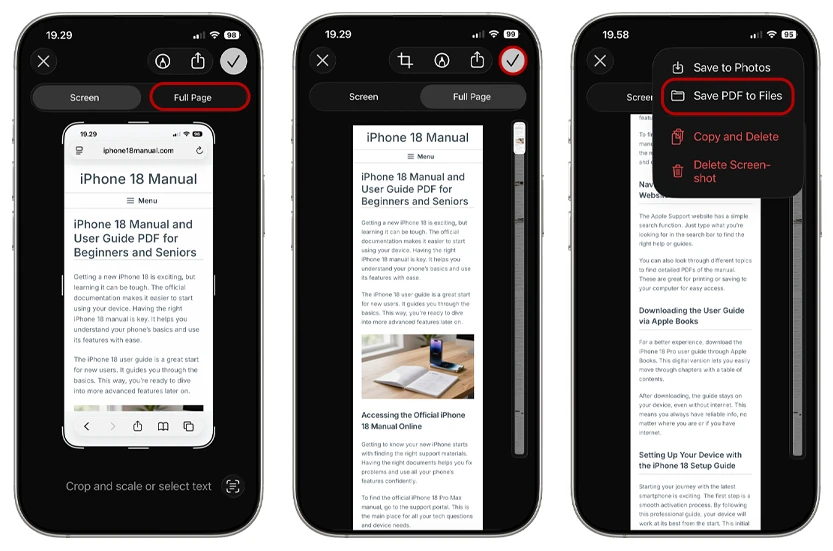
A full-page screenshot can capture content beyond the visible screen, such as a long webpage in Safari. This saves you from taking multiple screenshots of the same page.
- Open Safari and navigate to the webpage you want to capture.
- Press and quickly release the Side button and Volume Up button together.
- Open the screenshot preview.
- Look for the Full Page option.
- If available, select it to view the extended capture.
- Review the captured content and crop it if necessary.
- Open the save options and choose an available destination, such as Photos or Files.
Full-page capture is not available for every app or type of content. The available save formats may also vary. If you see an option to save the full page as a PDF, you can store it in Files for later reference.
Important: A standard screenshot captures only what is visible on the screen. Use Full Page when you need more of a supported webpage or document.
How to Edit, Save, and Share a Screenshot
After capturing a screenshot, you can prepare it before sending it to someone or keeping it for reference.
Crop a screenshot
Open the screenshot preview and use the crop controls to remove unwanted areas. Adjust the edges until the important content remains visible.
Cropping is useful for removing empty space, hiding irrelevant interface elements, or focusing attention on a specific setting.
Add annotations
Use Markup tools to draw shapes, highlight details, or add text. For example, you can circle an error message before sending the screenshot to technical support.
Check the finished image before sharing it, especially if it contains personal information.
Save or share the screenshot
Depending on the preview interface, use the available save or share controls to store the screenshot or send it through Messages, Mail, or another compatible app.
On supported iOS versions, screenshots may open in a full-screen editing interface by default. Follow the on-screen controls to save your capture to Photos or choose another available destination.
Where Are Screenshots Saved on iPhone 18?
Regular screenshots are generally saved to the Photos app automatically.
To find them:
- Open Photos.
- Go to Collections.
- Scroll to Media Types.
- Tap Screenshots.
Your screenshots should appear in this collection, making it easier to locate a particular capture without scrolling through your entire photo library.
If you saved a full-page capture as a PDF, check the folder you selected in the Files app instead.
You can also share screenshots directly from Photos or delete unwanted captures to free up storage space.
How to Fix iPhone 18 Screenshot Not Working
If your iPhone 18 will not take a screenshot, try these solutions in order.
| Problem | What to do |
|---|---|
| Buttons do not work together | Press Side and Volume Up simultaneously, then release quickly. |
| Screenshot opens the power-off screen | Release the buttons sooner instead of holding them. |
| Back Tap does not respond | Check Settings > Accessibility > Touch > Back Tap and confirm Screenshot is selected. |
| AssistiveTouch has no Screenshot option | Customize its menu or assign a supported custom action. |
| Full Page is missing | Try capturing a supported webpage in Safari; not all apps offer full-page capture. |
| Screenshot is missing from Photos | Check Photos > Collections > Media Types > Screenshots and confirm it was saved. |
| An app shows a black capture | The app may restrict screenshots to protect sensitive content. |
If the buttons remain unresponsive, use Back Tap, AssistiveTouch, or Siri as a temporary alternative. If screenshots fail across multiple apps, restart your iPhone and check for available iOS updates.
Some banking, streaming, and other protected apps may restrict screenshot capture. These restrictions are different from a hardware problem and may not be removable through normal settings.
Frequently Asked Questions
Quickly press and release the Side button and Volume Up button at the same time. The screenshot will appear in the capture preview.
The process is the same: press and release the Side and Volume Up buttons together. You can also configure Back Tap or use AssistiveTouch.
Yes. You can use Back Tap, AssistiveTouch, or Siri, depending on your settings and software version.
Capture a supported webpage, open the preview, and select Full Page if available. Review the extended capture and choose an available save option.
Pressing Side and Volume Up together is the standard screenshot shortcut. If you intended to adjust the volume or lock the screen, press only the appropriate button.
Regular screenshots generally save to Photos automatically. Full-page captures and other save options may require you to choose a destination.
Final Thoughts
Taking a screenshot on iPhone 18 is simple once you know the button combination: press and quickly release the Side button and Volume Up button together. For hands-free or button-free capture, use Siri, Back Tap, or AssistiveTouch. You can then edit, share, and organize your screenshots in Photos, or use Full Page for supported webpages and documents.

5 thoughts on “How to Take a Screenshot on iPhone 18 (All Methods, Step by Step)”