Just upgraded to the iPhone 18 and suddenly your voicemail is not working? You’re not alone. Whether your voicemail isn’t showing new messages, visual voicemail says “unavailable,” or calls are going straight to voicemail without you knowing, this guide walks you through every proven fix — starting with the quickest and working up to the nuclear options.
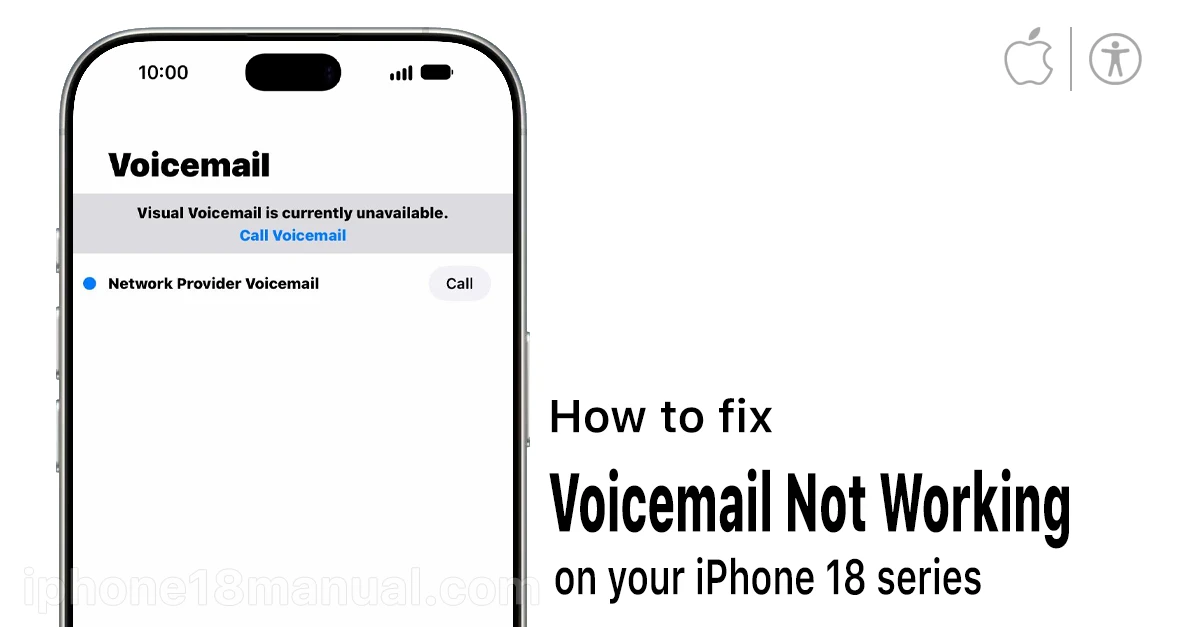
Quick fix first: Restart your iPhone and toggle Airplane Mode on for 10 seconds, then off. This resolves the majority of voicemail glitches after an update or carrier switch.
Why Is My iPhone 18 Voicemail Not Working?
Before diving into fixes, it helps to understand what’s going wrong. Voicemail failures on the iPhone 18 usually fall into one of four buckets:
- Software glitches after updating to iOS 27.
- Settings conflicts like call forwarding, Focus modes, or Silence Unknown Callers.
- Network problems — poor signal, stale carrier settings, or a VPN interfering.
- Carrier-side issues — full mailbox, unprovisioned voicemail, or an outage.
How to Fix iPhone 18 Voicemail Not Working: 10 Easy Solutions
This guide covers the most effective fixes for both Visual Voicemail and traditional carrier voicemail on the iPhone 18. The fixes below are ordered so you can rule out the easy stuff first.
1. Restart Your iPhone
It sounds basic, but a restart clears the temporary software bugs that cause voicemail to stop working — especially right after setting up a new iPhone 18 or installing an iOS update.
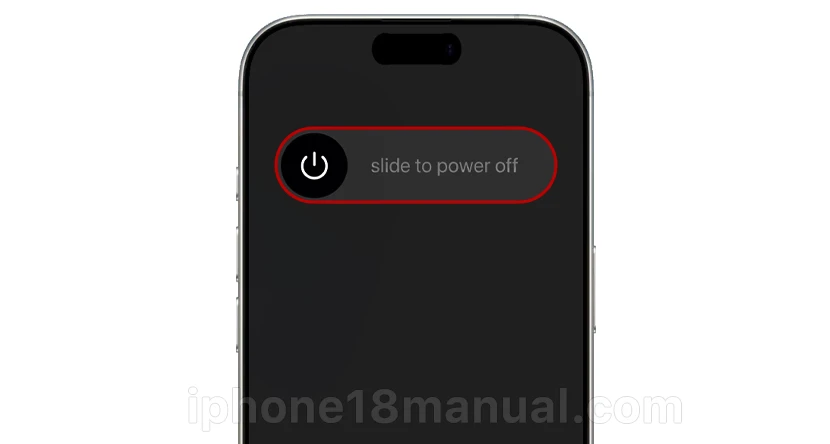
- Go to Settings > General > Shut Down and drag the slider.
- Wait 30 seconds, then hold the side button until the Apple logo appears.
Check Phone > Voicemail once it boots back up.
2. Toggle Airplane Mode
This forces your iPhone 18 to re-register with your carrier’s network, which can jumpstart stalled voicemail delivery.
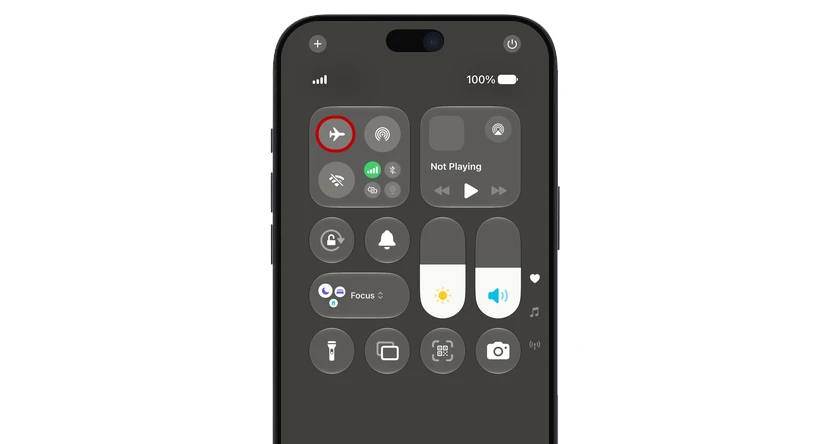
- Swipe down from the top-right corner to open Control Center.
- Tap the Airplane Mode icon, wait 10–15 seconds, then tap it again.
- Wait for the cellular bars to return, then call your number from another phone and leave a test voicemail.
3. Make Sure Voicemail Is Actually Set Up
If you transferred your number to a new iPhone 18 or switched carriers, voicemail may need to be configured from scratch.
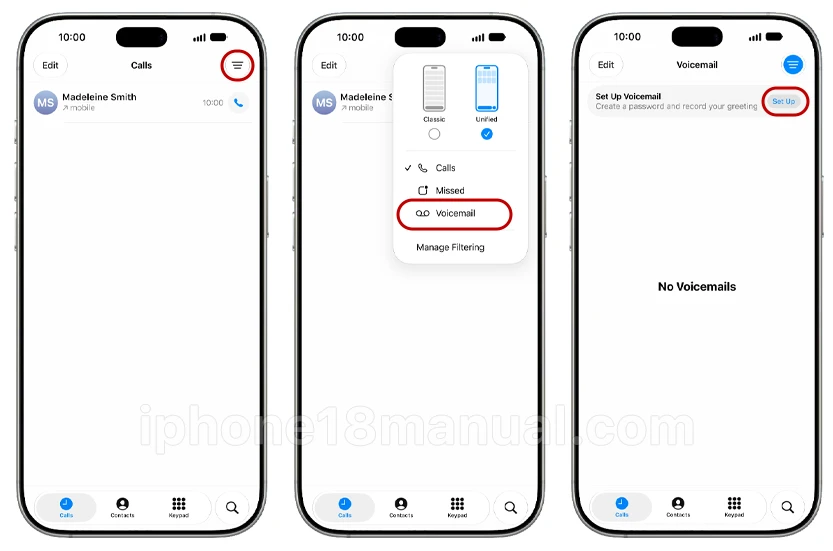
- Open the Phone app and tap the Voicemail tab.
- If you see Set Up Now, tap it.
- Create a voicemail password, then choose the Default greeting or tap Custom > Record to record your own.
- Tap Save.
Not sure if it’s enabled? Go to Settings > Phone — if you see Change Voicemail Password, voicemail is active.
4. Turn Off Call Forwarding
Call forwarding sends every incoming call to a different number, so nothing ever reaches your voicemail.
- Go to Settings > Apps > Phone > Call Forwarding.
- Make sure the toggle is off (gray).
5. Check Silence Unknown Callers and Focus Modes
If your iPhone 18 rings but you only discover voicemails later, these settings are the usual suspects:
- Settings > Apps > Phone > Silence Unknown Callers — turn it off if you want unknown numbers to ring through (instead of going silently to voicemail).
- Focus — open Control Center and make sure no Focus mode (Do Not Disturb, Sleep, Work) is active. Focus can silence calls while still letting them hit voicemail.
- Settings > Screen Time > Communication Limits — set both options to Everyone; restrictive limits here block calls from reaching you.
6. Toggle Cellular Data and Enable Wi-Fi Calling
Visual voicemail needs a data connection to download messages and transcriptions.
- Go to Settings > Cellular and toggle Cellular Data off, wait a few seconds, then back on.
- If you’re in an area with weak signal, go to Settings > Apps > Phone > Wi-Fi Calling and turn it on. This often fixes “Voicemail Currently Unavailable” errors.
One more thing: if you use a VPN, try deleting the VPN profile entirely (Settings > General > VPN & Device Management). VPNs are a known cause of delayed voicemails on new iPhones.
7. Force-Close and Reopen the Phone App
A glitchy Phone app can hide voicemails even when they’re sitting on the server.
- Swipe up from the bottom and hold to open the app switcher.
- Swipe left or right to find the Phone app, then swipe it up to close it.
- Reopen the Phone app and tap Voicemail.
Pro tip: access your mailbox the old-fashioned way — open the Keypad and press and hold the 1 key. If your messages play there but don’t show in visual voicemail, the problem is a sync issue, not your carrier.
8. Check for iOS and Carrier Settings Updates
Apple frequently patches voicemail bugs in point releases, and carriers push silent configuration updates your iPhone 18 needs to retrieve messages properly.
- Go to Settings > General > Software Update and install anything pending.
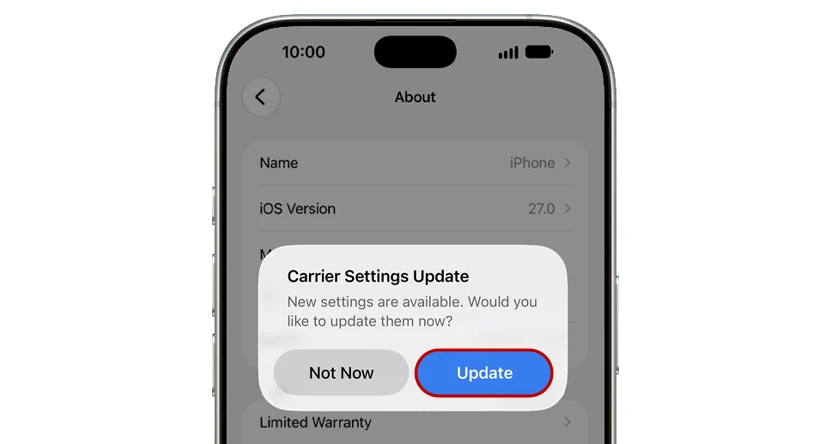
- Then go to Settings > General > About and wait on that screen for ~30 seconds — if a carrier settings update is available, a pop-up will appear.
9. Free Up Mailbox Space
A full voicemail box rejects new messages — and most people don’t realize visual voicemail storage is limited.
- Open Phone > Voicemail, tap Edit, select old messages, and tap Delete.
- Also check Voicemail > Deleted Messages and clear that folder permanently.
- Restart your iPhone, then have someone leave a test message.
10. Reset Network Settings
This is the big one — it wipes saved Wi-Fi passwords and Bluetooth pairings but fixes the stubborn voicemail issues nothing else touches. It does not delete your photos, apps, or messages.
- Go to Settings > General > Transfer or Reset iPhone.
- Tap Reset > Reset Network Settings and confirm.
- Reconnect to Wi-Fi and test voicemail again.
Still Not Working? Contact Your Carrier (Then Apple)
Voicemail is ultimately a carrier service — your iPhone is just the window into it. If nothing above worked:
- Call your carrier (or use their app/chat) and ask them to reset or re-provision voicemail on your line. Many carriers can push a sync signal that instantly restores missing messages.
- Ask about outages — check a site like Downdetector for reported problems in your area.
- Last resort: Apple Support via the Apple Support app or apple.com/support. If a hardware or deep software issue is to blame, they can run diagnostics your carrier can’t.
Frequently Asked Questions
Why is my iPhone 18 voicemail not working?
Common reasons include voicemail not being set up, weak cellular service, call forwarding, a full mailbox, outdated carrier settings, VPN interference, or a carrier-side provisioning issue.
Does Visual Voicemail need cellular data?
Yes. Visual Voicemail generally requires an active cellular data connection; Wi-Fi alone may not be enough for voicemail messages to sync.
Why are my voicemails not showing up?
Your voicemail may not be provisioned by the carrier, the Phone app may have a temporary glitch, or your inbox may be full. Try force-closing the Phone app, restarting the iPhone, and resetting network settings.
Can I fix voicemail without calling my carrier?
Often, yes. Start with voicemail setup, restarting, cellular toggles, call forwarding, iOS/carrier updates, and a network reset. If none work, the carrier likely needs to reset voicemail on your account.
Final Thoughts
For most iPhone 18 users, voicemail starts working again after completing setup, restarting the phone, toggling cellular data, disabling call forwarding, or installing a carrier settings update. If the issue remains, reset network settings and then contact your carrier, because voicemail activation and provisioning are controlled by the mobile network.
1 thought on “iPhone 18 Voicemail Not Working? 10 Fixes That Actually Work (2026)”