The best iPhone 18 Pro Max camera settings for better photos are 24MP High Efficiency for everyday shooting, automatic aperture for most scenes, optimized exposure, and a Photographic Style that matches your subject. Switch to 48MP when you need extra detail, use ProRAW for extensive editing, and adjust shutter speed manually when photographing moving subjects.
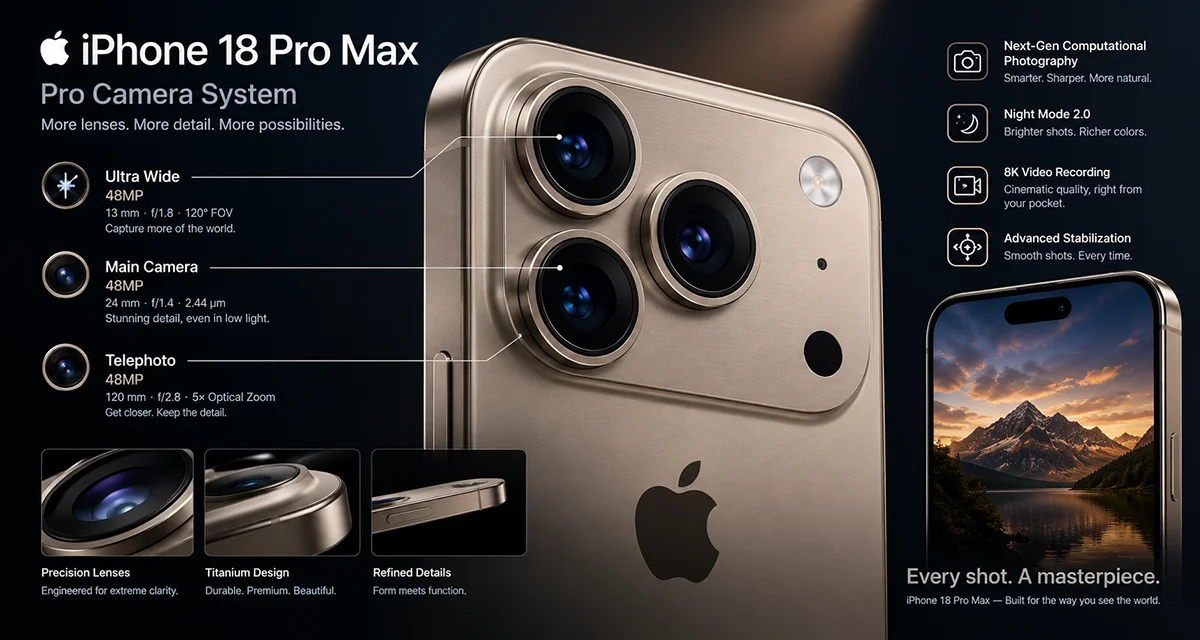
With its variable-aperture main camera and expanded manual controls, the iPhone 18 Pro Max gives you more flexibility to capture detailed landscapes, natural portraits, and clearer nighttime photos. Here are the settings worth changing first.
1. Best Overall iPhone 18 Pro Max Camera Settings
Start with these recommended settings for consistently good results without needing to adjust every control before taking a photo.
| Camera setting | Recommended option | Best for |
|---|---|---|
| Photo resolution | 24MP | Everyday photography |
| Image format | High Efficiency (HEIF) | Quality and storage balance |
| Resolution Control | Enable when needed | Switching to 48MP |
| Aperture | Auto | Most everyday scenes |
| Photographic Style | Standard or a customized style | Natural-looking colors |
| Grid and Level | On | Better composition |
| Exposure | Slightly lower if highlights are too bright | High-contrast scenes |
| Apple ProRAW | Enable for selected shots | Detailed editing |
| Night mode | Auto | Low-light photography |
To configure your camera, open Settings > Camera and explore Formats, Photographic Styles, and Preserve Settings. Some options appear directly inside the Camera app instead.
For most users, automatic processing is the best starting point. Change individual settings only when you have a specific photographic goal.
2. Choose the Right Photo Resolution and Format
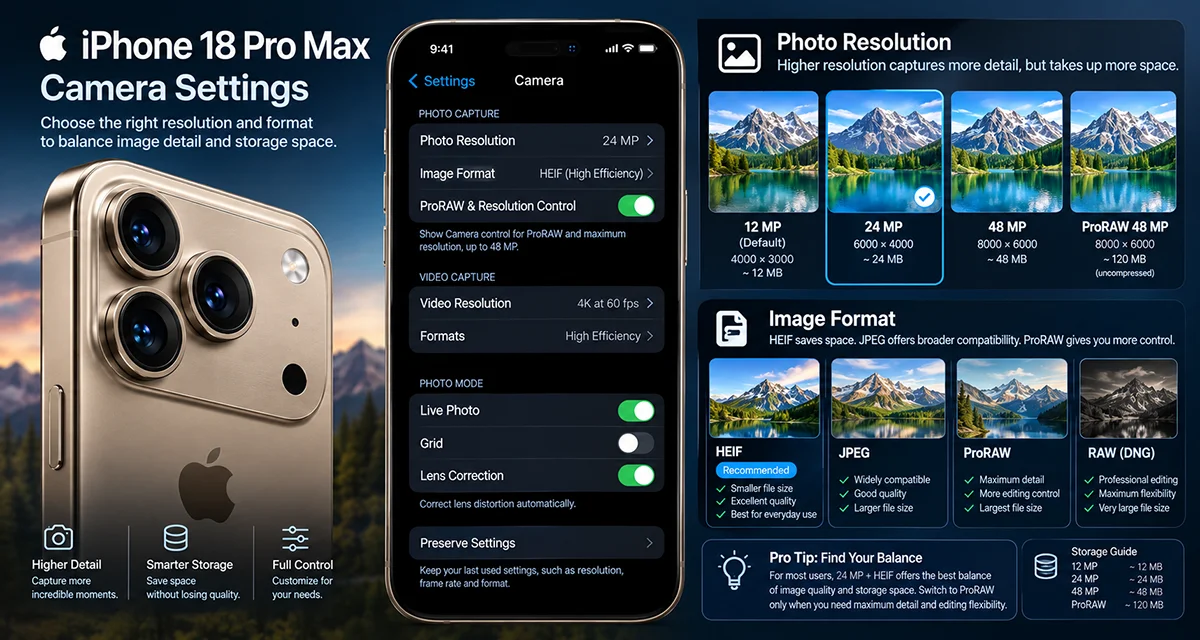
Resolution affects detail, file size, and how much flexibility you have when cropping images.
Use 24MP for everyday photos
A 24MP setting is a practical default for daily photography. It provides plenty of detail for social media, sharing, and most prints without producing unnecessarily large files.
Go to Settings > Camera > Formats > Photo Mode, then select 24MP if available.
Switch to 48MP for extra detail
Use 48MP when photographing landscapes, architecture, products, or scenes that you expect to crop later. Higher resolution can preserve more fine detail in suitable lighting, although it does not automatically guarantee a better photo.
Enable Resolution Control or ProRAW & Resolution Control under Formats, depending on the available options. Then select the desired resolution in Camera.
When should you use Apple ProRAW?
ProRAW is useful when you plan to edit exposure, shadows, highlights, and color extensively. However, RAW files require more storage and editing time than standard HEIF photos.
For casual snapshots, stick with HEIF. Reserve ProRAW for images that deserve extra post-processing.
3. Optimize Aperture, Shutter Speed, and Exposure
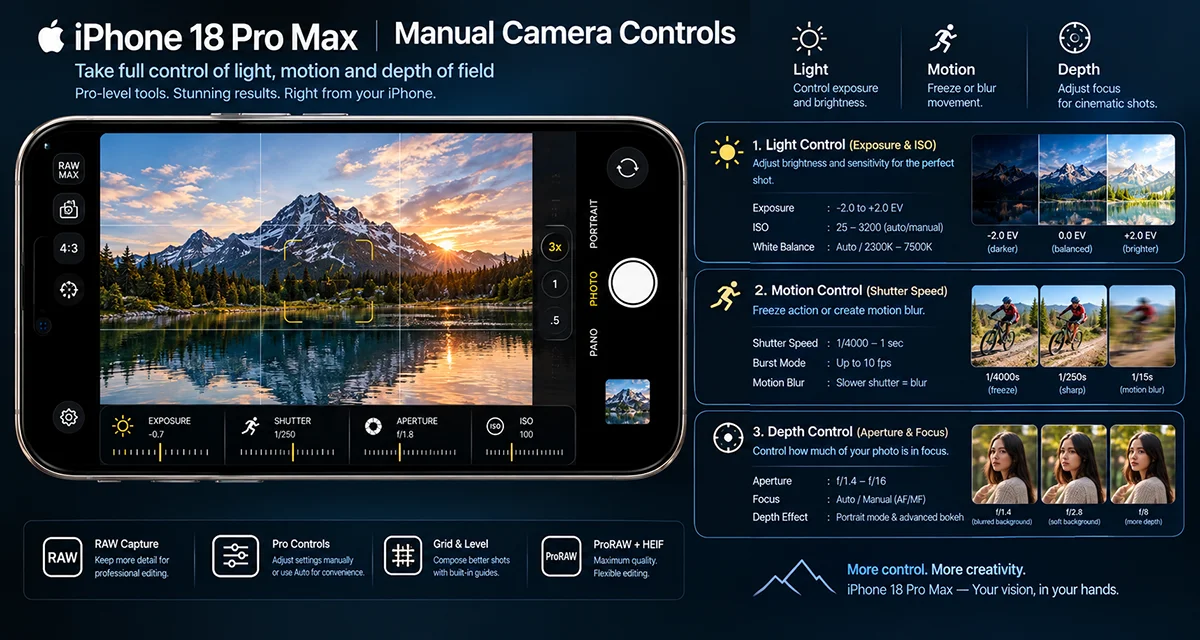
The iPhone 18 Pro Max offers more control over how light enters the camera and how movement appears in a photograph.
Keep aperture on Auto initially
The variable-aperture main camera lets you adjust the aperture between f/1.48 and f/4.0. A wider aperture lets in more light and can help separate a subject from its background. A narrower aperture can help keep more of a scene in focus.
For everyday photos, leave aperture on Auto. Use a wider aperture for low-light scenes or subject separation, and try a narrower setting for landscapes when you want more depth of field.
Adjust shutter speed for moving subjects
A faster shutter speed helps freeze action, while a slower shutter speed can introduce motion blur.
- Moving children or pets: Try 1/500 second or faster in sufficient light.
- Street photography: Start around 1/250 second for moving people.
- Still subjects: Use Auto unless you need a specific creative effect.
These are starting points rather than universal rules. Faster shutter speeds need more light, and slow shutter speeds may require a tripod.
Check exposure before taking the shot
Tap your subject on the screen to set focus and adjust exposure using the brightness control. If bright skies, windows, or lights lose detail, lower the exposure slightly.
You can also use the histogram in the iPhone’s advanced camera tools to assess brightness distribution. Avoid making the image so dark that important shadow details disappear.
4. Select the Best Photographic Style
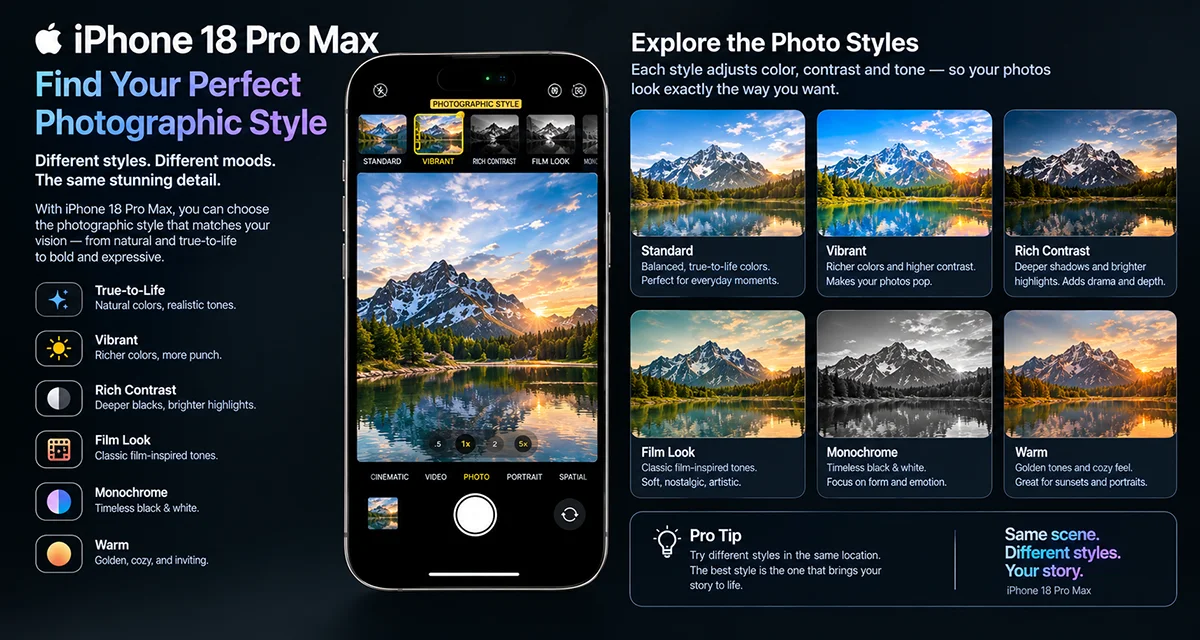
Photographic Styles help you create a consistent look without applying the same heavy color effect to every part of an image.
Open Camera, access the camera controls, and select Styles. Preview the available options, then customize tone, color, and intensity where supported.
Use these guidelines:
- Standard: A versatile choice for natural-looking photos.
- Warm-looking styles: Useful for golden-hour portraits and cozy indoor scenes.
- Cool-looking styles: Suitable for a cooler atmosphere in architecture and urban photography.
- Film-inspired styles: Try these for creative portraits, travel photography, and artistic images.
Start with a subtle adjustment rather than maximum intensity. This helps preserve realistic skin tones and prevents colors from looking exaggerated.
To keep your preferred look between sessions, open Settings > Camera > Preserve Settings and enable Photographic Style if available.
5. Turn On Grid and Level for Better Composition
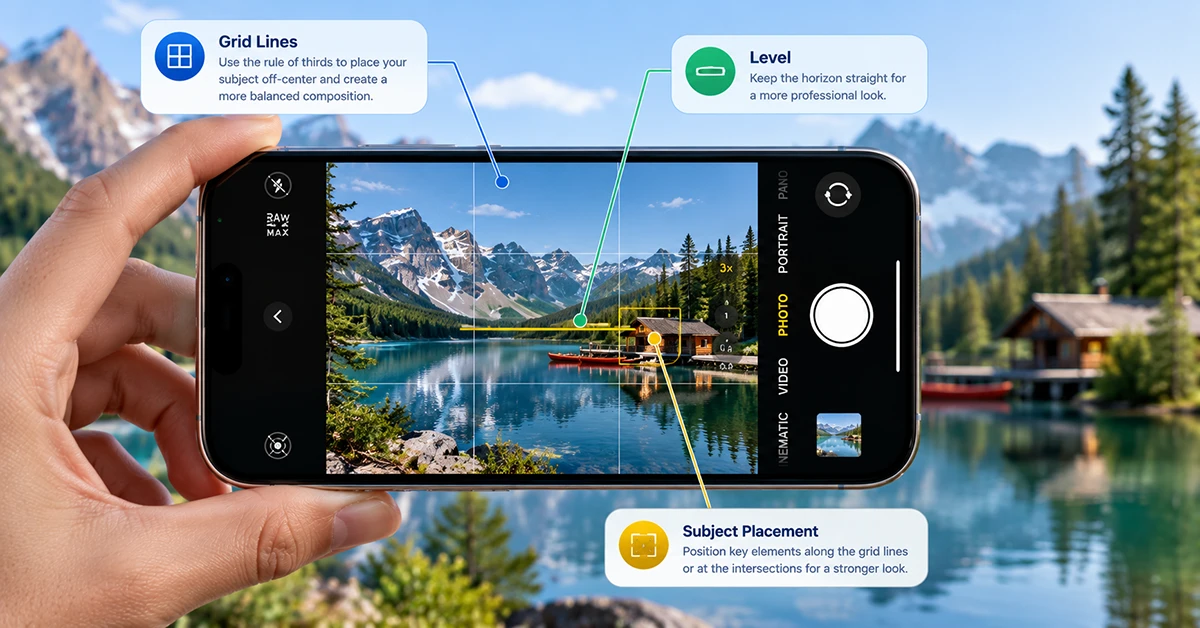
Good composition often makes a greater difference than changing technical settings.
Go to Settings > Camera, then enable Grid and Level.
Use the grid to position your subject along the lines or near their intersections. This is particularly useful for portraits, food photography, and travel images.
The Level helps you keep horizons straight when photographing beaches, buildings, and landscapes. For architecture, also watch vertical lines to avoid making buildings appear to lean.
Before taking a photo, check the edges of the frame for distracting objects and leave enough space around your subject.
6. Use the Right Lens for Portraits and Zoom
The best camera lens depends on the distance to your subject and the available light.
For portraits, try the main camera or a suitable telephoto option to create a flattering perspective. Portrait mode is useful when you want a blurred background, but check that hair and other fine edges look natural.
For distant subjects, use an available optical focal length when possible. Avoid excessive digital zoom because cropping a small portion of the image can reduce detail.
For the sharpest results, move closer when it is safe and practical. In dim lighting, the main camera may deliver cleaner images than smaller secondary cameras.
7. Improve Night Photography
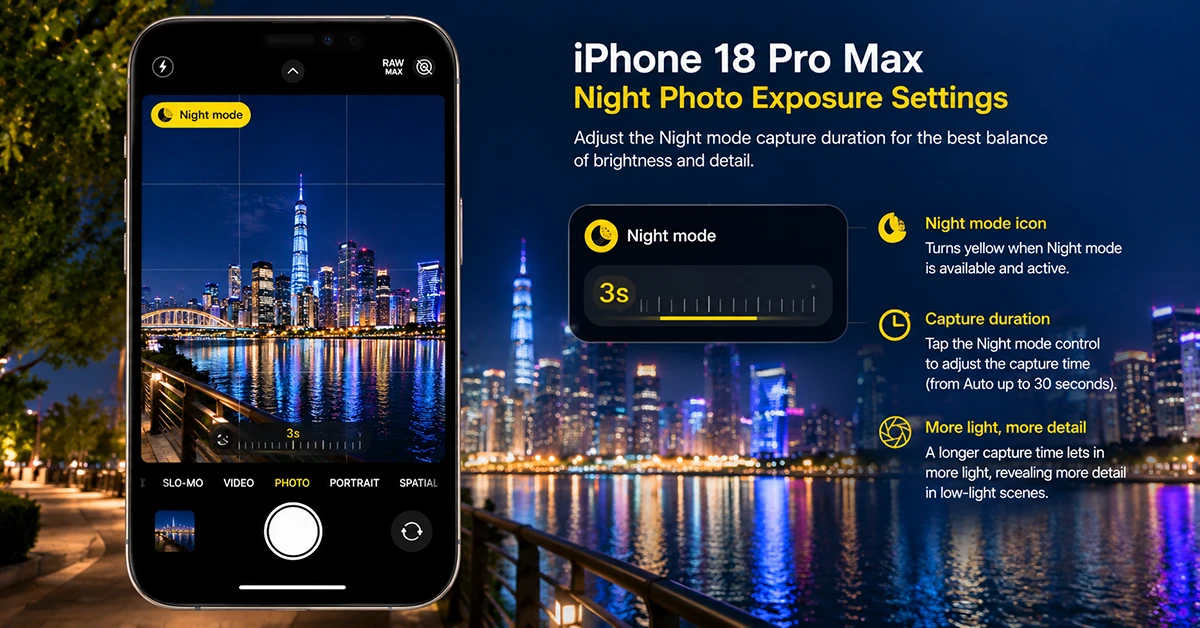
Night mode can capture brighter, more detailed images in low light by using a longer capture process.
For better nighttime photos:
- Open Camera and frame your subject.
- Let Night mode activate automatically when conditions require it.
- Check the suggested capture duration.
- Hold the iPhone steady or use a tripod.
- Avoid moving subjects when using longer exposures.
Use a wider aperture when additional light is needed, but keep aperture on Auto if you’re unsure which value to choose. For night scenes with bright streetlights, reduce exposure slightly if highlights appear washed out.
Remember that a brighter image is not always a better image. Preserve the atmosphere of the scene rather than trying to make every dark area look like daylight.
8. Preserve Your Favorite Camera Settings
Repeatedly configuring your camera can slow you down and cause inconsistent results.
Open Settings > Camera > Preserve Settings and enable the options you want to retain, such as Camera Mode, Photographic Style, Exposure Adjustment, or supported aperture settings.
The available options depend on your iPhone and software version. Saving your preferred setup helps you capture spontaneous moments without starting from scratch.
Frequently Asked Questions
Final Thoughts
The best iPhone 18 Pro Max camera settings depend on what you are photographing, but a simple starting setup works for most situations: 24MP High Efficiency, automatic aperture, Grid and Level enabled, and a subtle Photographic Style. Use 48MP for detailed scenes, ProRAW for serious editing, and manual shutter speed when motion requires more control.
Experiment with one setting at a time and compare your results. Understanding when to change a setting will help you take better photos more consistently than relying on a single preset for every situation.
