Is your iPhone 18 Pro Max screen flickering, flashing, or blinking unexpectedly? The problem may come from automatic brightness adjustments, an iOS software glitch, a display setting, or physical damage. Fortunately, you can try several troubleshooting steps before arranging a repair.
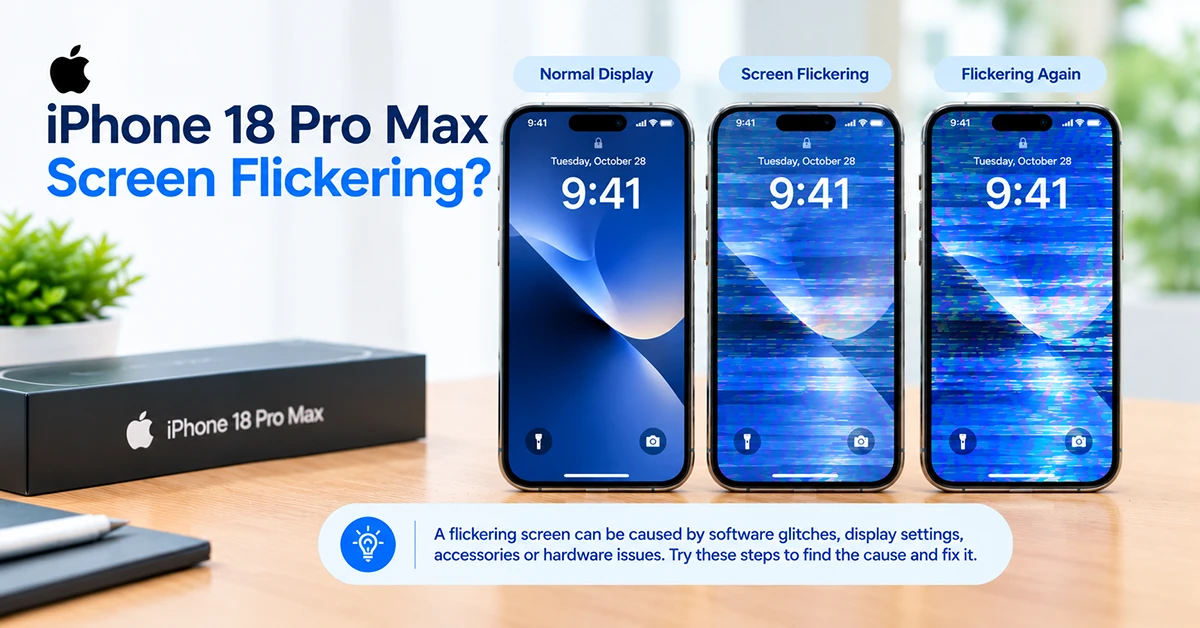
Start by adjusting the screen brightness, and checking for an iOS update. If the flickering happens mainly in dark environments, test the display at a higher brightness level. However, persistent flashing, colored lines, or flickering after a drop may indicate a hardware problem.
8 Fixes for iPhone 18 Pro Max Screen Flickering
Screen flickering on an iPhone can appear as sudden brightness changes, flashing lines, brief black screens, or an unstable display. Possible causes include automatic brightness adjustments, software bugs, overheating, incompatible accessories, or display hardware problems.
Try these eight fixes in order, starting with the simplest solutions before moving on to more advanced troubleshooting.
1. Adjust the screen brightness
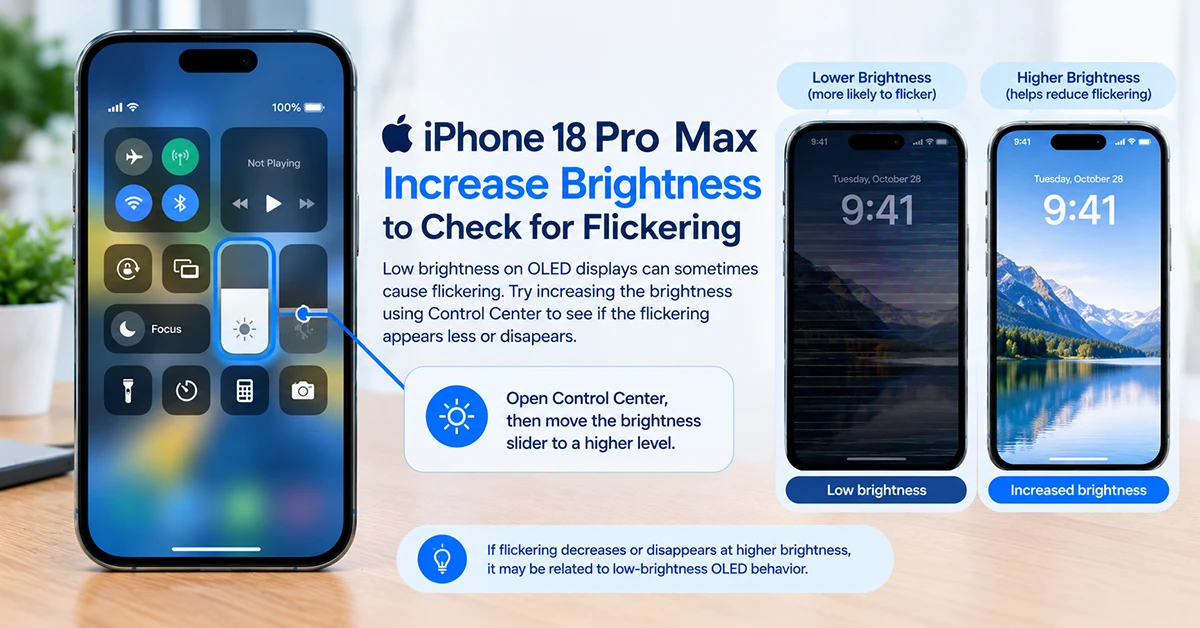
If your iPhone 18 Pro Max screen flickers mainly in a dark room or at low brightness, test whether the display behaves differently at a higher setting.
- Open Control Center by swiping down from the top-right corner.
- Increase the brightness slider to around 60–80%.
- Observe the display against a plain background.
- Gradually lower the brightness and check when the flickering appears.
OLED displays can exhibit brightness-modulation effects that some people perceive as flickering, especially at low brightness. A display that appears unstable only when dimmed may behave differently from one that flashes at every brightness level.
If higher brightness makes the screen more comfortable, you can use that as a temporary workaround. It does not, however, prove that the display is healthy or defective.
2. Turn off Auto-Brightness temporarily
Auto-Brightness uses the ambient light sensor to adjust the display according to surrounding light conditions. If the brightness repeatedly changes as you move between environments, test this feature.
- Open Settings.
- Tap Accessibility.
- Select Display & Text Size.
- Scroll down to Auto-Brightness.
- Turn it off temporarily and observe the screen under consistent lighting.
If the flickering stops, the issue may relate to brightness adjustments rather than a damaged display. Turn the feature back on later if disabling it makes the screen too bright or reduces battery life.
3. Check Always-On Display and True Tone
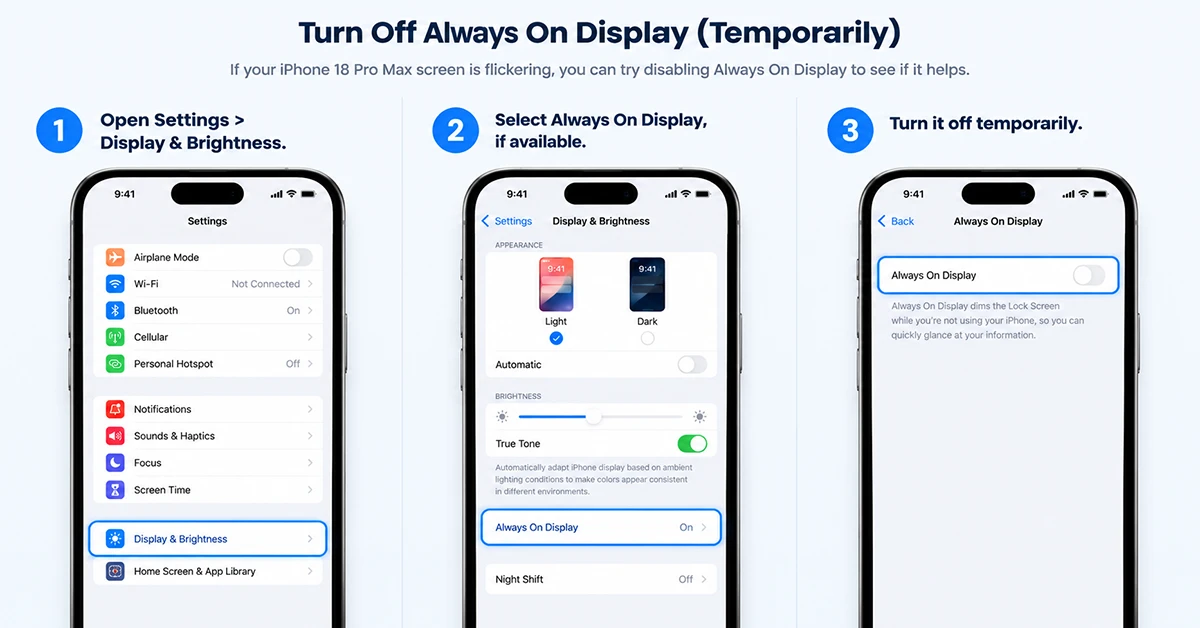
Some display behavior becomes noticeable when the screen dims, changes color temperature, or transitions between active and idle states.
To test Always-On Display:
- Open Settings > Display & Brightness.
- Select Always On Display, if available.
- Turn it off temporarily.
- Lock your iPhone, unlock it, and observe the display.
Next, check True Tone under Settings > Display & Brightness. Turn it off temporarily to see whether changes in screen color or intensity are contributing to the perceived problem.
These settings are diagnostic tests, not guaranteed flicker fixes. If the display continues flashing while you use apps or browse Settings, proceed to the next step.
4. Update iOS to the latest available version
An iOS bug can sometimes affect animations, touch response, or display behavior. Installing an available update may resolve a software-related problem.
Before updating, back up your iPhone and connect it to a reliable Wi-Fi network.
- Open Settings.
- Tap General.
- Select Software Update.
- Install an available update if one appears.
- Restart the phone and test the display again.
If the flickering started immediately after an update, note the iOS version and when the problem occurs. Check Apple’s release notes for relevant fixes rather than assuming the update caused a confirmed display defect.
5. Remove the case, screen protector, and accessories
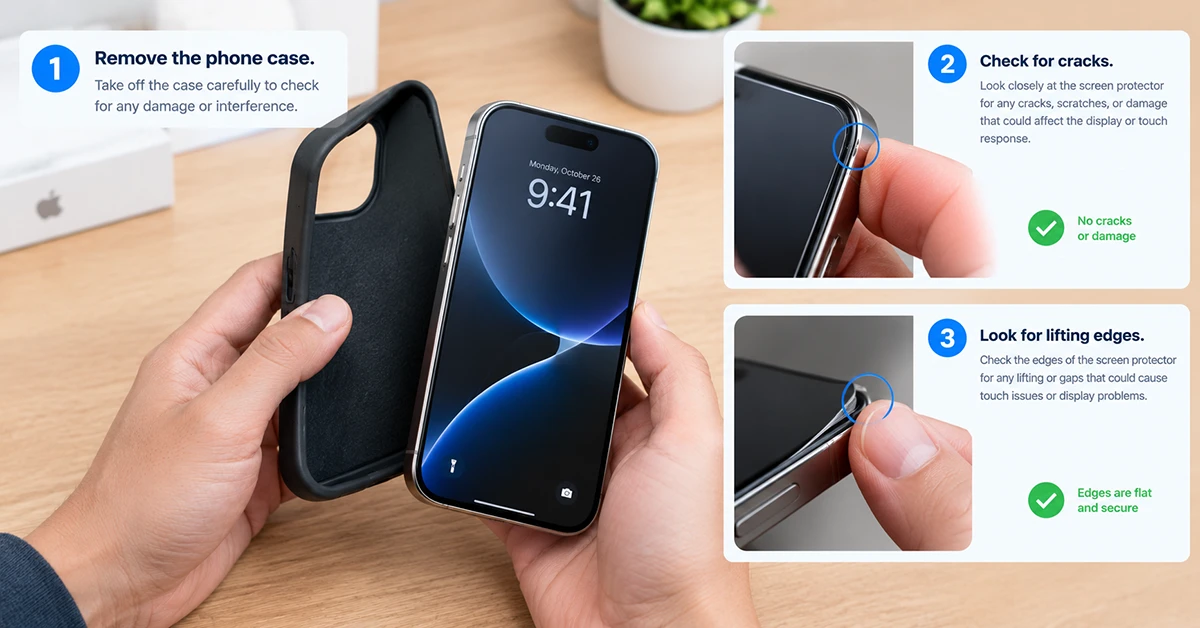
A poorly fitted screen protector, trapped debris, moisture, or an accessory can complicate touchscreen troubleshooting.
Try the following:
- Clean the screen gently with a soft, lint-free cloth.
- Check the edges of the screen protector for lifting or trapped debris.
- Remove the case temporarily if it presses against the display.
- Disconnect USB-C accessories and chargers.
- Test the screen again without those accessories.
If the problem occurs only while charging, try a different compatible cable, power adapter, and outlet.
Removing a protector is particularly useful when flickering accompanies missed touches or intermittent touch response. If you suspect internal damage, do not press the display or attempt to open the phone.
6. Check for low-brightness OLED flickering
If the display looks stable at higher brightness but appears to shimmer, pulse, or flicker in a dark room, the behavior may relate to OLED dimming.
Apple documents a feature called Display Pulse Smoothing on supported iPhone models. It provides an alternative way to dim the display and may help some users who notice flickering at low brightness.
To check whether the option is available:
- Open Settings > Accessibility.
- Tap Display & Text Size.
- Look for Display Pulse Smoothing (PWM).
- If the option appears, enable it and compare the display at the brightness level that triggers the problem.
The setting is not available on every iPhone model. If your iPhone 18 Pro Max does not show it, do not assume that your device is defective. Avoid treating this feature as a repair for persistent flashes, colored lines, or physical screen damage.
7. Reset all settings
If the flickering continues after you test the display options and update iOS, resetting system settings may help resolve a configuration-related problem.
First, make sure you have a current backup. Then:
- Open Settings > General.
- Tap Transfer or Reset iPhone.
- Select Reset.
- Choose Reset All Settings.
- Enter your passcode and confirm.
This option does not erase your photos, messages, or apps, but it resets settings such as network configurations, privacy preferences, and other system preferences. You may need to configure some options again.
Avoid choosing Erase All Content and Settings unless you have backed up your data and are prepared to erase the phone. A factory reset is not the first choice for a display that shows obvious physical damage.
8. Contact Apple Support for display inspection
If none of these steps resolves the problem, arrange a professional inspection. A damaged OLED panel, display connection, or other internal component may require repair.
Seek service promptly if you notice:
- Persistent green, pink, or white lines.
- Large black areas or flashing patches.
- Flickering that began after a drop or impact.
- A screen that repeatedly goes black.
- Flickering accompanied by unusual heat, swelling, or a damaged enclosure.
Back up your data if the screen remains usable. If the phone becomes unusually hot or the battery appears swollen, stop using and charging it, and seek professional assistance.
You can begin through Apple’s official support website or an Apple Authorized Service Provider. Avoid pressing hard on the display or attempting a DIY screen replacement if you lack the necessary repair experience.
Quick Reference: Which Fix Should You Try?
| Screen flickering symptom | Recommended first step | Possible cause |
|---|---|---|
| Flickers after unlocking | Force restart | Temporary software glitch |
| Brightness repeatedly changes | Test Auto-Brightness | Ambient light adjustments |
| Flickers mainly in dark rooms | Increase brightness and test dimming options | OLED dimming behavior or sensitivity |
| Started after an iOS update | Check for another available update | Possible software issue |
| Happens while charging | Disconnect accessories and test another charger | Accessory or power-related issue |
| Colored lines or black patches | Arrange a display inspection | Possible hardware damage |
| Started after a drop | Seek professional inspection | Possible internal display damage |
Why Is Your iPhone 18 Pro Max Screen Flickering?
The cause depends on the pattern and timing of the flickering. Software glitches may affect animations or the interface, while brightness settings can create changes that look like flashing. OLED dimming behavior may be more noticeable at low brightness.
Physical damage becomes a stronger possibility when flickering starts after an impact or appears alongside colored lines, black patches, or touch problems.
There is no single fix that works for every case. Testing the display at different brightness levels, restarting the phone, and removing accessories can help narrow down the cause without immediately erasing your data.
Frequently Asked Questions
Final Thoughts
If your iPhone 18 Pro Max screen is flickering, start with a force restart, brightness adjustments, and an iOS update. Test Always-On Display and Auto-Brightness if the problem appears during dimming or changes in lighting.
If the screen continues flashing, displays colored lines, or started flickering after physical damage, contact Apple Support rather than relying on repeated resets. Identifying when the problem occurs is the best way to choose the right fix and avoid unnecessary troubleshooting.
