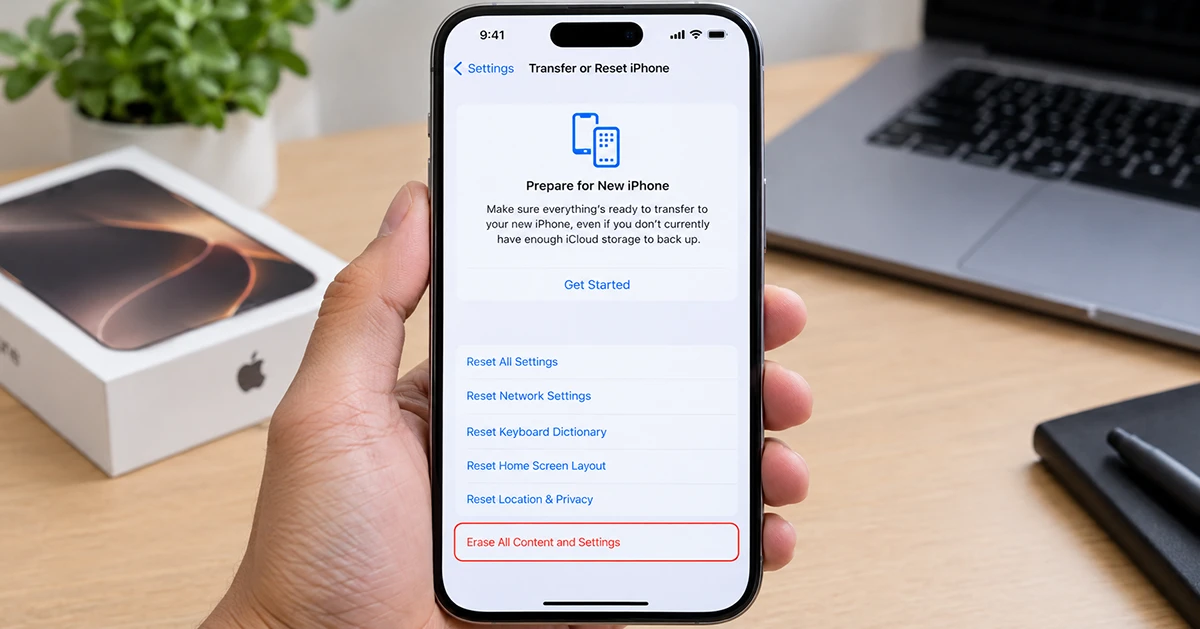
To factory reset your iPhone 18 Pro Max, open Settings > General > Transfer or Reset iPhone > Erase All Content and Settings, then follow the on-screen instructions. This process deletes your personal data, apps, and settings and restores the iPhone to its initial setup state. Back up your data first, and decide whether to keep or erase your eSIM before confirming.
What Happens When You Factory Reset an iPhone 18 Pro Max?
A factory reset erases your personal information and restores your iPhone 18 Pro Max to its factory settings. You may need this process to fix persistent software problems, prepare your phone for resale, or start over with a clean installation.
A factory reset generally removes:
- Photos, videos, messages, and downloaded files stored on the device.
- Installed apps and their locally stored data.
- Personalized settings, saved Wi-Fi networks, and other configurations.
- Accounts and personal information stored locally on the iPhone.
Data that you previously synchronized with iCloud or another service may remain available online. However, anything not backed up or synchronized could be permanently lost.
A factory reset does not automatically cancel your mobile plan or erase information stored in every cloud account. If you plan to sell or give away your iPhone, follow the complete preparation steps below.
Before You Factory Reset Your iPhone 18 Pro Max
Complete these checks before erasing your device.
1. Back Up Your iPhone
Create a backup so you can restore your photos, messages, settings, and other supported data after the reset.
To create an iCloud backup:
- Open Settings.
- Tap your name at the top.
- Select iCloud > iCloud Backup.
- Tap Back Up Now.
- Keep your iPhone connected to Wi-Fi until the backup finishes.
Check the last successful backup time before proceeding. If you use a Mac or Windows PC, you can also create a computer backup.
2. Remember Your Passcode and Apple Account Password
Your iPhone may ask for its device passcode and Apple Account password during the erasure process. Make sure you know these credentials before you begin.
If you have forgotten your passcode, see the section below on resetting an iPhone without a passcode.
3. Decide Whether to Keep Your eSIM
During the factory-reset process, your iPhone may offer the option to keep or delete your eSIM.
- Keep eSIM: Choose this if you are resetting your own phone and want to retain the cellular plan stored on the device.
- Delete eSIM: Consider this when preparing the phone for transfer to another person, particularly if you no longer need the cellular plan on that device.
Deleting an eSIM may require your carrier to reactivate the plan. If you are selling your phone, confirm your carrier’s transfer procedure before erasing the eSIM.
Method 1: Factory Reset iPhone 18 Pro Max From Settings
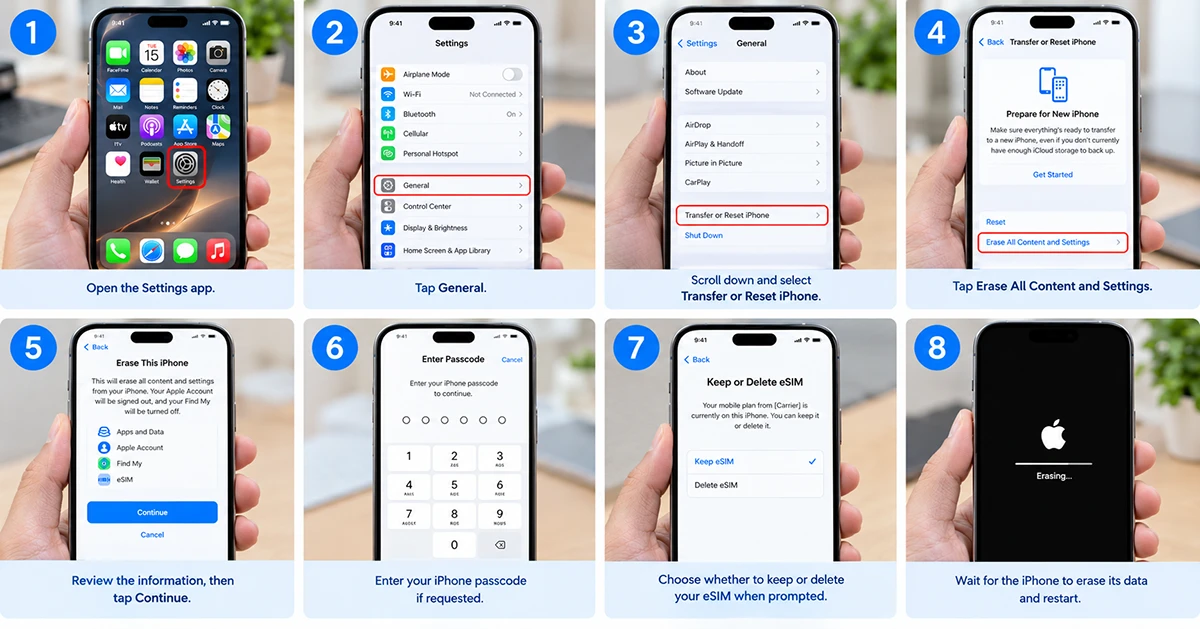
This is the simplest method when your iPhone works normally and you can unlock it.
- Open the Settings app.
- Tap General.
- Scroll down and select Transfer or Reset iPhone.
- Tap Erase All Content and Settings.
- Review the information displayed on the screen, then tap Continue.
- Enter your iPhone passcode if requested.
- Follow the prompts to confirm the erasure and authenticate with your Apple Account if required.
- Choose whether to keep or delete your eSIM when prompted.
- Wait for the iPhone to erase its data and restart.
When the process finishes, the iPhone displays the Hello screen. You can then set it up as a new device or restore your information from a compatible backup.
Important: Select Erase All Content and Settings, not Reset All Settings. The former erases your personal data; the latter resets system preferences without deleting your photos, messages, apps, and documents.
Method 2: Factory Reset iPhone 18 Pro Max Using a Computer
Use a computer if you cannot complete the reset through Settings or need to restore the device using a computer.
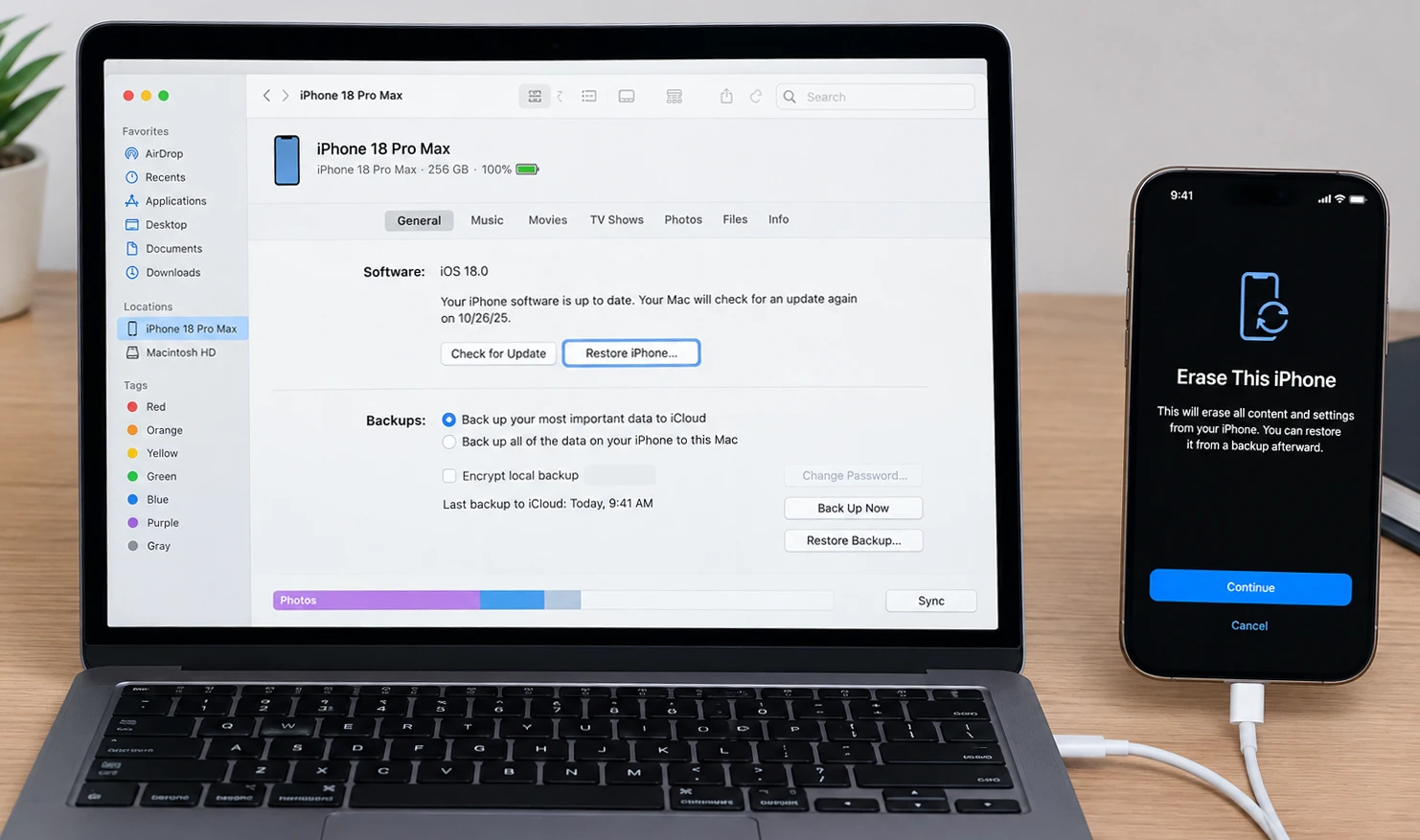
You will need a Mac or Windows PC, a compatible USB or USB-C cable, and an internet connection.
Restore Using a Mac:
- Update your Mac to a supported version of macOS.
- Connect your iPhone 18 Pro Max to the Mac using a compatible cable.
- Open Finder.
- Select your iPhone in the Finder sidebar.
- Open the General section.
- Select Restore iPhone.
- Confirm your choice and follow the on-screen instructions.
Restore Using a Windows PC:
- Update Windows and install or update the Apple Devices app.
- Connect your iPhone to the PC.
- Open Apple Devices and select your iPhone.
- Find the restore option for the connected device.
- Select Restore and follow the instructions.
- If your setup requires iTunes, use a supported, up-to-date version.
A computer restore erases the device and reinstalls iOS. If your iPhone is locked, disabled, or unavailable in the computer app, you may need to enter recovery mode first.
Method 3: Factory Reset iPhone 18 Pro Max Without a Passcode
If you forgot your iPhone passcode, you may still be able to erase the device. The available method depends on the iOS version, the options displayed on the locked screen, and whether you can access a computer.
Option A: Use the On-Screen Reset Option
Some iOS versions offer an option to erase or reset a locked iPhone from the lock screen after the required failed-passcode attempts.
- Check whether the screen displays an option such as Forgot Passcode? or an erase option.
- Follow the instructions shown on your iPhone.
- Authenticate with your Apple Account if requested.
- Confirm the erasure.
The exact labels and availability vary by iOS version and device state. This method requires the necessary account credentials and network access where prompted.
Option B: Use a Computer and Recovery Mode
If your iPhone does not offer an on-screen reset option, use Apple’s computer-based recovery procedure.
- Update your Mac or Windows PC and prepare a compatible cable.
- Connect your iPhone to the computer.
- Put the iPhone into recovery mode using the button sequence specified by Apple for your device.
- Open Finder on a Mac or Apple Devices on Windows.
- Select your iPhone when it appears.
- Choose Restore when prompted.
- Wait for the computer to download the required software and complete the restore.
Recovery mode can help when you cannot access Settings. However, the restore erases the data on your iPhone. You will still need to satisfy Apple’s activation and account-security requirements before using the device again.
If you cannot remember your Apple Account password, recover access to your account before attempting to set up the erased iPhone.
Factory Reset vs. Reset All Settings: What’s the Difference?
Not every iPhone problem requires a complete factory reset. Choose the correct option based on what you want to fix.
| Reset option | What it does | Deletes personal data? |
|---|---|---|
| Restart iPhone | Reboots the device | No |
| Reset All Settings | Restores system preferences to their defaults | No |
| Reset Network Settings | Removes saved network configurations | No |
| Erase All Content and Settings | Erases personal content and settings | Yes |
| Restore using a computer | Erases the device and reinstalls iOS | Yes |
If your iPhone 18 Pro Max has Wi-Fi issues, Bluetooth problems, or incorrect system preferences, try restarting it first. If the issue persists, Reset All Settings may help without removing your personal content.
Use Erase All Content and Settings when you need a complete reset or want to prepare your iPhone for a new owner.
How to Factory Reset iPhone 18 Pro Max Before Selling It
If you plan to sell, trade in, or give away your iPhone, protect your personal information before handing it over.
- Back up your iPhone and confirm that the backup completed.
- Transfer any information you need to another device.
- Unpair your Apple Watch if you use one with the iPhone.
- Open Settings > General > Transfer or Reset iPhone.
- Select Erase All Content and Settings.
- Follow the prompts and make an informed choice about your eSIM.
- Wait until the iPhone displays the Hello screen.
Do not manually delete photos, contacts, or other synchronized information while signed in to iCloud if you intend to keep that information in your account. Erasing the device through the proper procedure is the safer approach.
If you are transferring ownership, make sure the previous owner’s account and Activation Lock no longer prevent the new owner from setting up the phone.
What to Do After a Factory Reset
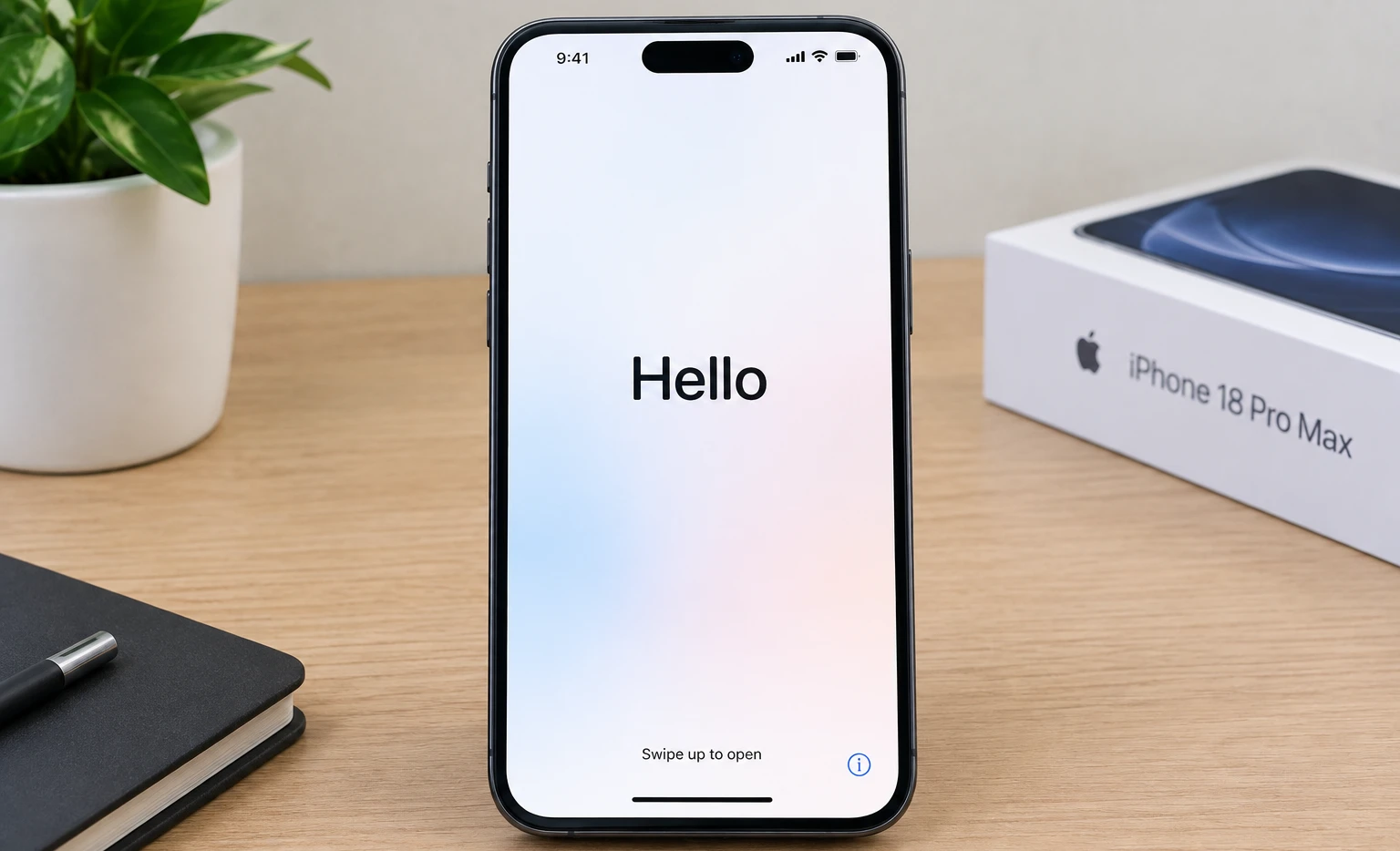
Once your iPhone 18 Pro Max displays the Hello screen, follow the setup assistant.
- Select your language and region.
- Connect to Wi-Fi or another available internet connection.
- Follow the activation instructions.
- Choose to set up the iPhone as new or restore it from a compatible backup.
- Sign in to your Apple Account when prompted.
- Configure Face ID, your passcode, cellular service, and other preferences.
- Allow apps, photos, and other backed-up information to finish restoring.
If you are troubleshooting a software problem, consider setting up the iPhone as new temporarily before restoring your backup. This can help you determine whether the problem returns with restored settings or apps.
Why Won’t My iPhone 18 Pro Max Factory Reset?
If the reset process fails, try these troubleshooting steps.
The Erase Option Is Unavailable
Check whether a restriction, device-management profile, or organizational policy limits your ability to erase the iPhone. If your device belongs to an employer or school, contact its administrator.
Your iPhone Keeps Asking for Your Apple Account Password
Follow Apple’s account-recovery procedure if you cannot remember your password. Avoid third-party services that claim they can bypass Activation Lock.
The iPhone Is Stuck During the Reset
Keep the device connected to power if necessary and allow time for the process to finish. If it remains unresponsive, try a force restart. If the problem continues, use Apple’s official recovery or restore instructions.
The Computer Does Not Recognize Your iPhone
Try another compatible cable or USB port, update the computer’s software, and check whether Finder or Apple Devices recognizes the phone. If the device remains undetected, consult Apple’s troubleshooting guidance.
Final Thoughts
The easiest way to factory reset an iPhone 18 Pro Max is through Settings > General > Transfer or Reset iPhone > Erase All Content and Settings. Back up your data first, check your Apple Account credentials, and decide whether to keep your eSIM. If you cannot access Settings, a supported on-screen reset option or a computer-based recovery procedure may help.
For the safest results, follow Apple’s official instructions for erasing or restoring your iPhone.

1 thought on “How to Factory Reset your iPhone 18 Pro Max and Back to Default Settings”