If CarPlay is not working on your iPhone 18 Pro Max, start by checking the USB connection or wireless pairing, restarting your iPhone and car, and making sure Siri is enabled. If that does not help, check CarPlay permissions, forget your vehicle and reconnect, and install available software updates.
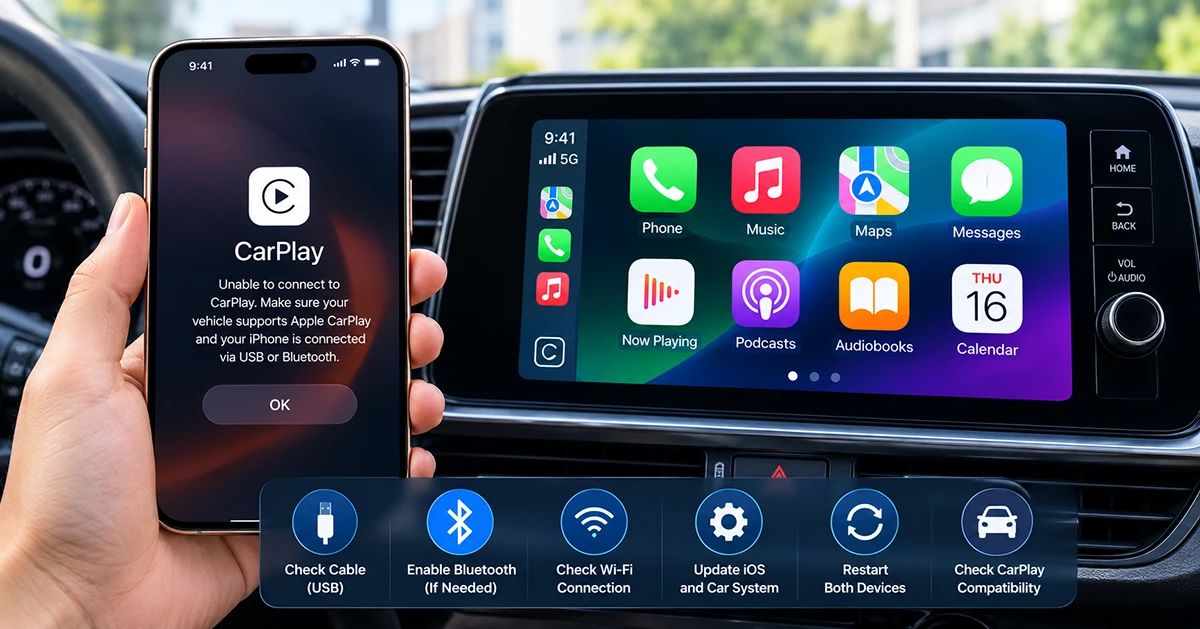
The problem may be related to a USB data connection, wireless settings, an outdated car infotainment system, or a software issue. The key is to test one possible cause at a time before resetting your iPhone or buying new accessories.
This guide explains 10 ways to troubleshoot Apple CarPlay when it will not connect, keeps disconnecting, displays a black screen, or stops playing audio.
Quick Fixes for iPhone 18 Pro Max CarPlay Problems
Try these basic checks first:
- Restart your iPhone and the car’s infotainment system.
- For wired CarPlay, try a known-good data-capable USB cable and the correct USB port.
- For wireless CarPlay, turn on both Wi-Fi and Bluetooth.
- Make sure Siri is enabled.
- Open the CarPlay interface manually from your vehicle’s display.
- Check for iOS and vehicle infotainment software updates.
Test CarPlay after each change. If it starts working, you can stop troubleshooting.
Why Is CarPlay Not Working on Your iPhone 18 Pro Max?
CarPlay problems can have several causes, depending on what happens when you connect your phone.
- CarPlay does not appear: The vehicle may not recognize the phone, the wrong USB port may be in use, or wireless pairing may be incomplete.
- Your iPhone charges but CarPlay does not start: The cable or port may provide power without establishing a working data connection.
- Wireless CarPlay keeps disconnecting: Wi-Fi, Bluetooth, pairing settings, or the vehicle’s software may be involved.
- CarPlay stopped working after an update: Software compatibility or a changed setting may need investigation.
- Maps or music stop working: The problem may involve an individual app, location permissions, or internet connectivity rather than the entire CarPlay connection.
Identifying the symptom helps you choose the right fix instead of changing unrelated settings.
10 Ways to Fix iPhone 18 Pro Max CarPlay Not Working
1. Check Your Car’s CarPlay Compatibility
Before changing your iPhone settings, confirm that your vehicle supports Apple CarPlay.
Some vehicles support wired CarPlay only, while others support wireless CarPlay or both. Standard Bluetooth audio is not the same as CarPlay, so a successful Bluetooth connection does not guarantee that CarPlay is supported.
What to do:
- Check your vehicle’s owner’s manual for Apple CarPlay support.
- Start the vehicle and turn on its infotainment system.
- Look for the CarPlay icon or smartphone projection option on the display.
- Select CarPlay manually if it does not launch automatically.
- If you use an aftermarket stereo, check its compatibility and setup instructions.
If CarPlay worked with your previous iPhone but not your new device, continue with the connection and pairing checks below.
2. Check the USB-C Cable and CarPlay Port
If you use wired CarPlay, the cable and USB port are among the first things to investigate.
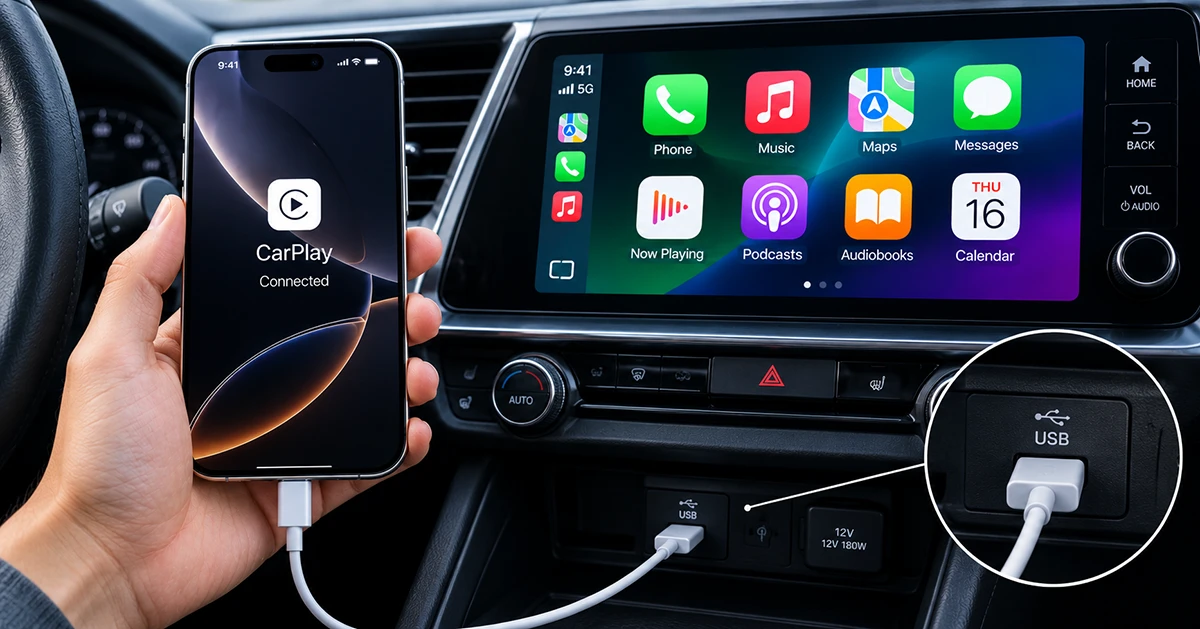
A phone can charge normally even when a USB connection cannot transfer the data required for CarPlay. Some vehicles also have multiple USB ports, but only one supports smartphone integration.
Follow these steps:
- Disconnect your iPhone from the car.
- Check the vehicle manual to identify the USB port that supports CarPlay.
- Connect the iPhone directly to that port using a reliable, data-capable cable.
- Try another compatible cable if CarPlay does not appear.
- If available, test another supported USB port.
- Avoid USB hubs and unnecessary adapters while troubleshooting.
For vehicles with a USB-A port and an iPhone with USB-C, use a compatible cable or adapter that supports data transfer. Some combinations of cables, adapters, and vehicle systems can cause connection problems.
Do not assume that every USB-C cable supports the same functions. Also, do not replace the cable immediately if you have not confirmed that the vehicle’s port supports CarPlay.
3. Turn On Wi-Fi and Bluetooth for Wireless CarPlay
Wireless CarPlay uses both Bluetooth and Wi-Fi. If either connection is disabled or wireless pairing is incomplete, your iPhone may fail to connect automatically.
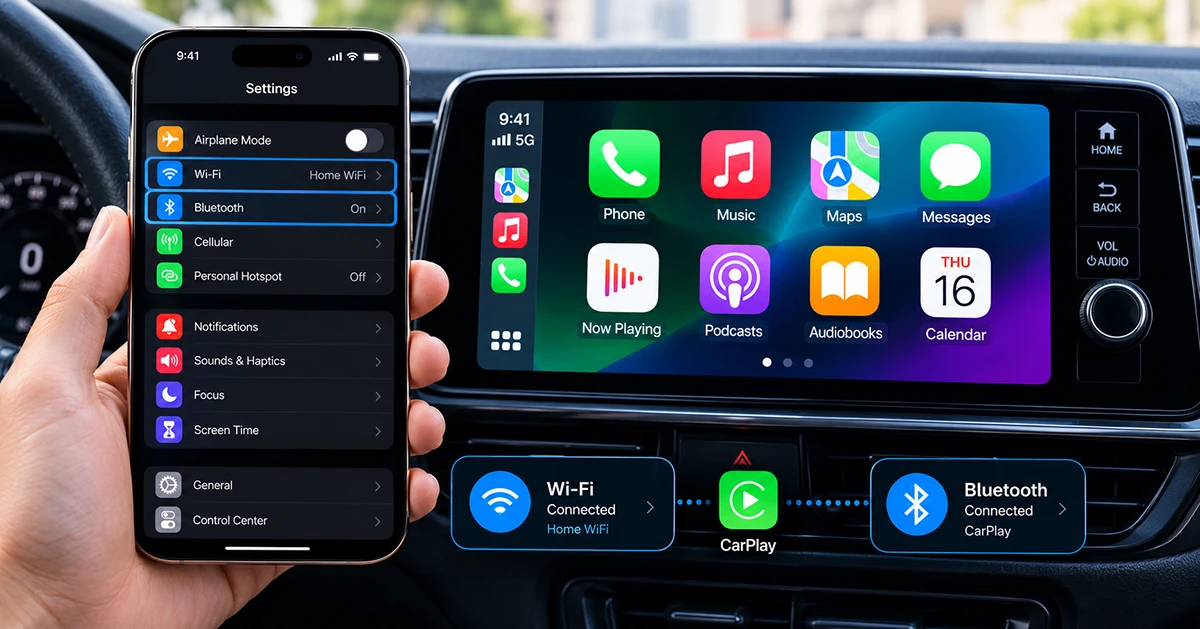
How to fix it:
- Open Settings on your iPhone.
- Tap Bluetooth and turn it on.
- Return to Settings and tap Wi-Fi.
- Make sure Wi-Fi is enabled.
- If your vehicle’s CarPlay network appears, open its information settings and check that Auto-Join is enabled.
- Make sure the vehicle’s infotainment system is in wireless or Bluetooth pairing mode.
- Go to Settings > General > CarPlay and select your vehicle if it appears.
Follow your vehicle’s instructions if it requires you to hold the steering-wheel voice command button to begin wireless CarPlay setup.
If you use a third-party wireless CarPlay adapter, temporarily remove it from the troubleshooting process when possible. Test the factory connection separately to determine whether the adapter is contributing to the problem.
4. Restart Your iPhone and Car Infotainment System
Temporary software problems can prevent CarPlay from starting or cause an existing connection to freeze.
Restarting both devices is a simple way to clear temporary issues before changing more settings.
What to do:
- Disconnect the iPhone from the vehicle.
- Restart your iPhone using the normal iPhone restart procedure.
- Turn off the vehicle and follow its manual for restarting the infotainment system.
- Turn the vehicle back on.
- Reconnect your iPhone and test CarPlay.
Some vehicles keep their infotainment systems running even after the display turns off. Follow the manufacturer’s instructions rather than guessing at reset-button combinations or disconnecting the vehicle battery.
If CarPlay works after restarting but repeatedly fails later, continue with the remaining fixes.
5. Make Sure Siri Is Enabled
Siri is required for Apple CarPlay. If Siri is disabled or not configured properly, CarPlay may fail to work as expected.
To check Siri:
- Open Settings.
- Find the Siri settings. The exact menu label can vary by iOS version.
- Enable the available Siri options you want to use, including voice activation where supported.
- Restart your iPhone if necessary.
- Reconnect to CarPlay and test voice commands.
If Siri works on the iPhone but not through the vehicle, check the car’s microphone, steering-wheel voice command controls, and infotainment settings.
6. Check Screen Time Restrictions
Screen Time restrictions can prevent CarPlay from being available on your iPhone.
This is worth checking if your car does not recognize the device or CarPlay is missing from the expected interface.
Follow these steps:
- Open Settings.
- Tap Screen Time.
- Open Content & Privacy Restrictions.
- If restrictions are enabled, find the allowed apps or features section.
- Make sure CarPlay is allowed, if the option is shown.
- Reconnect your iPhone to the vehicle.
Menu names may vary with your iOS version. If your iPhone is managed by a school or employer, an administrator may control some restrictions.
7. Forget Your Car and Set Up CarPlay Again
If CarPlay was previously working but no longer connects, the saved pairing may need to be recreated.
Removing the existing connection and setting it up again can help resolve pairing problems after changing phones or updating software.
How to reset the CarPlay pairing:
- Open Settings on your iPhone.
- Tap General.
- Select CarPlay.
- Choose your vehicle.
- Tap Forget This Car.
- Confirm the action.
- Follow your vehicle’s instructions to remove the old phone pairing if necessary.
- Set up CarPlay again using the wired or wireless connection method supported by your car.
You may also need to remove the iPhone from the vehicle’s saved Bluetooth device list before pairing again.
This procedure removes the saved CarPlay relationship; it does not erase your iPhone’s photos, apps, or other personal data.
8. Update iOS and Your Vehicle’s Infotainment Software
Outdated software can contribute to compatibility problems between an iPhone and a car’s infotainment system.
If CarPlay stopped working after an update, record your current iOS version and check whether a newer public update is available.
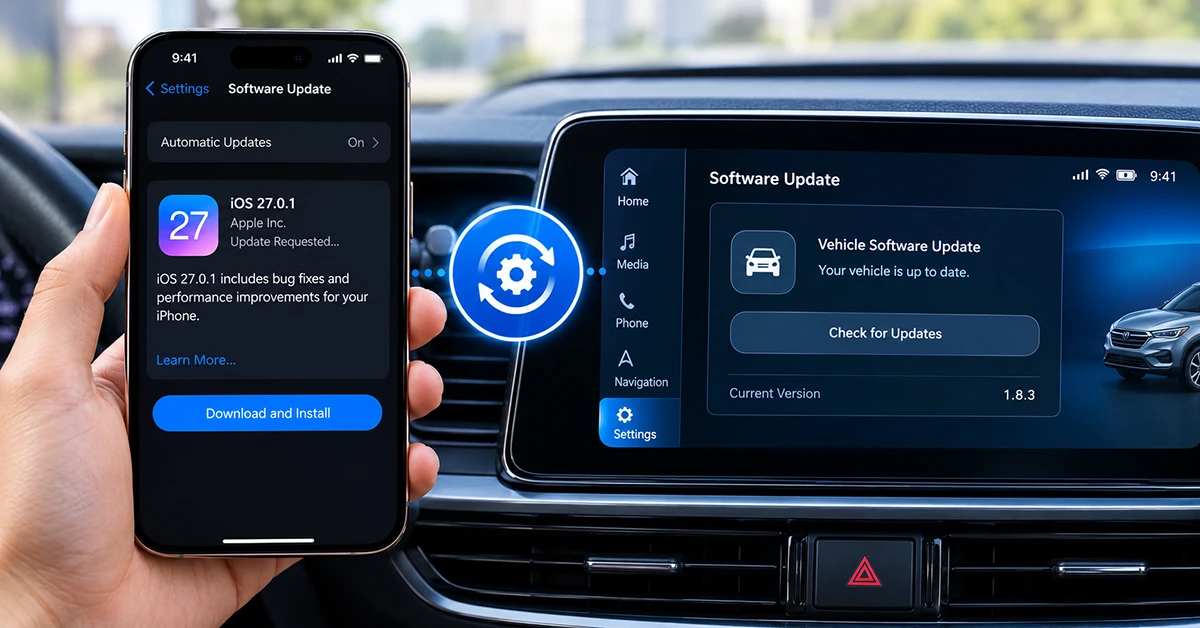
Update your iPhone:
- Connect to a reliable Wi-Fi network.
- Open Settings > General > Software Update.
- Check for an available update.
- Back up your iPhone and follow the update instructions when ready.
- Test CarPlay again after installation.
Check your vehicle’s software:
- Find the infotainment system’s software or firmware information in the vehicle settings.
- Check the manufacturer’s website or contact an authorized dealer.
- Install only firmware intended for your exact vehicle or stereo model.
- Follow the manufacturer’s update instructions.
Do not assume that a particular iOS release fixes every CarPlay issue. If the problem began immediately after an update, include that detail when contacting Apple Support.
9. Fix CarPlay Apps, Maps, and Audio Problems
Sometimes CarPlay connects successfully, but an individual app does not work correctly.
For example, Apple Maps may display your position incorrectly, a music app may stop playing, or a third-party navigation app may freeze while the rest of the CarPlay interface remains available.
Try these checks:
- Open another compatible navigation or audio app to see whether the issue affects one app or all apps.
- Close and reopen the affected app.
- Check for app updates in the App Store.
- For navigation issues, open Settings > Privacy & Security > Location Services and confirm that the app has the required location permission.
- If streaming music or maps fail to load, check whether the iPhone has a working internet connection.
- Test downloaded music or offline maps where available to help distinguish an internet problem from a CarPlay connection problem.
If only one app continues to fail while other CarPlay features work, investigate that app before resetting the entire CarPlay connection again.
10. Check for Heat and Charging-Related Problems
If CarPlay becomes unreliable during long navigation sessions, especially when the iPhone is charging in a hot vehicle, repeat the test under cooler conditions.
Navigation, charging, direct sunlight, and a warm cabin can contribute to increased device temperature. Excessive heat can affect charging and performance, but warmth alone does not prove that heat caused a CarPlay failure.
Try this diagnostic test:
- Park the vehicle safely.
- Let the iPhone cool if it feels unusually hot.
- Disable wireless charging temporarily, if you are using it.
- Keep the phone out of direct sunlight.
- Reconnect CarPlay using the same connection method.
- Test navigation or music again.
If the problem disappears, investigate the charging setup, phone placement, and cabin temperature. If the problem continues, return to the cable, pairing, software, and infotainment checks.
If an iPhone temperature warning appears, stop using it until it has cooled sufficiently.
When to Contact Apple Support or Your Car Manufacturer
If none of these fixes works, determine whether the problem follows the iPhone or stays with the vehicle.
- Contact Apple Support if your iPhone cannot connect to multiple known-compatible CarPlay systems, even after the recommended troubleshooting steps.
- Contact your vehicle manufacturer or dealer if multiple compatible iPhones fail to connect to the same vehicle or the infotainment system repeatedly crashes.
- Contact the aftermarket stereo or adapter manufacturer if the issue occurs only when using a third-party CarPlay unit or wireless adapter.
- Before contacting support, record your iPhone model, iOS version, vehicle make and model year, infotainment system version, connection type, and the troubleshooting steps you have tried.
Avoid factory-resetting your iPhone as an early troubleshooting step. A full reset is disruptive and should be considered only after less destructive options and appropriate support guidance.
Frequently Asked Questions
Why is CarPlay not working on my iPhone 18 Pro Max?
Common possibilities include a USB data connection problem, incomplete wireless pairing, disabled Siri, Screen Time restrictions, outdated vehicle software, or an app-specific issue. Start with the connection method you use and work through the relevant fixes.
Why does my iPhone charge but CarPlay does not work?
Charging confirms that power is reaching the phone, but it does not prove that the cable and port can establish a working data connection. Try a compatible data-capable cable and the vehicle’s designated CarPlay USB port.
How do I reset Apple CarPlay on my iPhone?
Go to Settings > General > CarPlay, select your vehicle, and tap Forget This Car. Then remove the old phone pairing from the vehicle if needed and set up CarPlay again.
Why does wireless CarPlay keep disconnecting?
Check that Wi-Fi and Bluetooth are enabled, verify the saved CarPlay network’s Auto-Join setting where available, and restart both the iPhone and the infotainment system. If the issue persists, update the relevant software and test without third-party wireless adapters.
Can an iOS update cause CarPlay problems?
Software updates can coincide with compatibility or configuration issues, although timing alone does not prove that an update caused the failure. Check for available updates, restart both systems, and document the iOS version if you need support.
Do I need to replace my iPhone if CarPlay will not connect?
Not necessarily. A cable, vehicle USB port, saved pairing, software setting, or infotainment system can cause similar symptoms. Test with another compatible vehicle or iPhone when possible before concluding that the phone needs repair.
Final Thoughts
When iPhone 18 Pro Max CarPlay is not working, start with the simplest checks: the correct USB connection or wireless settings, a restart, and Siri. If the problem persists, check restrictions, recreate the pairing, update software, and isolate app or charging-related issues.
Testing one change at a time makes it easier to identify the cause without unnecessarily erasing data or purchasing replacement accessories.

1 thought on “iPhone 18 Pro Max CarPlay Not Working? 10 Fixes to Try”