If your iPhone 18 Pro Max is stuck on the Apple logo, will not complete an iOS update, or refuses to start normally, DFU mode may be the most effective troubleshooting option. Short for Device Firmware Update, DFU mode allows a Mac or Windows PC to communicate with the iPhone at a low-level firmware stage, making it useful when Recovery Mode cannot resolve the issue.
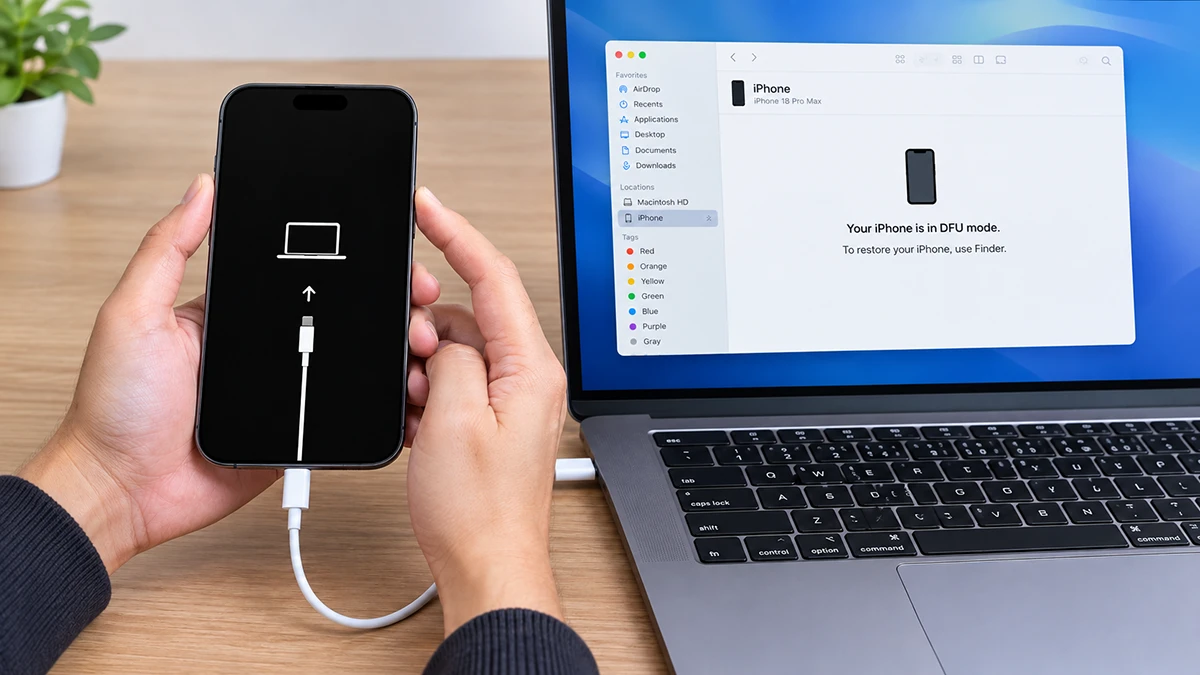
In this guide, you will learn how to put your iPhone 18 Pro Max into DFU mode step by step, how to exit it safely, how to restore the device, and what to do if your iPhone becomes stuck in DFU mode. Because a DFU restore can erase your data, back up your iPhone first and try Recovery Mode before using this advanced method.
What Is DFU Mode on iPhone 18 Pro Max?
DFU stands for Device Firmware Update. In this mode, the iPhone’s Boot ROM waits for recovery instructions over USB before iOS or the normal recovery environment loads.
Unlike Recovery Mode, DFU mode usually shows a completely black screen. If you see the Apple logo or the “Connect to computer” screen, you are likely in Recovery Mode instead.
Use DFU mode only when standard troubleshooting fails, because restoring from DFU mode can erase your iPhone.
DFU Mode vs. Recovery Mode
| Feature | DFU Mode | Recovery Mode |
|---|---|---|
| Screen appearance | Black screen, no logo | Connect-to-computer screen |
| What it accesses | Low-level firmware / Boot ROM | iOS recovery environment |
| Best use case | Serious boot, firmware, or restore issues | Failed updates, restore errors, forgotten-passcode situations |
| Data risk | Restore usually erases the iPhone | Update may preserve data; restore erases it |
| Detection | Finder, Apple Devices app, or iTunes | Finder, Apple Devices app, or iTunes |
Apple describes DFU mode as a state in which the device’s Boot ROM waits to be recovered over USB, while Recovery Mode is the more common option for update and restore problems.
Before You Enter DFU Mode
Prepare the following:
- A Mac with the latest macOS and Finder, or a Windows PC with the latest Apple Devices app or iTunes.
- A reliable USB-C cable and a direct computer connection.
- A recent iCloud or computer backup, if your iPhone is still accessible.
- At least 15–20 minutes of uninterrupted time.
Important: If Finder, Apple Devices, or iTunes offers Update, try that first. Update attempts to reinstall iOS without erasing your data. Restore erases the iPhone and installs a fresh copy of iOS.
How to Enter DFU Mode on iPhone 18 Pro Max
Follow the timing carefully. If the Apple logo appears, start again from step 1.
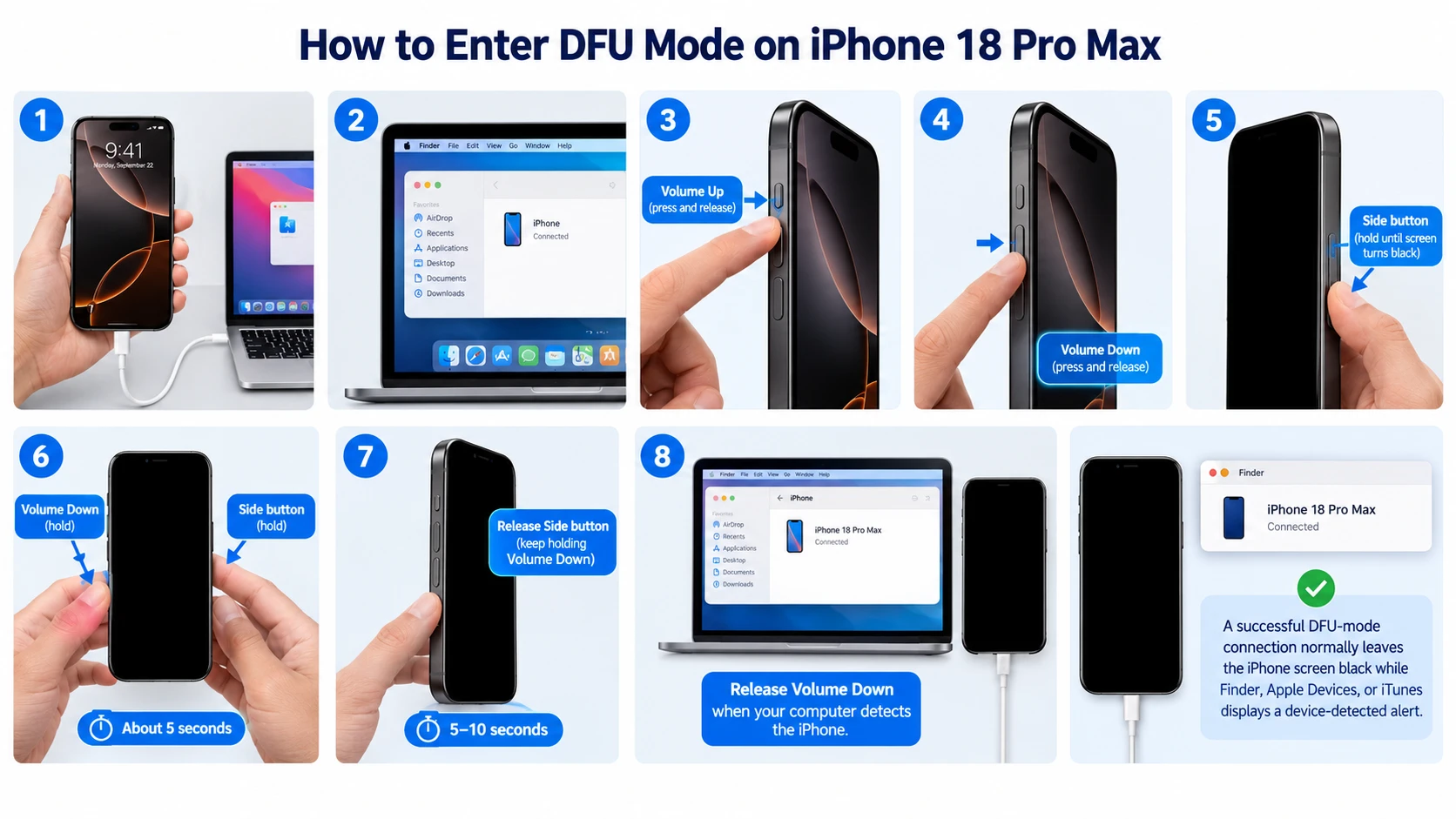
- Connect your iPhone 18 Pro Max to your Mac or Windows PC using a USB cable.
- Open Finder on Mac, or Apple Devices / iTunes on Windows.
- Quickly press and release the Volume Up button.
- Quickly press and release the Volume Down button.
- Press and hold the Side button until the screen turns completely black.
- As soon as the screen goes black, press and hold both the Side button and Volume Down button together for about 5 seconds.
- Release the Side button, but keep holding the Volume Down button for another 5–10 seconds.
- When your computer detects the iPhone, release the Volume Down button.
A successful DFU-mode connection normally leaves the iPhone screen black while Finder, Apple Devices, or iTunes displays a device-detected alert.
What You Should See
- Correct: A black iPhone screen and a detection message on your computer.
- Incorrect: The Apple logo appears — you held the Side button too long.
- Incorrect: The Recovery Mode screen appears — you held the buttons too long or entered Recovery Mode instead.
- Incorrect: Nothing happens — retry with precise timing and a different cable or USB port if needed.
How to Restore iPhone 18 Pro Max From DFU Mode
Once your computer detects the iPhone:
- Open Finder on Mac or Apple Devices / iTunes on Windows.
- Select your iPhone 18 Pro Max when it appears.
- Choose Restore if you want to erase the device and reinstall iOS.
- Wait for the process to finish.
- Set up the iPhone and restore your most recent backup.
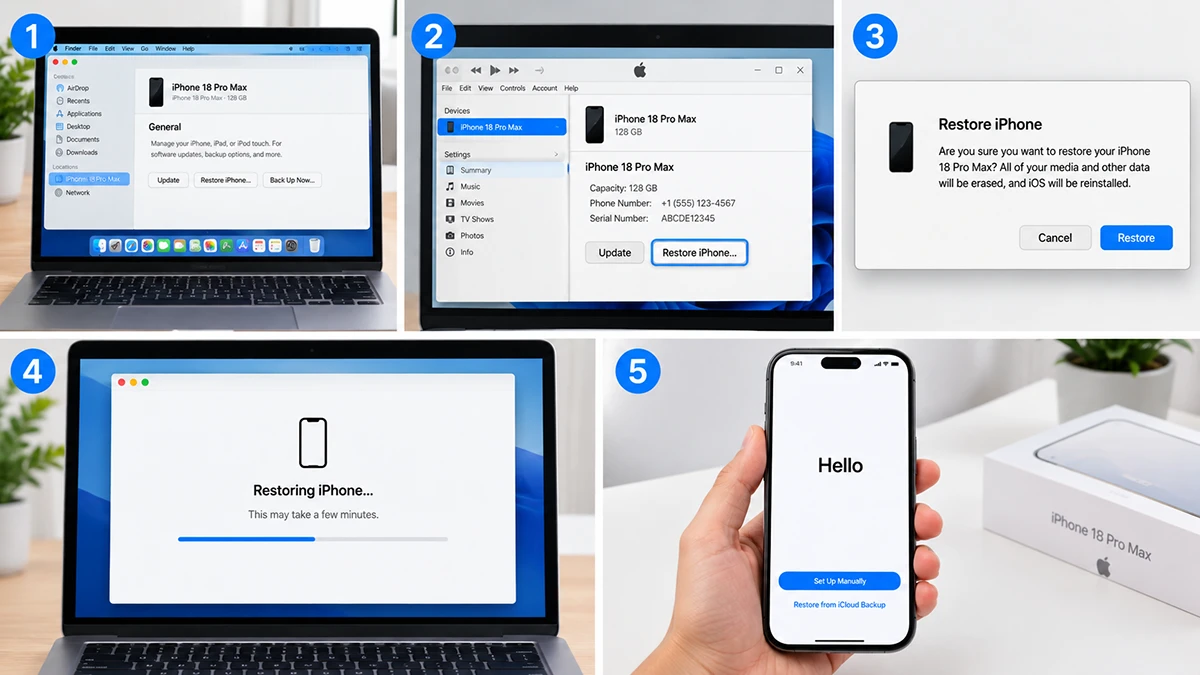
Apple’s guidance for update and restore issues recommends connecting the device to a computer, opening Finder or the Apple Devices app, and following the onscreen prompts.
How to Exit DFU Mode on iPhone 18 Pro Max
If you entered DFU mode by mistake or no longer need it:
- Quickly press and release Volume Up.
- Quickly press and release Volume Down.
- Press and hold the Side button until the Apple logo appears.
- Your iPhone should restart normally. If it remains stuck, connect it to a computer and try Recovery Mode or a restore.
iPhone 18 Pro Max Stuck in DFU Mode: Fixes
If your iPhone stays in DFU mode or repeatedly re-enters it:
- Force restart it using the exit steps above.
- Try another USB-C cable and port, preferably connected directly to the computer.
- Update Finder, Apple Devices, or iTunes, then reconnect the iPhone.
- Use Recovery Mode if DFU mode is unnecessary or repeatedly fails.
- Restore the iPhone if Finder or Apple Devices detects it and other options fail.
- Contact Apple Support or an authorized service provider if the device will not restore, has hardware damage, or remains unresponsive.
DFU mode can help with deep software issues, but it cannot bypass Apple’s iOS signing checks or downgrade to an unsigned iOS version.
When Should You Use DFU Mode?
Use DFU mode only for advanced cases such as:
- iPhone 18 Pro Max will not boot past the Apple logo.
- Recovery Mode update or restore fails repeatedly.
- iOS is severely corrupted and the phone will not start normally.
- You need a clean firmware-level restore after troubleshooting.
For ordinary update failures, start with Recovery Mode and choose Update first. Apple’s recovery workflow is designed to preserve data when an update is possible.
Frequently Asked Questions
Does DFU mode erase my iPhone 18 Pro Max?
Entering DFU mode does not erase the iPhone by itself. However, choosing Restore while in DFU mode erases the device and installs fresh firmware.Why is my iPhone screen black in DFU mode?
That is expected. DFU mode does not load the normal iOS interface, so the display stays black while the computer communicates with the device at a lower firmware level.Can I enter DFU mode without a computer?
No. DFU mode requires a USB connection to a Mac or Windows PC running Finder, Apple Devices, or iTunes.What is the difference between DFU mode and Recovery Mode?
Recovery Mode loads a recovery environment and shows a connect-to-computer screen. DFU mode keeps the screen black and communicates with the iPhone’s Boot ROM before iOS loads.Is DFU mode safe?
It is generally safe when done correctly, but a DFU restore erases your iPhone. Back up first and use DFU mode only after simpler fixes fail.
Final Thoughts
Entering DFU mode on iPhone 18 Pro Max is a useful last-resort fix for serious software, firmware, or boot-related problems. The key is timing: quickly press Volume Up, quickly press Volume Down, hold the Side button until the screen goes black, then hold Side and Volume Down together before releasing only the Side button. If your computer detects the iPhone while the screen remains black, you have successfully entered DFU mode.
Before choosing a DFU restore, remember that it erases the iPhone and installs a fresh copy of iOS. For most update failures, start with Recovery Mode and select Update, since it may preserve your data; reserve DFU mode for cases where Recovery Mode does not work.
If your iPhone 18 Pro Max remains stuck, will not restore, or shows signs of hardware failure, contact Apple Support or visit an authorized service provider. Used carefully, DFU mode can help bring an unresponsive iPhone back to a clean, working state.

1 thought on “How to Put iPhone 18 Pro Max in DFU Mode: Step-by-Step Guide”