If your iPhone 18 is frozen or the screen will not respond, force restart it by quickly pressing and releasing Volume Up, then Volume Down, then holding the Side button until the Apple logo appears. This process does not erase your data.
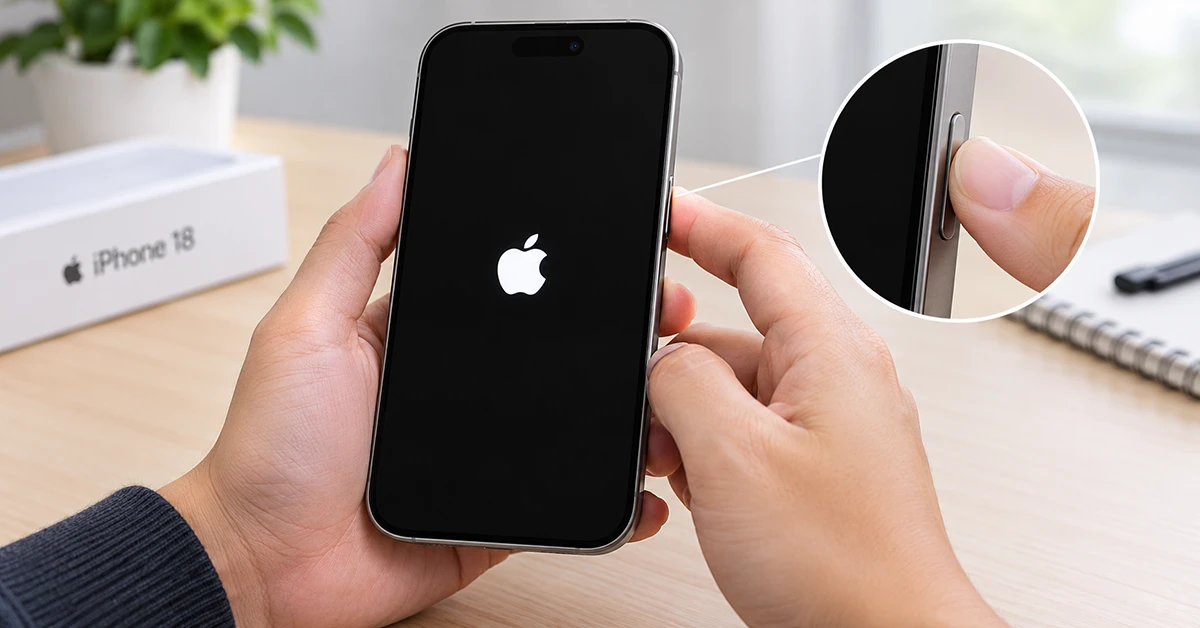
A frozen iPhone can happen after an app stops responding, iOS encounters a temporary software issue, or the device becomes overwhelmed. A force restart is usually the fastest way to regain control without needing to erase or reset the phone.
How to Force Restart iPhone 18
Use this sequence exactly. The timing matters: press the volume buttons quickly, then hold the Side button continuously.
- Press Volume Up: Locate the Volume Up button on the left side of your device. Press it once quickly and let go.
- Press Volume Down: Immediately after, press the Volume Down button (just below the Volume Up button) once quickly and let go.
- Hold the Side Button: Press and hold the Side button (the power button on the right side of the device).
Ignore the “slide to power off” slider if it appears on the screen. Keep holding the button for about 10-15 seconds until the screen goes completely dark and the white Apple logo appears.
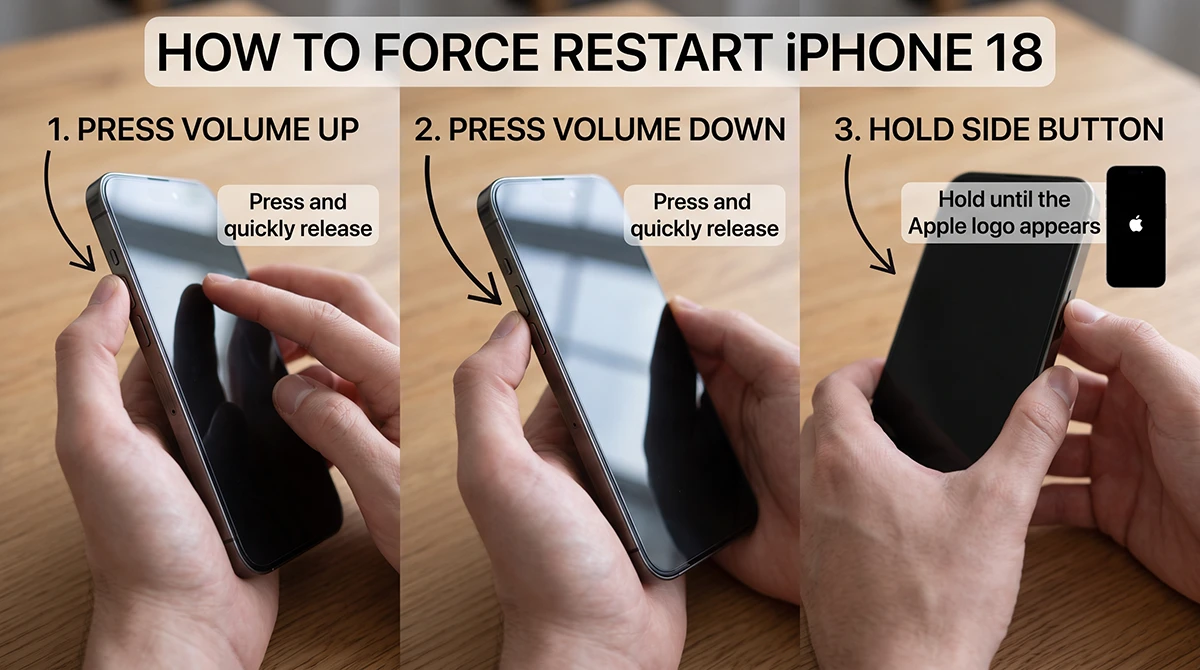
Once the Apple logo appears, you can release the Side button. Your iPhone 18 will now boot up normally, and you will need to enter your passcode to unlock it.
Important timing tips
- Do not pause too long between the Volume Up and Volume Down presses.
- Keep holding the Side button even if the power-off slider appears.
- The Apple logo may take longer than 10 seconds to appear, so do not release the button too early.
- If nothing happens, start again from Step 1 and make the volume-button presses quicker.
Does this work on iPhone 18 Pro?
Yes. The same force-restart method applies to the iPhone 18, iPhone 18 Pro, and iPhone 18 Pro Max because these Face ID models use the same Volume Up, Volume Down, and Side button layout. Third-party guides specifically confirm the same sequence on iPhone 18 Pro Max.
| Model | Force-restart method |
|---|---|
| iPhone 18 | Volume Up → Volume Down → hold Side button |
| iPhone 18 Pro | Volume Up → Volume Down → hold Side button |
| iPhone 18 Pro Max | Volume Up → Volume Down → hold Side button |
Why Is My iPhone 18 Frozen?
An iPhone 18 can freeze because of a temporary iOS glitch, an app that has stopped responding, low storage, an interrupted update, overheating, or a battery/power issue. A restart clears the current software session and often restores normal operation.
Common signs include:
- The screen will not accept taps or swipes.
- An app remains stuck on a white, black, or loading screen.
- The power-off slider does not appear.
- The display stays black even though the phone may be on.
- The iPhone will not respond to the Side button.
What To Do If iPhone 18 Still Won’t Restart
If you tried the three-step sequence above and your screen is still black, don’t panic. Try these fallback solutions:
Charge your iPhone 18
If the screen remains black, connect your iPhone to a working charger and leave it connected for at least 30 minutes. Apple recommends charging for up to one hour if the device does not turn on, then trying the force restart again.
Use a known-good USB-C cable, power adapter, and wall outlet. Avoid charging through an unreliable hub or a damaged cable.
Repeat the force restart
After charging, try the force-restart sequence once more. Hold the Side button longer than you expect; Apple notes that seeing the Apple logo may take more than 10 seconds.
Check for overheating
If your iPhone feels very hot, remove it from direct sunlight, take off thick cases if needed, and let it cool before trying again. Do not place it in a refrigerator or freezer.
Try Recovery Mode
If your iPhone 18 restarts but freezes again, or it will not start normally, Recovery Mode can help iOS reinstall or update without immediately erasing your data. Recovery Mode starts the device in a limited environment for firmware and operating-system updates.
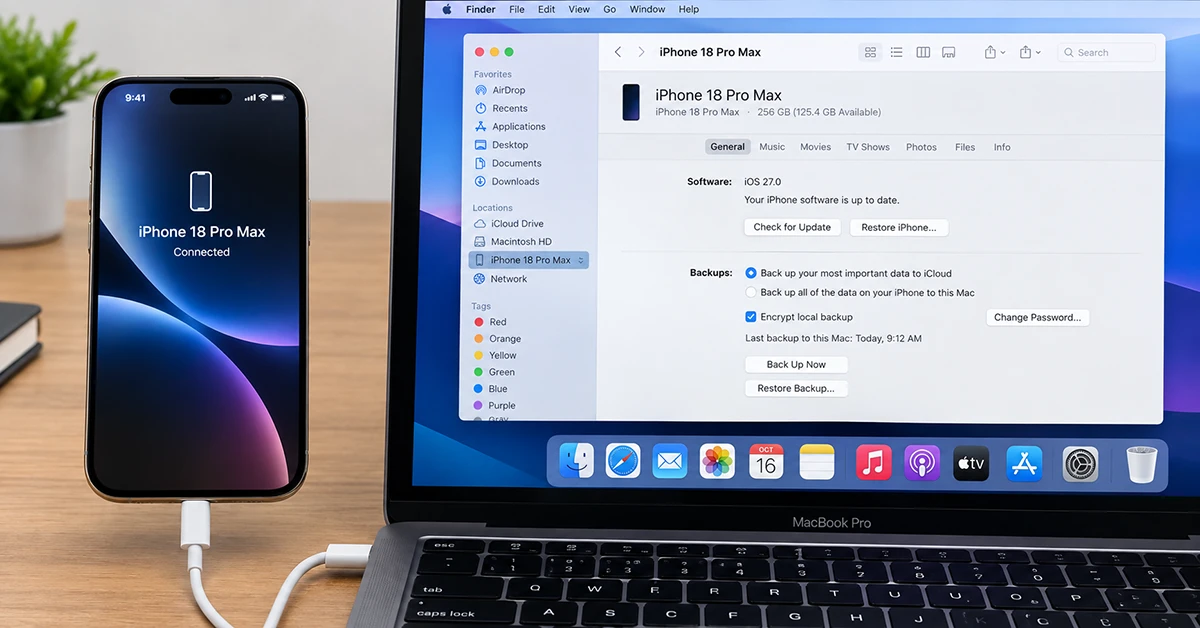
- Connect the iPhone 18 to a Mac or PC with a compatible cable.
- Quickly press and release Volume Up.
- Quickly press and release Volume Down.
- Hold the Side button.
- Continue holding it after the Apple logo appears.
- Release only when you see the Connect to Computer screen.
- Open Finder on Mac, or Apple Devices/iTunes on Windows, then choose Update first.
Choose Restore only if Update fails or you accept that the device may be erased. DFU mode is a more advanced troubleshooting option and is not necessary for most frozen-iPhone cases.
Will Force Restarting Delete Anything?
No. A force restart simply shuts down and restarts iOS; it does not delete your data. However, if you later choose Restore in Recovery Mode, that can erase the iPhone, so try Update first and keep regular iCloud or computer backups.
How to Prevent iPhone 18 Freezing
- Install iOS updates promptly.
- Update apps through the App Store.
- Restart your iPhone occasionally, especially after installing major updates.
- Keep at least several gigabytes of free storage.
- Close apps that repeatedly freeze.
- Avoid using unverified accessories or unreliable charging cables.
- Back up your iPhone with iCloud or a computer before major troubleshooting.
If your iPhone 18 freezes frequently after a force restart, back it up and consider updating iOS or reinstalling the problematic app before seeking hardware service.
