iPhone 18 Pro Max recovery mode is a built-in troubleshooting state that lets your iPhone communicate with a computer so you can update or reinstall iOS. Use it when your iPhone will not start normally, gets stuck on the Apple logo, fails an update, or needs a system repair.
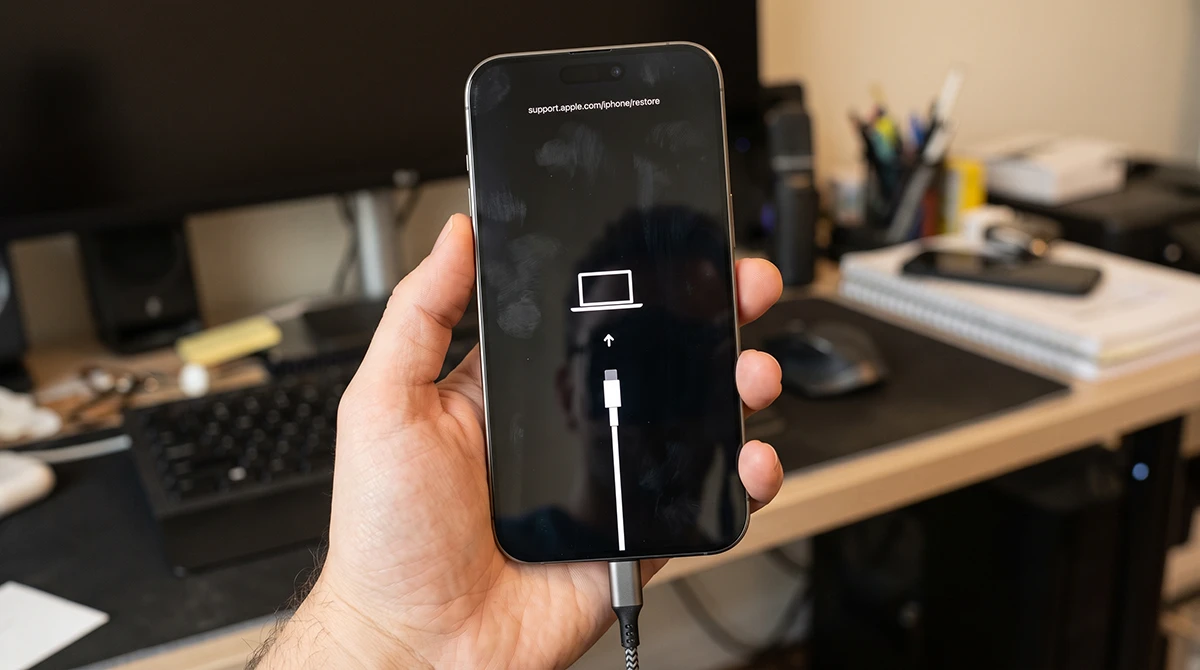
This guide shows the exact button sequence for the iPhone 18 Pro Max, how to exit recovery mode, and when to choose Update instead of Restore.
What Is iPhone 18 Pro Max Recovery Mode?
Recovery mode loads a minimal version of iOS that allows Finder on Mac, the Apple Devices app on Windows, or iTunes to detect the iPhone and install software. It is useful when the normal startup process fails but the hardware is still responsive.
You may need recovery mode if your iPhone:
- Is stuck on the Apple logo for several minutes.
- Will not complete an iOS update.
- Shows a “connect to computer” error.
- Will not restart normally after a software issue.
- Needs an iOS reinstall through a computer.
Recovery mode is different from a force restart. A force restart simply reboots the phone; recovery mode prepares it for an iOS update or restore.
What You Need Before Starting
Prepare the following before putting your iPhone 18 Pro Max into recovery mode:
- A Mac with Finder, or a Windows PC with the Apple Devices app or iTunes.
- A working USB-C cable.
- A stable internet connection.
- Your iPhone passcode, if prompted.
- Ideally, a recent iCloud or computer backup.
On a Mac, use Finder. On a Windows PC, use the Apple Devices app or iTunes. Your computer may ask you to unlock the iPhone and select Trust before it can communicate with the device.
How to Put iPhone 18 Pro Max in Recovery Mode
Follow these steps exactly. The button sequence must be completed quickly.
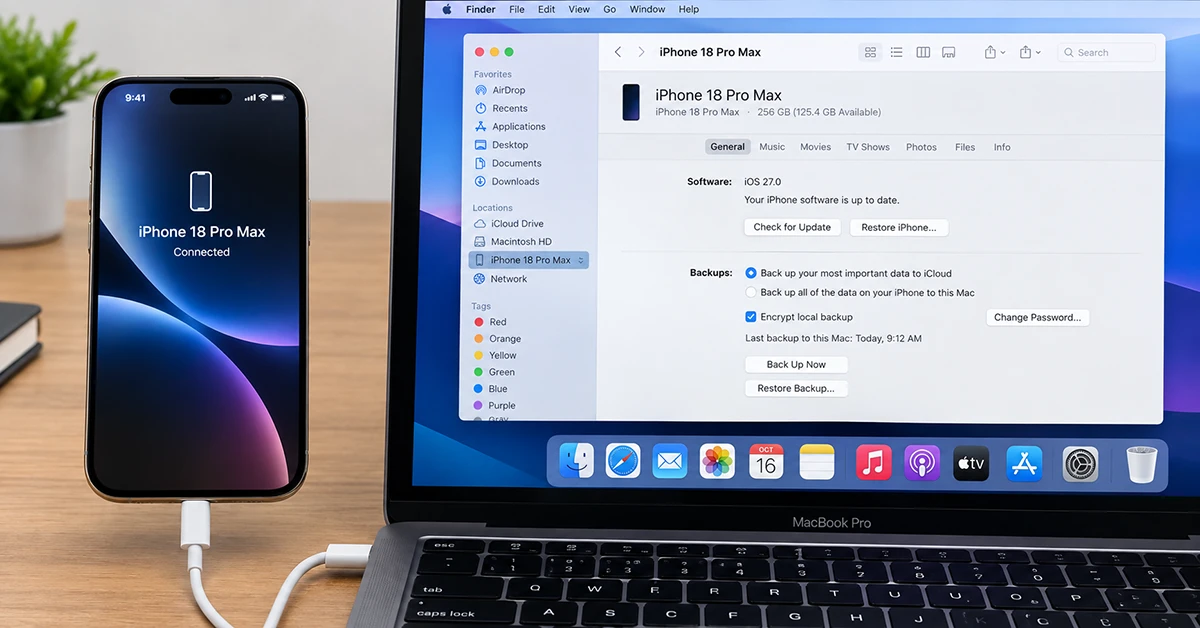
- Connect your iPhone 18 Pro Max to your Mac or Windows PC using a USB-C cable.
- Open Finder on Mac, or Apple Devices/iTunes on Windows.
- Quickly press and release the Volume Up button.
- Quickly press and release the Volume Down button.
- Press and hold the Side button.
- Keep holding the Side button through the Apple logo.
- Release the Side button only when you see the recovery-mode screen: an image of a computer and cable.
The iPhone 18 Pro Max uses the same recovery-mode button sequence as recent Face ID iPhones: Volume Up, Volume Down, then Side button.
Important: If your iPhone restarts before the recovery screen appears, power it off and try the sequence again. Apple specifically advises restarting the recovery-mode process if the device restarts during the procedure.
iPhone 18 Pro Max Recovery Mode Screen
When successful, your iPhone displays a screen showing a cable pointing toward a computer. Your Mac or PC should also detect the iPhone and display options to Update or Restore it.
| Screen or option | What it means | Data impact |
|---|---|---|
| Apple logo | Normal startup; keep holding the Side button | None |
| Computer-and-cable screen | Recovery mode reached | None yet |
| Update | Reinstalls iOS while attempting to preserve data | Usually keeps data |
| Restore | Erases the iPhone and installs fresh iOS | Deletes all data |
Update vs. Restore: Which Should You Choose?
When your computer detects the iPhone in recovery mode, choose Update first if that option is available. Update attempts to reinstall iOS without erasing your personal data.
Choose Restore only if Update fails, is unavailable, or Apple Support instructs you to restore. Restore erases the iPhone and installs a clean copy of iOS, so it should be treated as a last resort unless you have a backup.
Before restoring:
- Try Update first.
- Confirm you have an iCloud or computer backup if possible.
- Make sure you know your Apple Account credentials.
- Disable Find My only if the phone is responsive enough to do so; otherwise, follow the on-screen activation steps after restoring.
How to Exit iPhone 18 Pro Max Recovery Mode
If you entered recovery mode by accident or no longer need it, exit safely:
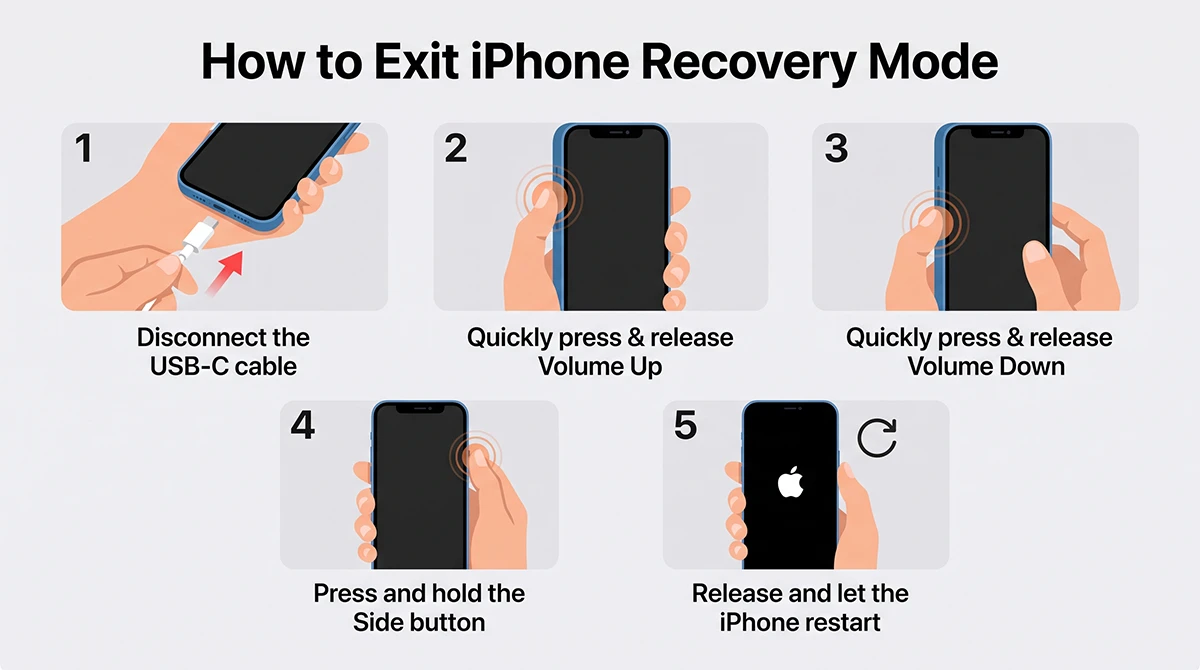
- Disconnect the USB-C cable from your iPhone.
- Quickly press and release Volume Up.
- Quickly press and release Volume Down.
- Press and hold the Side button until the Apple logo appears.
- Release the Side button and let the iPhone restart normally.
This is the same force-restart sequence used for recent iPhones and should exit recovery mode without erasing your data.
If your iPhone remains in recovery mode after a force restart, reconnect it to the computer and try Update before choosing Restore.
Recovery Mode Not Working? Try These Fixes
If your phone will not enter recovery mode, check these common issues:
- Use a different cable: A damaged or non-data USB-C cable may charge the phone but not communicate with the computer.
- Try another USB port: Avoid USB hubs; connect directly to the Mac or PC.
- Update your computer software: Ensure Finder, Apple Devices, or iTunes is up to date.
- Retry the button timing: Press Volume Up, then Volume Down immediately, then hold Side without delay.
- Force restart first: If the phone is frozen, force-restart it before attempting recovery mode.
- Check the battery: Connect the iPhone to power for several minutes if the battery is extremely low.
If the iPhone repeatedly returns to recovery mode, displays persistent errors, or cannot be recognized by any computer, contact Apple Support or visit an Apple Store or Apple Authorized Service Provider.
iPhone 18 Pro Max Recovery Mode vs. DFU Mode
Recovery mode and DFU mode are not the same. Recovery mode uses a limited iOS environment and is appropriate for most software repairs. DFU mode is a deeper, lower-level restore state used for more advanced troubleshooting.
| Feature | Recovery Mode | DFU Mode |
|---|---|---|
| Purpose | Update or restore iOS | Deep restore/firmware-level repair |
| Screen | Shows computer-and-cable icon | Screen stays black |
| Difficulty | Easy | Requires precise timing |
| Recommended for | Most users | Advanced troubleshooting only |
For most iPhone 18 Pro Max problems, start with recovery mode. Only use DFU mode if recovery mode fails and you understand that restoring may erase your device.
Frequently Asked Questions
Does recovery mode erase my iPhone?
No. Entering recovery mode does not erase your iPhone. Choosing Update usually preserves your data, while choosing Restore erases it.
How long does recovery mode take?
Entering recovery mode takes less than a minute. An iOS update or restore can take 15–60 minutes depending on your internet speed and computer performance.
Why does my iPhone keep going back to recovery mode?
Repeated recovery-mode loops can indicate a failed update, corrupted iOS installation, or a hardware issue. Try Update first; if that fails, Restore, then seek Apple support if the issue continues.
Can I enter recovery mode without a computer?
Yes. Apple’s newer iOS Recovery flow lets you power off the device, then press and hold the Side button until the “Continue holding for recovery” screen appears, followed by recovery options. However, the classic computer-based recovery mode remains the standard method for updating or restoring through Finder, Apple Devices, or iTunes.
Is DFU mode safer than recovery mode?
No. DFU mode is more advanced and carries a higher risk of accidental data loss because it is typically used for a full restore. Use recovery mode first.
Final Thoughts
iPhone 18 Pro Max recovery mode is the safest first step for serious software problems. Connect the phone to a computer, use Volume Up → Volume Down → hold Side button, then choose Update before considering Restore. If you entered recovery mode accidentally, disconnect the cable and force-restart the phone to exit.

1 thought on “iPhone 18 Pro Max Recovery Mode: How to Enter, Exit, and Use It Safely”