If your iPhone 18 Pro Max is not charging, the problem may be caused by a faulty USB-C cable, a dirty charging port, a power adapter issue, overheating, or an iOS glitch. Before paying for repairs, try these 9 fixes to restore charging, starting with the simplest solutions. Check your charging accessories, clean the port carefully, force restart your iPhone, and review its charging settings. If your iPhone still won’t charge after troubleshooting, the battery or charging hardware may need professional inspection.
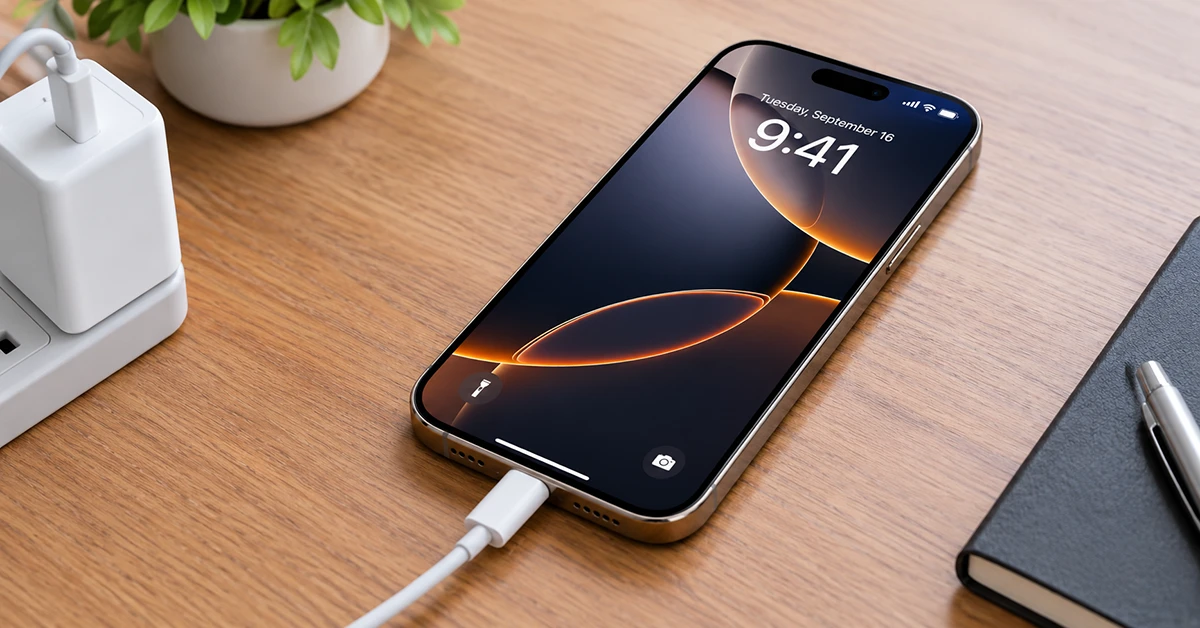
Below is the full breakdown: how to tell whether your phone is charging slowly or not at all, every common cause, and a step-by-step fix for each one, plus what to do if the problem only started after an iOS update.
Is Your iPhone 18 Pro Max Not Charging at All, or Just Charging Slowly?
Before troubleshooting, confirm what’s actually happening, since the fix is different for each:
- No response at all: the screen stays black and there’s no charging animation, vibration, or sound when you plug in.
- Charging symbol appears but the percentage doesn’t move: the phone recognizes power but isn’t actually charging.
- Charging, but very slowly: you may see a Slow Charger or Not Charging banner even with a high-wattage adapter.
- Stuck at a specific percentage (commonly 80%): this almost always points to a battery charging limit, not a fault.
- Charging On Hold: means the iPhone has temporarily paused charging because the battery is too hot or too cold.
Knowing which of these you’re seeing will save time, since a dead-black screen usually means a hardware or power-source issue, while a stalled percentage usually means a software setting.
Common Causes of iPhone 18 Pro Max Charging Problems
iPhone 18 Pro Max charging problems can result from a faulty cable or adapter, a dirty USB-C port, software glitches, overheating, or battery issues. Identifying the cause is the first step toward restoring normal charging. Here are the most common reasons your iPhone may charge slowly, intermittently, or not at all.
Damaged or non-MFi cable or adapter
A frayed USB-C cable, a worn connector, or a third-party adapter that isn’t MFi-certified is the single most common reason an iPhone won’t charge properly. The iPhone 18 Pro Max is also pickier about meeting its advertised fast-charging speeds, so an underpowered adapter can look like a not-charging fault when it’s really just charging too slowly to notice.
Dirty or debris-filled charging port
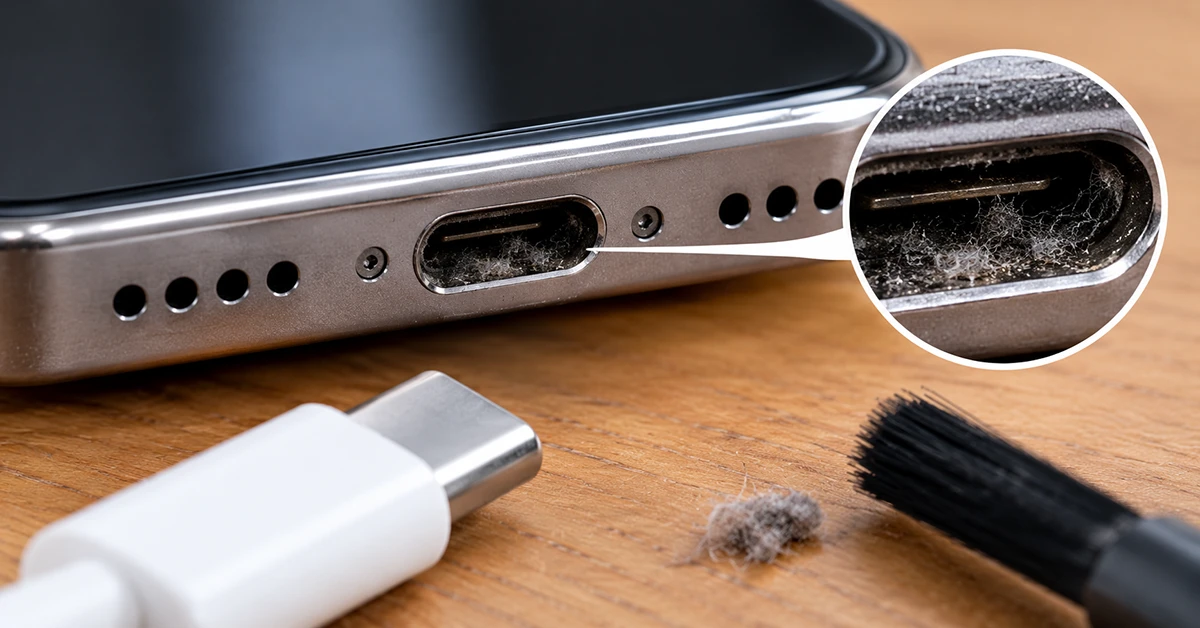
Lint, dust, and pocket debris build up in the USB-C port over time and physically block the connection. This is especially common if you carry your phone in a pocket without a case.
Optimized Battery Charging
Apple’s Optimized Battery Charging feature learns your routine and intentionally delays the final stretch of charging to reduce battery wear, pausing near 80% and resuming closer to when you normally unplug.
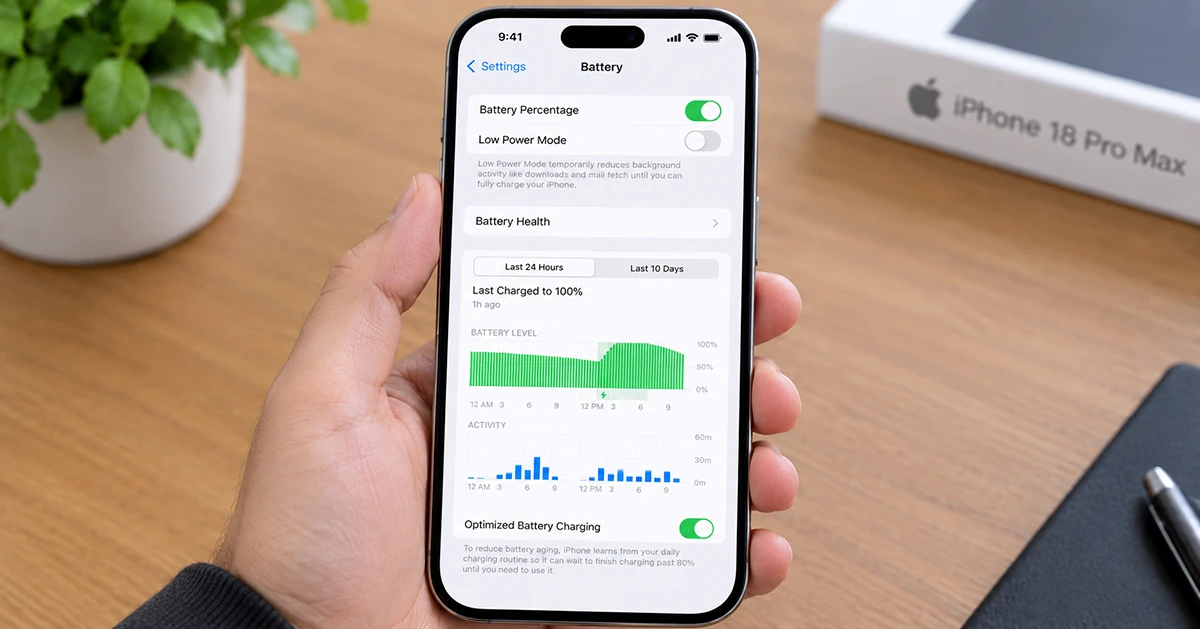
If your routine changes, it can misjudge the timing and appear to stop charging early, or cause the starting-and-stopping vibration pattern some new iPhone 18 Pro owners have reported.
Software glitch after an iOS update
A fresh iOS install occasionally leaves background processes in a bad state, which can cause a Slow Charger warning, a frozen percentage, or charging that silently drops out overnight.
MagSafe or wireless charging issues
Misalignment on the charging pad, a case that’s too thick, or a wireless charger that doesn’t support the iPhone 18 Pro Max’s charging standard can all prevent a full, steady charge even when the phone appears to be sitting on the charger correctly.
Battery health degradation
If Battery Health (Settings > Battery > Battery Health) shows reduced maximum capacity, charging can become slower or less reliable, particularly under load or in extreme temperatures.
Physical or liquid damage
A drop, bend, or any liquid exposure can damage the charging port or internal battery connector, which typically requires a professional repair rather than a software fix.
How to Fix an iPhone 18 Pro Max That Won’t Charge
If your iPhone 18 Pro Max won’t charge, the cause may be a faulty cable, a dirty USB-C port, a software glitch, or an overheating battery. Try these simple fixes before seeking professional repair. They may restore charging and help prevent the problem from returning.
Step 1: Isolate the problem with a different cable, adapter, and outlet
Test your iPhone with a cable, adapter, and wall outlet you know work with another device. If it charges normally with a different set, the problem is your original accessory, not the phone.
Step 2: Clean the charging port
Power off the phone and use a soft-bristled brush, a wooden toothpick, or a can of compressed air to gently clear out any visible lint or debris. Avoid metal objects, which can damage the port’s internal contacts.
Step 3: Force restart your iPhone
Press and quickly release Volume Up, then Volume Down, then press and hold the Side button until the Apple logo appears. This clears many temporary software glitches without affecting your data.
Step 4: Check your Battery settings
Go to Settings > Battery > Charging and review the Optimized Battery Charging toggle and any charging limit you’ve set. Turning Optimized Battery Charging off temporarily will confirm whether it’s the cause.
Step 5: Update iOS
Go to Settings > General > Software Update and install any available update. Apple regularly ships charging-related bug fixes in point releases.
Step 6: Try wireless or MagSafe charging as a cross-check
If USB-C charging fails but MagSafe works, or vice versa, that narrows the fault down to one charging path rather than the phone’s battery or logic board.
Step 7: Let the phone cool down
If your iPhone feels warm, charging can pause automatically to protect the battery. Move it out of direct sun or a hot car, let it cool for 15-30 minutes, and try again.
iPhone 18 Pro Max Not Charging After an iOS Update
If the problem started right after updating iOS, test with a different accessory set first to rule out coincidence, then check Settings > Battery > Charging for a setting that may have reset during the update.
If the issue persists, watch for a follow-up iOS point release, since Apple has a track record of shipping quick patches for charging-related bugs reported shortly after a major release.
iPhone 18 Pro Max Stuck at 80% or Won’t Reach 100%
This is almost always intentional, not a fault. Optimized Battery Charging and any manual charging limit you’ve set will both cap your phone below 100% by design, to slow long-term battery wear. Check Settings > Battery > Charging and either raise the limit or disable Optimized Battery Charging if you want a full charge immediately.
When to Contact Apple Support or Book a Genius Bar Appointment
If you’ve tried a different cable, adapter, and outlet; cleaned the port; force restarted; checked your Battery settings; and updated iOS, and the phone still won’t charge, it’s time to get it looked at.
Your iPhone 18 Pro Max is covered by Apple’s standard one-year limited warranty, so book a Genius Bar appointment or contact Apple Support before paying for third-party repair, especially if the device is still new.
FAQs for iPhone 18 Pro Max Not Charging
Why is my brand-new iPhone 18 Pro Max not charging? New phones can still be affected by a faulty included cable, a loose port connection from shipping, or Optimized Battery Charging. Test with a different accessory set first.
Why does my iPhone 18 Pro Max show Slow Charger with a high-wattage adapter? This usually means the cable, not the adapter, can’t carry the full charging speed, or the port has debris reducing the connection quality.
Can Optimized Battery Charging make it look like my phone stopped charging? Yes. It’s designed to pause the final charging stretch and resume later, which some users mistake for a charging failure.
Is it safe to use a third-party charger with the iPhone 18 Pro Max? Only if it’s MFi-certified. Uncertified accessories are the most common cause of inconsistent or failed charging.
Key Takeaway
Most iPhone 18 Pro Max charging problems come down to an accessory, a dirty port, or a battery-protection setting, not a hardware failure. Work through the steps above in order, starting with the simplest, and reserve a Genius Bar visit for when every software and accessory fix has been ruled out.

1 thought on “iPhone 18 Pro Max Not Charging? Here’s How to Fix It”