Few things are more frustrating than dropping a call on a brand-new $1,000 phone. If your iPhone 18 is showing one bar, stuck on “SOS only,” or randomly losing service, you’re not alone. This guide covers every proven fix for iPhone 18 weak signal, from 30-second resets to the official Apple remedy for the known iPhone 18 issue. Work through the fixes in order — they’re ranked from fastest to most advanced.
First: Check If This Is the Known iPhone 18 Pro Max Issue
Before troubleshooting anything, rule out the elephant in the room. In early October 2026, Apple officially confirmed that a small number of iPhone 18 Pro Max units on the AT&T network can lose service entirely — unable to make calls, send texts, or use data, even with full signal bars.
Apple’s fix has two parts, and you need both:
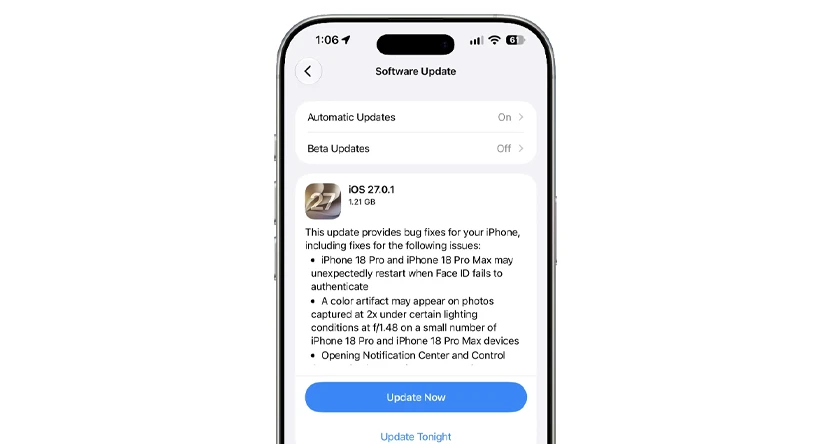
- Update to iOS 27.0.1 — Settings → General → Software Update.
- Install the carrier settings update — Settings → General → About. The update downloads automatically within 14 days, but opening the About page usually triggers it immediately.
Important: these updates prevent the issue, they don’t cure it. If your iPhone 18 Pro Max has already lost service completely, Apple admits it can’t be reactivated via software — you’ll need a hardware replacement through Apple Support, AT&T, or an Apple Store. The problem is believed to be linked to the Qualcomm modem used in U.S. Pro Max models; other iPhone 18 variants use Apple’s C2 modem.
Everyone else — keep reading.
Why Does My iPhone 18 Have a Weak Signal?
Understanding the cause helps you pick the right fix. Poor signal on the iPhone 18 typically comes from one of five sources:
- Software glitches — iOS bugs, outdated carrier settings, or corrupted network configuration.
- Environmental interference — concrete, brick, steel, and low-E glass all block cellular radio waves, especially indoors.
- Network congestion — too many phones competing for the same tower slows everything down.
- Physical obstructions — a thick or metallic phone case can shield the antenna.
- Carrier problems — outages, maintenance, or account issues on your provider’s end.
How to Fix iPhone 18 Weak Signal: 12 Proven Fixes
If your iPhone 18 has weak signal, start by toggling Airplane Mode for at least 15 seconds, restarting the phone, and installing any available iOS and carrier-settings updates. These quick steps resolve many temporary cellular connection problems without deleting your data.support.
Weak signal can mean different things: low signal bars, dropped calls, slow mobile data, “Searching,” “No Service,” or “SOS Only.” This guide covers the most effective fixes for each situation.
Quick Fixes (Under 2 Minutes)
1. Toggle Airplane Mode On and Off
The fastest fix in the book. Airplane Mode forces your iPhone to drop its connection to the cellular network and renegotiate a fresh one when you turn it off.
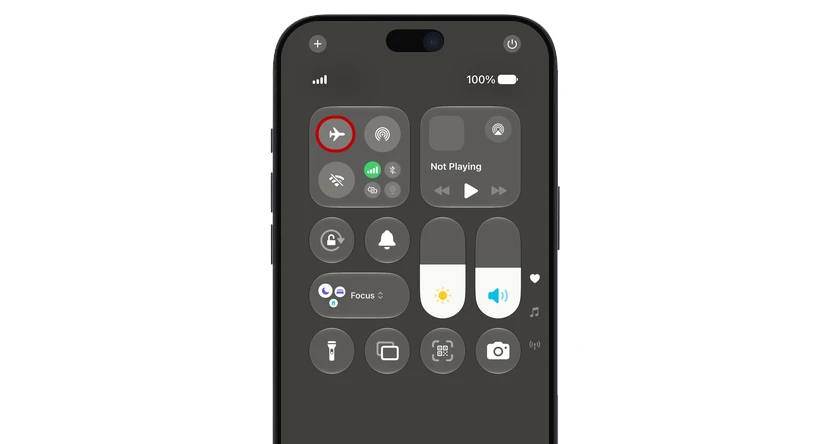
- Open Control Center (swipe down from the top-right corner).
- Tap the Airplane icon and wait at least 15 seconds — Apple recommends 15+ seconds, not just a quick flip.
- Tap it again to turn Airplane Mode off and wait for your carrier name to reappear.
2. Restart Your iPhone
Minor glitches accumulate in any operating system, and a restart clears them. Press and hold the Side button + either Volume button until the power-off slider appears, drag it, wait 30 seconds, then hold the Side button to power back on. If your signal was glitchy rather than consistently weak, this alone often solves it.
3. Remove Your Phone Case
Some cases — especially thick, metal, or magnetic ones — interfere with the iPhone 18’s antenna bands. Take the case off and watch your bars for a minute. If signal improves noticeably, the case is the culprit; look for one explicitly rated as signal-friendly.
Settings Fixes (5–10 Minutes)
4. Check Your Cellular Line Is Turned On
If you use Dual SIM or eSIM, one line may have been disabled:
- Go to Settings → Cellular.
- Tap the line you’re having trouble with.
- Make sure “Turn On This Line” is active.
5. Switch Between 5G and LTE
A weak 5G signal can actually perform worse than a strong 4G/LTE one. Your iPhone doesn’t always switch intelligently when a 5G tower is overloaded.
- Go to Settings → Cellular → Cellular Data Options → Voice & Data.
- Try LTE instead of 5G (or 5G Auto instead of 5G On), then test your signal.
6. Install the Latest Carrier Settings Update
Carriers push silent configuration updates that improve how your iPhone talks to their towers. To check manually:
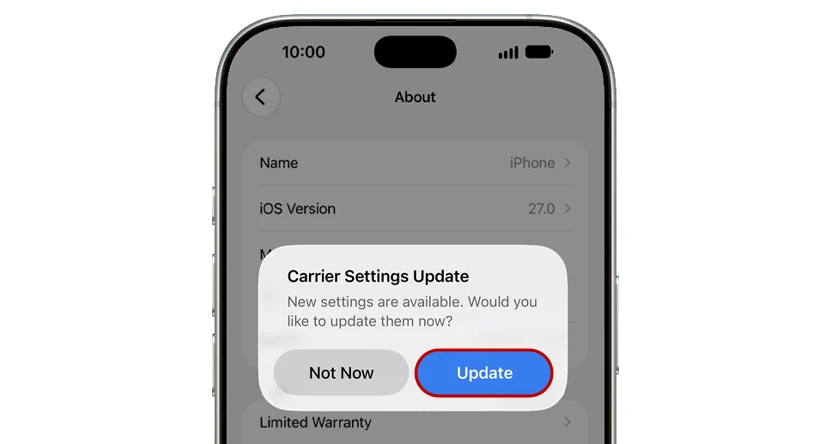
- Connect to Wi-Fi.
- Go to Settings → General → About.
If an update is available, a prompt will appear within about 30 seconds. Install it.
7. Update iOS
Apple regularly patches modem and connectivity bugs. Go to Settings → General → Software Update and install anything pending. If your weak signal appeared right after an iOS update, the next point release usually fixes it — check back in a week.
8. Check and Clean Your SIM Card
A misaligned or dirty SIM causes exactly the kind of intermittent signal loss that drives people crazy:
Power off the iPhone.
- Eject the SIM tray with the SIM tool.
- Inspect the card for scratches or debris, and gently clean the gold contacts.
- Reinsert firmly, power on, and test.
If the SIM is old, warped, or was transferred from another phone, ask your carrier for a replacement — they’re usually free.
Advanced Fixes (10+ Minutes)
9. Reset Network Settings
This wipes saved Wi-Fi passwords and cellular configurations, forcing everything to rebuild from scratch. It’s the single most effective fix for persistent network weirdness — but remember you’ll need to re-enter your Wi-Fi passwords afterward.

- Go to Settings → General → Transfer or Reset iPhone.
- Tap Reset → Reset Network Settings.
- Enter your passcode and confirm.
10. Measure Your Actual Signal With Field Test Mode
iPhone bars are imprecise. For the real number, dial *3001#12345#* and tap Call to open Field Test Mode. Look at the rsrp or rsrq dBm reading:
- -70 to -85 dBm: Excellent.
- -86 to -100 dBm: Good/fair.
- Below -100 dBm: Poor — this is where dropped calls start.
Use this to identify the best spot in your home or office, and to confirm whether a fix actually worked. Toggle Airplane Mode for 5 seconds after moving locations to force a fresh reading.
11. Run Apple’s Built-In Diagnostics
On iOS 18 and later (including iOS 27), you can run official diagnostics through the free Apple Support app from the App Store. It can flag antenna and modem hardware problems before you waste time on software fixes.
12. Contact Your Carrier — Then Apple
If signal is weak everywhere (not just your home), the problem may be your account or your local network, not the phone. Ask your carrier to:
- Verify your account is active and in good standing.
- Confirm there are no outages in your area.
- Check that your device isn’t blocked and has the correct data plan.
If your carrier confirms everything is fine and you’ve tried all the steps above, run the diagnostics in Fix #11. A phone that shows consistently poor dBm readings everywhere after a network settings reset likely has a hardware issue (antenna or modem) and needs service or replacement.
Bonus: Improving Signal at Home
If your signal is only weak inside your home, environmental interference is the cause — concrete, steel, and modern low-E glass are notorious signal killers. Your options:
- Move to a window or higher floor — even one room can make a 20 dBm difference.
- Turn on Wi-Fi Calling (Settings → Cellular → Wi-Fi Calling) so calls route over your broadband.
- Use a carrier-approved signal booster — a three-part system (external antenna, amplifier, indoor antenna) that can take a -100 dBm dead zone to usable signal. Make sure it’s certified for your carrier’s bands before buying.
Frequently Asked Questions
Why does my iPhone 18 show full bars but I can’t make calls?
This is the signature symptom of the known iPhone 18 Pro Max issue on AT&T. Update to iOS 27.0.1 and install the carrier settings update immediately (see the first section). If service is already lost, contact Apple or AT&T for a hardware replacement.
Does resetting network settings delete my photos or apps? No. It only removes saved Wi-Fi passwords, VPN configurations, and cellular settings. Your data, apps, and accounts are untouched.
Is the iPhone 18 signal weaker than older iPhones?
Reception is generally comparable, but congestion on newer 5G bands can make it feel worse. Try switching to LTE (Fix #5) — many users find call reliability improves instantly.
Will a signal booster work with iPhone 18?
Yes, provided it supports your carrier’s frequency bands and is certified (in the U.S., FCC-compliant). It works with any iPhone model, no apps or pairing required.
How do I know if my iPhone 18’s antenna is physically damaged?
If signal is poor everywhere you go — after restarts, network resets, and SIM checks — and the phone has been dropped or repaired recently, hardware damage is likely. Use the Apple Support app diagnostics or visit an Apple Store.
The Bottom Line
Start with Airplane Mode and a restart (fixes 80% of cases), work through the settings fixes, and if you own an iPhone 18 Pro Max on AT&T, install iOS 27.0.1 and the carrier update today. Persistent, everywhere-you-go signal failure points to hardware — and with a phone this new, that’s a warranty conversation, not a repair bill.
6 thoughts on “iPhone 18 Weak Signal? 12 Proven Fixes That Actually Work”