Few things are more frustrating than picking up your brand-new iPhone 18 Pro Max only to find your iMessages won’t send or receive. The good news? In most cases, the fix takes less than two minutes. This article will guide you to fix iMessage not working on your iPhone 18 Pro Max through every solution, starting with the simplest.
Why Can’t I Send or Receive iMessages on My iPhone 18 Pro Max?
There are several possible causes when iMessage stops working on iOS 27:
- iMessage is turned off (or was disabled during setup).
- Your iPhone isn’t connected to Wi-Fi or mobile data.
- Date and time settings are incorrect.
- An eSIM was activated after initial setup, so iMessage never registered.
- A network settings glitch is blocking Apple’s servers.
- Your Apple Account or “Send & Receive” settings need refreshing.
Steps to Fix iMessage Not Working on your iPhone 18 Pro Max
If your iPhone 18 Pro Max can’t send or receive iMessages on iOS 27, the issue is usually caused by incorrect date/time settings, iMessage activation delays, network connectivity problems, or misconfigured Messages app settings.
Work through the steps below in order — most people solve the problem by step 3.
Step 1: Make Sure iMessage Is Turned On 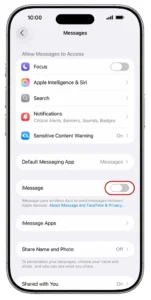
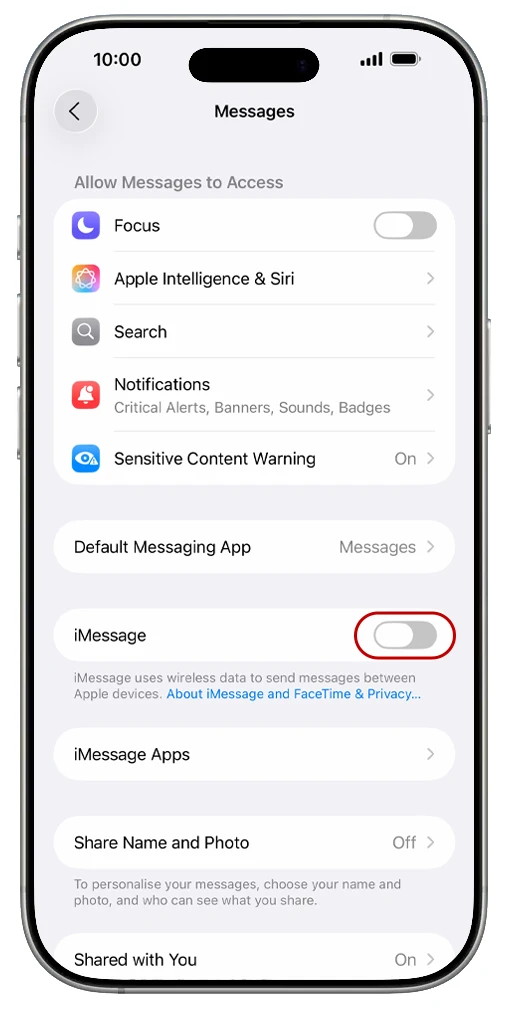
On iOS 27, the Messages settings have moved into the Apps section:
- Tap Settings.
- Tap Apps.
- Tap Messages.
- Tap the toggle next to iMessage to turn the function on.
If it was already on, toggle it off, wait five seconds, then turn it back on. This forces your iPhone to re-register with Apple’s iMessage servers — a fix that resolves a surprising number of issues.
Step 2: Check Your “Send & Receive” Settings
Your phone number and Apple Account email need to be selected so people can reach you:
- Go to Settings > Apps > Messages.
- Tap Send & Receive.
- Make sure your phone number and Apple Account email are checked under “You can Receive iMessage to and Reply From“.
- Under “Start new conversations From,” select your phone number.
If your phone number is missing or greyed out, continue to the next steps — it usually appears once activation completes.
Step 3: Set Date & Time to Automatic 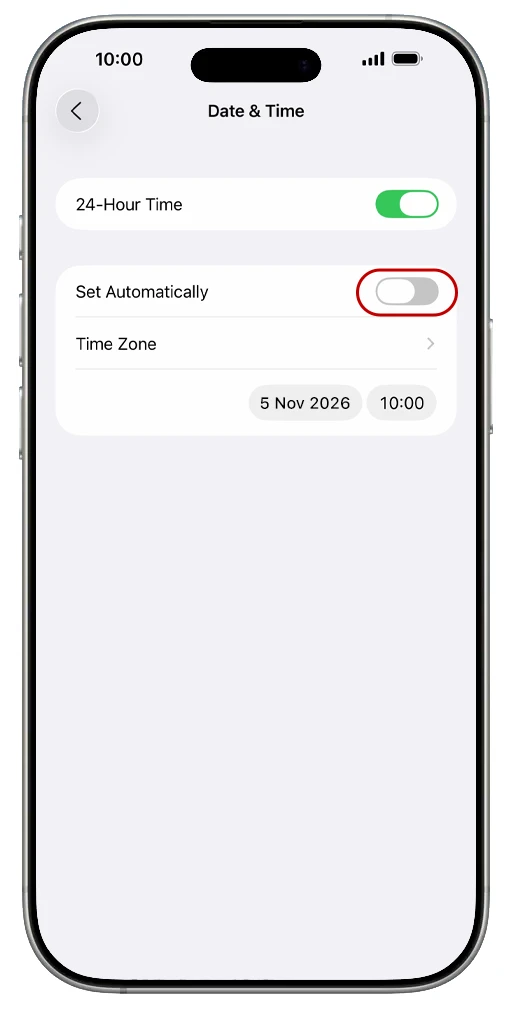
It sounds strange, but if your iPhone’s clock is wrong, Apple’s activation servers can reject your iMessage registration:
- Tap Settings.
- Tap General.
- Tap Date & Time.
- Turn on Set Automatically.
Step 4: Check Your Internet Connection
iMessage needs Wi-Fi or mobile data to work — unlike SMS, it can’t travel over a voice-only connection. Open Safari and load any webpage. If it fails, fix your connection first (toggle Airplane Mode on and off, or rejoin your Wi-Fi network).
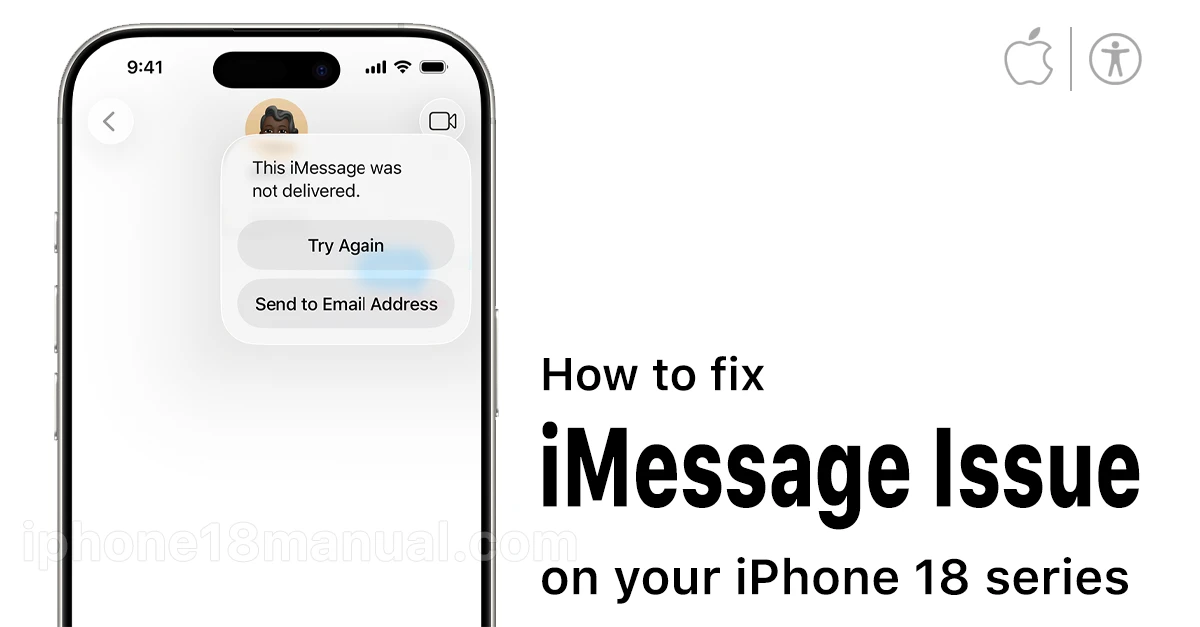
Tip: If a message shows a red “Not Delivered” alert, tap it and choose Try Again — or select Send as Text Message to fall back to SMS.
Step 5: Restart Your iPhone 17 Pro Max
A full restart clears temporary glitches that block activation:
- Press and hold the Side button and Volume Down button together until the power-off slider appears.
- Drag the slider to turn the iPhone off.
- Wait 30 seconds, then press and hold the Side button to turn it back on.
Step 6: Check for iOS 27 Updates
An outdated iOS version can cause messaging bugs:
- Tap Settings > General > Software Update.
- If an update is available, tap Download and Install.
- Try iMessage again after your iPhone restarts.
Step 7: Reset Network Settings 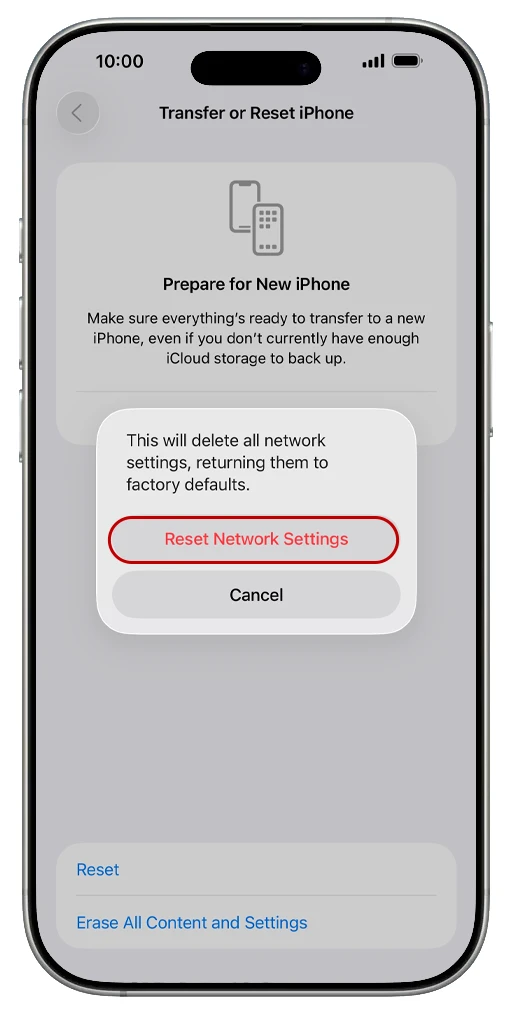
If nothing else works, resetting network settings often fixes stubborn activation problems. Note: this will erase saved Wi-Fi passwords, so have them ready.
- Tap Settings > General > Transfer or Reset iPhone.
- Tap Reset > Reset Network Settings.
- Enter your passcode and confirm.
Your iPhone will restart. Once it reconnects to a network, check whether iMessage activates.
Special Case: iMessage Not Working After Adding an eSIM
On iOS 27, iMessage does not activate automatically if you set up an eSIM after completing your iPhone’s initial setup. Your messages may show green bubbles or fail to send. The fix is simple: go to Settings > Apps > Messages, toggle iMessage off and back on to manually trigger activation.
How Long Does iMessage Activation Take?
Usually just a few minutes. Apple states that in some cases — particularly when your carrier needs to verify your phone number via a hidden international SMS — activation can take up to 24 hours. If you’ve tried every step above and iMessage still says “Waiting for Activation” after a full day, contact your carrier to confirm SMS messaging is enabled on your plan.
Frequently Asked Questions
Why did my iMessages turn green all of a sudden? Green bubbles mean your messages are being sent as SMS/RCS instead of iMessage — usually because iMessage is off, you lost your internet connection, or Apple’s servers are down.
Does iMessage work without Wi-Fi? Yes — iMessage works over both Wi-Fi and mobile data. It only fails when you have no internet connection at all.
Will I be charged for activating iMessage? Activation sends a background international SMS to Apple. Depending on your carrier and plan, a small charge may apply.
The Bottom Line
Most iMessage problems on the iPhone 18 Pro Max come down to three things: iMessage being toggled off, a missing internet connection, or an activation that never completed. Toggle iMessage off and on, check your date and time settings, and restart your phone — for most users, that combination solves the problem in minutes.
By following this guide, most iPhone 18 Pro Max users can resolve iMessage issues within minutes. If problems persist beyond 24 hours, Apple Support can investigate server-side activation blocks or account-specific issues.