If your iPhone 18 Pro Max is not receiving texts, the problem could be caused by incorrect Messages settings, poor cellular reception, an iMessage activation issue, a disabled SIM, or a carrier network problem. Fortunately, you can often restore incoming messages with a few simple troubleshooting steps.
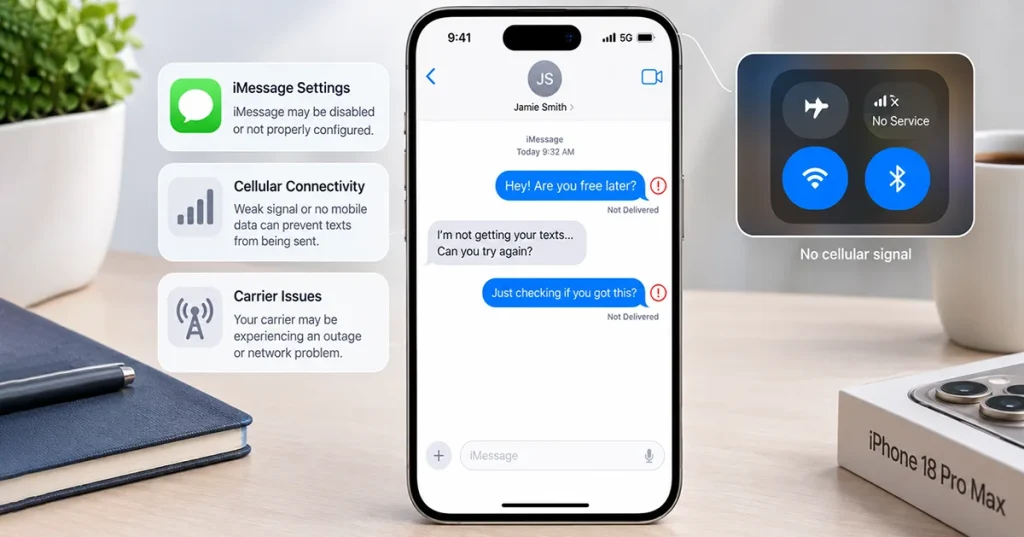
Start by checking your cellular connection, restarting your iPhone, and verifying your iMessage settings. If regular SMS messages and phone calls also stop working, investigate your SIM or carrier connection. Some US iPhone 18 Pro Max users on AT&T have also experienced a confirmed cellular hardware issue that requires device replacement.
Here are 10 ways to fix an iPhone 18 Pro Max that isn’t receiving text messages.
Why Is My iPhone 18 Pro Max Not Receiving Texts?
Your iPhone might stop receiving messages for several reasons. The most common causes include:
- iMessage is disabled or incorrectly configured.
- Your iPhone has a weak cellular signal or no service.
- Your SIM card or eSIM isn’t activated.
- Your carrier is experiencing a network outage.
- SMS, MMS, or RCS messaging isn’t supported or enabled.
- An iOS software bug is affecting Messages.
- A blocked contact or incorrect phone number prevents delivery.
- Focus settings hide incoming message notifications.
Before trying advanced solutions, identify whether you’re missing all messages or only messages from certain contacts.
10 Ways to Fix iPhone 18 Pro Max Not Receiving Text Messages
To fix an iPhone 18 Pro Max not receiving text messages, check your cellular signal, toggle Airplane Mode, and restart your iPhone. Make sure iMessage and SMS are enabled under Settings > Apps > Messages. Also, check blocked contacts, update iOS, and reset network settings if the problem persists.
1. Check Your Cellular Signal
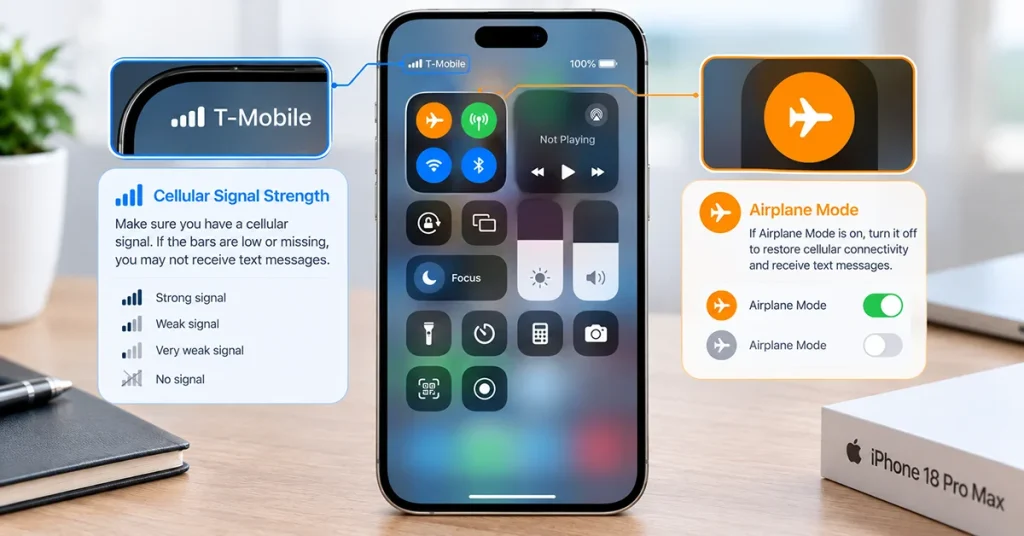
Your iPhone needs an active cellular connection to receive regular SMS messages. If your phone displays SOS, No Service, or Searching, it might not be connected to your carrier’s network.
Try these steps:
- Look at the cellular signal indicator in the status bar.
- Open Control Center by swiping down from the upper-right corner.
- Check whether Airplane Mode is enabled.
- Turn Airplane Mode on, wait approximately 10 seconds, and turn it off.
- Move to an area with better cellular coverage.
- Ask someone to send you another text message.
For iMessage, RCS, and MMS, a working Wi-Fi or cellular data connection may be sufficient. Traditional SMS requires a cellular connection, unless your carrier supports SMS over Wi-Fi Calling.
2. Restart Your iPhone 18 Pro Max
A temporary software glitch can prevent Messages from updating correctly or receiving notifications.
To restart your iPhone:
- Press and hold the Side button and either Volume button.
- Wait until the power-off slider appears.
- Drag the slider to turn off your iPhone.
- Wait approximately 30 seconds.
- Press and hold the Side button until the Apple logo appears.
After restarting, open Messages and check whether new texts arrive.
3. Check Your iMessage Settings
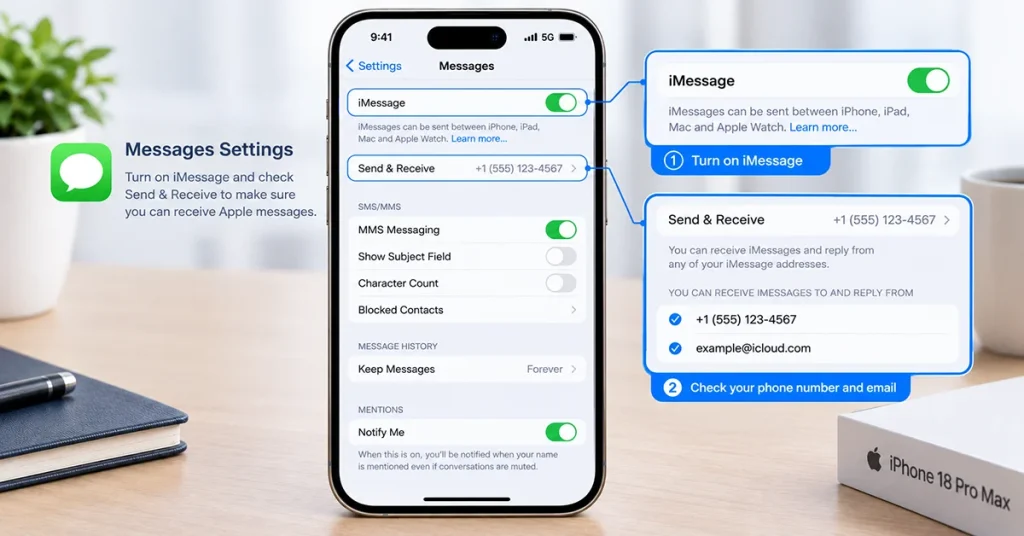
If you aren’t receiving blue-bubble messages from other Apple users, check whether iMessage is enabled.
- Open Settings.
- Tap Apps.
- Select Messages.
- Make sure iMessage is turned on.
- Tap Send & Receive.
- Check that your phone number is selected.
If iMessage is already enabled, turn it off, wait a few seconds, and turn it back on. Allow time for activation to complete.
This is especially important if you recently transferred your data from an older iPhone or activated a new SIM or eSIM.
4. Make Sure Your SIM or eSIM Is Active
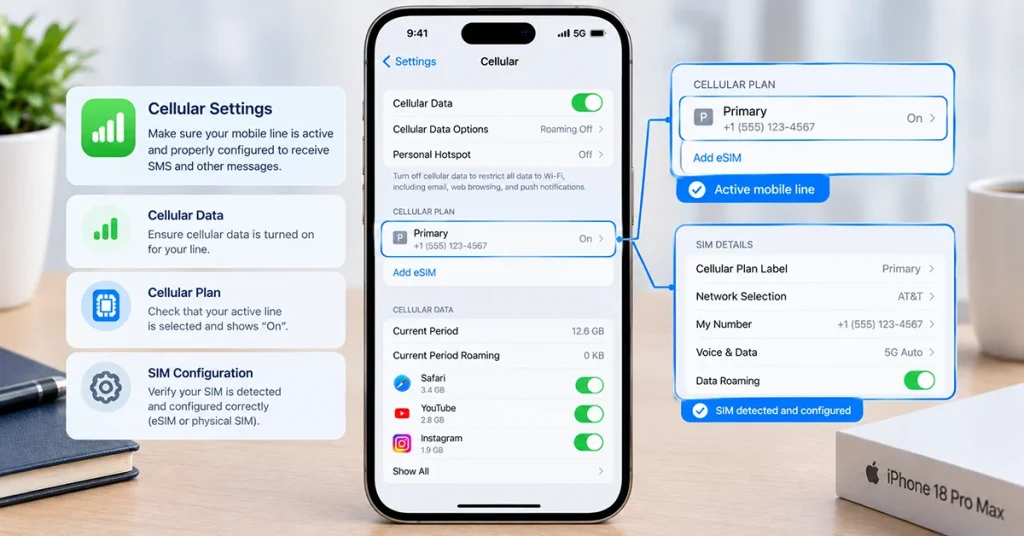
An inactive cellular line can prevent your iPhone from receiving SMS messages, even when Wi-Fi works normally.
To check your cellular line:
- Open Settings.
- Tap Cellular or Mobile Data.
- Select your phone number under SIMs.
- Make sure Turn On This Line is enabled.
- If you use dual SIM, confirm that the correct line is active.
If your eSIM disappeared after a software update or your physical SIM isn’t recognized, contact your carrier before deleting or reinstalling an eSIM.
5. Enable SMS and MMS Messaging
If iMessages work but regular text messages don’t arrive, check your messaging configuration.
Go to:
Settings > Apps > Messages
Review the available options:
- Send as Text Message: Allows your iPhone to use SMS when iMessage is unavailable.
- MMS Messaging: Supports picture and multimedia messages.
- RCS Messaging: Supports compatible messaging with non-Apple devices.
Make sure the relevant options are enabled when available and supported by your carrier.
Remember that these settings don’t guarantee SMS delivery if your cellular service is unavailable.
Refference: Apple Support – If you can’t send or receive messages on your iPhone or iPad.
6. Check Whether the Sender Is Blocked
If you receive messages from everyone except one person, check your blocked contacts.
- Open Settings.
- Tap Apps.
- Select Messages.
- Find the blocked contacts settings.
- Review the list for the sender’s phone number.
- Unblock the number if necessary.
Also ask the sender to verify that they are using your correct phone number, including the country code if sending internationally.
7. Turn Off Focus and Check Message Notifications
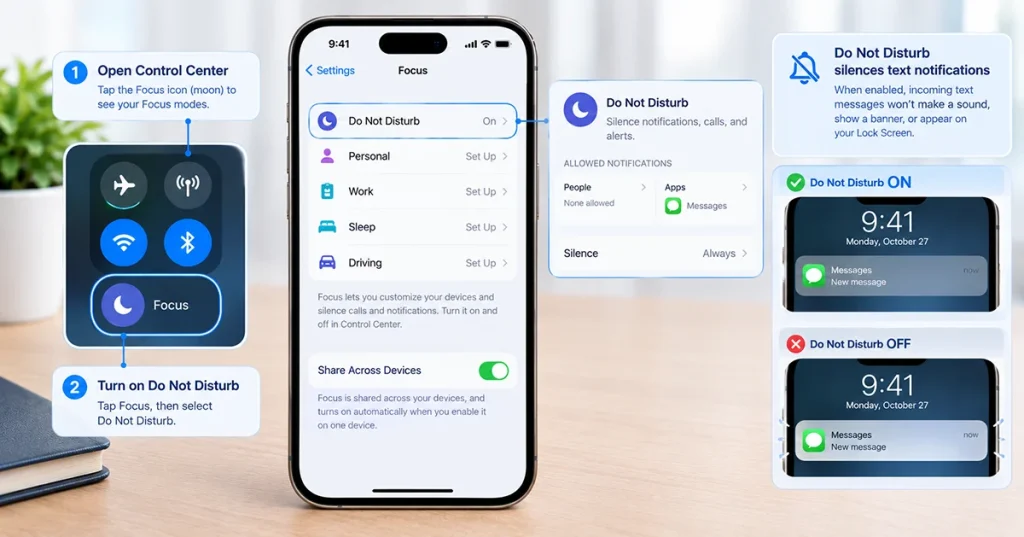
Sometimes your iPhone receives texts but doesn’t display notifications, making it seem like messages aren’t arriving.
To check:
- Open Control Center.
- Tap the active Focus mode.
- Turn off Do Not Disturb or another active Focus profile.
- Open Settings.
- Tap Notifications.
- Select Messages.
- Enable Allow Notifications.
Check the Lock Screen, Notification Center, and Banners options.
Open the Messages app afterward to see whether the missing conversations are already there.
8. Update iOS and Carrier Settings
Outdated software or carrier settings can cause cellular and messaging problems.
To update iOS:
- Connect your iPhone to Wi-Fi.
- Open Settings.
- Tap General.
- Select Software Update.
- Install any available update.
To check carrier settings:
- Open Settings.
- Tap General.
- Select About.
- Wait for a few seconds.
- Install a carrier settings update if prompted.
Carrier updates can improve network connectivity and compatibility. Apple has specifically recommended iOS 27.0.1 and updated AT&T carrier settings for preventing a reported iPhone 18 Pro Max cellular issue.
9. Reset Network Settings
If your iPhone still cannot receive SMS, MMS, or RCS messages, resetting network settings may help resolve incorrect network configurations.
Follow these steps:
- Open Settings.
- Tap General.
- Select Transfer or Reset iPhone.
- Tap Reset.
- Choose Reset Network Settings.
- Enter your passcode if requested.
- Wait for your iPhone to restart.
Important: This removes saved Wi-Fi networks and passwords, cellular settings, and VPN or APN settings. It does not erase your photos, apps, or personal files.
Reconnect to Wi-Fi and test your messaging service again.
10. Contact Your Carrier or Apple Support
If none of these solutions works, contact your mobile carrier to investigate possible network problems.
Ask the carrier to check:
- Whether your SIM or eSIM is properly activated.
- Whether SMS and MMS services are enabled.
- Whether your account has messaging restrictions.
- Whether there is a local network outage.
- Whether your number is correctly registered on the network.
If your iPhone also displays SOS or No Service, cannot make calls, and cannot use cellular data, the problem may involve the device’s cellular hardware.
Important AT&T issue: Apple confirmed in October 2026 that a small number of US iPhone 18 Pro Max devices on AT&T experienced a cellular failure that prevented calls, texts, and mobile data from working. Apple said software updates could help prevent the issue, but devices already affected required replacement rather than a software repair. This issue has not been established for other carriers or international models. Contact Apple Support or AT&T if your symptoms match.
Quick Troubleshooting Reference Table
Use this table to identify the most appropriate solution based on your messaging problem.
| Problem | Recommended solution |
|---|---|
| Not receiving any texts | Check cellular signal and restart iPhone |
| iMessages not arriving | Check iMessage and Send & Receive |
| SMS messages not arriving | Check SIM/eSIM and carrier service |
| Pictures not arriving | Enable MMS Messaging |
| Verification codes missing | Check cellular service and blocked messages |
| Messages arrive without notifications | Check Focus and notification settings |
| Texts stopped after an update | Update carrier settings and reset network settings |
| iPhone shows SOS or No Service | Contact your carrier or Apple |
| Messages missing from one contact | Check blocked contacts and phone number |
| Messages stopped after changing phones | Verify your active phone number and iMessage registration |
Final Thoughts
If your iPhone 18 Pro Max is not receiving texts, start by checking your cellular connection, restarting your device, and verifying your iMessage and SIM settings. For problems involving only SMS messages, contact your carrier to check whether messaging services are properly activated.
If your iPhone displays SOS or No Service and also cannot make phone calls or access mobile data, investigate a possible cellular hardware issue rather than repeatedly changing Messages settings.
Most importantly, install available iOS and carrier updates to keep your iPhone’s messaging and cellular services working properly.
Frequently Asked Questions
Android phones generally send messages using SMS, MMS, or RCS. Check your cellular connection, SIM activation, and the relevant messaging settings. Also confirm that your carrier supports the messaging service you’re trying to use.
iMessages use an internet connection, while traditional SMS messages require cellular network service or supported SMS over Wi-Fi Calling. Check your SIM or eSIM activation and contact your carrier if SMS still doesn’t work.
Verification codes may be delayed because of carrier issues, incorrect phone numbers, blocked messages, or service restrictions. Check your cellular connection, review blocked contacts, and request a new code after a short wait.
Yes. An iOS update may resolve software bugs affecting Messages or cellular connectivity. Installing the latest carrier settings update can also help. However, software cannot fix every hardware-related cellular failure.
SOS indicates that your iPhone cannot connect normally to your cellular carrier but may still be able to make emergency calls through available networks. Check your SIM or eSIM, coverage, and carrier status. If the problem persists, contact your carrier or Apple Support.

1 thought on “How to Fix iPhone 18 Pro Max Not Receiving Texts”