Running out of storage on your iPhone 18? You can free up space without deleting everything on your device. The quickest solution is to open Settings > General > iPhone Storage and identify what’s consuming the most space. Then remove unused apps, delete large videos, optimize photo storage, clear unnecessary message attachments, and remove downloaded files.
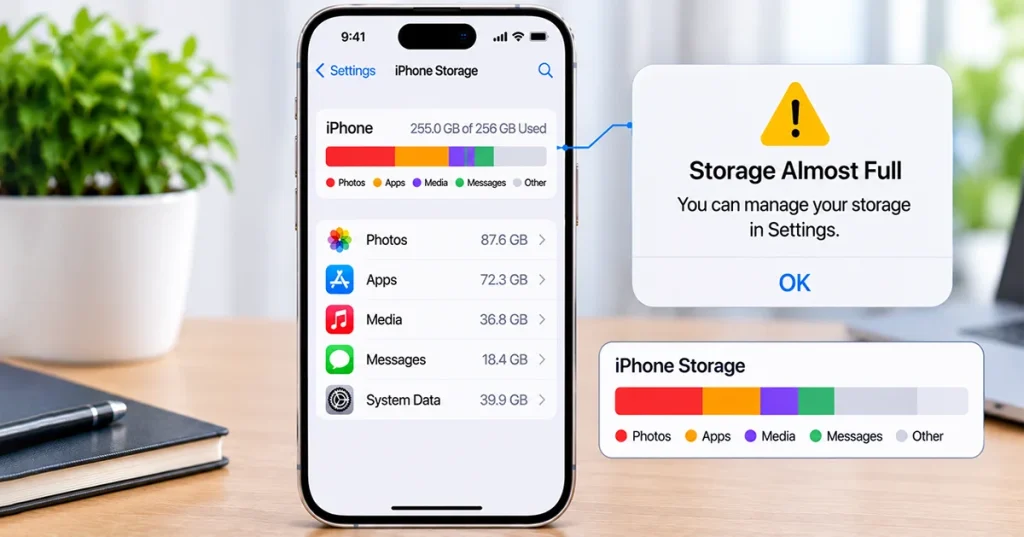
This guide explains 10 practical ways to free up storage on iPhone 18, including how to manage app cache, Safari data, and System Data. Follow these steps to reclaim valuable space while keeping your important photos, documents, and personal information safe.
How to Check Storage on iPhone 18
Before deleting anything, check which apps and files consume the most storage.
- Open the Settings app.
- Tap General.
- Select iPhone Storage.
- Wait for your iPhone to calculate storage usage.
- Review the storage bar and app list.
You’ll see how much space Photos, Applications, Messages, iOS, and other categories occupy. Your iPhone may also display storage recommendations to help you reclaim space.
Start with the largest categories because removing a few large files can free up more storage than deleting dozens of small items.
10 Ways to Free Up Space on iPhone 18
Offloading unused apps, optimizing photos with iCloud, deleting large videos is one of the recommended. Here are best Ways to Free Up Space on your iPhone 18.
1. Enable iPhone Storage Recommendations
Your iPhone can suggest ways to recover storage automatically.
- Go to Settings > General > iPhone Storage.
- Find the Recommendations section.
- Tap Show All if available.
- Review each recommendation.
- Tap Enable or follow its instructions.
Depending on your storage usage, recommendations may include offloading unused apps, reviewing large attachments, or optimizing photos.
2. Offload Unused Apps
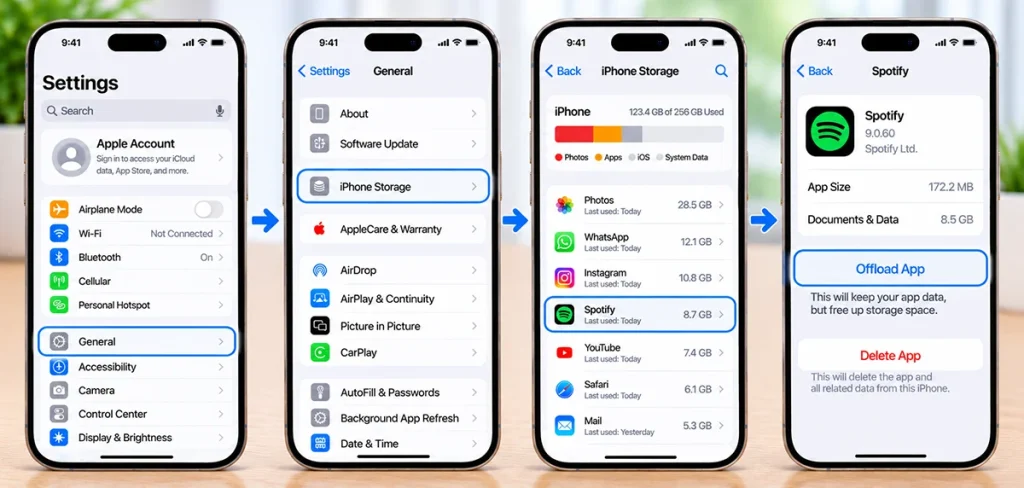
Apps you rarely use can consume several gigabytes of storage. Instead of deleting them completely, use Offload App to remove the application while keeping its documents and data.
- Open Settings > General > iPhone Storage.
- Select an app you rarely use.
- Tap Offload App.
- Confirm your selection.
The app icon remains on your Home Screen with a cloud symbol. Tap it later to reinstall the app and restore its retained data.
You can also enable automatic offloading through Settings > Apps > App Store > Offload Unused Apps.
3. Optimize Photos and Videos with iCloud
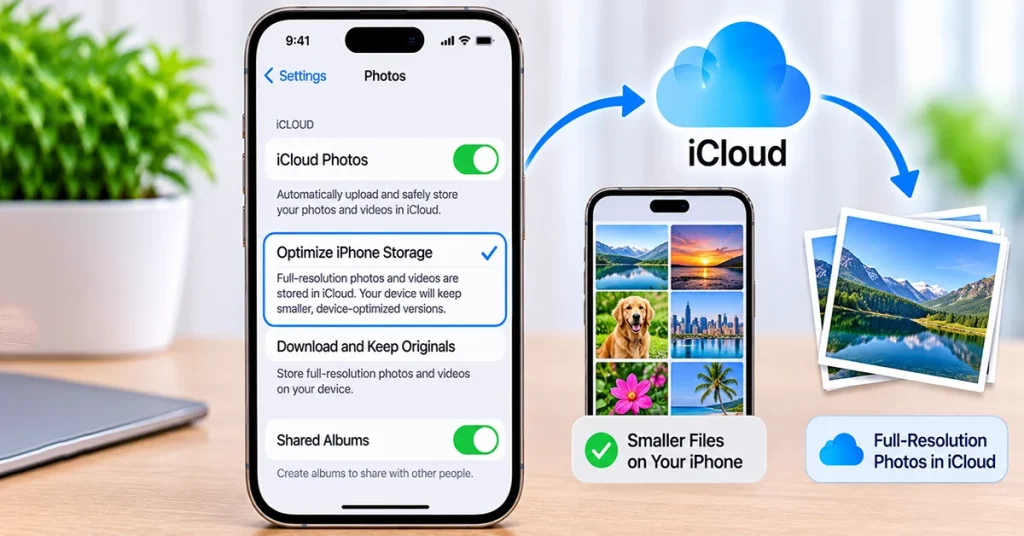
Photos and videos often consume more storage than anything else on an iPhone. iCloud Photos can help reduce the space they occupy locally.
- Open Settings.
- Tap your Apple Account name.
- Select iCloud > Photos.
- Turn on Sync this iPhone.
- Select Optimize iPhone Storage.
Your iPhone keeps smaller, space-saving versions locally while storing full-resolution originals in iCloud.
Make sure your photos have finished uploading before relying on this feature. iCloud storage may require a paid upgrade if your library exceeds the available free space.
4. Delete Large and Unnecessary Videos
High-resolution recordings can quickly fill your iPhone 18 storage. Review your video library and remove recordings you no longer need.
- Open the Photos app.
- Tap Collections > Media Types > Videos.
- Review large or unwanted recordings.
- Select videos you no longer need.
- Tap the trash icon and confirm deletion.
Also check Recently Deleted in Photos. Deleted videos remain there temporarily and continue occupying storage until you permanently remove them.
Back up important recordings before deleting them.
5. Delete Large Message Attachments
Conversations in Messages can accumulate photos, videos, voice messages, and documents.
To remove unnecessary attachments:
- Open Settings > General > iPhone Storage.
- Select Messages.
- Review categories such as Photos, Videos, and Other.
- Select large attachments.
- Delete items you no longer need.
You can also manage message retention by opening Settings > Apps > Messages > Keep Messages and selecting 30 Days or 1 Year instead of Forever.
Remember that changing this setting can permanently remove older conversations.
6. Clear Safari Cache and Browsing Data
Safari stores browsing history, cookies, and website data that can accumulate over time.
Follow these steps:
- Open Settings.
- Tap Apps > Safari.
- Select Clear History and Website Data.
- Choose the desired time range.
- Confirm your selection.
This removes selected browsing history and website data. You may need to sign in to some websites again.
7. Remove Unnecessary Downloads
Downloaded files, offline movies, music, and podcasts can consume considerable storage.
To clean downloaded files:
- Open the Files app.
- Tap Browse > On My iPhone.
- Review the Downloads folder.
- Select unnecessary documents and files.
- Tap Delete.
Also review offline downloads in streaming apps such as Apple TV, Netflix, Spotify, and YouTube. Remove content you’ve already watched or listened to.
8. Clear WhatsApp and Other App Storage
Messaging and social media apps can accumulate large amounts of photos, videos, and temporary data.
For WhatsApp:
- Open WhatsApp.
- Go to Settings > Storage and Data.
- Tap Manage Storage.
- Review large files and forwarded media.
- Select unwanted items and delete them.
For other apps, open Settings > General > iPhone Storage and select the app to inspect its Documents & Data usage.
Some apps offer their own cache-clearing options. If an app has no such option, deleting and reinstalling it may remove locally stored data. Back up important information first.
9. Reduce iPhone System Data
System Data includes temporary files, caches, logs, and other system resources. Its size can change depending on how you use your iPhone.
You cannot directly delete all System Data from Settings, but these actions may help:
- Restart your iPhone 18.
- Install available iOS updates.
- Remove unnecessary downloaded files.
- Clear Safari browsing data.
- Allow iOS to manage temporary files automatically.
Avoid third-party cleaner apps that promise to remove all System Data. iOS manages many of these files automatically when additional storage is needed.
10. Transfer Files to a Computer or External Storage
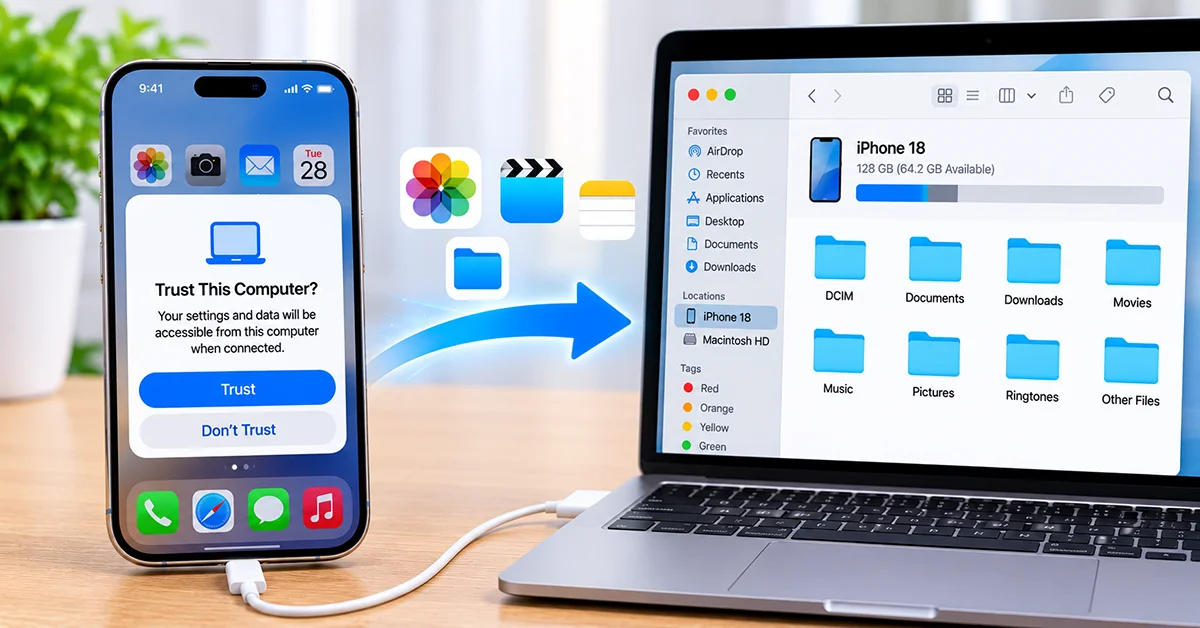
If you want to keep your photos and videos without storing everything on your iPhone, transfer them to another location.
You can use:
- Mac: Import photos through the Photos app.
- Windows PC: Transfer photos using the Apple Devices app or Windows Photos.
- External storage: Copy compatible files using a supported USB-C storage device.
- Cloud storage: Upload documents and media to a service such as iCloud Drive or Google Drive.
Verify that your files have transferred successfully before deleting the originals from your iPhone.
Quick Reference: Best Ways to Free Up iPhone 18 Storage
| Method | What it frees up | Risk |
|---|---|---|
| Offload unused apps | App installation files | Low |
| Optimize Photos | Local photo storage | Low |
| Delete large videos | Video storage | Medium |
| Remove message attachments | Photos and videos in Messages | Medium |
| Clear Safari data | Browsing data and website information | Low |
| Delete downloads | Offline files and documents | Low |
| Clean WhatsApp media | Shared photos and videos | Medium |
| Manage System Data | Temporary and cached files | Low |
| Transfer files to PC | Local photos and documents | Low |
How to Prevent iPhone 18 Storage from Filling Up Again
Once you’ve recovered storage, follow these habits to keep your iPhone running smoothly:
- Enable Optimize iPhone Storage if you use iCloud Photos.
- Remove downloaded movies and music after viewing.
- Review WhatsApp and Messages attachments regularly.
- Offload apps you rarely use.
- Transfer important videos to a computer or cloud service.
- Check Settings > General > iPhone Storage every few weeks.
Keeping some free storage available also helps prevent problems when installing iOS updates or recording new videos.
Frequently Asked Questions
Deleted photos may remain in the Recently Deleted album for up to 30 days. Open Photos > Collections > Recently Deleted and permanently remove unwanted items. Also check app data, Messages attachments, and downloaded files.
Some apps provide built-in cache-clearing options. However, iOS does not offer a universal button to clear every app’s cache. Check individual app settings or reinstall an app after backing up its important data.
iPhone Storage refers to the physical storage available on your device. iCloud Storage is online space associated with your Apple Account. Buying additional iCloud storage does not automatically increase your iPhone’s physical capacity.
Try to maintain at least 1–2 GB of available space as a practical minimum, with more available if you regularly record high-resolution videos or install large updates.
Final Thoughts
The easiest way to free up space on iPhone 18 is to start with Settings > General > iPhone Storage and remove unnecessary content from the largest categories. Offloading unused apps, optimizing photos, deleting large videos, and cleaning messaging attachments can recover significant storage.
Regularly reviewing downloads and app data will also help prevent the Storage Almost Full warning from appearing again.

1 thought on “How to Free Up Space on iPhone 18: 10 Easy Ways to Clear Storage”