Tired of your iPhone 18 Pro Max buzzing with robocalls, spoofed numbers, and “extended warranty” scams? You’re not alone — Americans received over 78 billion robocalls in a single recent year, an 8% jump year over year. In this guide, you’ll learn exactly how to block spam calls on iPhone 18 Pro Max using built-in iOS 27 features — plus carrier tools and third-party apps for maximum protection.
Why You’re Getting So Many Spam Calls
Before we block them, it helps to understand why they keep coming. Spammers get your number when you:
- Enter it on shopping sites, sweepstakes, or warranty registrations.
- Post it publicly on social media, marketplaces, or forums.
- Fall victim to a data breach (your number was likely leaked at least once).
- Have a friend whose contacts got harvested by a scammer.
- Scammers also use “neighbor spoofing” — faking a local area code so you’re more likely to answer — and rotate through hundreds of numbers, so blocking one number rarely stops the calls.
That’s why you need system-level blocking, not just number-by-number blocking. Here’s how to set it up.
Some Methods to Block Spam Calls on iPhone 18 Pro Max
Spam calls are one of the most annoying parts of owning a smartphone. Fortunately, your iPhone 18 Pro Max running iOS 27 includes several built-in tools that can screen unknown callers, silence suspected spam, and permanently block specific numbers.
This guide shows you the best ways to stop spam and scam calls using the Phone settings already installed on your iPhone.
Method 1: Turn On Call Screening (Best iOS 27 Feature)
Call Screening is the star of iOS 27. Instead of ringing your phone, your iPhone automatically answers calls from unsaved numbers, asks the caller for their name and reason for calling, then shows you their response so you can decide whether to pick up — all without interrupting you.
How to enable Call Screening on iPhone 18 Pro Max:
- Open the Settings app.
- Tap Apps, then tap Phone.
- Scroll to Screen Unknown Callers.
- Choose Ask Reason for Calling.
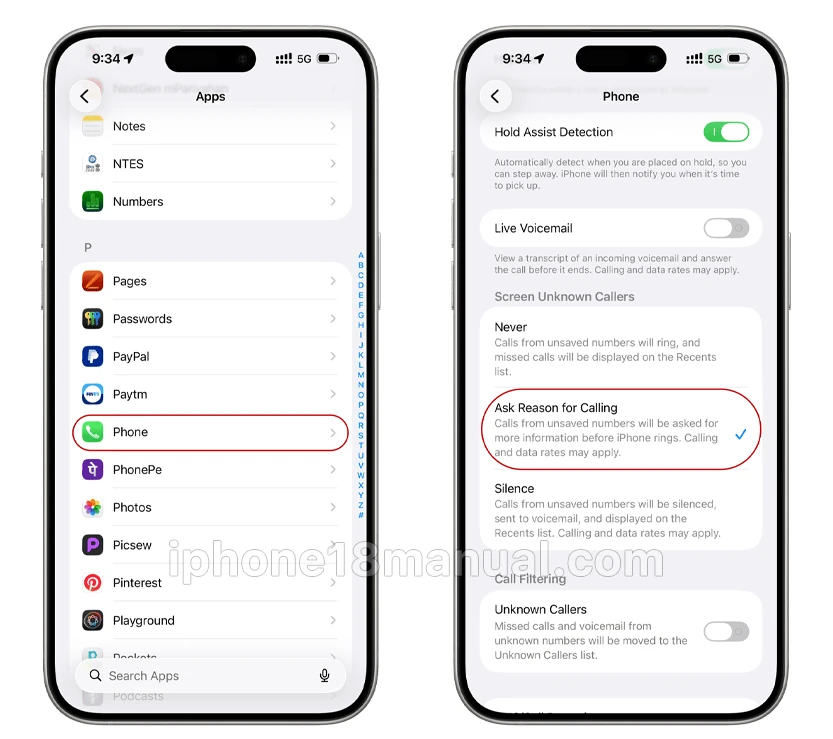
Your options:
- Never — Unknown numbers ring normally (off).
- Ask Reason for Calling — Callers are screened before your phone rings (recommended).
- Silence — Unknown calls go straight to voicemail.
Good to know: Call screening turns off automatically for 24 hours after you call emergency services, and calls aren’t screened while roaming.
Method 2: Silence Unknown Callers
If you’d rather skip screening entirely, iOS 27 can silence every call from a number not in your contacts, sending them straight to voicemail.
How to silence unknown callers:
- Open Settings.
- Tap Apps > Phone (or FaceTime).
- Under Screen Unknown Callers, select Silence.
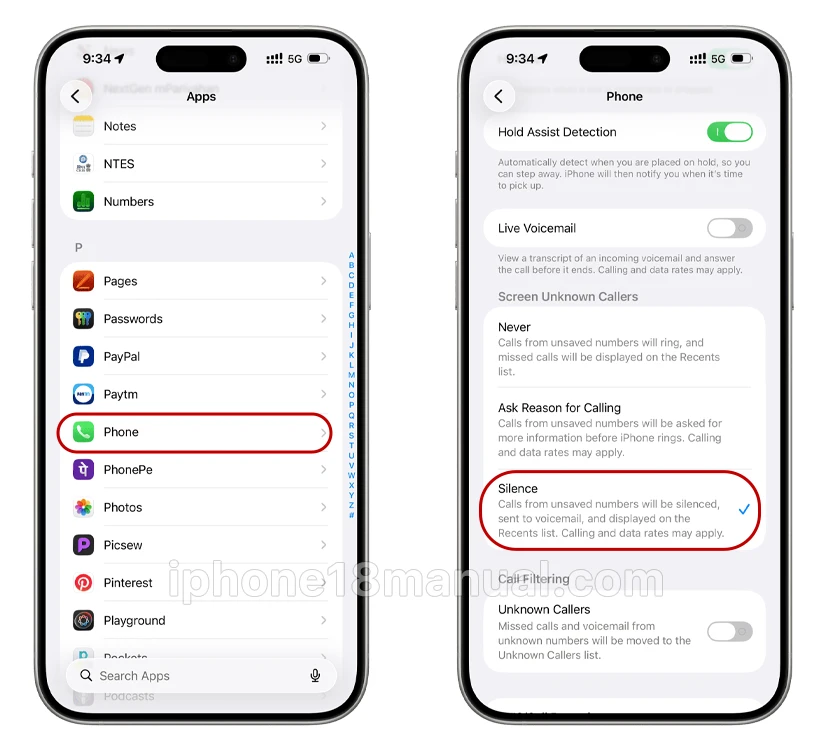
Warning: This can silence “good” unknown calls too — like a job interview or a restaurant confirming a reservation. If that worries you, use Call Screening (Method 1) instead.
Method 3: Filter Unknown and Spam Calls Into Separate Lists
iOS 27’s Call Filtering keeps your Recents list clean by moving junk calls into dedicated lists.
How to turn it on:
- Open Settings.
- Tap Apps > Phone.
- Under Call Filtering, turn on:
- Unknown Callers — calls from unsaved numbers are moved out of Recents into an Unknown Callers list.
- Spam — calls your carrier flags as potential spam or fraud are silenced, sent to voicemail, and moved to a Spam list .
To review filtered calls: Open the Phone app, tap the filter icon, then tap Unknown Callers or Spam. If a legitimate caller lands in Unknown Callers by mistake, tap the call > Mark as Known so future calls ring normally.
Method 4: Turn On Call Identification
Your iPhone 18 Pro Max can identify incoming calls using data from Apple Business Connect, your carrier, and call identification apps — so “Likely Spam” or a business name appears on your screen before you answer.
How to enable it:
- Open Settings.
- Tap Apps > Phone > Call Blocking & Identification.
- Turn on Business Call Identification and any call identification apps you’ve installed.
On some carriers, you’ll also see a Silence Junk Callers toggle in this same menu — turn it on to send carrier-flagged spam straight to voicemail.
Method 5: Block a Specific Number on Your iPhone 18 Pro Max
Got a persistent spammer using the same number? Block them permanently:
- Open the Phone app.
- Tap Contacts (or Recents), then tap the number/contact.
- Scroll down and tap Block Contact / Block this Caller.
To unblock someone: Settings > Apps > Phone > Blocked Contacts > Edit > unblock.
Method 6: Enable iOS 27’s Impersonation Risk Detection
New in iOS 27: Apple added an Impersonation Risk Detection feature designed to catch scammers pretending to be your bank, a government agency, or a family member. Critically, it’s off by default — you have to turn it on manually.
iOS 27 also introduces a new framework that lets apps detect social-engineering scams in real time across voice calls, texts, and emails — a major leap beyond simple number blacklists.
Method 7: Install a Third-Party Spam Blocker App
For the toughest spam — especially the rotating-number kind that built-in tools miss — a dedicated app adds constantly updated spam databases and reverse-number lookup.
| App | Best For | Price |
|---|---|---|
| Truecaller | Global caller ID & spam lookup | Free |
| RoboKiller | Blocking + answer bots | Free trial, then ~\$3.99/mo |
| Hiya | Free spam detection | Free |
| Nomorobo | Robocall + text protection | ~\$1.99/mo |
Setup: Install the app, grant it permission in Settings > Apps > Phone > Call Blocking & Identification, and it works alongside Apple’s built-in filters.
Method 8: Use Your Carrier’s Free Spam Protection
Your wireless carrier likely offers its own spam-blocking layer — and the basic versions are usually free:
- AT&T ActiveArmor — spam and fraud call blocking (free basic tier).
- Verizon Call Filter — call screening, spam reporting (free basic tier).
- T-Mobile Scam Shield — real-time scam blocking (free basic tier).
Carrier databases catch network-level spam before it even reaches your phone.
Method 9: Bonus Layers — Live Voicemail and Focus
- Live Voicemail shows a real-time transcript as the caller leaves a message, so you can pick up mid-voicemail if it turns out to be important.
- Focus modes (Settings > Focus) silence all calls except those from your contacts or allowed people during work, sleep, or driving.
How to Report Spam Calls (Help Shut Them Down)
Blocking protects you; reporting helps everyone:
- Report Junk to Apple — In Messages, touch and hold a spam text > Report Junk.
- Report to the FTC — File a complaint at reportfraud.ftc.gov.
- Register with the National Do Not Call Registry — Visit DoNotCall.gov or call 888-382-1222. It won’t stop overseas scammers (beyond FTC reach), but it legally blocks legitimate telemarketers.
How to Prevent Spam Calls in the First Place
- Never answer unknown numbers — answering confirms your number is active.
- Don’t call back missed unknown numbers — look them up first.
- Stop sharing your number online — use a secondary number for sign-ups.
- Audit your contacts and delete suspicious entries.
Final Recommendation
For the best spam-call protection on your iPhone 18 Pro Max, enable Ask Reason for Calling, turn on Unknown Callers, and activate Spam filtering if your carrier supports it. Then manually block repeat offenders. This combination filters most robocalls while still allowing important unknown callers to reach you.
2 thoughts on “How to Block Spam Calls on iPhone 18 Pro Max (iOS 27): The Complete Guide”