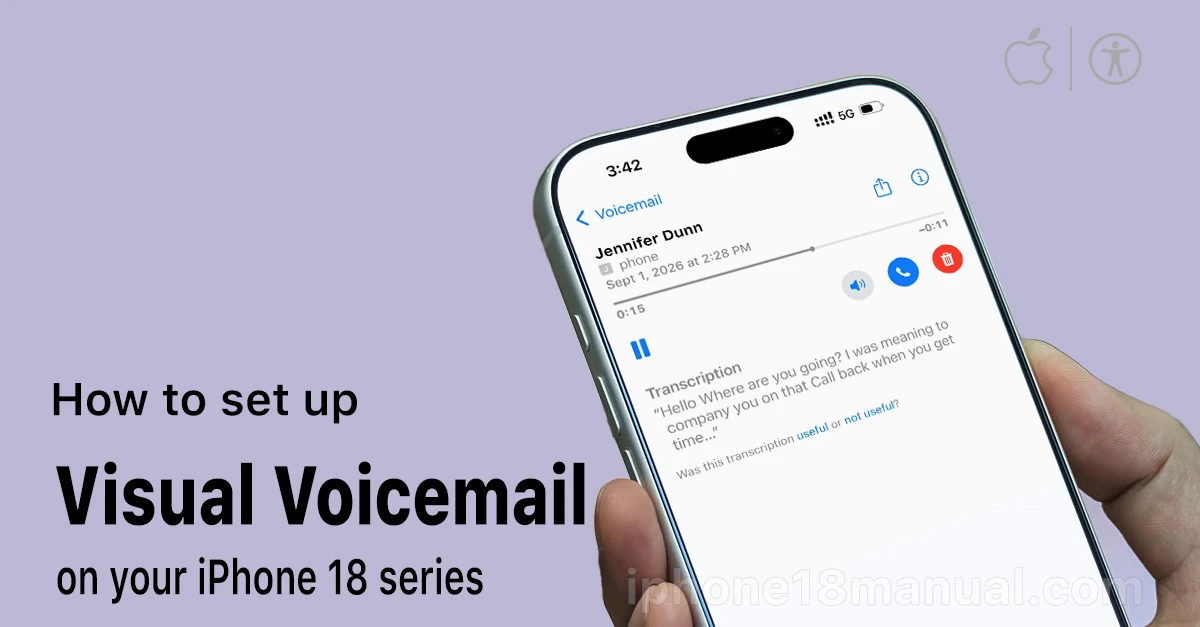
Just unboxed your iPhone 18 or updated to iOS 27? One of the first things you’ll want to do is set up voicemail — because voicemail is a carrier feature, it doesn’t activate itself automatically. Whether you want a classic greeting, a custom recording, or the real-time transcription power of Live Voicemail, this guide covers every step, plus fixes for the most common voicemail problems on iOS 27.
Quick Answer: Set Up Voicemail on iPhone 18 in 4 Steps
- Open the Phone app.
- Tap the three-lines (filter) button in the top-right corner, then tap Voicemails. (On the Classic layout, just tap the Voicemail tab at the bottom.)
- Tap Set Up Now, create a voicemail password (4–6 digits), and confirm it.
- Choose Default for the standard greeting, or Custom to record your own — then tap Save.
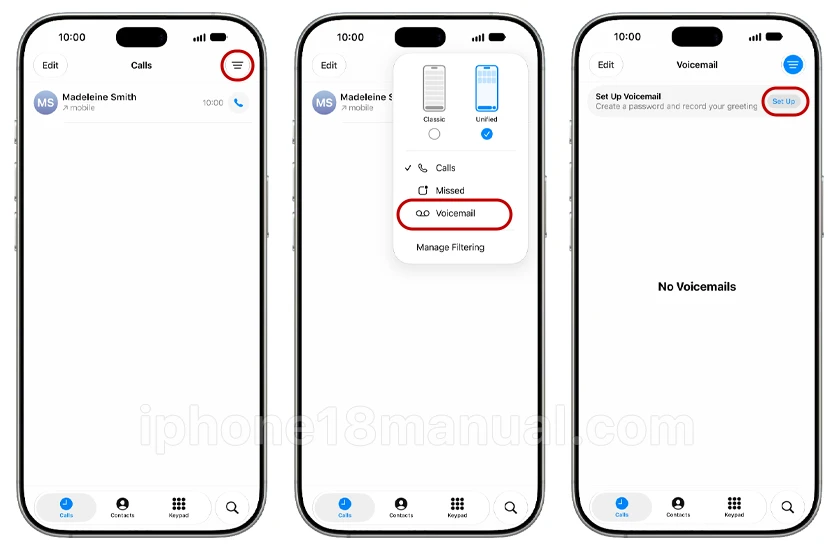
That’s it. Your iPhone 18 voicemail is now live.
Heads up: In iOS 27’s redesigned Phone app, Voicemail is tucked behind a menu instead of sitting in its own tab. If you can’t find it, you’re not alone — we show you exactly where it is below.
What You’ll Need Before You Start
- An active carrier plan with voicemail support (voicemail is provided by your carrier, not Apple).
- Cellular signal — voicemail setup won’t complete on Wi-Fi-only connections.
- Your iPhone 18 activated with your carrier (eSIM set up and working).
Note: Voicemail, Visual Voicemail, and Live Voicemail are available from select carriers in select countries or regions. If you don’t see the options below, contact your carrier.
How to Set Up Voicemail on iPhone 18 (Detailed Steps)
Setting up voicemail on an iPhone 18 running iOS 27 takes only a few minutes.
Method 1: Unified Phone App Layout (iOS 27 Default)
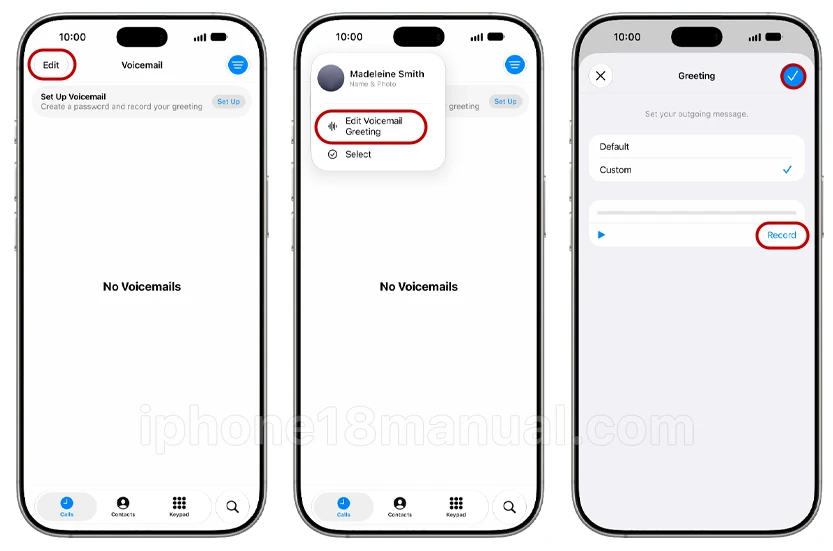
- Open the Phone app.
- Tap the three-lines (filter) button in the top-right corner.
- Tap Voicemails, then tap Edit.
- Tap Edit Voicemail Greeting.
- If this is your first time, create a voicemail password (4–6 digits), then confirm it.
- Select your greeting:
- Default — a standard automated greeting with your number.
- Custom — tap Record, speak, tap Stop, then Play to preview. Re-record until you’re happy.
- Tap Save to finish.
Method 2: Classic Phone App Layout
- In the Phone app, tap the three-lines button in the top-right corner.
- Tap Classic to restore the traditional tab bar.
- Tap the Voicemail tab in the bottom-right corner.
- Tap Set Up Now, create and confirm your password.
- Tap Greeting, choose Default or Custom, then tap Save.
Tip: If tapping Voicemail initiates a phone call instead of showing setup options, your carrier uses traditional voicemail. Follow the audio prompts, or dial your carrier’s voicemail number (e.g., *86 on Verizon) to set up.
How to Record a Custom Voicemail Greeting
“Hi, you’ve reached [your name]. I can’t take your call right now, but leave your name, number, and a short message and I’ll get back to you as soon as I can.”
Recording tips: hold the iPhone 8–10 inches away, record in a quiet room, and use Play to review before saving.
How to Turn On Live Voicemail on iPhone 18
Live Voicemail shows a real-time transcription as the caller leaves a message — and you can pick up mid-message. To enable it: Settings > Apps > Phone > Live Voicemail.
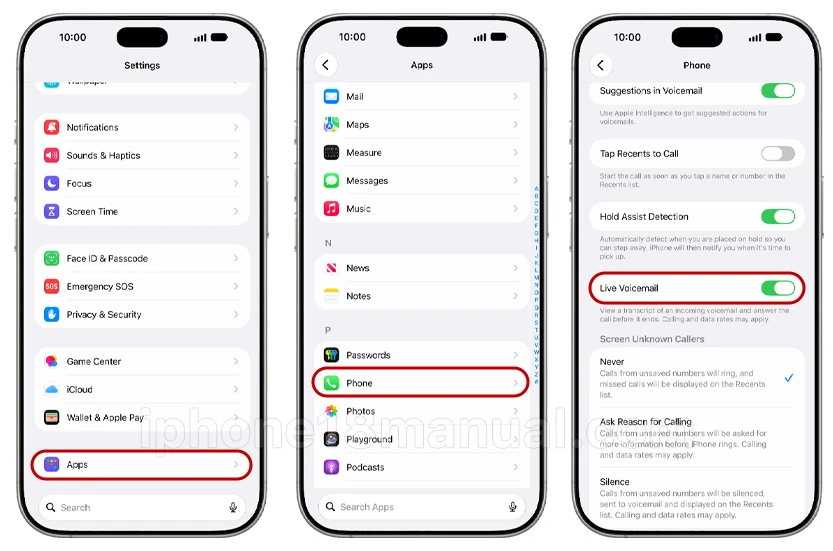
The caller can’t hear you unless you answer; with Silence Unknown Callers on, unknown numbers go straight to Live Voicemail. If your iPhone is off or out of carrier range, calls fall back to carrier voicemail.
Using Visual Voicemail on iOS 27
- Play messages via the speaker icon; read automatic transcriptions.
- Tap the phone icon to call back or trash icon to delete.
- Tap the Share icon to save or send a voicemail via AirDrop/Messages/Mail.
Sync across devices: Settings > [Your Name] > iCloud > See All > turn on Phone & FaceTime.
How to Change Your Password or Greeting Later
- Greeting: Phone app > three-lines button > Voicemails > Edit > Edit Voicemail Greeting (Unified), or Voicemail tab > Greeting (Classic).
- Password: Settings > Apps > Phone > Change Voicemail Password. Forgot it? Only your carrier can reset it.
Voicemail Not Working on iPhone 18? 8 Fixes
- Restart your iPhone — resolves most post-update glitches.
- Check cellular signal — setup requires a carrier connection.
- Verify your plan supports Visual Voicemail (sometimes an add-on).
- Toggle Airplane Mode for 10 seconds.
- Check for a carrier settings update: Settings > General > About.
- Reset network settings: Settings > General > Transfer or Reset iPhone > Reset > Reset Network Settings (re-enters Wi-Fi passwords).
- Can’t find the Voicemail tab? It’s behind the three-lines menu in iOS 27, or switch to Classic layout.
- Call your carrier — if “Set Up Now” never appears, your mailbox isn’t provisioned on their end.
How to Check Voicemail from Another Phone
Dial your own number, press ***** or # when the greeting plays (varies by carrier), then enter your password.
Frequently Asked Questions
Is voicemail free on iPhone 18?
Voicemail is included with virtually all carrier plans; Live Voicemail transcription uses a small amount of data.
What’s the difference between Visual Voicemail and Live Voicemail?
Visual Voicemail lists messages after they’re left; Live Voicemail transcribes in real time while the caller is still recording — so you can decide whether to pick up.
Does iOS 27 have new voicemail features?
Yes — iOS 27 brings voicemail to Assistive Access for the first time, making it available in the simplified iPhone interface.
Why did my voicemail disappear after updating?
It didn’t — the Phone app redesign moved it behind the three-lines menu. Select Voicemail from that menu, or switch to Classic layout.
How many messages can iPhone 18 store?
Storage is set by your carrier, not the phone — typically 20–40 messages. Syncing to iCloud and deleting old messages is a good habit.
Never Miss an Important Message Again
Setting up voicemail on your iPhone 18 takes under three minutes: open the Phone app, find Voicemails behind the filter menu, create your password, and record a greeting. Enable Live Voicemail for real-time transcriptions and iCloud sync so messages follow you across devices. And if anything goes wrong, the fix is almost always a restart, a carrier settings update, or a quick call to your carrier.
2 thoughts on “How to Set Up Voicemail on iPhone 18 (iOS 27): Step-by-Step Guide”