
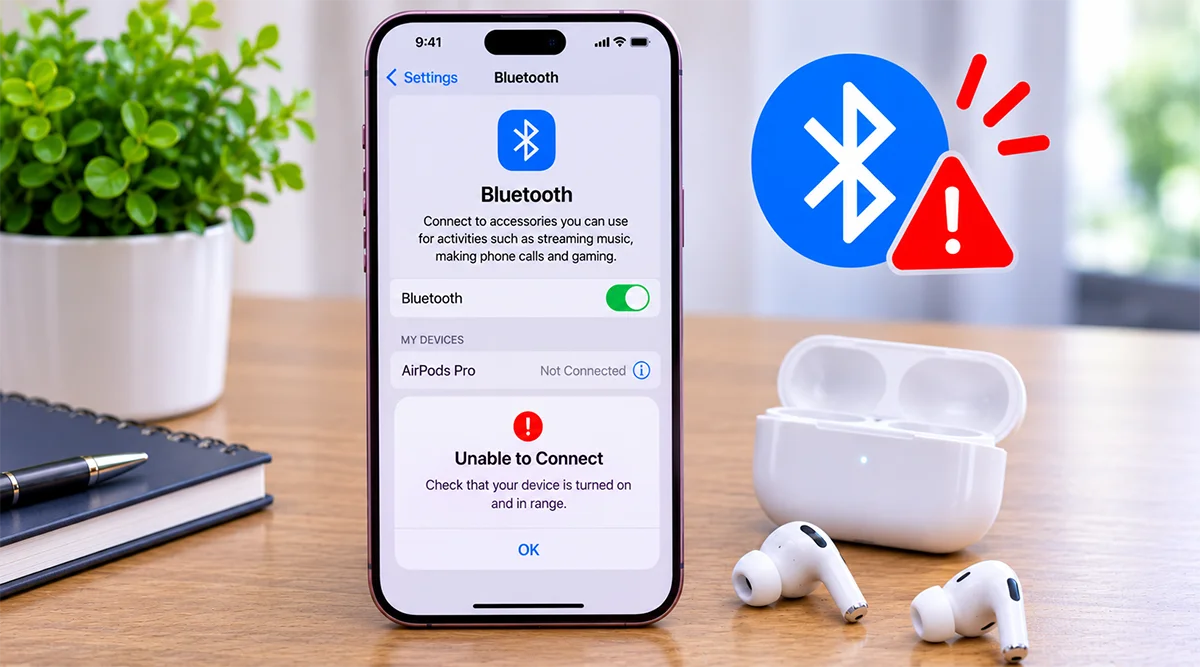
Is Bluetooth not working on your iPhone 18 Pro Max? Whether your iPhone cannot find nearby devices, refuses to connect to AirPods, keeps disconnecting from your car, or fails to turn Bluetooth on, several troubleshooting methods can help restore the connection.
In most cases, the problem comes from an outdated pairing, an accessory issue, wireless interference, or a temporary iOS software glitch. You can often fix it without visiting an Apple service center.
Below are the fastest, most effective fixes, starting with the ones that solve the problem for the majority of users.
Why Is Bluetooth Not Working on iPhone 18 Pro Max?
Before trying advanced solutions, identify what is causing the connection problem.
Common reasons include:
- Temporary software glitches: iOS may experience Bluetooth connection errors after a software update or restart.
- Corrupted pairing information: Previously saved Bluetooth connections may prevent devices from reconnecting.
- Accessory problems: Wireless headphones, speakers, and car systems may have low batteries or outdated firmware.
- Bluetooth interference: Nearby wireless devices or physical obstacles can affect connection stability.
- Incorrect permissions: Some apps require Bluetooth permission to communicate with accessories.
- Compatibility issues: Certain Bluetooth accessories may not support all iPhone features.
Try the following solutions in order, starting with the easiest fixes.
9 Ways to Fix iPhone 18 Pro Max Bluetooth Not Working
This guide explains nine ways to fix iPhone 18 Pro Max Bluetooth problems, including pairing failures, random disconnections, and accessories that won’t connect.
1. Turn Bluetooth Off and Back On

A temporary Bluetooth connection glitch can prevent your iPhone from discovering nearby devices.
Refreshing the Bluetooth connection is a good first step.
- Open Settings on your iPhone.
- Tap Bluetooth.
- Turn off the Bluetooth switch.
- Wait approximately 10 seconds.
- Turn Bluetooth back on.
- Check whether your accessory appears under My Devices or Other Devices.
Use the Bluetooth switch in Settings rather than relying only on Control Center. The Control Center Bluetooth control can disconnect accessories without fully turning off Bluetooth.
Try connecting your headphones, speaker, or car system again.
2. Restart Your iPhone and Bluetooth Accessory
Temporary software problems can interfere with Bluetooth connections. Restarting both devices can clear these glitches.
First, turn off your Bluetooth accessory. Restart your iPhone 18 Pro Max, then turn the accessory back on.
For accessories with rechargeable batteries, make sure they have enough power.
Once both devices are running, open Settings > Bluetooth and try connecting again.
This solution is particularly useful when Bluetooth suddenly stops working or disconnects without warning.
3. Make Sure Your Bluetooth Device Is in Pairing Mode
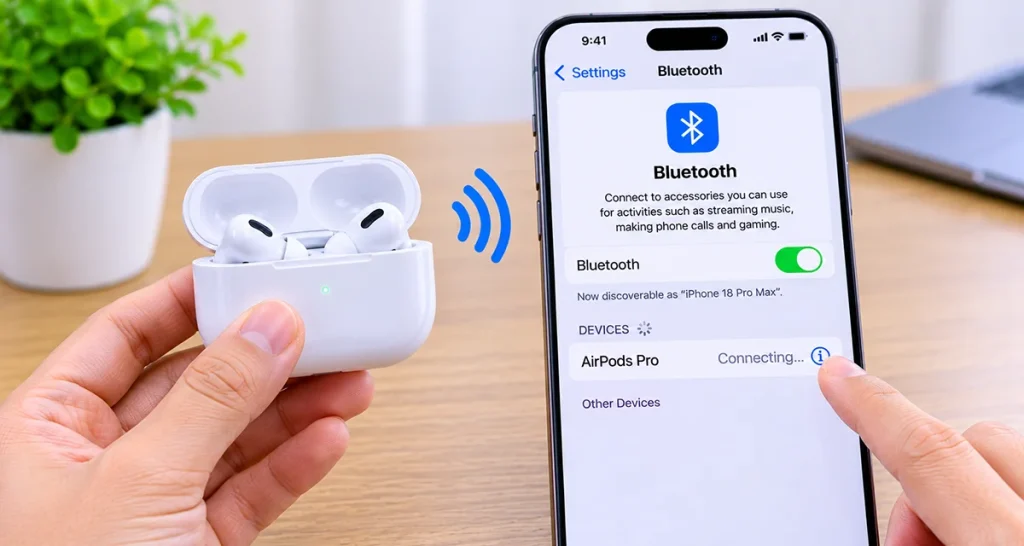
Your iPhone cannot discover an accessory that isn’t available for pairing.
Most Bluetooth headphones, speakers, keyboards, and car systems have a dedicated pairing mode.
Follow these steps:
- Turn on your Bluetooth accessory.
- Activate its pairing or discovery mode.
- Open Settings > Bluetooth on your iPhone.
- Wait for the accessory to appear under Other Devices.
- Tap its name to connect.
The pairing procedure varies by manufacturer. Check your accessory’s manual if you cannot activate discovery mode.
Also, keep the accessory close to your iPhone during the initial connection.
4. Forget the Bluetooth Device and Pair It Again

If your iPhone 18 Pro Max recognizes a Bluetooth accessory but cannot connect, its saved pairing information may be causing the problem.
Removing the old connection and pairing again can resolve the issue.
- Open Settings > Bluetooth.
- Find the problematic accessory.
- Tap the information (i) button next to its name.
- Select Forget This Device.
- Confirm your selection.
- Put the accessory into pairing mode again.
- Select it under Other Devices.
Your iPhone will establish a fresh Bluetooth connection.
If you’re connecting AirPods, make sure they’re ready for pairing according to Apple’s instructions.
5. Check Bluetooth Permissions for Apps
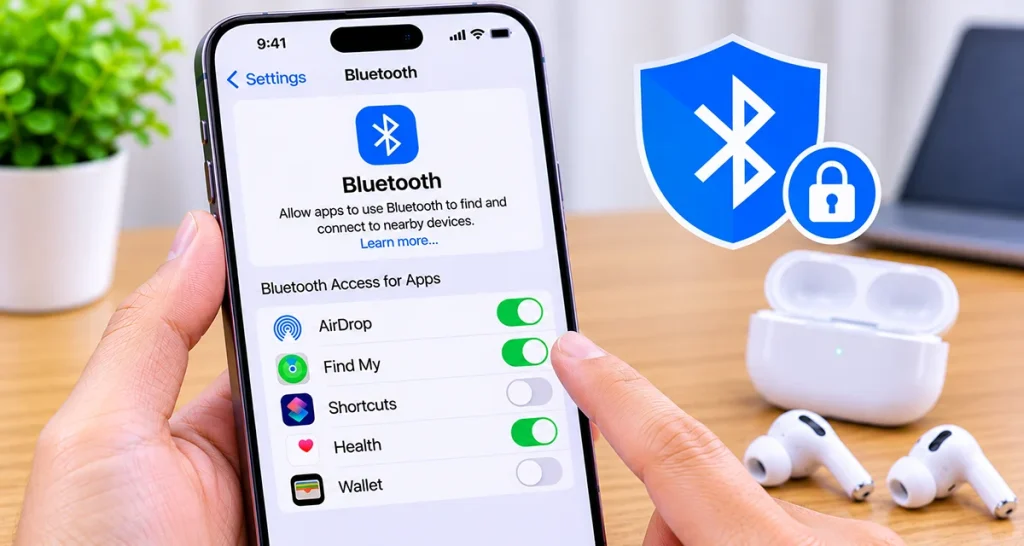
Some Bluetooth accessories rely on dedicated apps to communicate with your iPhone.
For example, fitness trackers, smartwatches, health devices, and other connected accessories may require Bluetooth access.
To check app permissions:
- Open Settings.
- Tap Privacy & Security.
- Select Bluetooth.
- Find the app you want to use.
- Make sure its Bluetooth permission is enabled.
If permission is disabled, the app may not communicate properly with your accessory.
Reopen the app and check whether the connection works.
6. Check for Wireless Interference
Bluetooth connections can become unstable when other wireless signals or physical obstacles interfere with communication.
Try these suggestions:
- Keep your iPhone and Bluetooth accessory close together.
- Move away from crowded wireless environments.
- Remove physical obstacles between the devices.
- Temporarily disconnect other Bluetooth accessories.
- Turn on Airplane Mode briefly to check whether wireless interference is involved, then turn it off and test again.
If Bluetooth works normally when the devices are close together, distance or interference may be contributing to the problem.
7. Update Your iPhone Software
An iOS software bug can sometimes affect Bluetooth performance, including pairing and connection stability.
Apple has previously released software updates addressing occasional Wi-Fi and Bluetooth disconnections on supported iPhone models.
Check for an available update:
- Connect your iPhone to Wi-Fi.
- Open Settings.
- Tap General.
- Select Software Update.
- Install an available update if one is offered.
Restart your iPhone after installation and test Bluetooth again.
Keep your iPhone updated to receive the latest compatible bug fixes and security improvements.
8. Reset Network Settings
If Bluetooth continues to disconnect or refuses to pair with multiple accessories, resetting network settings may help.
This removes saved network and connection configurations that could be causing problems.
Follow these steps:
- Open Settings.
- Tap General.
- Select Transfer or Reset iPhone.
- Tap Reset.
- Choose Reset Network Settings.
- Enter your passcode if requested.
- Confirm the reset.
Important: This process removes saved Wi-Fi networks and passwords, Bluetooth pairings, and other network-related settings. It does not delete your photos, apps, or personal files.
After the reset, reconnect to Wi-Fi and pair your Bluetooth accessories again.
9. Reset All Settings
If none of the previous solutions works, resetting all settings is another troubleshooting option.
This restores system settings to their defaults without deleting your personal data.
To do this:
- Open Settings.
- Tap General.
- Select Transfer or Reset iPhone.
- Tap Reset.
- Choose Reset All Settings.
- Enter your passcode and confirm.
Your iPhone will restore its system preferences.
This process removes saved Bluetooth pairings, Wi-Fi passwords, Apple Pay cards, and other customized settings. Your photos, messages, apps, and documents remain intact.
You’ll need to configure your preferences and reconnect your accessories afterward.
Common iPhone 18 Pro Max Bluetooth Problems and Solutions
Use this table to identify the appropriate fix for your particular Bluetooth issue.
| Bluetooth problem | Recommended solution |
|---|---|
| Bluetooth won’t turn on | Restart iPhone and update iOS |
| Bluetooth device not showing | Enable pairing mode and move closer |
| AirPods won’t connect | Forget device and pair again |
| Bluetooth keeps disconnecting | Check interference and update iOS |
| Car Bluetooth not working | Remove old pairing from both devices |
| Bluetooth speaker has no sound | Check audio output and volume |
| Bluetooth accessory connects but app doesn’t work | Check app permissions |
| Multiple devices won’t connect | Reset network settings |
| Bluetooth remains unreliable | Consider resetting all settings |
When to Contact Apple Support
If Bluetooth still doesn’t work after trying these solutions, your iPhone may have a deeper software or hardware problem.
Contact Apple Support or visit an authorized service provider if:
- Bluetooth is greyed out and cannot be enabled.
- Your iPhone cannot connect to any Bluetooth accessory.
- Bluetooth and Wi-Fi problems occur together.
- The problem started after physical damage or liquid exposure.
- Multiple known-working accessories fail to connect.
Before requesting a repair, test your iPhone with another compatible Bluetooth accessory. This helps determine whether the problem comes from your iPhone or the original accessory.
Frequently Asked Questions
A temporary iOS glitch or system-level problem may prevent Bluetooth from turning on. Restart your iPhone, install available software updates, and contact Apple Support if the Bluetooth control remains greyed out.
Random disconnections can result from wireless interference, low accessory battery, outdated firmware, or software problems. Keep both devices close together, restart them, and check for software updates.
Open Settings > Bluetooth, turn Bluetooth off, wait several seconds, and turn it back on. If the problem continues, forget the affected accessory and pair it again.
Your AirPods may be connected to another device, have low battery, or have a pairing problem. Charge them, check their pairing status, and reconnect them through Settings > Bluetooth.
Final Thoughts
Bluetooth problems on the iPhone 18 Pro Max don’t always indicate hardware damage. Most connection issues can be resolved by refreshing Bluetooth, restarting your devices, forgetting old pairings, or installing an iOS update.
Start with the simple solutions before resetting network settings or restoring all system preferences. If your iPhone cannot connect to multiple working Bluetooth accessories, contact Apple Support for further diagnosis.
External references:

1 thought on “How to Fix Bluetooth Connectivity Problems on Your iPhone 18 Pro Max”