Want to keep certain apps private on your iPhone 18? You can hide apps using Apple’s built-in Hide and Require Face ID feature. It removes eligible apps from your Home Screen, regular App Library listings, and search results, then places them inside a protected Hidden folder.
To hide an app, touch and hold its icon, select Require Face ID, choose Hide and Require Face ID, authenticate, and tap Hide App. You can access hidden apps later through the App Library.
This guide explains how to hide apps on iPhone 18, find the Hidden folder, unhide apps, and troubleshoot common problems.
1. How to Hide Apps on iPhone 18 Using Face ID
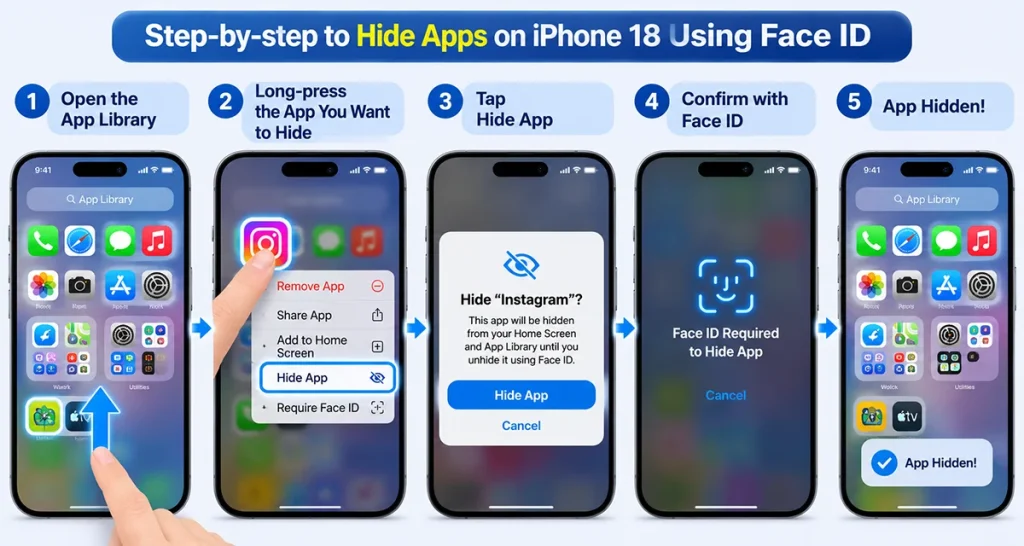
The easiest way to hide an app on iPhone 18 is to use Apple’s built-in privacy feature. You don’t need to install another application or change complicated settings.
Follow these steps:
- Unlock your iPhone 18 and go to the Home Screen.
- Find the app you want to hide.
- Touch and hold the app icon until the quick actions menu appears.
- Tap Require Face ID.
- Select Hide and Require Face ID.
- Authenticate using Face ID or your device passcode if requested.
- Tap Hide App to confirm.
Your selected app will disappear from the Home Screen and move into the Hidden folder in the App Library.
Important: Apple’s app-hiding feature works with eligible downloaded apps. Apps that come preinstalled with iOS cannot be hidden using this method.
2. How to Find Hidden Apps on iPhone 18
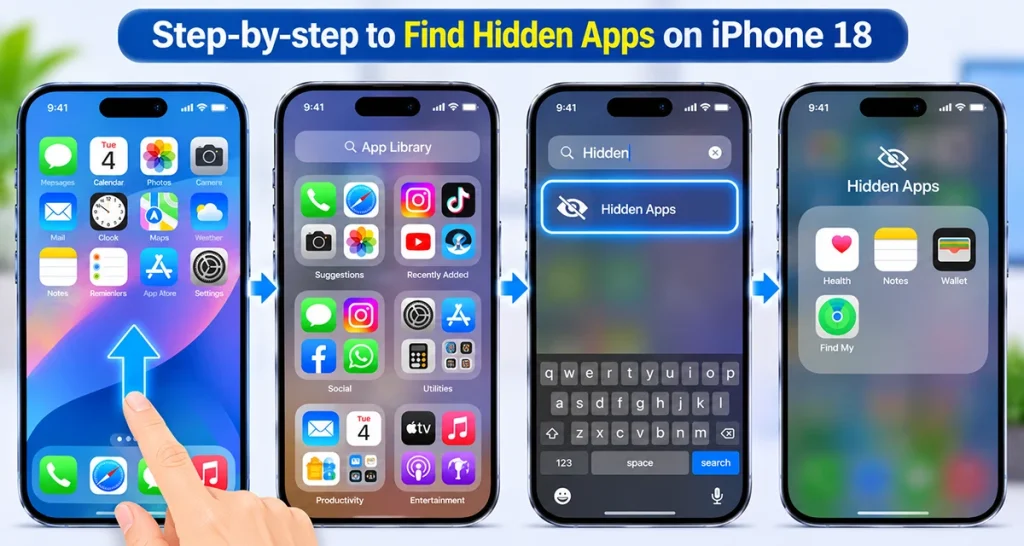
After hiding an application, you might wonder where it went. Your iPhone doesn’t delete the app. Instead, it stores the app in a protected Hidden folder.
Here’s how to find it:
- Go to your iPhone Home Screen.
- Swipe left through all your Home Screen pages to open the App Library.
- Scroll down to the bottom of the App Library.
- Tap the Hidden folder.
- Authenticate using Face ID, Touch ID, or your passcode.
- Tap the app you want to open.
- Authenticate again if requested.
You can now use the application normally.
Hidden apps don’t appear in regular iPhone Search results. You can also check the hidden app list by opening Settings > Apps > Hidden Apps and authenticating when prompted.
3. How to Lock an App Without Hiding It
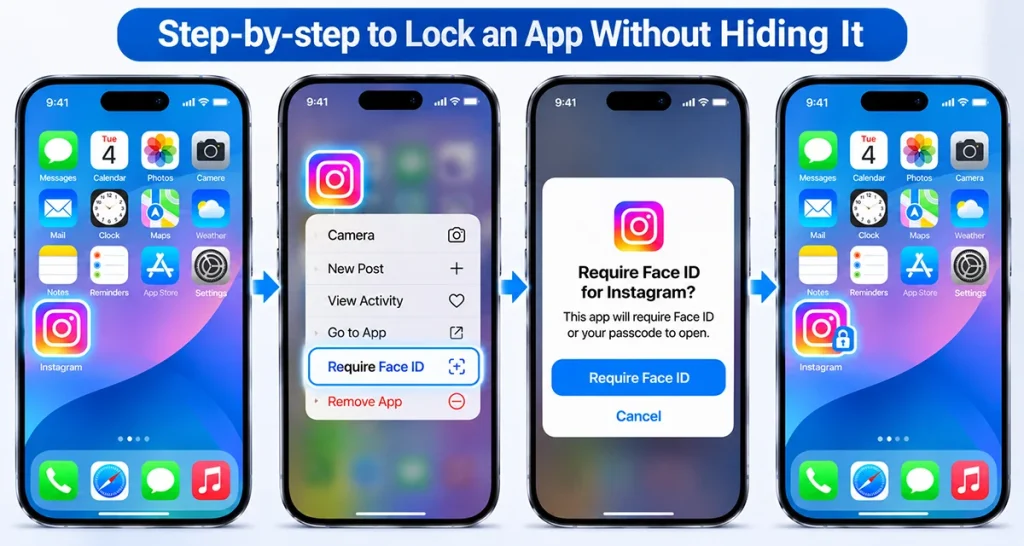
You don’t always need to hide an application completely. If you want to keep its icon visible but prevent other people from opening it, use the Require Face ID option.
This method is useful for banking apps, messaging applications, photo galleries, and other apps containing private information.
Follow these instructions:
- Find the application on your Home Screen.
- Touch and hold its icon.
- Tap Require Face ID.
- Select Require Face ID again if prompted.
- Authenticate with Face ID or your passcode.
The application stays visible on your Home Screen, but iPhone requires authentication before opening it.
What’s the difference?
- Lock an app: Keeps the icon visible but requires authentication.
- Hide an app: Removes the icon from normal browsing and places it inside the protected Hidden folder.
4. How to Unhide Apps on iPhone 18
If you want to make a hidden application visible again, you can reverse the process without reinstalling it.
Here’s how:
- Open the App Library by swiping left past your Home Screen pages.
- Scroll down and tap the Hidden folder.
- Authenticate using Face ID or your passcode.
- Find the application you want to restore.
- Touch and hold its icon.
- Tap Don’t Require Face ID.
- Authenticate again if requested.
Your app will return to the App Library and become accessible without the additional authentication requirement. You can add it back to your Home Screen if necessary.
5. Hide Apps vs. Remove Apps from the Home Screen
iPhone 18 offers different ways to organize applications. However, removing an app from the Home Screen is not the same as hiding it.
| Feature | Hide App | Remove from Home Screen | Lock App |
|---|---|---|---|
| Home Screen icon | Removed | Removed | Visible |
| App Library | Hidden folder | Visible normally | Visible normally |
| Face ID protection | Yes | No | Yes |
| Search visibility | Hidden from normal search | Usually searchable | Protected app information is excluded from Search |
| App remains installed | Yes | Yes | Yes |
| Can access without authentication | No | Yes | No |
If privacy is your priority, use Hide and Require Face ID instead of simply removing the application from your Home Screen.
6. Why Can’t I Hide an App on iPhone 18?
Sometimes the Hide and Require Face ID option doesn’t appear in the quick actions menu.
Here are some common reasons:
- Preinstalled Apple apps: Apps included with iOS cannot be hidden using this feature.
- Default applications: Your selected default web browser or app marketplace in the European Union cannot be hidden.
- Unsupported applications: Not every app is eligible for hiding.
- Family Sharing restrictions: Age-related restrictions may prevent children in a Family Sharing group from using app-hiding features.
If you cannot hide an application, try removing it from the Home Screen instead.
Touch and hold the app icon, tap Remove App, and select Remove from Home Screen. Remember that this only removes the icon; the application remains visible in the App Library.
7. Does Hiding an App Completely Protect Your Privacy?
Hiding apps adds an extra layer of privacy, but it doesn’t make an application completely invisible.
Apple’s feature protects access using Face ID, Touch ID, or your iPhone passcode. Information from locked apps is also excluded from certain system locations, including notification previews, Search, and Siri suggestions.
However, an app’s name may still appear in places such as:
- Settings and hidden app information.
- Screen Time reports.
- Battery usage information.
- App Store purchase history.
Also, hiding an app on your iPhone 18 doesn’t automatically hide it on your other Apple devices. Its hidden status is device-specific and doesn’t sync through iCloud.
For better privacy, use a strong device passcode and avoid sharing it with other people.
Frequently Asked Questions
Can I hide built-in Apple apps on iPhone 18?
No. Apple’s built-in app-hiding feature supports eligible downloaded applications, not apps that come preinstalled with iOS. You can remove some built-in app icons from the Home Screen instead.
Can I hide apps without Face ID?
The feature supports Face ID, Touch ID, or your device passcode, depending on the available authentication options. However, hiding an app always requires authentication.
Where is the Hidden folder on iPhone 18?
Open the App Library by swiping left past your Home Screen pages. Scroll to the bottom and tap the Hidden folder. Authenticate to see your hidden applications.
Will hiding an app delete its data?
No. Hiding an app doesn’t uninstall it or erase its documents and application data. You can access it again through the Hidden folder.
Can someone find my hidden apps?
Hiding removes apps from normal Home Screen, App Library, and Search views. However, app names can remain visible in certain system records, including Screen Time, Battery settings, and App Store purchase history.
Final Thoughts
Hiding apps on iPhone 18 is an easy way to improve privacy and keep your Home Screen organized. Simply touch and hold an eligible app, select Require Face ID, choose Hide and Require Face ID, and confirm.
Whenever you need the application again, open the Hidden folder in your App Library and authenticate. If you only want to prevent other people from opening an app without removing its icon, use the regular Require Face ID option instead.
Primary reference: Apple’s official iPhone User Guide – Lock or hide an app. The instructions above follow Apple’s documented iOS 27 workflow.