You can configure Shortcuts on iPhone 18 to automate everyday tasks, access frequently used features faster, and make your iPhone easier to use. Apple’s Shortcuts app lets you combine multiple actions into one shortcut, such as sending a message, opening an app, adjusting settings, or creating a daily routine.
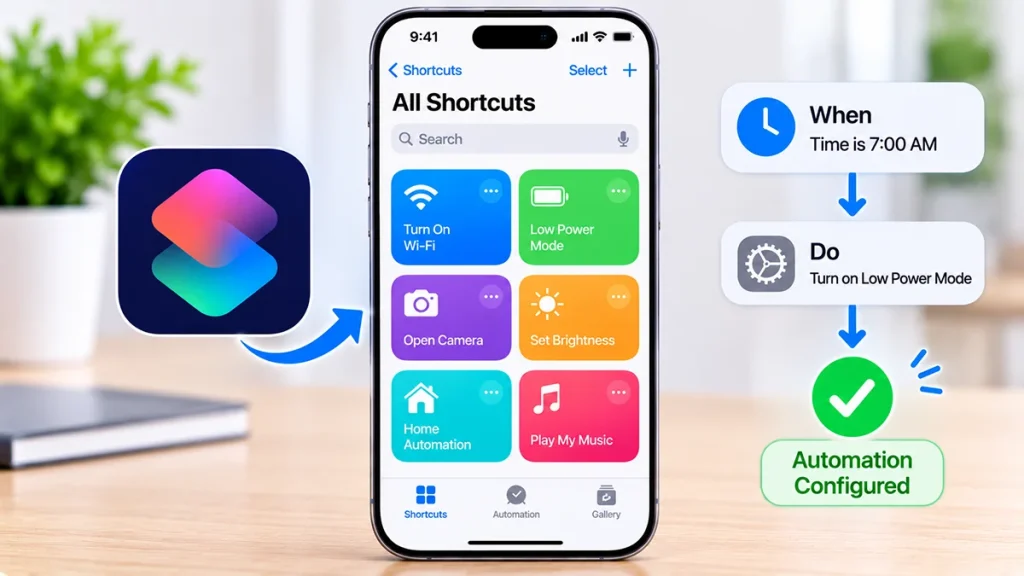
You can create shortcuts manually, customize existing ones, add them to your Home Screen, and activate them with Siri. You can also use personal automations to trigger actions automatically when specific conditions occur.
This guide explains how to configure Shortcuts on iPhone 18, create custom actions, and automate common tasks step by step.
What Are Shortcuts on iPhone 18?
Shortcuts is an Apple app that helps you complete tasks with fewer taps. Instead of performing several actions separately, you can combine them into one custom shortcut.
For example, you can create a shortcut that automatically opens Maps, starts playing your favorite music, and sends your estimated arrival time to someone.
Shortcuts offers three main features:
- Custom shortcuts: Combine multiple actions into one command.
- Personal automations: Automatically run tasks when specific events occur.
- Siri integration: Launch shortcuts using voice commands.
You can also explore ready-made shortcuts in the Gallery and customize them to suit your needs.
How to Configure Shortcuts on iPhone 18
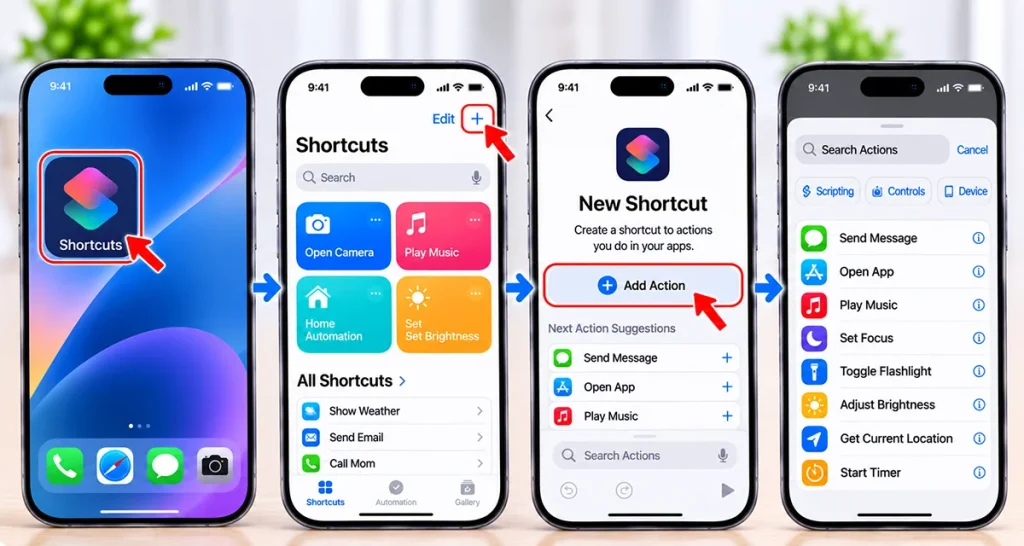
Follow these steps to open the Shortcuts app and configure your first shortcut.
- Open the Shortcuts app on your iPhone 18.
- Tap the Shortcuts section.
- Tap the + (Add) button in the upper-right corner.
- Select the option to create a new shortcut.
- Give your shortcut a recognizable name.
- Tap Add Action.
- Search for the action you want to perform.
- Select an action from the available categories.
- Add more actions if you want to combine multiple tasks.
- Tap Done to save your shortcut.
Your new shortcut will appear in your shortcuts collection.
To test it, tap the shortcut and check whether all the selected actions work correctly.
Tip: On supported iPhone models with Apple Intelligence, you can describe what you want the shortcut to do in natural language. The Shortcuts app can generate a workflow based on your description. You can then review and edit its actions.
How to Create a Custom Shortcut on iPhone 18
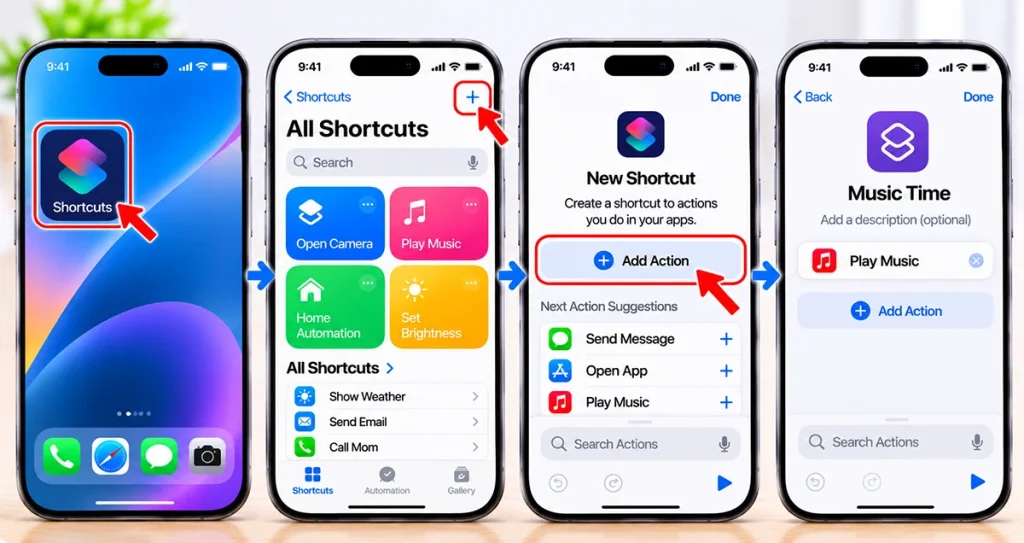
Creating a custom shortcut lets you personalize your iPhone and automate tasks you perform regularly.
For example, you can create a shortcut to send a quick message to a family member.
- Open the Shortcuts app.
- Tap the + button.
- Enter a name such as “Send Quick Message.”
- Tap Add Action.
- Search for Send Message.
- Select the Send Message action.
- Enter your message and choose the recipient.
- Review the action settings.
- Tap Done to save.
Whenever you run this shortcut, your iPhone will prepare the selected message for the chosen recipient. Depending on the action and its permissions, you may need to confirm before sending.
You can create other shortcuts for opening applications, setting timers, checking your calendar, or sharing information.
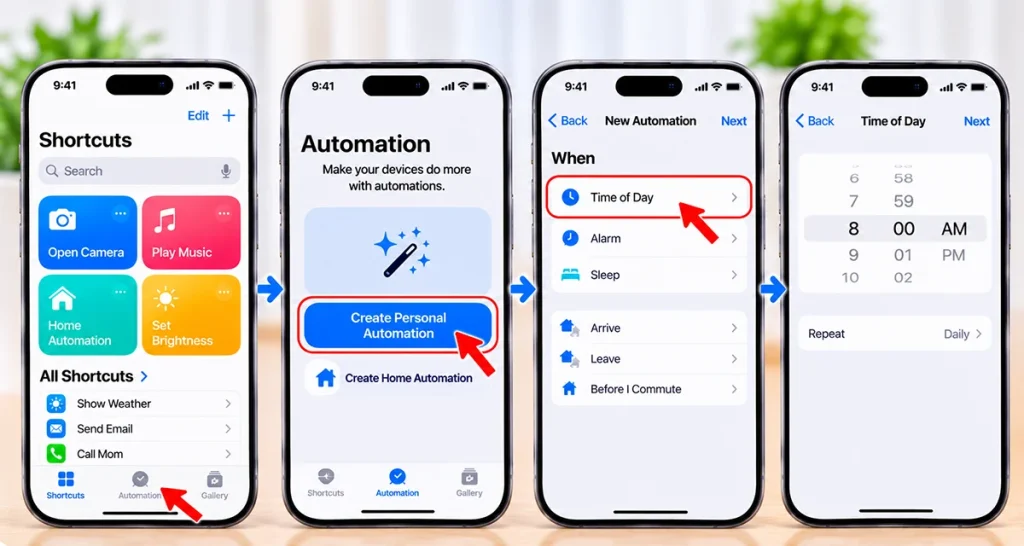
How to Configure Personal Automations on iPhone 18
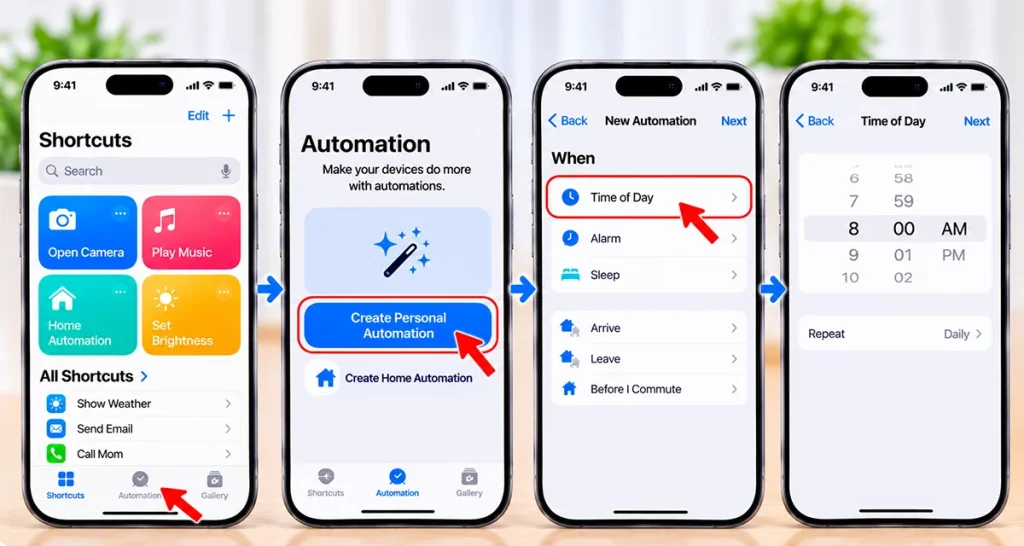
Personal automations allow your iPhone to perform selected tasks when a particular event happens.
For example, you can configure your iPhone to enable Low Power Mode when the battery reaches a specific percentage.
Follow these steps:
- Open the Shortcuts app.
- Select Automation.
- Tap the + button or the option to create a new automation.
- Choose a trigger, such as Battery Level, Time of Day, Wi-Fi, or App.
- Configure the trigger conditions.
- Tap Next.
- Select Add Action.
- Search for the action you want to perform.
- Configure the action.
- Choose the available execution option, such as Run Immediately, if supported.
- Tap Done.
Your personal automation is now configured.
Here are some useful automation ideas:
| Automation trigger | Action | Benefit |
|---|---|---|
| Battery reaches 20% | Enable Low Power Mode | Save battery |
| Connect to home Wi-Fi | Open a preferred app | Faster access |
| Time of Day | Set an alarm or reminder | Build routines |
| Open a selected app | Enable a preferred Focus mode | Reduce distractions |
| Connect to CarPlay | Start a music playlist | Convenient driving |
Some automations require confirmation or additional permissions before they can run.
How to Add Shortcuts to the Home Screen
Adding shortcuts to your Home Screen makes frequently used actions easier to access.
- Open the Shortcuts app.
- Find the shortcut you want to add.
- Tap the shortcut’s menu or options button.
- Select Add to Home Screen.
- Customize the shortcut name and icon if available.
- Tap Add.
The shortcut will appear on your Home Screen like an app icon.
You can now tap it whenever you want to run the associated task without opening the Shortcuts app first.
How to Run Shortcuts with Siri
You can also activate shortcuts using Siri instead of tapping the screen.
- Open the Shortcuts app.
- Find the shortcut you want to use.
- Make sure it has a recognizable name.
- Activate Siri using your preferred method.
- Say the shortcut’s name.
For example, if you created a shortcut called “Morning Routine,” say:
“Hey Siri, Morning Routine.”
Siri will attempt to run the shortcut associated with that name.
Use short, memorable names to make voice commands easier.
Best Shortcuts to Configure on iPhone 18
If you’re new to the Shortcuts app, start with simple shortcuts that save time.
Here are some useful ideas:
- Battery Saver: Enable Low Power Mode when needed.
- Morning Routine: Open your calendar and check your reminders.
- Quick Message: Prepare a frequently used text message.
- Open Camera: Launch the Camera app quickly.
- Navigation: Open Maps and display directions to a saved destination.
- Bedtime Routine: Activate Sleep Focus and perform other bedtime actions.
- Share Wi-Fi: Make sharing network access easier where supported.
You can also browse the Shortcuts Gallery to discover ready-made workflows.
How to Edit or Delete Shortcuts on iPhone 18
You can modify or remove shortcuts whenever your needs change.
To edit a shortcut:
- Open the Shortcuts app.
- Find the shortcut you want to change.
- Open its editing options.
- Add, remove, or rearrange actions.
- Tap Done to save your changes.
To delete a shortcut:
- Open the Shortcuts app.
- Find the shortcut you no longer need.
- Touch and hold the shortcut.
- Select Delete.
- Confirm the deletion if prompted.
Deleting a shortcut removes that workflow from your collection. It does not normally uninstall the applications used by its actions.
Frequently Asked Questions
Yes. The Shortcuts app is Apple’s built-in automation tool for creating custom workflows, combining actions, and automating everyday tasks.
Yes. You don’t need programming knowledge to create shortcuts. Simply select actions from the available list and arrange them in the order you want.
Yes. Personal automations can run when supported triggers occur, such as a specific time, battery level, Wi-Fi connection, or opening an app.
Yes. You can ask Siri to run a shortcut by saying its name.
Yes. Apple’s Shortcuts app is free to use. However, some actions may require internet access, compatible applications, subscriptions, or additional permissions.
Final Thoughts
Configuring Shortcuts on iPhone 18 is an easy way to save time and automate everyday activities. Start by creating a simple custom shortcut, then explore personal automations, Siri commands, and Home Screen shortcuts.
With a few useful workflows, you can reduce repetitive tasks and make your iPhone 18 more convenient and productive.
Authoritative references: Apple’s Shortcuts User Guide, creating custom shortcuts, and personal automations.

1 thought on “Configure Shortcuts on iPhone 18: A Complete Step-by-Step Guide”