Is your iPhone 18 Pro Max speaker crackling, popping, or making random clicking noises? The problem may come from an iOS 27 software glitch, blocked speaker openings, audio settings, or a hardware fault. Some iPhone 18 Pro and Pro Max owners have also reported intermittent popping sounds when switching apps, scrolling, receiving notifications, and making calls.
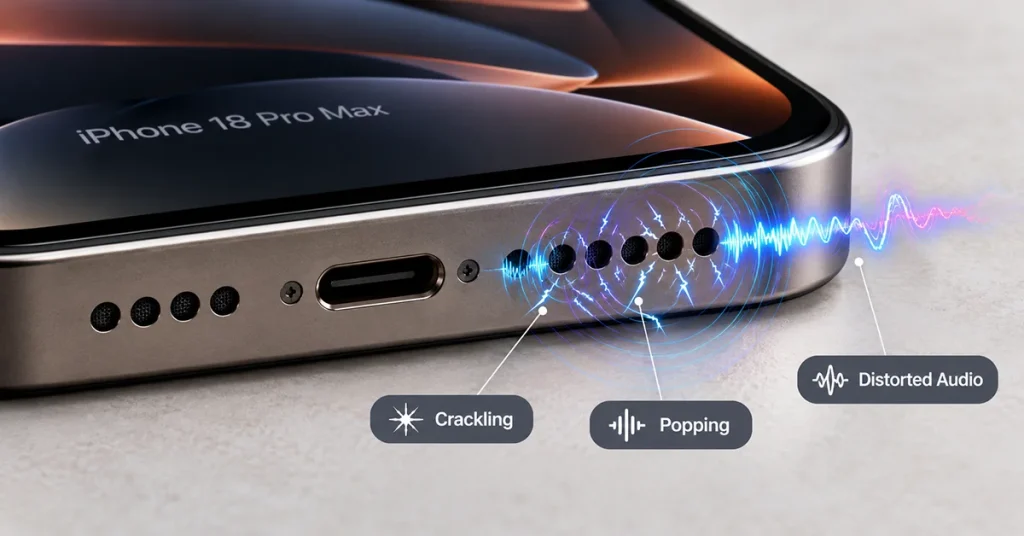
Start by restarting your iPhone, installing the latest available iOS update, and checking the speaker openings for dust or debris. If the crackling continues, use the troubleshooting methods below to identify the cause and restore clear audio.
Why Is My iPhone 18 Pro Max Speaker Crackling?
Several factors can cause distorted audio on your iPhone 18 Pro Max. However, recent owner reports point to a possible software-related problem affecting some iPhone 18 Pro models.
Reported symptoms include:
- Random popping or clicking sounds from the upper earpiece speaker.
- Crackling when opening or switching between apps.
- Brief noises when scrolling through websites or displaying the keyboard.
- Popping sounds when adjusting screen brightness or toggling Airplane Mode.
- Distorted or raspy audio during music playback and phone calls.
MacRumors and other technology publications have reported similar complaints from iPhone 18 Pro and Pro Max owners. However, Apple has not confirmed a specific cause, so it is too early to conclude that every affected device has the same software or hardware problem.
Other possible causes include blocked speaker openings, Bluetooth audio interference, incorrect sound settings, or physical speaker damage.
9 Ways to Fix iPhone 18 Pro Max Speaker Crackling
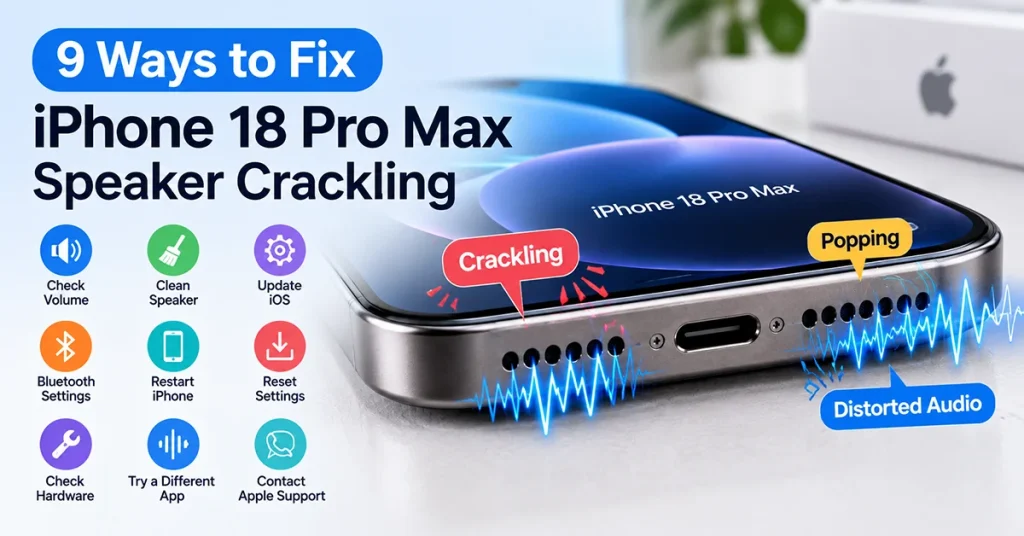
Fix iPhone 18 Pro Max speaker crackling with these nine solutions: restart your iPhone, update iOS, adjust volume, disconnect Bluetooth, remove the case, clean speaker grilles gently, check audio settings, test different apps, and reset all settings. If crackling continues, contact Apple Support to check for hardware damage.
1. Restart Your iPhone 18 Pro Max
A temporary iOS glitch can interfere with audio playback and cause unexpected clicking or popping noises. Restarting your device can refresh system processes and resolve minor software problems.
Follow these steps:
- Press and hold the Side button and either Volume button.
- Drag the power-off slider when it appears.
- Wait approximately 30 seconds.
- Press and hold the Side button until the Apple logo appears.
Play music or a video after restarting to check whether the crackling has stopped.
2. Update to the Latest iOS Version
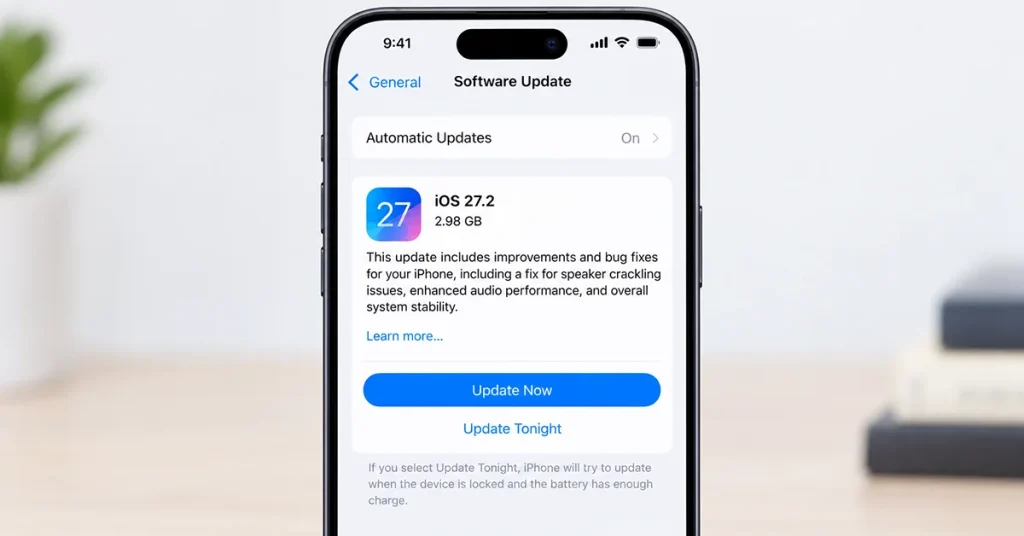
Apple regularly releases iOS updates to fix bugs, improve performance, and address compatibility problems.
If your iPhone 18 Pro Max has a software-related audio problem, a future update may provide a permanent solution.
To check for updates:
- Open Settings.
- Tap General.
- Select Software Update.
- Wait while your iPhone checks for available updates.
- Download and install any available update.
Install the latest stable iOS version rather than relying on an unverified beta release. Remember that iOS 27.0.1 was reported not to resolve the crackling problem for some affected owners, so updating alone may not guarantee a fix.
3. Check and Clean the Speaker Openings
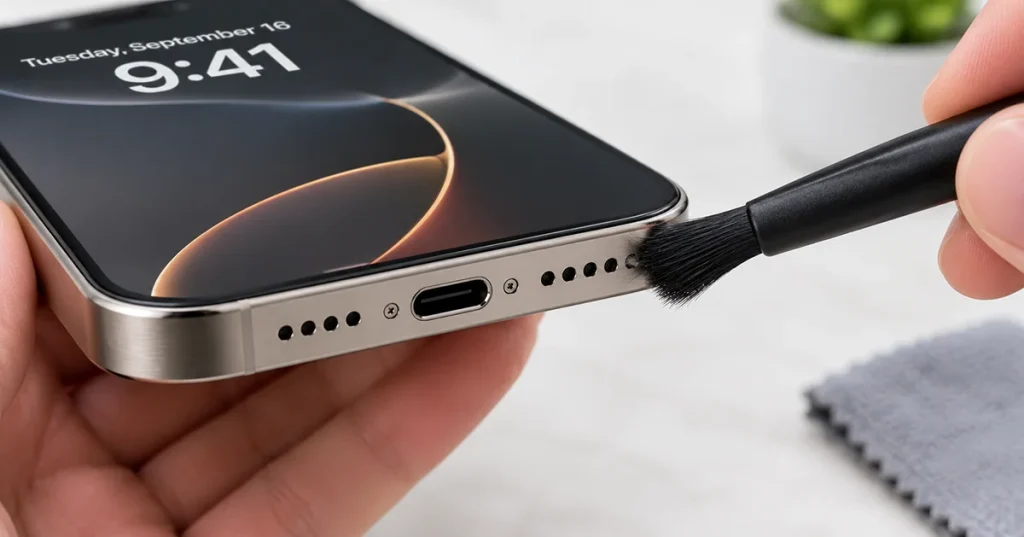
Dust, lint, and other debris can block the speaker grille and interfere with sound output. This can make music, videos, and phone calls sound muffled, distorted, or crackly.
To clean your speakers safely:
- Remove your iPhone case.
- Inspect the bottom speaker openings and upper receiver.
- Use a clean, dry, soft-bristled brush to remove visible debris.
- Brush gently without pushing dirt deeper into the openings.
- Test the speaker again.
Avoid using sharp objects, compressed air, liquids, or excessive pressure. These can damage the speaker components.
4. Disconnect Bluetooth Devices
Your iPhone may send audio to wireless headphones, speakers, or another connected Bluetooth device instead of its built-in speakers.
A Bluetooth connection or accessory problem can also create crackling during playback.
To test the built-in speakers:
- Open Settings.
- Tap Bluetooth.
- Turn Bluetooth off temporarily.
- Play a song or video using the iPhone speakers.
If the crackling disappears, reconnect your Bluetooth accessories one at a time to identify whether a particular device is responsible.
5. Adjust Sound and Audio Settings
Incorrect audio settings or an application-specific audio problem can sometimes affect sound quality.
Start by checking your iPhone’s sound output:
- Open Settings.
- Tap Sounds & Haptics.
- Move the Ringtone and Alerts slider back and forth.
- Play music at a moderate volume.
- Check whether the crackling occurs across different audio sources.
You can also test the Phone app’s microphone and voice processing settings. During a call, try changing Voice Isolation to Standard, where available, and compare the results.
If crackling occurs only in one application, update that app or reinstall it if necessary.
6. Turn Airplane Mode On and Off
Some iPhone 18 Pro owners have reported popping noises when switching Airplane Mode on and off. This makes the test particularly relevant when investigating the reported iOS 27 audio glitch.
However, toggling Airplane Mode is not a confirmed repair.
To test it:
- Open Control Center.
- Tap the Airplane Mode icon.
- Wait approximately 10 seconds.
- Turn Airplane Mode off.
- Play audio and listen for unusual sounds.
If the crackling repeatedly occurs immediately after toggling Airplane Mode, record the behavior and share it with Apple Support.
7. Remove Your iPhone Case and Screen Protector
An incorrectly fitted case or screen protector can partially cover the speaker or receiver openings.
This may interfere with sound output, especially when the accessory does not match the iPhone’s dimensions.
Remove the case and any protective film covering the receiver area. Play the same audio again and compare the results.
If the sound improves, inspect the accessory for alignment problems or replace it with a properly fitted product.
8. Reset All Settings
If the problem started after changing system settings or installing an update, resetting your iPhone’s settings may help resolve configuration-related issues.
Before proceeding, understand that this action resets network, privacy, keyboard, and other system settings. It does not erase your photos, videos, or personal files.
Follow these steps:
- Open Settings.
- Tap General.
- Select Transfer or Reset iPhone.
- Tap Reset.
- Choose Reset All Settings.
- Enter your passcode and confirm.
Test your speakers after the reset. If the crackling remains, avoid repeatedly resetting your device because a persistent hardware or iOS bug may require further investigation.
9. Contact Apple Support for Speaker Inspection
If your iPhone 18 Pro Max continues making crackling noises after troubleshooting, contact Apple Support or visit an Apple Authorized Service Provider.
Professional inspection is especially important if:
- The speaker crackles during every audio playback.
- Music sounds raspy even at moderate volume.
- The upper receiver produces persistent static.
- The speaker becomes unusually quiet or stops working.
- The phone has suffered liquid exposure or physical damage.
Because some early iPhone 18 Pro owners reported the same issue even after exchanging their devices, replacing your phone immediately may not solve a software-related problem.
Ask Apple to run diagnostics and confirm whether your device needs a software repair or hardware service. Check your warranty and applicable consumer protection rights before paying for repairs.
iPhone 18 Pro Max Speaker Crackling: Quick Troubleshooting Table
| Problem | Possible cause | Recommended fix |
|---|---|---|
| Random popping sounds | Possible iOS glitch | Restart and update iOS |
| Crackling during calls | Network or receiver issue | Test another location and call |
| Distorted music | Blocked speaker or audio issue | Clean speaker openings |
| Crackling with headphones | Bluetooth connection | Disconnect and reconnect |
| Popping after Airplane Mode | Possible software glitch | Document and report the behavior |
| Muffled speaker sound | Dust or case obstruction | Remove case and clean openings |
| Persistent static | Possible hardware fault | Contact Apple Support |
When Should You Replace or Repair Your iPhone Speaker?
Not every crackling sound means your iPhone speaker is physically damaged. Intermittent clicking during app switching or screen interactions may indicate a software-related problem.
However, persistent distortion during music playback, calls, and ringtone tests deserves professional attention.
If your device is new and the problem appeared shortly after purchase, contact the retailer or Apple promptly. Keep a recording of the issue if possible, along with the iOS version and the steps that trigger the sound.
Do not open the iPhone or attempt a speaker replacement yourself while the device is under warranty.
Final Thoughts
If your iPhone 18 Pro Max speaker is crackling, start with a restart, an iOS update, and a careful inspection of the speaker openings. These simple steps can eliminate common audio problems.
If you hear random popping even when no audio is playing, the issue may be related to the reported iOS 27 glitch. Keep track of when it happens and contact Apple Support if it continues. A professional diagnosis is the best way to determine whether your iPhone needs a software fix or speaker repair.
Frequently Asked Questions
Some owners have reported random popping and clicking noises from the upper or lower speakers. A possible iOS 27 software issue has been discussed, but Apple has not confirmed the root cause.
It may be software-related, particularly when the noise occurs during scrolling, app switching, or changing screen brightness. However, physical speaker damage and blocked openings can also cause distorted audio.
A future iOS update could address a software-related audio bug. However, installing an update is not guaranteed to resolve every case. Check Apple’s software updates regularly.
Not immediately. Restart the phone, install available updates, and test the speakers first. If the problem persists, request an Apple diagnostic before deciding whether replacement or repair is necessary.

1 thought on “iPhone 18 Pro Max Speaker Crackling: What’s Causing It and How to Fix It”