An iPhone 18 stuck on the Apple logo can often be fixed in minutes with a force restart: press and release Volume Up, then Volume Down, then hold the Side button until the Apple logo reappears. Most cases stem from a failed update, corrupted system files, or insufficient storage. If that fails, use Recovery Mode on a computer and choose Update to reinstall iOS without erasing data. Persistent loops may require Apple Support.
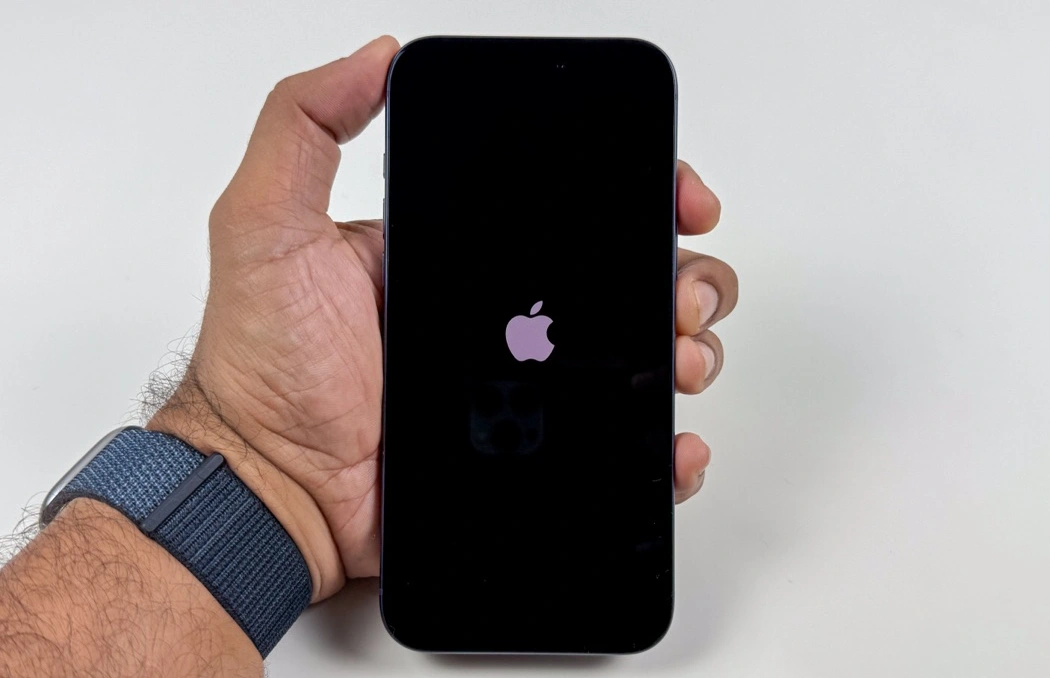
Quick Answer: What To Do First
- If you see a progress bar, wait at least one hour before assuming the update is stuck.
- Force restart your iPhone 18.
- If it still will not boot, put it into Recovery Mode and select Update.
- If Update fails, repeat Recovery Mode and select Restore. This erases your iPhone.
- If the iPhone repeatedly returns to the Apple logo after restoring, contact Apple Support or visit an Apple Store.
Why Your iPhone 18 Is Stuck on the Apple Logo
An iPhone can freeze during startup for several reasons:
- Interrupted iOS update: The phone may have lost power, Wi-Fi, or connection during an update.
- Corrupted update file: A partial or damaged iOS installation can prevent normal booting.
- Software conflict: A faulty app, configuration profile, or system process may interfere with startup.
- Storage problem: Very low storage can sometimes cause update or boot issues.
- Hardware fault: A damaged battery, storage chip, logic board, or charging component can cause repeated boot loops.
If the issue began immediately after installing an iOS update, a software repair through Recovery Mode is usually the best next step.
How to Fix iPhone 18 Stuck on Apple Logo using Force Restart
This guide walks you through every fix iPhone 18 stuck on Apple Logo in order of safety, starting with steps that can’t touch your data and ending with last resorts. Follow them in sequence and stop as soon as your iPhone boots normally.
Step 1: Check the Progress Bar
Do not force restart immediately if your iPhone shows the Apple logo with a progress bar.
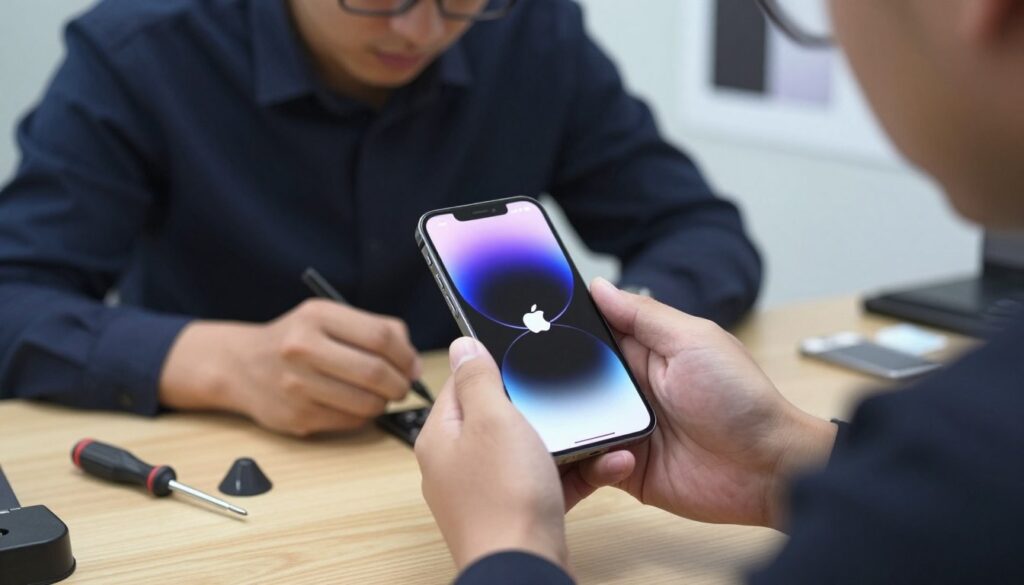
Apple says the Apple logo and progress bar can remain visible for more than an hour during an update, migration, or restore. Wait until the bar has not moved for at least one hour before using Recovery Mode.
Also:
- Keep the iPhone connected to a reliable charger.
- Use a strong Wi-Fi connection if the phone is completing an update.
- Avoid unplugging the device during the update.
- Let the phone cool down if it feels unusually hot.
Step 2: Force Restart iPhone 18
A force restart does not erase your data. It simply interrupts the current boot process and restarts iOS.
To force restart an iPhone 18:
- Press and quickly release the Volume Up button.
- Press and quickly release the Volume Down button.
- Press and hold the Side button.
- Keep holding the Side button until the Apple logo appears. This may take longer than 10 seconds.
If the iPhone boots normally, back it up before trying another iOS update.
Important: If the iPhone remains on the Apple logo, move on to Recovery Mode. Do not keep repeating the force restart dozens of times.
Step 3: Use Recovery Mode
Recovery Mode lets your computer reinstall iOS. Start with Update, not Restore, because Update is the data-preserving option.
What you need:
- A Mac or Windows PC.
- A working USB cable.
- Finder on macOS Catalina or later, or the Apple Devices app on Windows.
- At least 30–60 minutes of uninterrupted time.
Apple recommends updating your Mac or installing the latest Apple Devices app on PC before starting.apple
Put iPhone 18 into Recovery Mode:
- Connect your iPhone 18 to the computer using a USB cable.
- Open Finder on Mac or the Apple Devices app on Windows.
- Press and quickly release Volume Up.
- Press and quickly release Volume Down.
- Press and hold the Side button.
- Keep holding the Side button until you see the Connect to computer or Recovery Mode screen.
Do not release the Side button when the Apple logo appears. Keep holding it until the Recovery Mode screen appears.
Choose Update First.
When your computer detects the iPhone, it should offer two choices:
- Update: Reinstalls iOS without erasing your personal data.
- Restore: Erases the iPhone and installs a fresh copy of iOS.
Select Update first.
If the update takes longer than 15 minutes and the iPhone exits Recovery Mode, let it finish the current process, then repeat the Recovery Mode steps and choose Update again.
Step 4: Restore iPhone 18 If Update Fails
If Update fails, repeat the Recovery Mode process and choose Restore.
Restoring erases everything on the iPhone, including apps, photos, messages, settings, and local files. After the restore finishes, you can recover your data from an iCloud or computer backup.
Before restoring, check whether you have:
- An iCloud backup.
- A recent Finder or Apple Devices backup.
- Photos synced to iCloud Photos.
- Messages stored in iCloud.
- Passwords saved in iCloud Keychain.
If you have no backup, Restore should be your last option because the data cannot be recovered afterward.
Step 5: Fix a Repeating Apple Logo Boot Loop
If your iPhone 18 shows the Apple logo, restarts, and returns to the Apple logo again, it may be in a boot loop.
Try this sequence:
- Charge the iPhone for at least 30 minutes using a known-good cable and adapter.
- Force restart the device.
- Enter Recovery Mode and choose Update.
- If Update does not solve it, choose Restore.
- If the boot loop continues after a successful restore, the issue may be hardware-related.
A persistent boot loop after a clean restore often points to storage, battery, or logic-board trouble rather than an iOS software problem.
When To Contact Apple Support
Contact Apple Support or book a repair if:
- The iPhone remains stuck after Recovery Mode Update and Restore.
- The phone gets very hot, will not charge, or will not connect to a computer.
- The screen shows repeated boot loops after a successful restore.
- The device was exposed to water or physical damage.
- You do not have a backup and want to avoid erasing the phone.
Apple’s official troubleshooting path ends with Recovery Mode and, if needed, Restore. If those steps fail, professional service is the appropriate next step.
How To Prevent the Problem
- Keep at least 10–15 GB of free storage before major iOS updates.
- Charge the iPhone above 50% before updating.
- Use stable Wi-Fi during updates.
- Install updates soon after release, but avoid updating immediately if your battery is low or your connection is unstable.
- Back up to iCloud or a computer regularly.
- Remove unused configuration profiles or suspicious apps if boot issues began after installing them.
Frequently Asked Questions
No. A force restart does not erase your iPhone. It is the safest first fix for an iPhone 18 stuck on the Apple logo.
Often, yes. Try a force restart first, then use Recovery Mode and select Update. Update reinstalls iOS while attempting to keep your data.
If the Apple logo has a progress bar, wait until the bar has not moved for at least one hour. If there is no progress bar and the phone is unresponsive, proceed with a force restart.
Update attempts to repair iOS without deleting your data. Restore erases the iPhone and installs a clean version of iOS.
The update file may have been interrupted or corrupted, or the device may have encountered a software conflict during installation. Recovery Mode Update is the recommended fix.
Final Recommendation
For an iPhone 18 stuck on the Apple logo, use this order: wait if a progress bar is moving → force restart → Recovery Mode Update → Recovery Mode Restore → Apple service. This sequence protects your data as much as possible while following Apple’s supported repair process.

2 thoughts on “iPhone 18 Stuck on Apple Logo? 7 Proven Fixes (No Data Loss)”