Landing in a new country with “No Service” in your status bar is a travel nightmare. If you’ve just picked up an iPhone 18 and are heading abroad, enabling international data roaming takes less than two minutes — but only if you know where Apple hid the toggle in the latest version of iOS. This guide walks you through exactly how to enable data roaming on your iPhone 18, set it up correctly for Dual SIM, fix the frustrating “data roaming option missing” problem, and avoid the shock of a massive roaming bill when you get home.
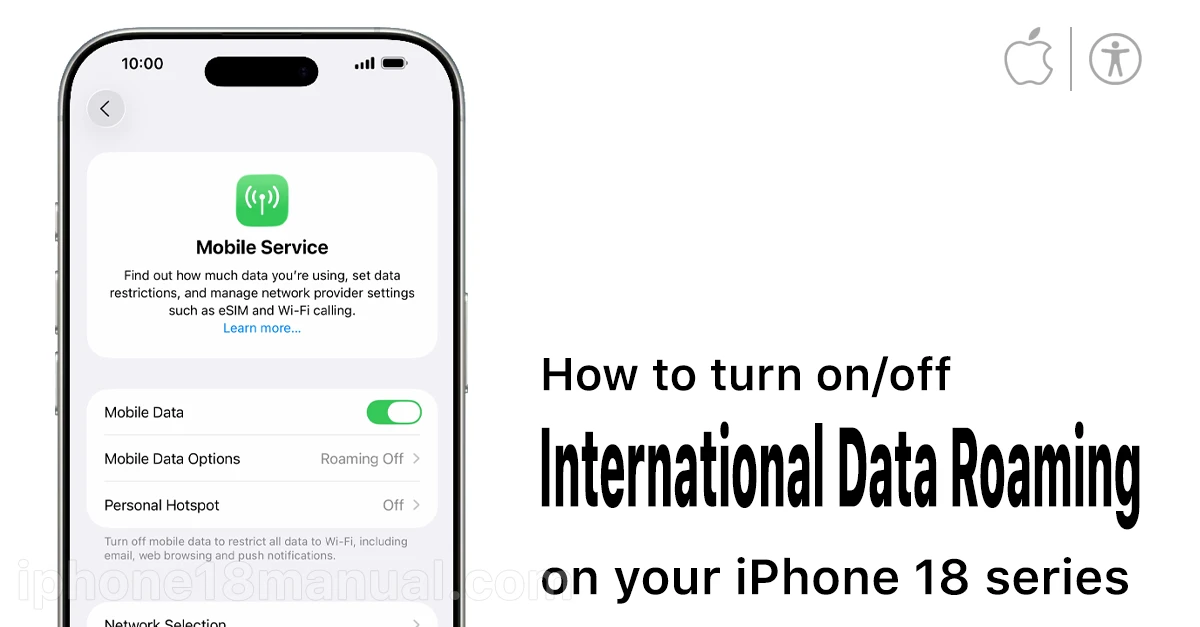
Before You Travel: Two Things to Check First
- Confirm roaming is active with your carrier. This is the step most people skip — and it’s the #1 reason roaming “doesn’t work.” The toggle on your iPhone controls whether the phone is allowed to roam, but your carrier controls whether your plan supports it. Contact your carrier or check their app to add an international roaming plan or travel pass before departure. Apple itself recommends shopping for an international plan before you go to avoid fees and higher rates.
- Make sure your iPhone 18 is unlocked or roaming-enabled. Carrier-locked devices may block foreign SIMs and eSIMs entirely.
How to Enable International Data Roaming on iPhone 18
Once your carrier confirms international roaming is active on your plan:
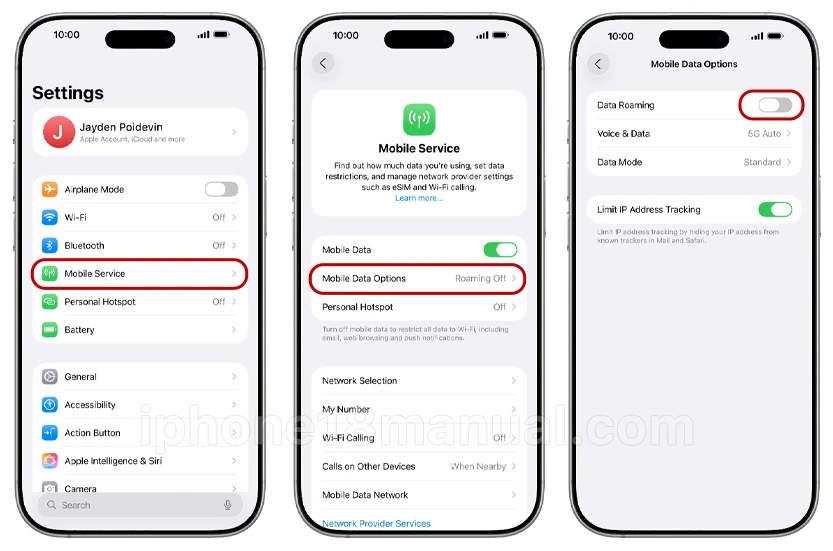
- Open the Settings app.
- Tap Cellular (called Mobile Data in some regions).
- Tap Cellular Data Options.
- Toggle Data Roaming on — the switch turns green.
That’s it. When you land, your iPhone 18 will automatically connect to a local partner network. If it doesn’t connect within a few minutes, toggle Airplane Mode on for 30 seconds and off again, or go to Settings > Cellular > Network Selection and make sure Automatic is enabled.
Apple’s official instructions confirm the path is identical whether your device uses a single SIM, Dual SIM, or Dual eSIM — you just select the specific line you want to roam with.
Setting Up Roaming on Dual SIM / eSIM (iPhone 18 Pro)
The iPhone 18 Pro supports Dual eSIM, and how you configure it matters:
- Go to Settings > Cellular and tap the specific line you want to use for data abroad.
- Enable Data Roaming for that line only.
- If you’re using a travel eSIM alongside your home line, set the eSIM as your Cellular Data line and turn roaming off for your home line — otherwise your home SIM may quietly rack up charges in the background.
This dual-line setup lets you keep your home number active for calls and texts while all data flows through the cheaper travel eSIM — a workflow travel eSIM providers strongly recommend.
Data Roaming Not Showing on Your iPhone 18? Try These Fixes
Can’t find the Data Roaming toggle at all? This is one of the most common iPhone roaming complaints, and it’s almost always one of these four causes:
- Your carrier hasn’t enabled roaming on your plan. The toggle is carrier-controlled — if your plan doesn’t support data roaming, the option may be hidden entirely. This is a carrier configuration issue, not an iPhone bug.
- Screen Time restrictions are hiding it. Go to Settings > Screen Time > Content & Privacy Restrictions and turn the master switch off (or check the allowed changes). Restricted accounts often lose access to cellular settings — a fix confirmed in Apple’s own forums.
- Reset network settings. Go to Settings > General > Transfer or Reset iPhone > Reset > Reset Network Settings. You’ll lose saved Wi-Fi passwords, but this clears corrupted carrier profiles.
- Check your date and time. If the clock is wrong after landing, go to Settings > General > Date & Time and enable Set Automatically — an incorrect time can prevent network registration.
How to Avoid International Roaming Charges on iPhone 18
Turning roaming on is easy; the bill afterward is where people get burned. Follow these rules:
- Buy a roaming plan or travel pass before you fly. Pay-per-MB rates can cost $10–15 per gigabyte. Carriers often include international data on select plans without additional fees — contact yours to find out.
- Monitor your usage. Go to Settings > Cellular and scroll down to see per-app data consumption. Roaming plans often throttle you to slower speeds after a cap.
- Use Airplane Mode + Wi-Fi as your default. Keep cellular data off and hop on Wi-Fi at hotels and cafés. You can still enable Wi-Fi while in Airplane Mode.
- Download offline maps and media before you go. Google Maps, Spotify playlists, and Netflix episodes all work offline and save serious data.
- Turn roaming OFF before you fly home — if your layover country isn’t covered by your plan, even a transit connection can trigger charges.
Frequently Asked Questions
- Where is the data roaming setting on iPhone 18? Settings > Cellular > Cellular Data Options > Data Roaming. On Dual SIM models, tap the specific line first.
- Does turning on data roaming cost money? The toggle itself is free — but any data you use while roaming is billed by your carrier unless you have a roaming plan, travel pass, or travel eSIM.
- Why does my iPhone 18 say “No Service” abroad? Usually one of three things: roaming isn’t enabled on your carrier plan, Data Roaming is toggled off, or your iPhone hasn’t re-registered on the local network (toggle Airplane Mode to force a reconnect).
- Should data roaming be on or off when I’m not traveling? Off. There’s no benefit to leaving it on at home, and it protects you from accidental charges near borders.
- Do the steps differ between iOS 26 and iOS 27 on iPhone 18? No — Apple has kept the path Settings > Cellular > Cellular Data Options > Data Roaming consistent across recent iOS versions.
Bottom Line
Enabling international data roaming on your iPhone 18 takes four taps: Settings > Cellular > Cellular Data Options > Data Roaming. The real work happens before you board the plane — confirm roaming with your carrier, secure a travel pass or eSIM, and download your offline maps. Do that, and you’ll land connected instead of hunting for airport Wi-Fi.
Traveling soon? Bookmark this guide and check back — we update it with every iOS release.