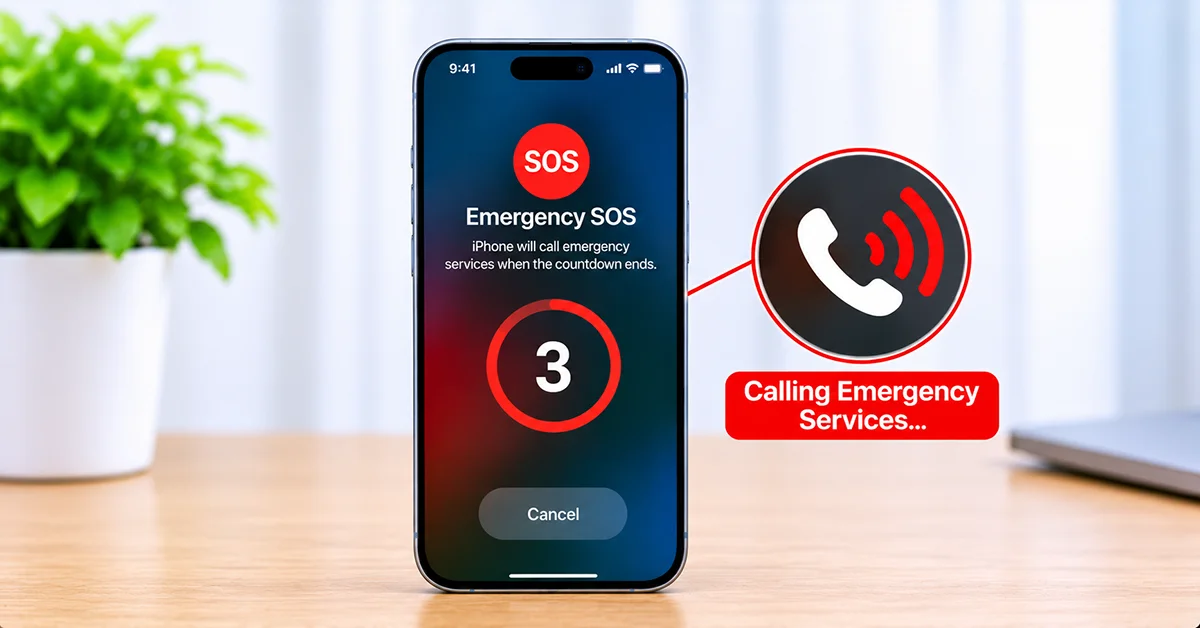
Emergency SOS on iPhone 18 lets you quickly contact emergency services when you need immediate assistance. You can activate it using the physical buttons, configure automatic emergency calling, share your location with trusted contacts, and access additional safety features such as Crash Detection and satellite emergency communication where supported.
To get started, open Settings > Emergency SOS to review your activation options. You should also configure your Medical ID and emergency contacts in the Health app before an emergency happens.
This guide explains how to activate Emergency SOS on iPhone 18, customize its settings, use satellite connectivity to share your location, and prevent accidental emergency calls.
What Is Emergency SOS on iPhone 18?
Emergency SOS is an integrated safety feature that helps you contact local emergency services without navigating through your contacts or unlocking your iPhone.
When activated, your iPhone can:
- Automatically call your local emergency services number.
- Share your available location information with emergency responders.
- Notify your designated emergency contacts after an emergency call.
- Send location updates to emergency contacts for a limited period.
- Provide access to your Medical ID information.
- Support satellite emergency communication in eligible countries and regions.
Emergency SOS is particularly useful during accidents, medical emergencies, personal safety incidents, and situations where you cannot easily navigate your phone.
How to Activate Emergency SOS on iPhone 18
There are two primary ways to activate Emergency SOS on iPhone 18: using the physical buttons or enabling the five-press shortcut.
Method 1: Use the Side and Volume Buttons
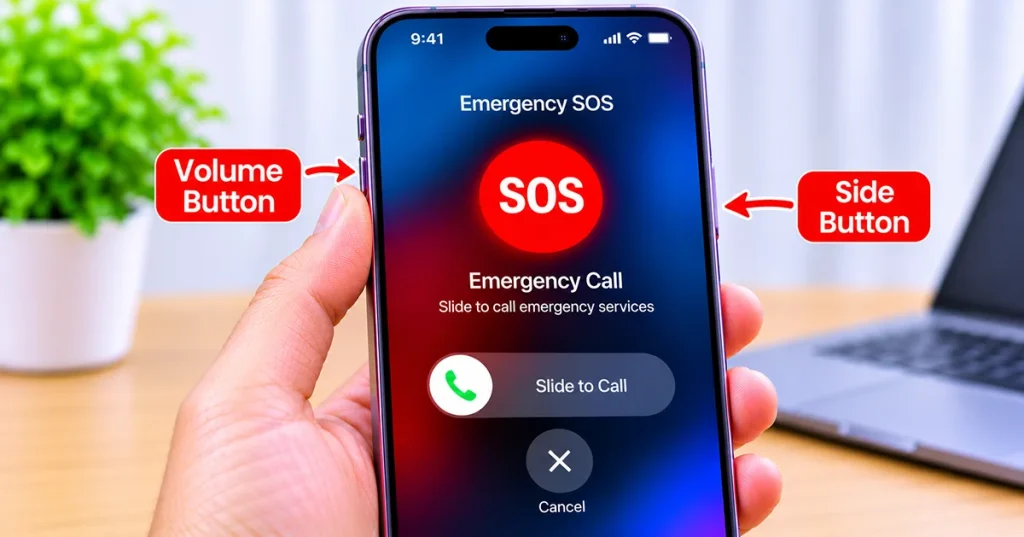
This is the standard activation method in most countries and regions.
- Press and hold the Side button and either Volume button simultaneously.
- Wait until the Emergency SOS screen appears.
- Continue holding both buttons until the countdown finishes.
- Your iPhone automatically calls emergency services.
Alternatively, drag the Emergency SOS slider to start the emergency call immediately.
After connecting, explain your situation to the emergency operator and follow their instructions.
Method 2: Press the Side Button Five Times
You can configure your iPhone to start Emergency SOS using five quick presses.
- Open Settings.
- Tap Emergency SOS.
- Find the Call with 5 Presses option.
- Turn it on.
- Quickly press the Side button five times when you need emergency assistance.
Your iPhone starts a countdown before placing the emergency call.
Note: Emergency calling shortcuts can differ by country. In India, Apple documents a three-press Side button method instead of the standard five-press shortcut.
How to Set Up Emergency SOS on iPhone 18
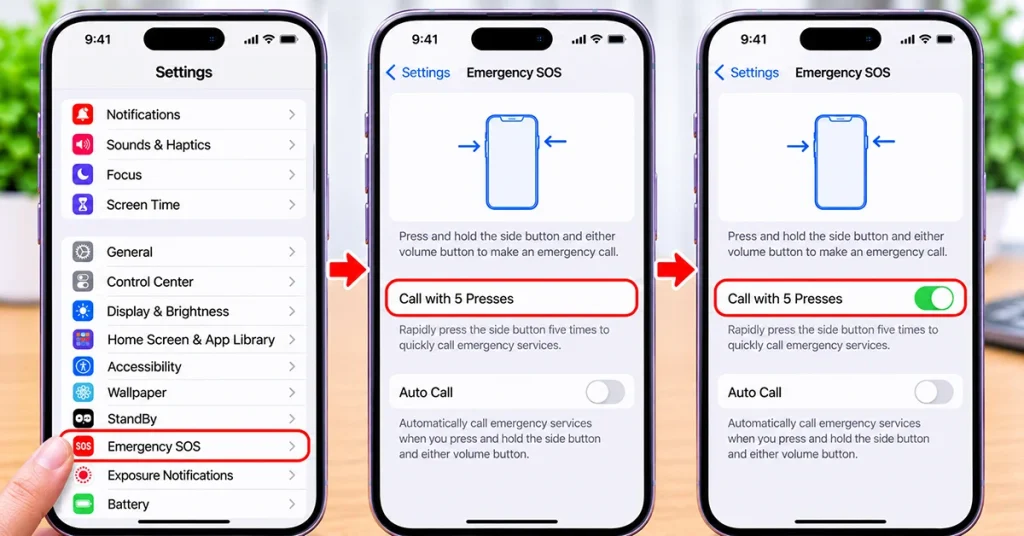
Before relying on Emergency SOS, review its settings and make sure your preferred activation method is enabled.
- Open Settings on your iPhone 18.
- Scroll down and select Emergency SOS.
- Review the available calling options.
- Enable or disable Call with Hold and Release according to your preference.
- Enable Call with 5 Presses if you want the shortcut.
- Review the available Crash Detection settings.
Your available options may vary depending on your region and iOS version.
Emergency SOS Settings Explained
| Setting | What it does |
|---|---|
| Call with Hold and Release | Starts an emergency countdown when you hold and release the Side and Volume buttons |
| Call with 5 Presses | Starts Emergency SOS after five quick Side button presses |
| Call After Serious Crash | Automatically initiates an emergency call when a supported severe car crash is detected |
Choose the activation method that you can use most comfortably without accidentally triggering an emergency call.
How to Add Emergency Contacts on iPhone 18
Emergency contacts are trusted people who receive notifications after you contact emergency services. Your iPhone can also share your location with them.
Follow these steps:
- Open the Health app.
- Tap your profile picture.
- Select Medical ID.
- Tap Edit.
- Scroll to Emergency Contacts.
- Tap Add Emergency Contact.
- Select someone from your contacts.
- Choose their relationship to you.
- Tap Done to save your changes.
You can also add important medical information, such as allergies and relevant medical conditions, to your Medical ID.
Enable Show When Locked so first responders can access your Medical ID without unlocking your iPhone.
After an emergency call, your selected contacts can receive a message explaining that you contacted emergency services, along with your location when available.
How to Use Emergency SOS via Satellite on iPhone 18
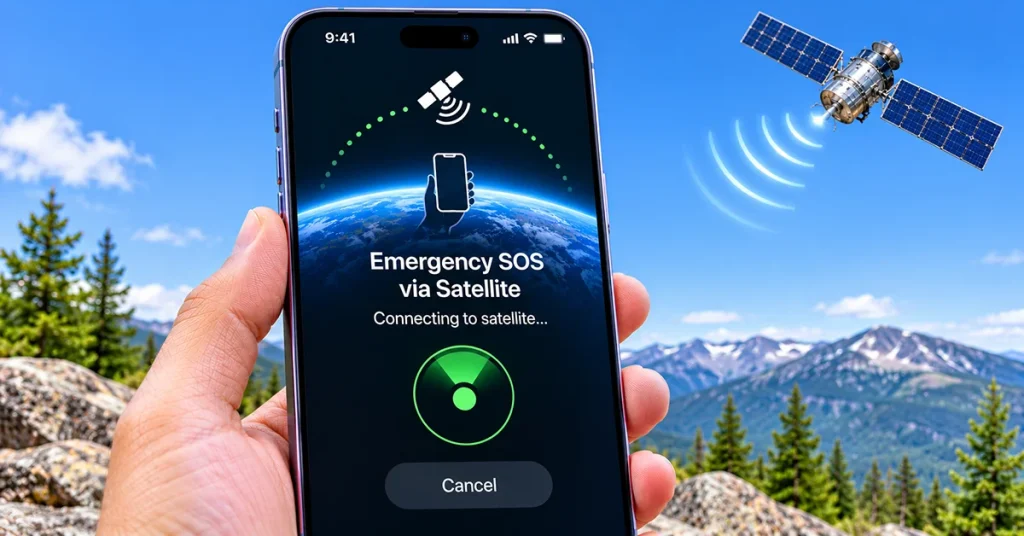
Emergency SOS via satellite can help you contact emergency responders when cellular and Wi-Fi connections are unavailable.
This feature is particularly useful when traveling in remote areas, hiking, or visiting locations without reliable mobile coverage.
To use it:
- Try calling your local emergency services number.
- If the call cannot connect, your iPhone may offer Emergency SOS via satellite.
- Tap Emergency Text via Satellite when prompted.
- Follow the on-screen emergency questions.
- Move outside with a clear view of the sky and horizon.
- Follow the instructions to connect your iPhone to a satellite.
- Send your emergency information and wait for a response.
Your iPhone may share important information, including your location, emergency questionnaire answers, Medical ID information, and emergency contact details.
Important: Emergency SOS via satellite is not available worldwide. Check Apple’s official availability information before relying on this feature when traveling.
Does iPhone 18 Have Automatic Crash Detection?
Crash Detection is designed to recognize certain severe car crashes and automatically contact emergency services when you cannot respond.
To check its settings:
- Open Settings.
- Tap Emergency SOS.
- Find Call After Serious Crash.
- Enable the option if available.
- Set up your emergency contacts in the Health app.
If your iPhone detects a severe crash, it displays an alert and starts a countdown. If you do not respond, it can automatically call emergency services.
Crash Detection is not guaranteed to identify every accident. Do not rely on it as a replacement for manually contacting emergency services when you need help.
How to Turn Off Emergency SOS on iPhone 18
If you frequently trigger Emergency SOS accidentally, you can disable the activation shortcuts.
- Open Settings.
- Select Emergency SOS.
- Turn off Call with Hold and Release if you do not want that activation method.
- Turn off Call with 5 Presses if you do not need the shortcut.
You can also review the Crash Detection setting separately.
Disabling these shortcuts does not remove your ability to make an emergency call manually from the Lock Screen.
Emergency SOS Not Working on iPhone 18? Try These Fixes
If Emergency SOS does not work as expected, consider these troubleshooting steps:
- Check your network: Make sure your iPhone can connect to a supported cellular network.
- Verify SOS settings: Open Settings > Emergency SOS and check your activation options.
- Update iOS: Install available software updates to address potential bugs.
- Check regional availability: Satellite emergency communication is restricted to supported countries and regions.
- Check your SIM or eSIM: Confirm that your cellular service is active and configured correctly.
Remember that an emergency call may still be possible through another available network even when your regular carrier has no coverage. However, emergency calling depends on local network support and regulations.
Final Thoughts
Emergency SOS on iPhone 18 provides an important safety feature that can help you contact emergency services when you need assistance. Set up your preferred activation shortcut, add trusted emergency contacts, and complete your Medical ID before an emergency occurs.
If you travel frequently, check satellite availability in your destination country and familiarize yourself with its local emergency numbers. A few minutes of preparation can make your iPhone’s safety features much more useful when you need them.
Frequently Asked Questions
Can I use Emergency SOS on iPhone 18 without unlocking it?
Yes. You can activate Emergency SOS using the physical buttons or access the Emergency option from the Lock Screen.
Does Emergency SOS automatically notify my contacts?
Yes. After an emergency call, your iPhone can send notifications and available location information to your configured emergency contacts.
Does Emergency SOS work without cellular service?
Your iPhone may route emergency calls through another available cellular network. Satellite emergency communication is another option in supported regions when cellular and Wi-Fi coverage are unavailable.
Can I cancel an accidental Emergency SOS call?
If the countdown has not finished, cancel the countdown using the on-screen option. If the call has already connected, do not simply hang up. Tell the emergency operator that the call was accidental.
Is Emergency SOS available in every country?
Emergency SOS calling is subject to local emergency network support. Satellite emergency communication has additional country and regional restrictions
Refference:
1 thought on “How to Set Up and Use Emergency SOS on Your iPhone 18”