To reduce power consumption on iPhone 18, adjust a few settings that drain battery throughout the day. Start by enabling Low Power Mode, lowering screen brightness, limiting background app activity, and turning off unnecessary wireless connections. You can also review battery usage to identify apps consuming excessive power. These simple adjustments help extend battery life, reduce unnecessary energy consumption, and keep your iPhone 18 running longer between charges.
15 Ways to Reduce Power Consumption on iPhone 18
Use this guide to make your iPhone 18 more power efficient while keeping the features you actually need.
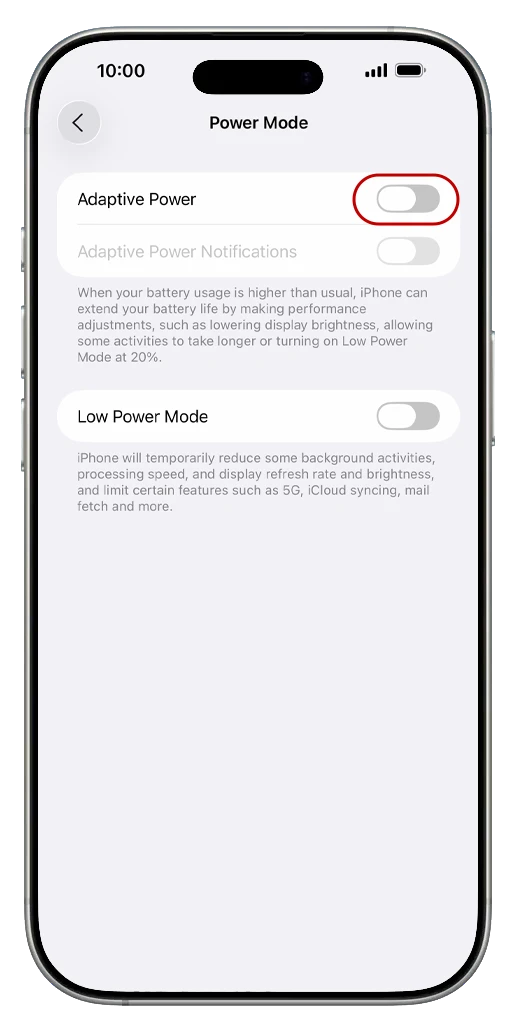
1. Turn on Adaptive Power
Adaptive Power is Apple’s smartest battery feature yet. It learns your usage patterns and automatically makes performance adjustments on days when you’re burning through battery faster than usual — and it can even turn on Low Power Mode automatically when you hit 20%.
How to enable it:
Open Settings > Battery.
Toggle on Adaptive Power.
This is the single best “set it and forget it” option for reducing power consumption on iPhone 18, so start here.
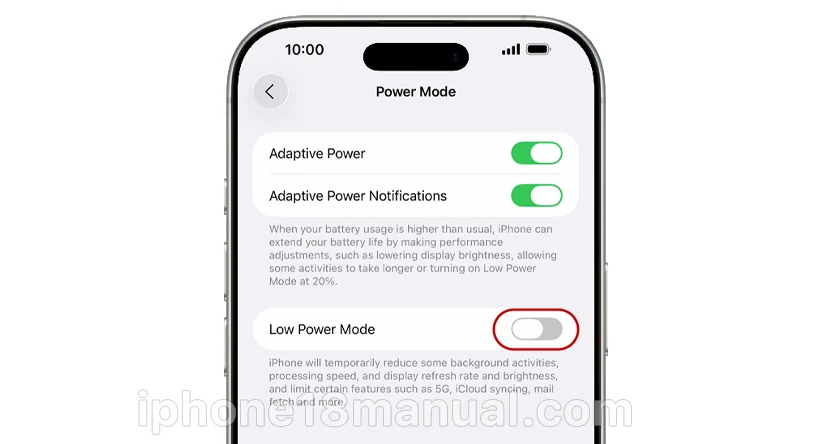
2. Use Low Power Mode Strategically
Low Power Mode reduces display brightness, minimizes system animations, and disables background downloads, Hey Siri, and some visual effects. It automatically switches off once you charge above 80%.
Pro tip: Don’t run it 24/7. Use it when you drop below 40–50%, or let Adaptive Power trigger it for you. Constantly throttling your phone’s performance defeats the purpose of owning an iPhone 18.
How to enable: Settings > Battery > Power Mode — or add it to Control Center for one-tap access.
3. Check the Daily Usage Chart to Find the Real Culprits
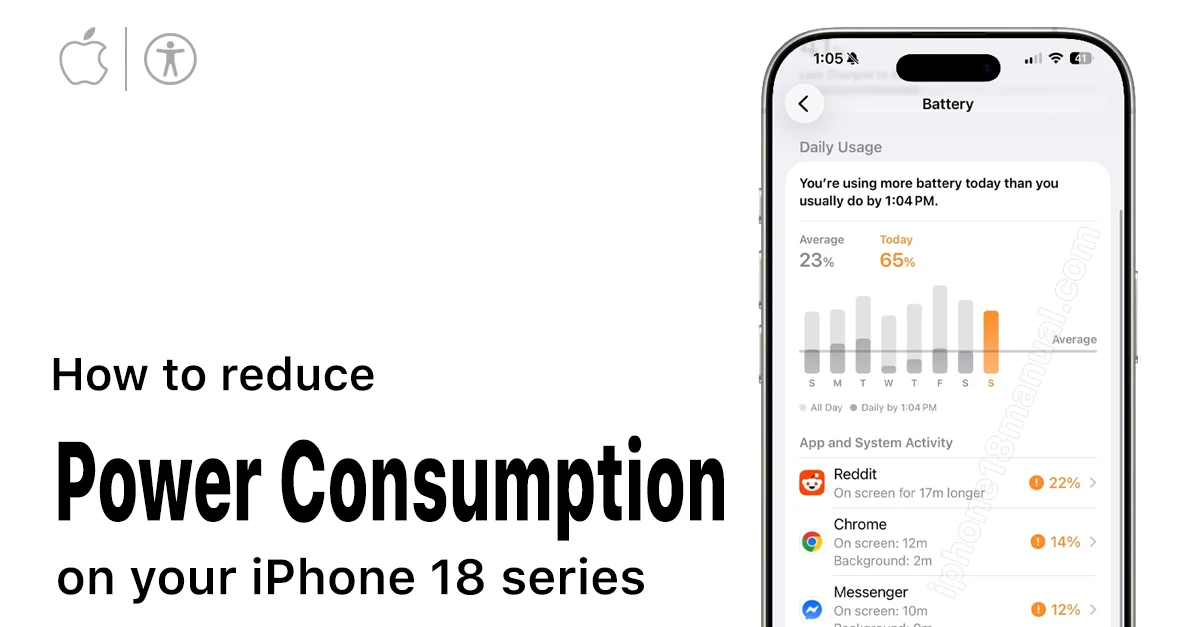
Before changing anything, diagnose the problem. iOS 27 adds a Daily Usage chart in Settings > Battery, showing exactly which apps and system activities consumed power. You may also see Insights — helpful alerts like “High Brightness” or “Auto-lock is off” with one-tap fixes.
Watch for these red flags:
Background Activity — an app draining power while you’re not using it
No Cell Coverage and Low Signal — your phone burning energy searching for towers
Notifications — an app constantly waking your screen
Fix the top one or two offenders before touching anything else.
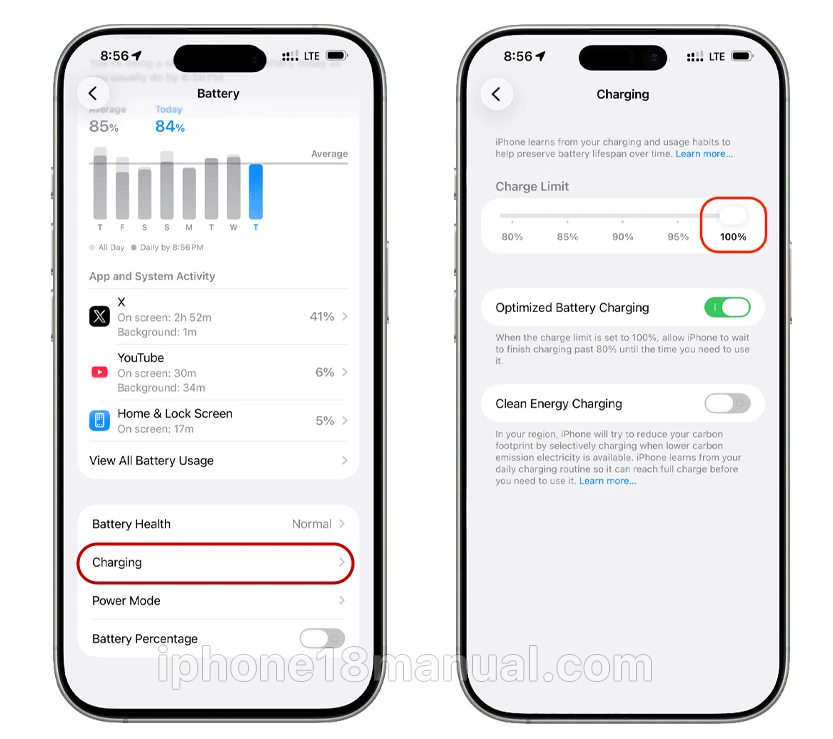
4. Set a Charge Limit to Protect Battery Health
Power consumption isn’t just about runtime today — it’s about capacity a year from now. Keeping a lithium-ion battery pinned at 100% accelerates chemical degradation. Setting a charge limit of 90% reduces that stress while barely affecting your daily usage.
How to set it: Settings > Battery > Charging > adjust the Charge Limit slider to 90% (or 80% if you’re extra protective).
5. Optimize the Always-On Display
The Always-On Display is convenient, but showing your wallpaper alongside the time and notifications uses extra power — especially noticeable overnight. Turn off Show Wallpaper to keep the essentials visible while cutting drain.
How to adjust: Settings > Display & Brightness > Always On Display > toggle off Show Wallpaper.
6. Switch 5G to 5G Auto (Smart Data Mode)
Constantly hunting for 5G towers in weak-signal areas is one of the biggest hidden drains. 5G Auto enables Smart Data mode: your iPhone 18 uses 5G only when it actually improves your experience, and drops to LTE the rest of the time.
How to enable: Settings > Cellular > Cellular Data Options > Voice & Data > 5G Auto.
7. Prefer Wi-Fi Over Cellular
Wi-Fi consistently uses less power than cellular networks — your phone transmits over short distances instead of reaching distant towers.
If you have poor signal at home or work, your iPhone works overtime scanning for towers. When signal is bad or unavailable for an extended period, switch on Airplane mode.
8. Tame Background App Refresh
Background App Refresh lets apps fetch updates even when closed — convenient, but a major drain for social media and email apps that sync constantly. Limit it to Wi-Fi only, or turn it off entirely; apps will simply update when you open them.
How to adjust: Settings > General > Background App Refresh > select Wi-Fi Only or Off.
9. Change Mail From Push to Fetch
“Push” keeps a constant server connection waiting for email. “Fetch” checks at intervals you choose — or only when you open the app — drastically cutting background activity.
How to change: Settings > Mail > Accounts > Fetch New Data > turn off Push, then set Fetch to Hourly or Manually.
10. Lock Down Location Services
GPS is one of the hungriest sensors on your phone. Set most apps to “While Using the App” instead of “Always,” and prune system services you don’t need (keeping Find My iPhone and Emergency SOS).
How to adjust: Settings > Privacy & Security > Location Services > review each app, then check System Services at the bottom.
11. Turn Off “Hey Siri”
Your iPhone 18 is always listening for the wake phrase, keeping the microphone and Neural Engine active. If you rarely use voice activation, invoke Siri with the side button instead.
How to disable: Settings > Siri > Talk to Siri > select Off.
12. Reduce Notifications and Live Activities
Every notification wakes the display — sometimes with sound and vibration too. Each wake cycle costs battery. Audit aggressively: turn off notifications for anything that isn’t urgent, and disable Live Activities for apps that update constantly (delivery trackers, sports scores).
How to adjust: Settings > Notifications, then per-app under Settings > Apps > [app] > Live Activities.
13. Trim Lock Screen Widgets
Widgets refresh periodically — some make network or GPS calls to do it. If you don’t glance at a widget regularly, remove it.
How: Press and hold the Lock Screen > Customize > tap the widget area > remove unneeded widgets.
14. Turn Off Keyboard Haptics
Every tiny buzz from the Taptic Engine uses power, and heavy texters trigger it thousands of times a day. Disable keyboard haptics (and key click sounds) to reclaim a few percent.
How to disable: Settings > Sounds & Haptics > Keyboard Feedback > toggle off Haptics.
15. Let Auto-Brightness and Auto-Lock Do the Work
The display is still the single biggest power draw. Enable Auto-Brightness so the screen dims appropriately, and set Auto-Lock to 30 seconds so the display never sits awake in your pocket.
How to enable: Settings > Accessibility > Display & Text Size > Auto-Brightness; Settings > Display & Brightness > Auto-Lock.
Bonus: What to Do If Your iPhone 18 Battery Suddenly Drains Fast
Just updated iOS? Wait a few days. Background tasks like photo indexing and iCloud syncing continue after an update and temporarily increase drain — you’ll see an “Ongoing iOS Update” Insight in Settings > Battery.
If drain persists after that:
Check the Daily Usage chart for a rogue app with high Background Activity.
Try Settings > General > Transfer or Reset iPhone > Reset All Settings (no data is deleted).
The most effective way to reduce power consumption on iPhone 18 is to combine a few high-impact adjustments rather than turning off everything. Enable Low Power Mode or Adaptive Power, lower screen demand, reduce unnecessary background activity, use sensible cellular settings, and check the Battery page for apps causing unusual drain.
For most users, these changes can improve daily battery life without making the iPhone feel restricted.
5 thoughts on “How to Reduce Power Consumption on iPhone 18 Series: 15 Settings That Actually Work”