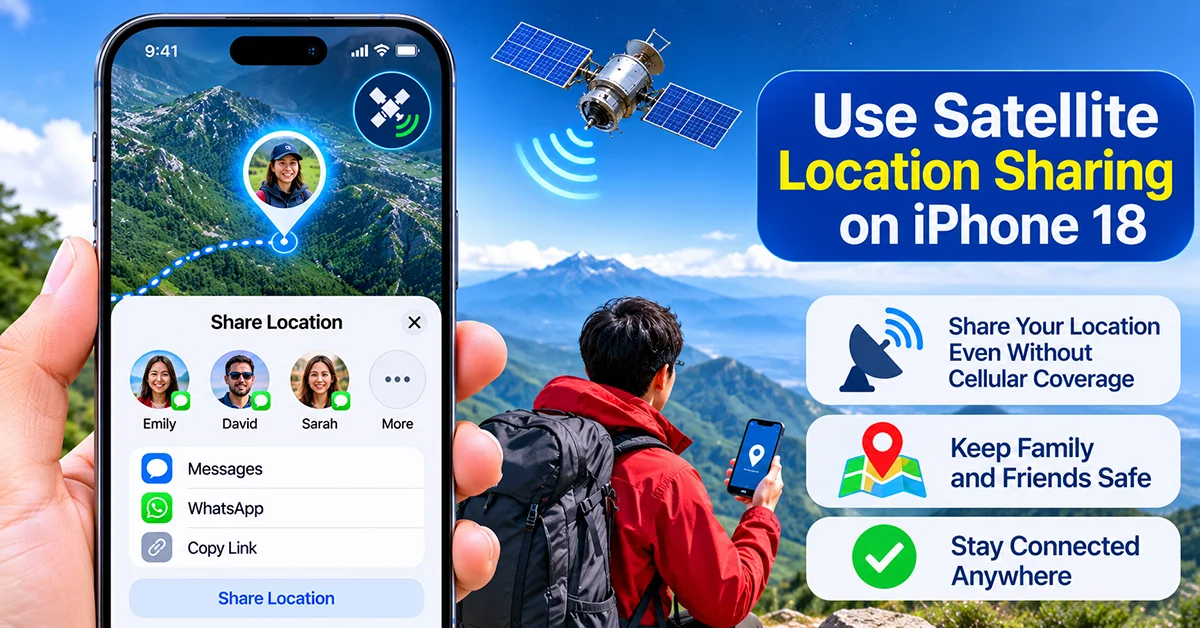
The iPhone 18 can help you share your location even when cellular service and Wi-Fi are unavailable, provided Apple’s satellite services are supported in your region. With Find My via satellite, you can send your current location to friends or family while hiking, traveling through remote areas, or exploring places without network coverage.
Unlike regular location sharing, satellite sharing does not require an active internet connection. However, you must prepare Find My before going offline, have an active SIM, and be somewhere with a clear view of the sky.
This guide explains how to set up iPhone 18 satellite location sharing, send your location without cellular service, and troubleshoot common connection problems.
Does iPhone 18 Support Satellite Location Sharing?
Yes. Apple’s satellite connectivity features support iPhone 14 and later models in eligible countries and regions. This includes compatible iPhone 18 models.
The feature works through the Find My app. When cellular and Wi-Fi connections are unavailable, your iPhone can connect to a satellite and send your location to contacts with whom you already share your location.
This is particularly useful for outdoor activities, road trips, hiking, and traveling through areas with limited mobile coverage.
However, satellite connectivity is not available everywhere. Check Apple’s current satellite availability list before relying on this feature during a trip.
What You Need Before Sharing Your Location
Before using satellite location sharing, make sure your iPhone meets these requirements:
| Requirement | Details |
|---|---|
| Compatible device | iPhone 14 or later, including compatible iPhone 18 models |
| iOS version | Compatible, up-to-date iOS software |
| SIM card | Active SIM |
| Find My | Share My Location enabled |
| Contacts | Already sharing your location with selected contacts |
| Network | No cellular or Wi-Fi connection required when sending via satellite |
| Environment | Outdoor location with a clear view of the sky and horizon |
| Availability | A country or region that supports Find My via satellite |
One important detail: satellite location sharing must be supported in your current region. Owning a compatible iPhone does not automatically mean the feature will work in every country.
How to Share Your Location via Satellite on iPhone 18
You can use the Find My app to send your current location when your iPhone cannot connect to cellular or Wi-Fi networks.
Follow these steps:
Step 1: Enable Share My Location
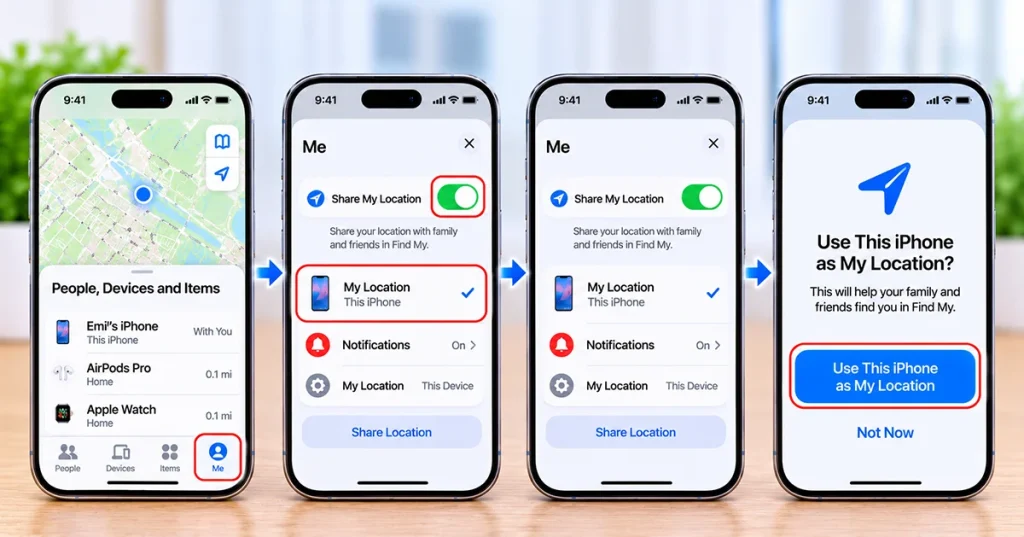
Before leaving an area with network coverage, configure Find My.
- Open the Find My app.
- Tap the Me tab.
- Turn on Share My Location.
- Make sure your iPhone 18 is selected as your location-sharing device.
- If necessary, tap Use This iPhone as My Location.
This ensures your iPhone 18 is the device that sends your location.
Step 2: Add Contacts to Find My
You must already share your location with the people who need to receive it.
- Open Find My.
- Select the People tab.
- Tap the Add button.
- Choose Share My Location.
- Select a contact.
- Send the invitation.
Complete this process while you still have cellular or Wi-Fi coverage.
You cannot start sharing your location with a completely new contact through the satellite location-sharing function when you are already offline.
Step 3: Move Somewhere With a Clear View of the Sky
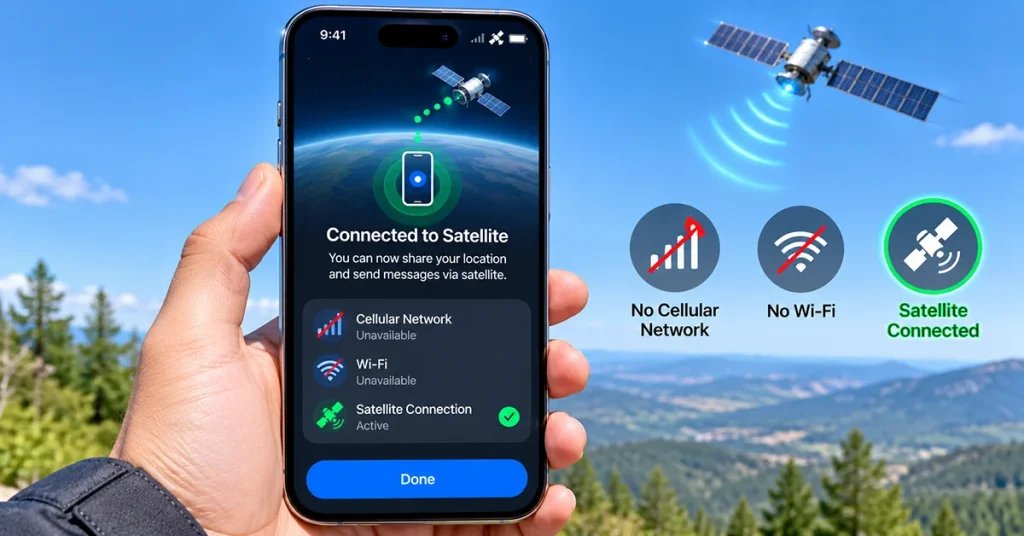
When you lose cellular and Wi-Fi coverage, find an open outdoor location.
For the best connection:
- Move away from tall buildings.
- Avoid dense trees and heavy foliage.
- Stay away from cliffs or mountain walls.
- Keep your iPhone in your hand rather than inside a backpack.
- Make sure the sky and horizon are visible.
Satellite connections need a relatively unobstructed path to communicate successfully.
Step 4: Open Find My and Send Your Location
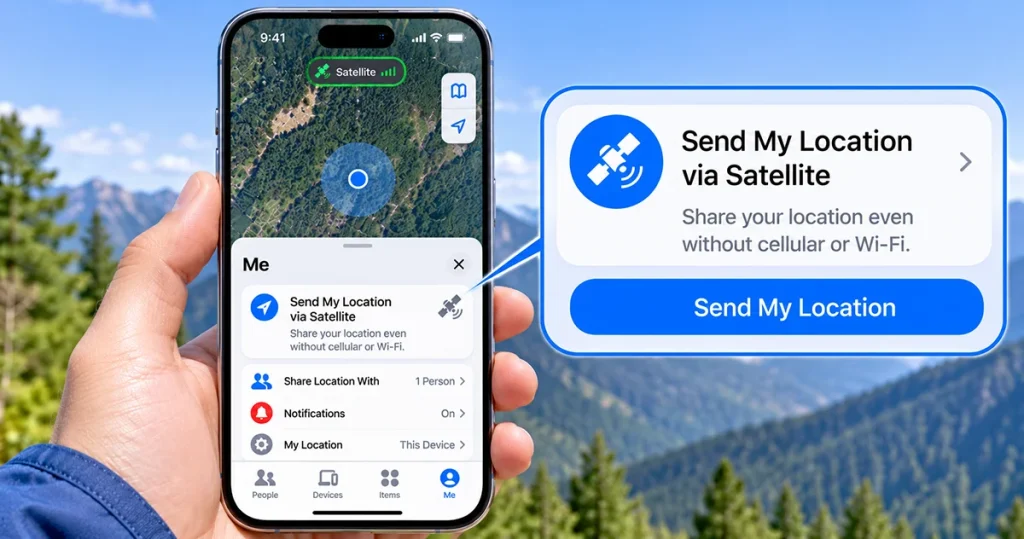
Once you are outside cellular and Wi-Fi coverage:
- Open the Find My app.
- Tap Me at the bottom of the screen.
- Find the My Location via Satellite section.
- Tap Send My Location.
- Follow the on-screen satellite connection instructions.
- Turn your iPhone left or right if prompted to improve the connection.
- Keep following the instructions until the location is successfully sent.
The process can take several minutes, depending on your surroundings and satellite availability.
Once completed, your selected contact can view your latest location in Find My.
Step 5: Confirm Your Location Was Sent
After sending your location, check the Find My app for confirmation.
Your contact can see your satellite location, marked with a satellite icon. The most recent satellite location can remain viewable for up to seven days.
Remember that you can send your location via satellite once every 15 minutes. This is not continuous real-time location tracking.
How to Prepare Find My Before Going Offline
Preparation is important because most Find My features require an internet connection.
Before hiking, camping, or traveling somewhere remote, complete these tasks:
| Preparation | Why It Matters |
|---|---|
| Enable Share My Location | Allows your iPhone to share its location |
| Select your iPhone 18 | Ensures the correct device provides your location |
| Add trusted contacts | Makes satellite sharing possible with existing contacts |
| Check your SIM | Satellite location sharing requires an active SIM |
| Update iOS | Helps ensure compatibility with satellite features |
| Charge your battery | Provides enough power for outdoor use |
| Check regional availability | Prevents unexpected feature restrictions |
You can also try Apple’s Satellite Connection Demo before your trip to understand how satellite connectivity works.
What Are the Limitations of Satellite Location Sharing?
Although satellite location sharing is useful, it has several limitations.
1. Limited country availability
Find My via satellite is not supported worldwide. Apple’s published availability list here.
2. No continuous location tracking
Satellite sharing sends an occasional location update rather than continuously tracking your movements. You can send your location once every 15 minutes.
3. Clear sky visibility is important
Buildings, mountains, cliffs, and dense trees can interfere with satellite connectivity.
4. Sending your location can take several minutes
Satellite communication is slower than regular cellular data. Be patient and follow the on-screen connection instructions.
5. You cannot see your friend’s location through satellite sharing
When you send your location via satellite, you cannot view your friend’s location in Find My through that satellite connection.
Satellite Location Sharing vs. Messages vs. Emergency SOS
Apple offers several satellite features, but each serves a different purpose.
| Feature | Main purpose | When to use it |
|---|---|---|
| Find My via satellite | Send your current location | Let friends or family know where you are |
| Messages via satellite | Send and receive text messages | Communicate without cellular or Wi-Fi |
| Emergency SOS via satellite | Contact emergency services | Get emergency assistance when no network is available |
| Roadside Assistance via satellite | Request vehicle assistance | Get help with eligible roadside emergencies |
Do not confuse location sharing with Emergency SOS. If you are in immediate danger, use Emergency SOS via satellite where available rather than relying on a regular Find My location update.
How to Fix iPhone 18 Satellite Location Sharing Not Working
If you cannot send your location via satellite, try these troubleshooting steps.
| Problem | Possible solution |
|---|---|
| Send My Location is missing | Check regional availability and satellite compatibility |
| Cannot connect to satellite | Move to an open area with a clear view of the sky |
| Location sharing is disabled | Turn on Share My Location in Find My |
| Contact cannot receive location | Confirm you already share your location with that contact |
| Satellite connection keeps failing | Move away from buildings, trees, and other obstructions |
| Feature unavailable despite compatible hardware | Check your active SIM, iOS version, and country availability |
If the feature remains unavailable, check Apple’s satellite support documentation for regional restrictions and device requirements.
Final Thoughts
iPhone 18 satellite location sharing is a useful safety feature for people who travel beyond normal cellular and Wi-Fi coverage. By configuring Find My, adding trusted contacts, and understanding satellite connection requirements before going offline, you can send your location when traditional networks are unavailable.
However, remember that satellite location sharing is not available worldwide and does not provide continuous tracking. Check regional availability before your next outdoor adventure.
Frequently Asked Questions
Can I share my location on iPhone 18 without cellular service?
Yes, through Find My via satellite in supported regions. You must enable location sharing and add your contacts before losing cellular and Wi-Fi coverage.
Does iPhone 18 satellite location sharing work everywhere?
No. Apple’s satellite services are restricted to supported countries and regions. Check Apple’s availability list before traveling.
Can I share my location through satellite without Wi-Fi?
Yes. Find My can send your location through satellite without cellular or Wi-Fi coverage, provided the feature is available in your region.
How often can I send my location via satellite?
Apple allows you to send your location via satellite once every 15 minutes.
Can someone see my location in real time?
No. Satellite location sharing sends individual location updates rather than continuous live tracking.
Is satellite location sharing free on iPhone 18?
Apple’s satellite feature pricing and complimentary access periods can depend on the device, activation terms, and region. Check Apple’s current terms before relying on long-term availability.
Refference: Apple Support – Send location via satellite in Find My.
2 thoughts on “How to Use Satellite Location Sharing on Your iPhone 18”