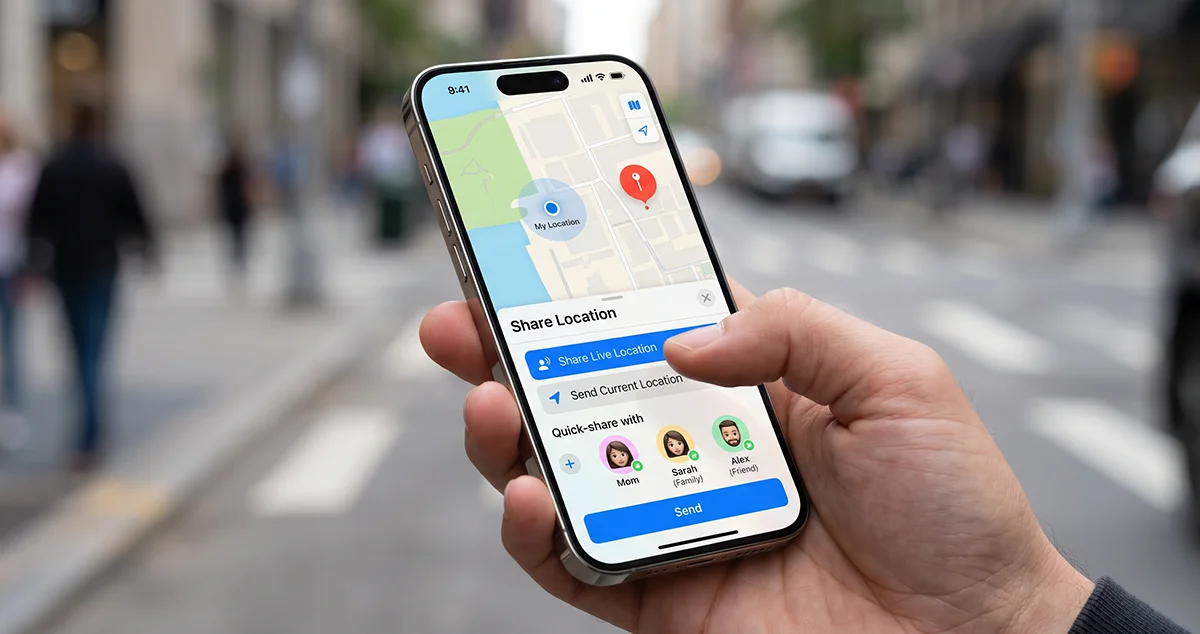
Sharing your location on iPhone 18 makes it easier for friends and family to find you, coordinate meetups, or follow your journey. You can share your current location through Messages, send your Live Location using Find My, or let someone track your estimated arrival time through Apple Maps.
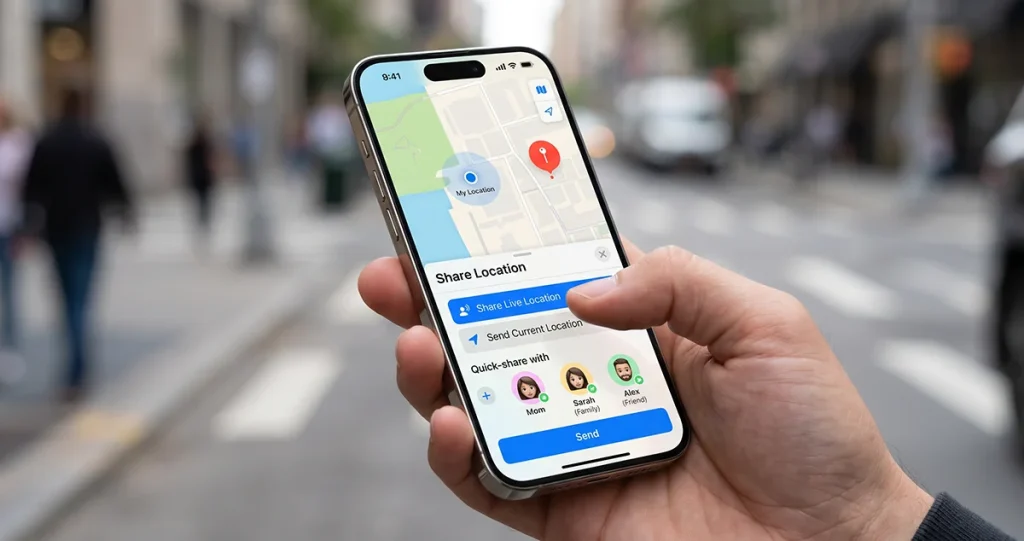
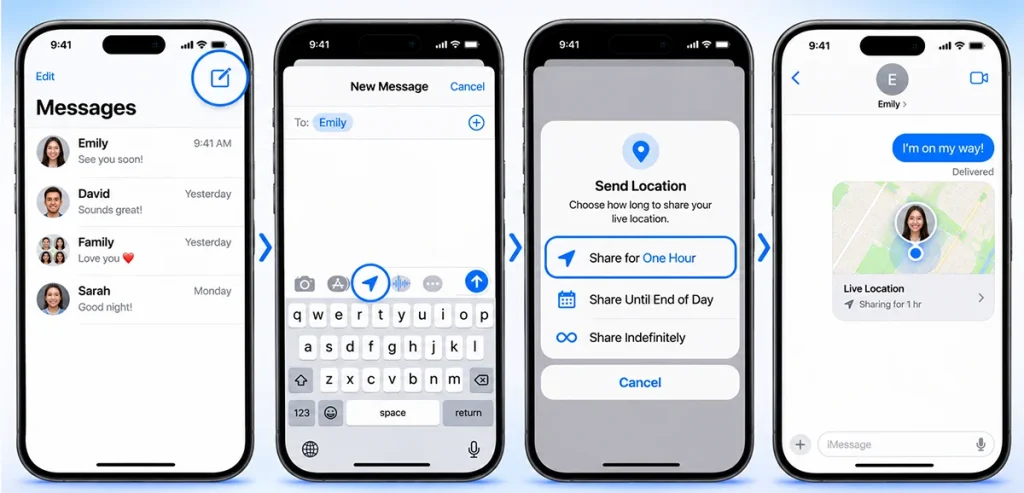
To share your location quickly, open Messages, select a conversation, tap the + button, choose Location, and select the sharing option you need. You can share a one-time location or let someone follow your movements for an hour, until the end of the day, or indefinitely.
Here are the different ways to share your location on iPhone 18 and how to control who can see it.
How to Share Location on iPhone 18 Using Find My (Best Method)
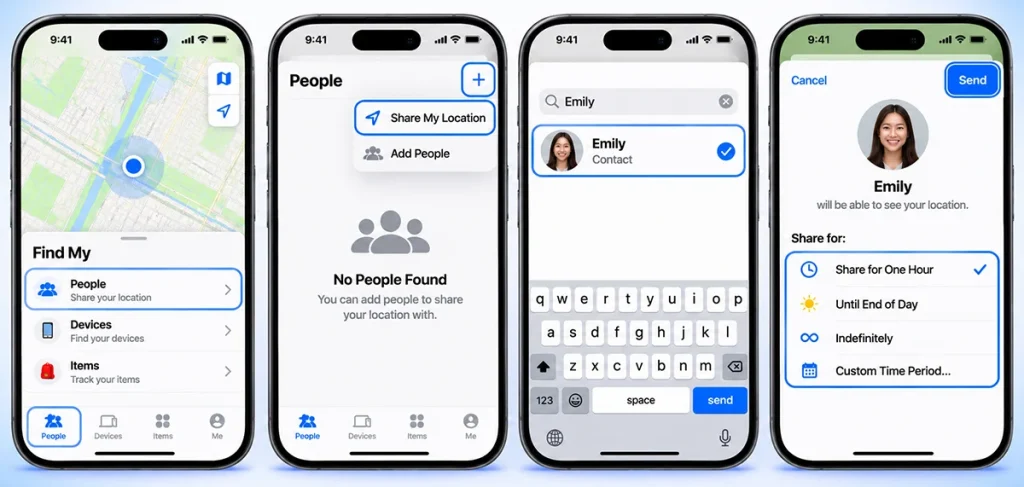
The Find My app is the most flexible way to share your location on iPhone 18. It works in real time, lets you pick exactly how long sharing lasts, and even supports satellite location sharing when you’re off the grid.
Before you start, turn it on:
- Open the Find My app.
- Tap the Me tab at the bottom.
- Toggle on Share My Location.
- Make sure Location Services is enabled: go to Settings → Privacy & Security → Location Services → Find My and set it to While Using the App.
To share with someone:
- Open Find My and tap the People tab.
- Tap the Add (+) button, then Share My Location.
- Type the person’s name or tap to select a contact.
- Tap Send, then choose a duration: Share for One Hour, Until End of Day, Indefinitely, or a custom time period.
Once shared, your contact can see your live location in Find My, Maps, Contacts, and at the top of your Messages conversation — and get directions straight to you.s shares a snapshot of your current location rather than tracking your movements.
How to Share Your Live Location in Messages
Prefer to share from an ongoing conversation? Messages on iPhone 18 lets you share your live location without leaving the chat. Note that this requires iOS 15 or later on both devices — easily satisfied on iPhone 18.
- Open a conversation (or start a new one) in Messages.
- Tap the + button, scroll down, and tap Location.
- Choose how long to share: one hour, until end of day, indefinitely, or a custom period.
- The recipient taps your location message to view you on a map and get directions.
Tip: In a group chat, everyone in the conversation can see your shared location.elected contact can view your location through Find My, Messages, and supported Apple apps.
How to Share Location Through Apple Maps
Apple Maps provides another convenient way to share your location or let someone follow your journey.
To share your current location:
- Open Maps on your iPhone 18.
- Find your current location on the map.
- Tap the blue location indicator or your location card.
- Select Share My Location.
- Choose Messages, Mail, or another available sharing method.
- Select a contact and send the location.
You can also share your estimated time of arrival (ETA) while following navigation directions.
Start a route in Apple Maps, then use the Share ETA option and choose a contact. The recipient can follow your progress and see your estimated arrival time while you navigate.
How to Share a One-Time Location Pin in Messages or Maps
Sometimes you don’t want to be tracked — you just want to show where you are right now. A one-time pin shares a static snapshot; the other person can’t follow you as you move.
In Messages: Open a conversation → tap + → Location → tap the Map Pin → Send Pin.
In Maps: Open Apple Maps, scroll down, tap Share My Location, and choose how to send the pin (Messages, Mail, AirDrop, and more).
How to Share Your ETA in Apple Maps
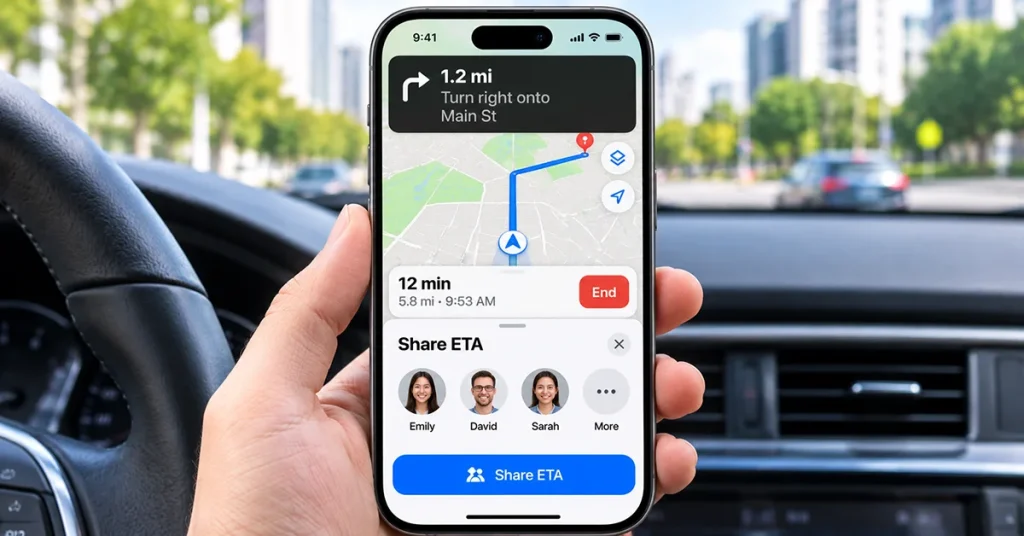
If you’re driving, cycling, or walking somewhere, you can share your estimated time of arrival — which also shares your live location so the recipient can follow your entire route, stops included.
- Start turn-by-turn navigation in Maps.
- Tap the route card at the bottom of the screen.
- Tap Share ETA and select a contact.
Your location sharing updates automatically and ends when you arrive.
How to Use Check In for Extra Safety
Newer than plain location sharing, Check In automatically notifies a trusted contact if you don’t arrive at your destination as expected — and shares your current location, route, iPhone battery level, and cell signal if something goes wrong.
- Open a conversation in Messages.
- Tap + → Check In → edit the destination and travel method if needed.
- Tap Send. Your contact gets a notification when you arrive — or your details if you don’t.
How to Share Your Location with Family
If you’re in a Family Sharing group, the organizer can set up location sharing so everyone appears in the Find My People tab automatically. You can also enable Automatically Share Location so new family members get access as they join.
- Open Settings → tap Family → Location Sharing.
- Under Share Your Location With, choose family members.
- Toggle on Automatically Share Location (optional).
This also lets family members help locate your iPhone if it’s ever lost.
How Long Can You Share Your Location?
Your iPhone 18 gives you control over how long another person can access your location.
| Sharing option | What it does | Best use |
|---|---|---|
| One-time location | Sends your current position as a pin | Meeting someone |
| For One Hour | Shares your ongoing location temporarily | Short trips |
| Until End of Day | Stops sharing at the end of the day | Daily travel |
| Indefinitely | Continues until you manually stop it | Trusted family members |
| Share ETA | Shares your journey and estimated arrival | Traveling to a destination |
Choose a duration that matches your needs. Avoid indefinite sharing with people you do not fully trust.
How to Stop Sharing Your Location on iPhone 18
You can stop sharing your location with one person or everyone at any time.
To stop sharing with a specific contact:
- Open Find My.
- Tap the People tab.
- Select the person.
- Scroll down and tap Stop Sharing My Location.
- Confirm your choice if prompted.
To stop sharing with everyone:
- Open Find My.
- Select the Me tab.
- Turn off Share My Location.
You can also open a Messages conversation, tap the contact’s name at the top, and select Stop Sharing My Location.
Stopping location sharing with someone in one supported app also stops sharing with that person across Apple’s location-sharing apps. The person is not notified that you have stopped sharing.
What to Do If Location Sharing Is Not Working
If your iPhone 18 cannot share your location, check your location settings, internet connection, and Apple Account configuration.
| Problem | Possible solution |
|---|---|
| Share My Location is unavailable | Check Settings > Privacy & Security > Location Services |
| Find My cannot locate you | Enable Location Services and check your connection |
| Contact cannot see your location | Confirm that you are sharing with the correct contact |
| Location is not updating | Check Wi-Fi or cellular connectivity and restart your iPhone |
| Messages cannot share location | Check Messages permissions and try again |
| Location sharing is disabled | Check Screen Time restrictions or device management settings |
Also check that Settings > [your name] > Find My > Share My Location is enabled and that your iPhone is the device selected for sharing.
If the problem continues, restart your iPhone 18 and install any available iOS software updates.
How to Protect Your Privacy When Sharing Location
Location sharing is useful, but you should review your sharing settings regularly.
Keep these precautions in mind:
- Share your location only with people you trust.
- Use temporary sharing for short trips and meetings.
- Review your contacts in Find My periodically.
- Avoid sharing your location publicly.
- Turn off location sharing when you no longer need it.
If you have a personal safety concern, Apple’s Safety Check feature can help you review and quickly stop sharing information with people and apps.
Final Thoughts
Sharing your location on iPhone 18 is simple with Messages, Find My, and Apple Maps. Use Messages for a quick location pin, Find My for ongoing Live Location sharing, or Maps to share your estimated arrival time.
Remember to choose the appropriate sharing duration and review your privacy settings regularly. This helps you stay connected with friends and family while maintaining control over your location information.
Frequently Asked Questions
Can I share my location with someone who uses Android?
Yes. You can send a location pin through Messages or share a map link using an available messaging app. However, Apple’s ongoing Live Location features have different compatibility requirements.
Can I share my iPhone 18 location without internet?
Live Location generally needs an available network connection to update. Apple also supports satellite location sharing in supported circumstances and regions when cellular and Wi-Fi coverage are unavailable.
How do I know if someone can see my location?
Open Find My, tap People, and review the contacts listed there. Select a person to check your sharing relationship and available controls.
Does sharing my location drain the battery?
Location sharing can use battery power, particularly when your iPhone continuously updates its position. The impact depends on your network connection, device usage, and other background activities.
Can I share my location temporarily?
Yes. Choose an available temporary duration, such as one hour or until the end of the day, instead of indefinite sharing.
Sources and accuracy references:
The following Apple documentation supports the sharing instructions:
- Apple Support – Share your location with iPhone — primary reference for Messages, Find My, Maps, sharing durations, and privacy.
1 thought on “How to Share Location on iPhone 18: The Complete Guide (Messages, Find My & Privacy)”