If Live Listen is active on your iPhone 18, you can turn it off directly from Control Center. Open Control Center, tap the Hearing or Hearing Devices control, select your connected AirPods or compatible hearing device if necessary, and tap Live Listen to stop transmitting microphone audio.
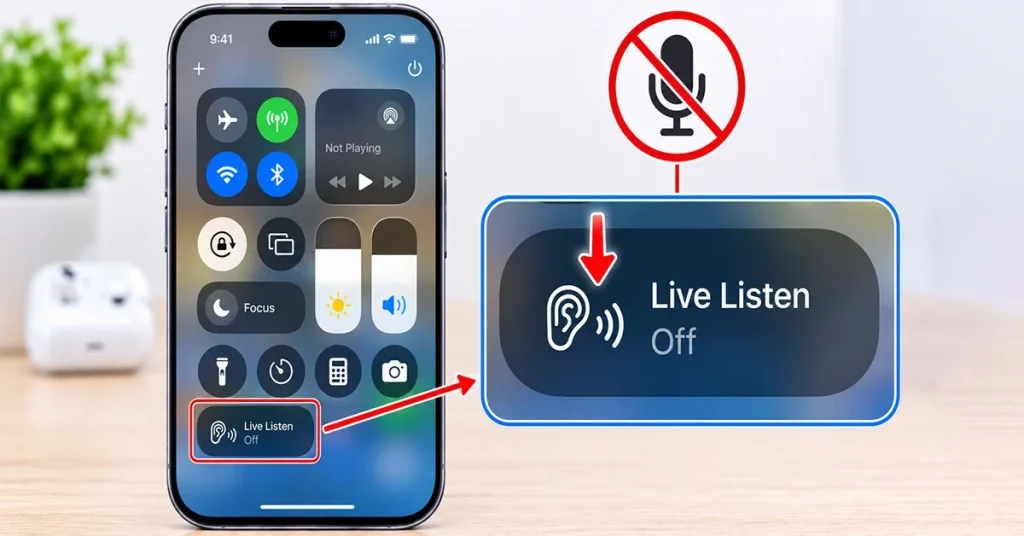
Live Listen is an accessibility feature that turns your iPhone into a remote microphone. It sends nearby sounds to compatible AirPods, Beats headphones, or hearing devices, making conversations easier to hear in noisy environments. However, you may want to disable it when you finish using it, especially if you no longer need microphone audio streamed to your headphones.
This guide explains how to turn off Live Listen on iPhone 18, check its status, and troubleshoot common problems.
What Is Live Listen on iPhone 18?
Live Listen is an Apple accessibility feature that uses your iPhone’s built-in microphone to capture nearby sounds and stream them to compatible wireless headphones or hearing devices.
For example, you can place your iPhone near someone speaking and listen through your AirPods from a short distance away. This can be helpful in crowded environments, classrooms, meetings, and noisy public places.
However, Live Listen is different from ordinary audio playback. Instead of playing music or videos, it sends sound captured by the iPhone microphone to your connected listening device.
Turning it off stops this microphone streaming session without disconnecting your AirPods or affecting other Bluetooth settings.
How to Turn Off Live Listen on iPhone 18 Using Control Center
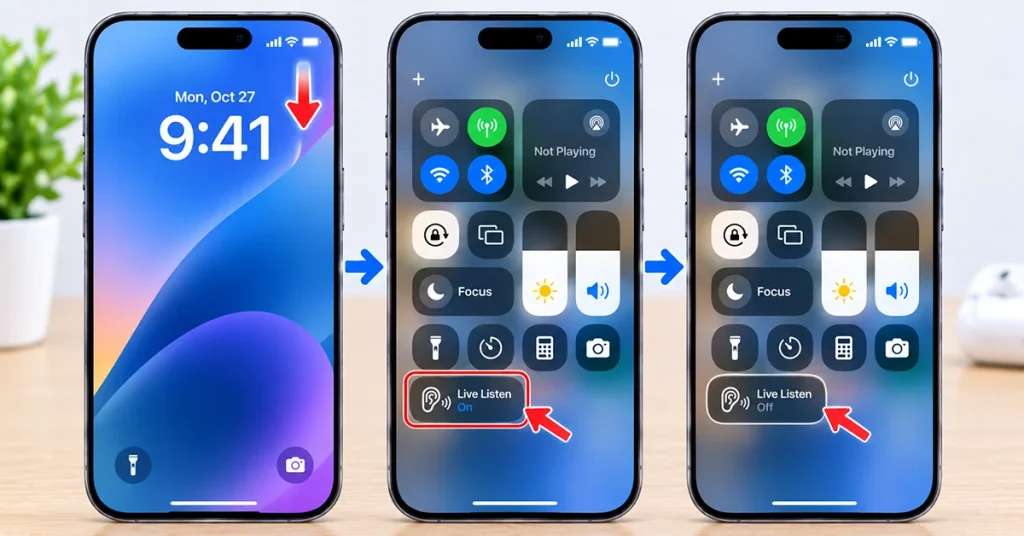
The quickest way to disable Live Listen is through Control Center. Follow these steps:
- Unlock your iPhone 18.
- Swipe down from the top-right corner of the screen to open Control Center.
- Find and tap the Hearing or Hearing Devices control, usually represented by an ear icon.
- Select your connected AirPods or compatible hearing device if prompted.
- Locate the Live Listen option.
- Tap Live Listen to turn it off.
- Confirm that the feature is no longer active.
Once disabled, your iPhone stops sending microphone audio to your connected listening device.
Important: Depending on your iOS version and Control Center layout, you may see a dedicated Live Listen button instead of the Hearing Devices menu. In that case, simply tap the Live Listen control to stop the session.
How to Turn Off Live Listen If You Cannot Find the Hearing Control
If the Hearing or Hearing Devices icon does not appear in Control Center, you may need to add it manually.
Follow these instructions:
- Open Control Center by swiping down from the top-right corner.
- Touch and hold an empty area to enter editing mode.
- Tap Add a Control.
- Search for Hearing under the available controls.
- Select the Hearing control to add it.
- Return to Control Center.
- Tap the newly added control and locate Live Listen.
- Select your connected headphones and turn Live Listen off.
After adding the control, you can access Live Listen more easily whenever you need to check its status.
Alternative Ways to Stop Live Listen on iPhone 18
If the regular Control Center method does not work, try one of these alternatives.
1. Disconnect Your AirPods or Beats
Disconnecting your listening device can stop the Live Listen audio connection.
- Open Control Center.
- Tap the Bluetooth or audio connection control.
- Disconnect your connected AirPods or Beats.
You can also place your AirPods in their charging case and close the lid.
Keep in mind that disconnecting your headphones is a workaround, not the preferred method. Turning off Live Listen directly is more convenient because it allows you to continue using your headphones normally.
2. Use the Accessibility Shortcut
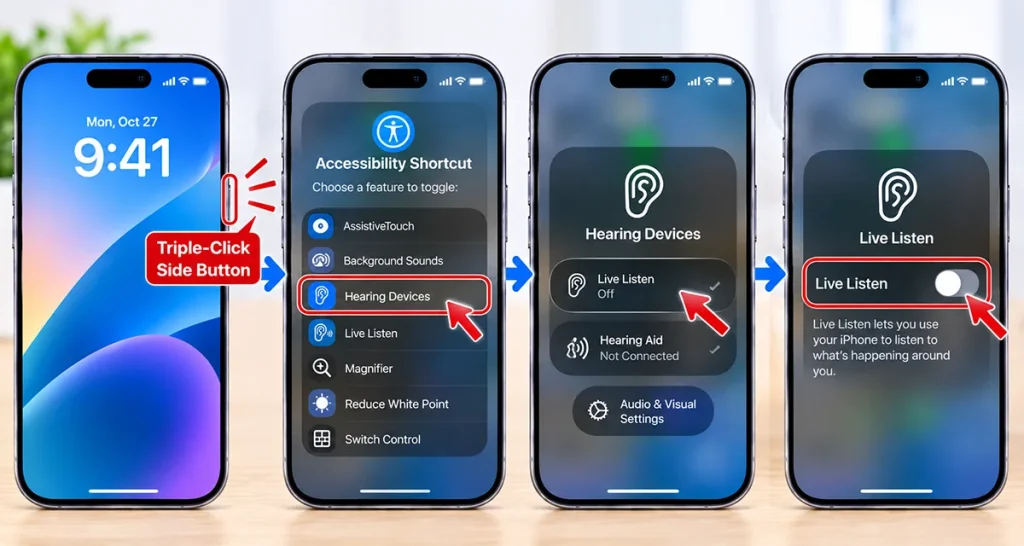
If you have configured an Accessibility Shortcut for hearing features, you may be able to access the hearing controls using the shortcut.
- Triple-click the iPhone 18 side button.
- Look for the Hearing Devices option.
- Open the hearing controls.
- Select Live Listen and turn it off.
This method depends on your configured Accessibility Shortcut options. If Hearing Devices is not available, use Control Center instead.
3. Turn Off Remote Control Access
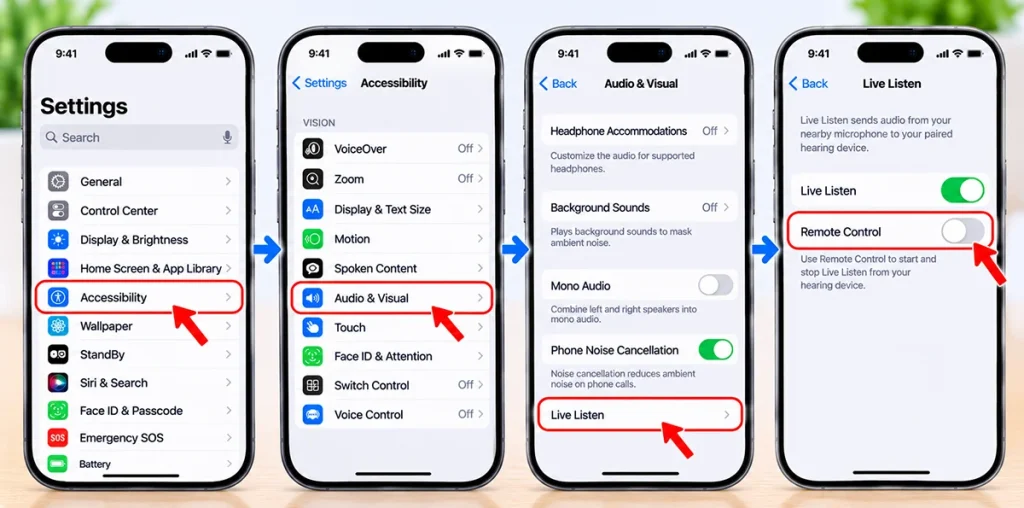
If your main concern is preventing Live Listen from being controlled remotely, check whether your iOS version provides a Remote Control option for Live Listen.
Open Settings > Accessibility > Audio & Visual > Live Listen and review the available controls. If a Remote Control switch is present, turn it off to restrict remote activation.
This is different from ending an active Live Listen session. You should still disable Live Listen through Control Center.
Live Listen Won’t Turn Off on iPhone 18? Try These Fixes
Sometimes Live Listen may appear to remain active even after you tap its control. Try the following troubleshooting methods.
Restart Your iPhone 18
A temporary software issue may prevent the hearing controls from updating correctly.
- Press and hold the side button and either volume button.
- Drag the power-off slider.
- Wait for your iPhone to shut down.
- Turn it back on using the side button.
- Open Control Center and check Live Listen again.
Reconnect Your AirPods
If your AirPods are not responding properly, disconnect and reconnect them.
- Open Settings.
- Tap Bluetooth.
- Find your AirPods in the device list.
- Disconnect them.
- Reconnect your AirPods.
- Open Control Center and check the Live Listen status.
Update iOS
An outdated iOS version can sometimes cause accessibility features to behave unexpectedly.
Go to Settings > General > Software Update and check whether an update is available. Install an appropriate update if necessary.
Check the Connected Hearing Device
If you use compatible hearing aids or Beats headphones, check which device is selected in the Hearing menu. Make sure you are changing the Live Listen setting for the correct connected device.
Related troubleshooting guides:
Live Listen vs. Other iPhone Listening Features
It is useful to understand the difference between Live Listen and other audio features on your iPhone 18.
| Feature | Main purpose | How to manage it |
|---|---|---|
| Live Listen | Streams nearby microphone audio to compatible headphones | Control Center > Hearing |
| Transparency Mode | Allows outside sounds to pass through AirPods | AirPods listening controls |
| Noise Cancellation | Reduces surrounding environmental noise | AirPods listening controls |
| Sound Recognition | Detects selected environmental sounds | Settings > Accessibility |
| Headphone Audio Levels | Monitors headphone listening volume | Control Center or Health app |
Turning off Live Listen does not automatically disable Transparency Mode, Noise Cancellation, or Sound Recognition. These features have separate controls.
Frequently Asked Questions
No. Disabling Live Listen only stops the microphone streaming session. Your AirPods can remain connected to your iPhone for music, calls, and other audio.
Live Listen is designed to transmit microphone audio to compatible listening devices. It is not a standard voice-recording feature and does not automatically save conversations as audio files.
Yes. Live Listen also supports certain compatible Beats headphones and Made for iPhone hearing devices. Compatibility depends on the listening device and software version.
Check your Control Center and Accessibility Shortcut settings. Also review any available Live Listen remote-control options. If the problem continues, restart your iPhone and update iOS.
Yes. Enter Control Center editing mode, find the Hearing or Live Listen control, and remove it if your iOS version allows you to do so. Removing the shortcut does not necessarily disable the underlying accessibility feature.
Final Thoughts
Turning off Live Listen on iPhone 18 is straightforward. Open Control Center, access the Hearing or Hearing Devices control, select your connected listening device if needed, and disable Live Listen.
If you cannot find the control, add Hearing to Control Center or use your configured Accessibility Shortcut. You can also reconnect your AirPods or restart your iPhone if the feature does not respond.
Disabling Live Listen stops microphone audio streaming while allowing you to continue using your AirPods and other connected devices normally.
References:
